
Build an AI-powered mini app with Google Opal

Google Labs’ no-code mini-app builder, Opal, is now accessible inside the Gemini web app through the Gems manager. You can now prototype a workflow, test it, and keep it as a reusable asset.
Here are some key features of Opal
- No-code building: Describe what you want in natural language; Opal generates a working mini-app and the underlying workflow.
- Visualized steps: Your app is visualized as an editable set of steps you can inspect, reorder, and refine.
- Fast testing loop: You can preview and interact with the app to see what works (and what breaks) before sharing.
- Hosted and shareable: Opal handles hosting so you can publish and share without setting up servers.
- Reusable in Gemini via Gems (experimental): Opal workflows can be saved and reused in Gemini as Gems with the latest update, turning one-off prompts into repeatable workflows.
Some people are already seeing this as “Opal inside Gems.” While waiting for the rollout, this week we’ll experiment with creating a mini-app directly on the Google Opal site.
Step 1: Describe the app you want to build
Open Opal, create a new Opal, and write a clear “job story” for your app: who it’s for, what they upload/input, what the app returns, and what a good outcome looks like (format, length, tone).
Use or adapt this example prompt:
“Create an app that lets users upload a data file (CSV or Excel) and automatically turns it into a one-page report with clear charts, key metrics, and concise insights drawn from the data.”
Step 2: Review the workflow
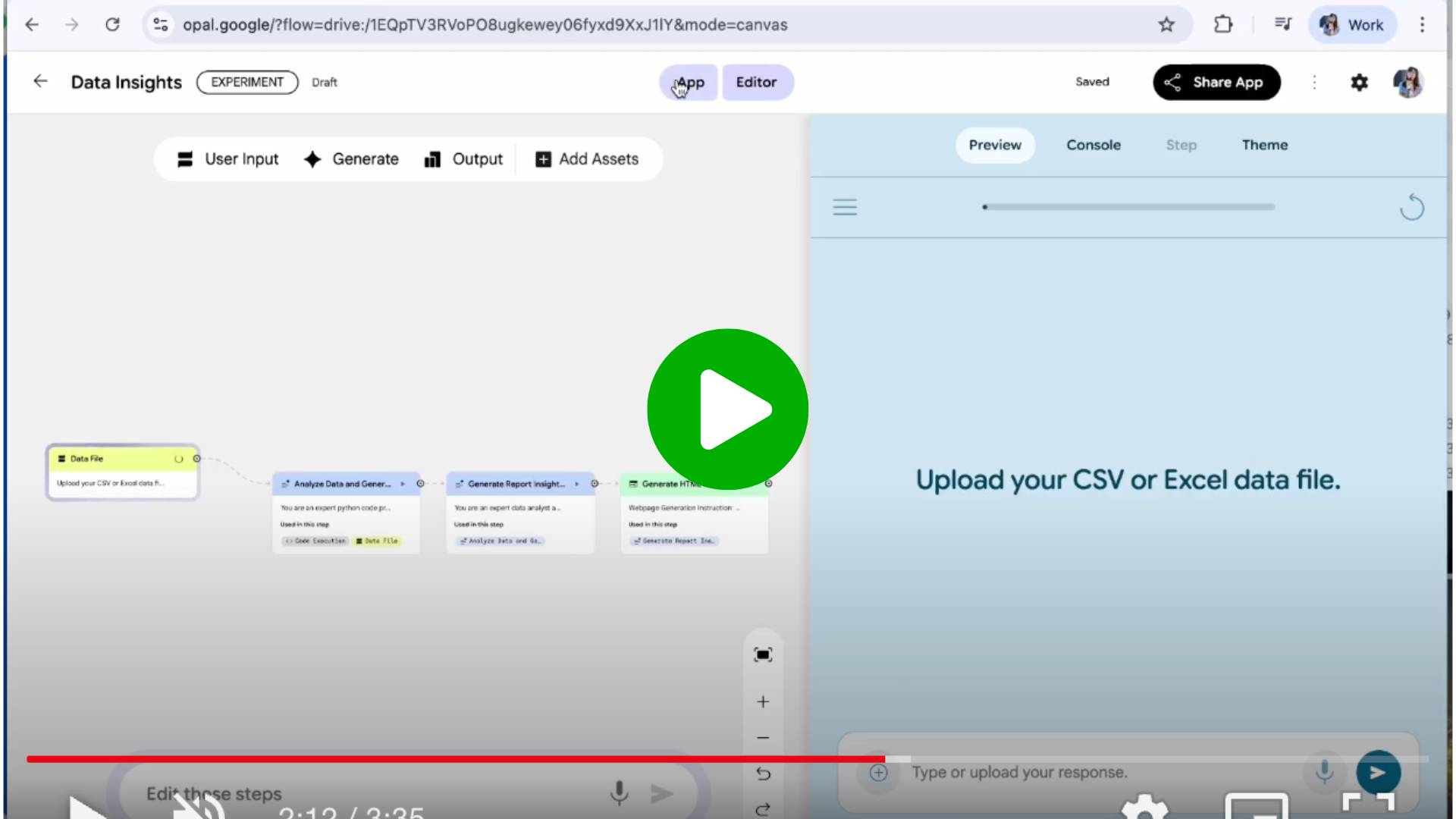
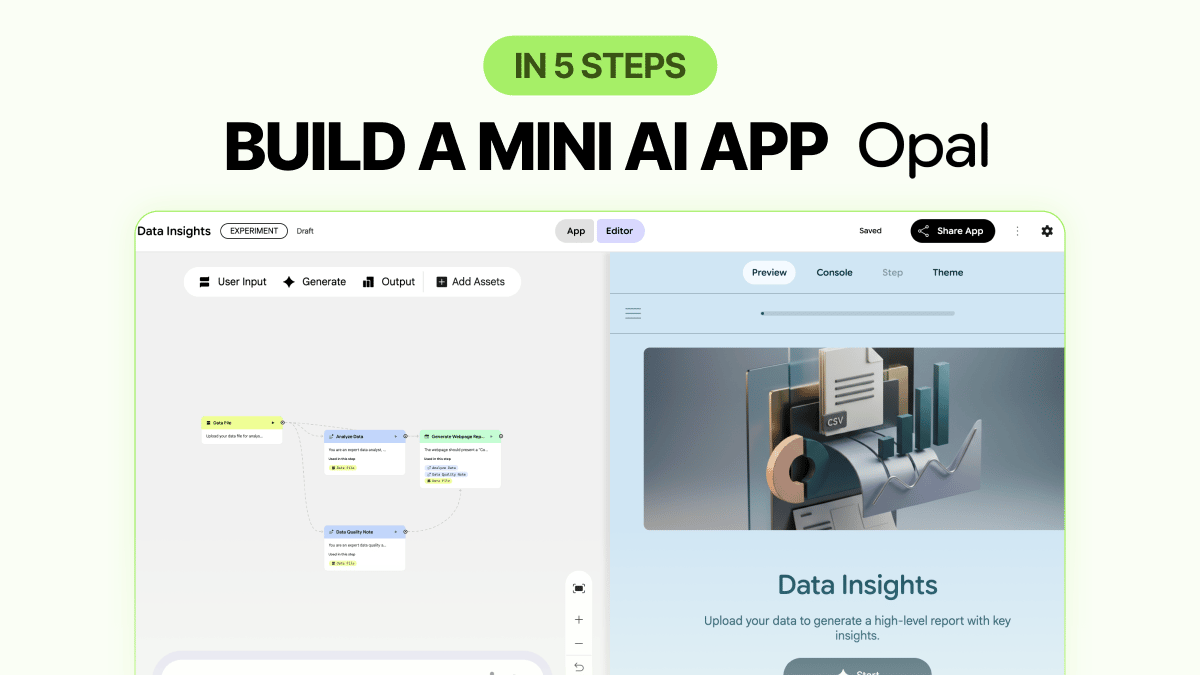
After you submit your prompt, Opal automatically breaks it down into a visual workflow made up of connected steps, such as uploading the CSV, analyzing the data, generating insights, and turning everything into a one-page report. Scan through these steps to understand how Opal interpreted your request.
Step 3: Preview and test
Once the app is generated, use the preview experience or click the App button to test it. Try uploading a CSV file or selecting an Excel file from your Google Drive to see how it works. At this stage, the output should be a one-page report that highlights concise key insights alongside relevant charts and visualizations.
Step 4: Edit any step using natural language
You can edit the steps using natural language in the same chatbot where you built it. Examples:
- “All image placeholders should be replaced with generated charts.”
- “If the dataset has a date column, make the first chart a trend line; otherwise use a bar chart of top categories.”
- “Add a short ‘Data quality notes’ section: missing values, duplicated rows, and unusual spikes.”
- “Rename the report sections to: Summary, Key Metrics, Charts, Insights, Data Notes.”
Step 5: Publish and share your Opal app
When you’re happy, publish and share it. Because Opal handles hosting, sharing is straightforward.
Once Opal is available in the Gemini web app, this is exactly the kind of workflow that becomes powerful as a reusable “tool” inside your day-to-day Gemini setup.
PRO Members: watch the video tutorial here: In 5 Steps: Build an AI-powered mini app with Google Opal