
Create a Slide Deck + Infographic Using NotebookLM

NotebookLM recently added two major capabilities that make it much easier to turn research into professional visuals: slide decks and infographics.
Both are powered by Nano Banana Pro, the visual-generation engine behind the latest Gemini models.
These features let you quickly turn source materials into structured presentations, generate clean infographics without design work, and adjust tone or detail with simple prompt changes.
Below is a short guide on how to use them to create a deck and infographic on AI in the Workplace.
Step 1: Gather your sources quickly with Discover Sources
Start by using the Discover Sources feature to pull in relevant materials on the topic you’re working on. In this tutorial, we are looking for articles on “AI in the Workplace.”
Select the articles, reports, or summaries you want, and import them directly into your Notebook.
This keeps everything in one place and ensures the outputs stay grounded in your chosen sources.
Step 2: Generate your slide deck
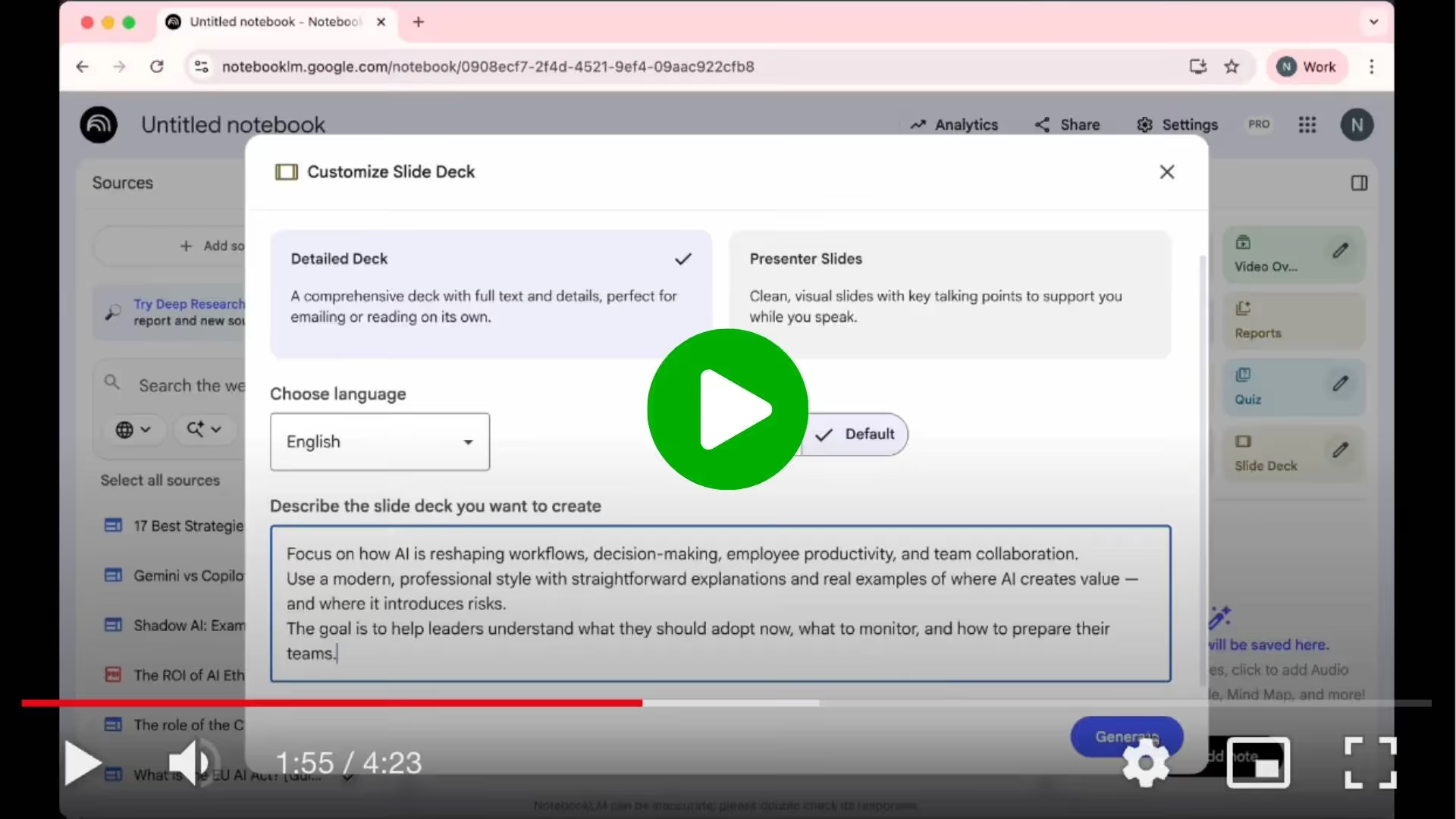
Click the Slide Deck button in your notebook.
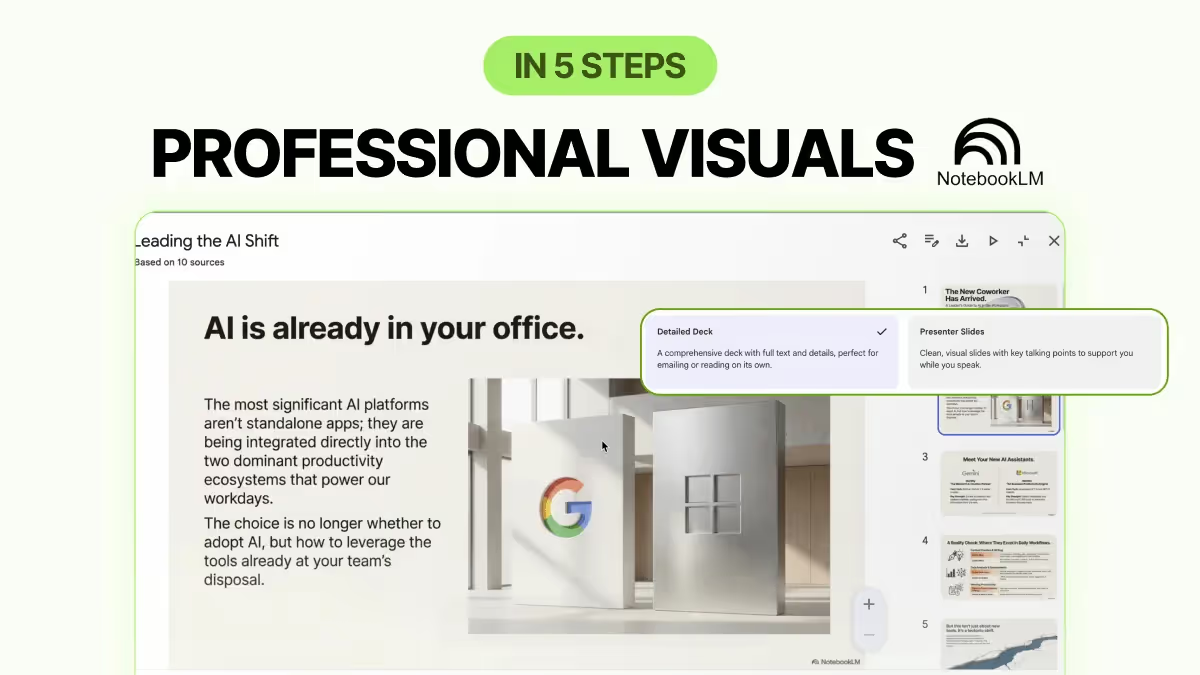
Choose the format (Detailed or Presenter), pick the length, and paste your prompt in the description box.
For example:
Create a clear and practical slide deck on “AI in the Workplace.”
Focus on how AI is reshaping workflows, decision-making, employee productivity, and team collaboration.
Use a modern, professional style with straightforward explanations and real examples of where AI creates value and where it introduces risks.
The goal is to help leaders understand what they should adopt now, what to monitor, and how to prepare their teams.
Then hit Generate to let NotebookLM build the deck.
Step 3: Create your infographic while the deck is building
Open the Infographic tool.
Select the orientation, level of detail, and paste the infographic prompt.
For example:
Design an infographic summarizing how AI is transforming the workplace.
Highlight three pillars: (1) Productivity and automation, (2) Decision support, (3) Employee experience and upskilling.
Use a clean, business-ready color theme and spotlight key stats and shifts that matter for managers.”
Generate it and let NotebookLM produce a clean visual summary of “AI in the Workplace.
Step 4: Review, refine, and download
Check both the slide deck and the infographic.
I like the style of the slide deck, but it feels too crowded. Let’s click View Custom Prompt, copy the prompt, and re-generate the deck using Presenter Slides for a cleaner, more visual version.
It’s impressive how NotebookLM can generate correct company logos and very relevant images to illustrate the content.
Download the versions you like.
Step 5: Apply your outputs to your workflow
Use the slide deck and infographic to support day-to-day work: summarize research for leadership meetings, prepare training materials on AI adoption, create quick visuals for internal task forces, or turn complex documents into client-ready presentations.
The combination of a slide deck and infographic works well for executive updates, workshops, or internal onboarding.
PRO Members: watch the video tutorial here: In 5 Steps: Create a Slide Deck + Infographic Using NotebookLM