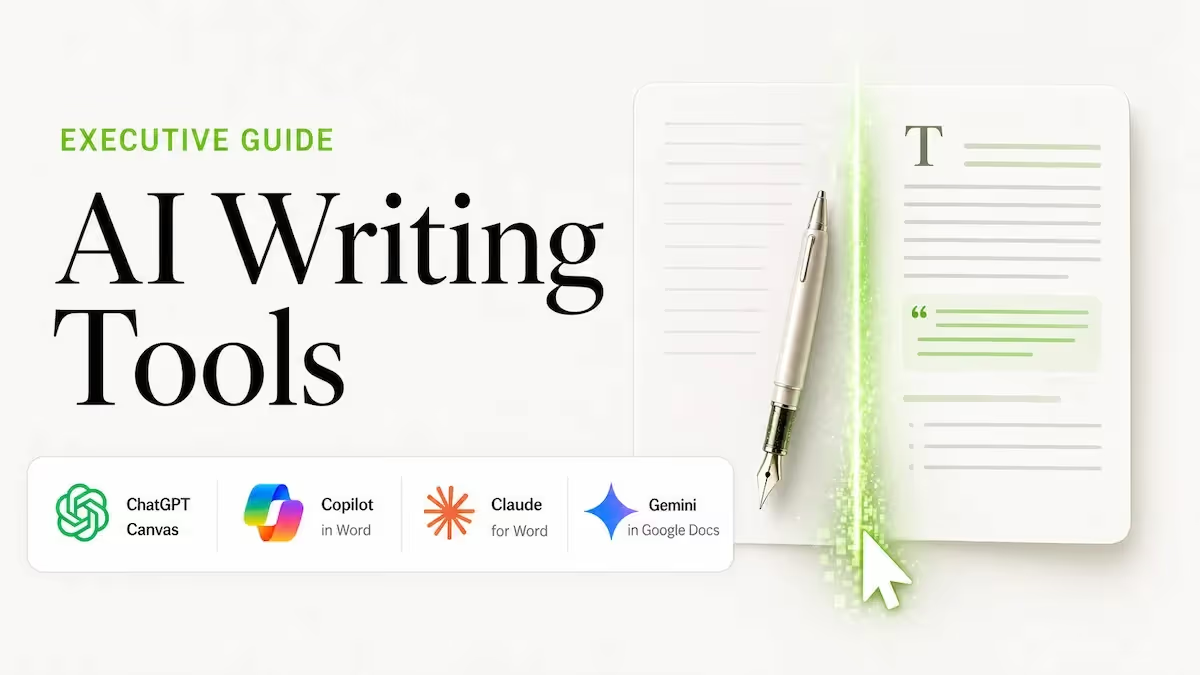


Based on the Lead with AI AI Leader Advanced program, Day 8: AI for Writing. Available for individuals, leadership teams, and as company-wide AI training.
Two bottlenecks kill executive writing time: blank-page syndrome and the messy translation from thinking to clear language under pressure. You know the idea. You just can't get it out of your head and onto the page in time for the meeting, the board pack, or the Monday update.
Used well, AI becomes your always-available first drafter, editor, and rewriter. If you can express the core idea in a few bullets, AI can turn it into a clean one-page message and then reshape that content for different audiences without you having to start over.
Fair warning: there's no universal "best" tool here.
The right choice depends more on where you already do your work, which AI subscription you already pay for, and whether you need the AI grounded in your organizational data. What follows covers the landscape across all three dimensions.
Why AI Is Unusually Good at Writing
Before evaluating specific tools, it's worth understanding why this capability is so strong.
These models were trained on enormous amounts of text and learned the patterns of clarity: how strong openings work, how arguments flow, what a well-structured "decision / risks / next steps" section looks like, and what separates a crisp executive summary from a padded one.
The trade-off: AI doesn't actually know your context the way you do. It can sound polished while being wrong, overly generic, or missing the nuance that makes your communication credible. That's why the right mental model is: accelerate the writing, don't outsource the judgment.
How the Three Categories of AI Writing Tools Work
In practice, senior leaders encounter AI writing through three distinct categories; understanding which is which helps you pick the right one for each task.
Core AI platforms like ChatGPT, Claude, and Gemini are the most flexible environment for outlining, drafting, rewriting, and quickly generating multiple versions. You bring the raw material; the model gives you output. No installation, no admin setup, no ecosystem dependency. This is where most executives should start before adding anything else.
Embedded assistants inside documents like Copilot in Word, Claude for Word, and Gemini in Docs sit directly inside the tools you already use. The advantage is convenience: the AI is right there on the document, so iteration feels frictionless. You don't copy, paste, and switch windows. The trade-off is ecosystem dependency: these tools work best when you're already in that company's stack.
Dedicated writing workspaces are designed for longer-form drafting and structured revision. ChatGPT Canvas, Gemini Canvas, and Claude Artifacts open a side-by-side view where you and the model refine content together, more like a document editor than a chat thread. These are the tools for work that needs multiple rounds of targeted revision.
Start Here: Using ChatGPT, Claude, and Gemini Directly for Writing
Before reaching for any embedded tool or add-in, it's worth knowing how much you can accomplish with the core platforms alone. All three, ChatGPT, Claude, and Gemini, are capable writing partners straight out of the box, requiring nothing more than a browser tab.
The basic workflow is the same across all three: paste in your raw material (bullets, notes, a previous draft, the email you're responding to), describe what you need, and iterate. No integration required.
ChatGPT is the broadest platform. Fast, versatile, and with the largest ecosystem of Custom GPTs and integrations. It handles everything from short-form communications to long strategy documents. For writing specifically, ChatGPT Plus at $20/month unlocks Canvas — the side-by-side editor that eliminates the copy-paste cycle between chat and document.
Claude is widely regarded as producing the most natural, coherent prose of any AI platform. Where other models generate text that is technically correct but somehow flat, Claude produces writing where arguments develop and sentences build on each other.
It handles long-form work, multi-page documents, extended briefs, structured reports, without losing the thread or defaulting to template structure. Independent reviewers consistently describe it as "the writer's AI." For leaders who care about voice and coherence in executive communications, Claude is often the strongest starting point. Claude Pro is $20/month; there is also a free tier.
Gemini in its standalone form is strong for research-heavy drafts and for leaders already in the Google ecosystem. Its tightest writing advantages emerge when embedded in Docs (covered below), but the standalone platform is a capable drafting tool in its own right.
The practical recommendation: spend a week writing in whichever of these three you already pay for, before buying any embedded add-on.
Most people find the core platform handles 80% of their writing needs. The embedded tools add real value for the remaining 20%: when you need the AI grounded in your actual documents, when iteration cycles are long, or when you need outputs in a specific format such as tracked changes.
The 5-Step AI Writing Workflow for Senior Leaders
This workflow, developed through the Lead with AI program with input from senior leaders at McKinsey, NVIDIA, Google, Microsoft, and Apple, applies across all the tools covered here:
To use any AI as a true thought partner rather than a word machine, add this line to your prompts: "Do not add facts. If anything is missing, flag it as a question." This single instruction keeps the model anchored to what you actually know and prevents the polished-but-wrong output that erodes trust in AI writing.
How to Spot (and Remove) AI Fingerprints
AI writing leaves patterns that make output feel less credible; not because it's wrong, but because it reads like a template. Common ones include overuse of em dashes, template contrasts like "It's not X, it's Y," over-balanced hedging phrases, and inflated filler language. Wikipedia's "Signs of AI Writing" is a practical checklist for these.
The instruction "clean this up so it doesn't sound AI-generated" does surprisingly little. Specific directives work better: "Remove all em dashes," "cut any sentence that starts with 'It's worth noting,'" "replace passive constructions."
Keep your quality controls tight, especially on facts, implications, and tone. AI gives you momentum and compresses the writing cycle. You still own the output.
AI Writing Tools at a Glance
| Tool | Best for | Key strength | Main limitation | Starting price |
|---|---|---|---|---|
| ChatGPT Canvas | Standalone long-form drafting | Split-screen editing; no ecosystem dependency | Not connected to your org's documents | Free (limited); Plus at $20/month |
| Copilot in Word | Microsoft 365 organizations | Grounded in org data: SharePoint, OneDrive, email | Requires M365 Copilot add-on; inconsistent interface | $21/user/month add-on |
| Claude for Word | Document-heavy professionals in Word | Native tracked changes; Claude's prose quality | Requires paid Claude plan; currently in beta | From $20/month (Pro) |
| Gemini in Google Docs | Google Workspace organizations | Grounded in Drive, Gmail, and Calendar | Full features require Business Standard or higher | Included in eligible Workspace plans |
The Tools: A Closer Look
The tools below are not ranked. Each has genuine strengths and real trade-offs. The best one for you depends on your existing ecosystem, your current subscriptions, and the kind of writing work you do most.
ChatGPT Canvas
Who it's for: Leaders who want a dedicated side-by-side drafting environment, independent of any specific productivity suite.
ChatGPT Canvas is an interactive workspace within ChatGPT designed for longer, structured writing. Instead of copying drafts back and forth between chat and your document, you think in the left panel and shape the document in the right, in a single continuous flow. You can edit the text directly, review prior versions, and compare changes between versions.
How it works
There are three ways to open Canvas: ChatGPT may open it automatically when your prompt implies a longer document; you can type /canvas or say "open this in Canvas"; or click the plus button next to the prompt box, then "More," then "Canvas." Once open, your attention stays on the document rather than scrolling through chat history.
Iteration happens in layers. Highlight a paragraph and prompt inline: "Make this more concrete for a senior leadership audience." For mechanical refinements, select text and click the pencil icon to adjust length, reading level, or tone using sliders, without re-explaining your intent. For a complete restructure: "Turn this into a one-page decision brief with options, risks, and a clear recommendation." Export by copying, sharing a link, or downloading as PDF, Word, or Markdown.
Key strength
The separation of conversation from artifact removes the cognitive overhead of managing chat history and output in the same scrollable thread. For documents needing multiple revision cycles, this is the cleanest interface in a general-purpose AI tool.
Pricing
Canvas is available on all free and paid ChatGPT plans (web, Windows, macOS). ChatGPT Plus at $20/month unlocks the full suite with GPT-5.5 access and higher usage limits.
Main limitation
Canvas is not connected to your organization's documents or data. You bring the source material yourself.
Copilot in Word
Who it's for: Organizations already on Microsoft 365 that need AI grounded in their organizational data.
Microsoft 365 Copilot in Word isn't a separate writing app. You'll mostly experience it through "Draft with Copilot" to generate content directly into the document, and Copilot Chat to interrogate and refine what's already on the page. As of Wave 3 (March 2026), Claude is also available inside Copilot via the Frontier program, so Microsoft 365 Copilot users can access Claude's reasoning capabilities directly alongside GPT models.
How it works
Open Word, click the Copilot button in the ribbon, and choose "Draft with Copilot." Before prompting, attach context: files, emails, previous meeting recordings, or a folder from OneDrive. Copilot can reference up to 20 items, and when you reference a folder, it draws on the 10 most recent files.
A practical scenario: starting a leadership brief from scratch. Instead of writing to a blank page, you reference a recent report and a folder of past leadership updates, then prompt: "Create a one-page brief for my leadership team that highlights the key insights from this report and how they apply to our positioning." Copilot drafts it directly into the document.
After generating, you can run a verification pass inside the same panel: "List the reference files you used, and flag any assumptions you made because the sources didn't contain what you asked for." This is an audit trail without leaving Word. For targeted refinement, select a section and click the Copilot icon in the left margin, then choose Auto Rewrite. "Visualize as a Table" turns a bullet list into a structured, scannable layout.
Key strength
The grounding in your Microsoft 365 data is the real differentiator. Copilot can pull from your org's SharePoint, OneDrive folders, recent emails, and meeting notes to create drafts that reflect your actual work, not generic AI prose.
Pricing
The full experience requires a Microsoft 365 Copilot add-on: $21/user/month for the business tier. If "Draft with Copilot" is missing from your ribbon, you likely have Copilot Chat only — the free version with more limited in-document capabilities.
Main limitation
The interface is inconsistent across web and desktop versions. Licensing complexity also makes rollout harder than it should be.
Claude for Word
Why Claude first: Before the Word add-in specifically, it's worth understanding why Claude has become the preferred AI for writing-focused professionals. Independent reviewers consistently describe it as "the writer's AI" — the model that produces prose where arguments develop, sentences build on each other, and the back half of a long document doesn't lose the thread it started with. Where other models generate text that is technically correct but hollow, Claude produces writing with genuine point of view. It takes direction well too: give it a specific angle, push back on a draft, add constraints. It adjusts without losing track of what it was building. That quality — natural voice, long-form coherence, genuine responsiveness to editing instructions — is precisely what makes it well-suited for a native Word integration.
Who it's for: Document-heavy professionals who work in Word and want Claude's writing quality without leaving the application.
Claude for Word launched in public beta on April 10, 2026, as a native sidebar add-in for Microsoft Word (Mac, Windows, and Word on the web), available from Microsoft AppSource. It completes Anthropic's Office suite following Claude for Excel and PowerPoint in February 2026.
How it works
Install the add-in from Microsoft AppSource (search "Claude by Anthropic for Word"), then sign in with your Claude account. The sidebar appears inside Word and reads your full document — every section, footnote, comment thread, tracked change, table, and defined term.
The key differentiator is how Claude proposes edits: every change lands as a native Microsoft Word tracked change, visible in Word's standard revision pane. You see the deletion and the insertion; you accept or reject each one individually. Copilot often rewrites entire paragraphs without showing what changed; Claude shows exactly what it touched.
Beyond editing, Claude answers questions about the document with clickable citations that navigate directly to the referenced section — useful for long contracts, reports, or any document where you need to trace a claim back to source text.
Claude for Word also connects with Claude for Excel and Claude for PowerPoint, enabling a single conversation thread to span all three applications: "Take the numbers from the Q1 spreadsheet and insert them into the financial section of this memo" or "Transform this 20-page document into a 12-slide deck."
Key strength
Tracked changes plus Claude's prose quality. The combination is particularly strong for document-heavy work: contract review, financial memo drafting, HR policy documents, board reporting. The model reads the full document in context and edits with surgical precision, leaving formatting, numbering, and surrounding styles intact.
Pricing
Available on Claude Pro ($20/month), Max ($100–$200/month), Team ($25/user/month), and Enterprise plans. The free tier is excluded. The add-in installs at no additional cost from AppSource; the Claude subscription is what's required. Microsoft 365 is a prerequisite.
Main limitation
Currently in beta. The conversation doesn't persist between sessions — context is lost when the document is closed. Organizations with strict data governance should confirm admin settings and data routing before deploying at scale.
Gemini in Google Docs
Who it's for: Google Workspace users who want AI-assisted drafting, editing, and research without leaving Docs.
Google has integrated Gemini directly into Google Docs, with entry points visible as soon as you open a document: a prompt bar at the bottom and a sidebar panel on the right.
How it works
In a blank Doc, prompt the document you want to create. Reference existing Drive files by typing @ and selecting a document, so Gemini can use that file for structure, style, or content. After generating a draft, refine specific sections without redoing the whole thing: highlight a paragraph, choose "Refine," and Gemini gives contextual options — rephrase, shorten, elaborate, or adjust tone. If you've edited several sections to match your voice, "Match Writing Style" unifies the tone across the full document.
In Source Settings, you can enable Drive, Gmail, Calendar, or web search as additional sources. This means you can prompt: "Search my Gmail for discussions about our AI strategy and summarize key themes," and Gemini will scan permitted emails and cite them.
Key strength
The depth of Workspace integration is hard to match. Drive, Gmail, Calendar, and web search can all feed into a single document draft. "Match Writing Style" is practically useful for longer documents or anything written collaboratively.
Pricing
Available for personal users on Google AI Pro and Ultra plans. For business users, the full feature set is available on Google Workspace Business Standard, Business Plus, Enterprise Standard, and Enterprise Plus. Business Starter has limited access.
Main limitation
Available features depend heavily on your organization's Workspace tier and admin settings. Cross-source grounding and web search may not be enabled by default.
The Bottom Line
The tools covered here span the full range of how AI writing shows up in an executive's workflow — standalone platforms, embedded Microsoft tools, and Google Workspace integration. No single tool is best; the right one is the one that fits where you already work.
If you don't have a strong ecosystem preference, start with Claude or ChatGPT directly. Once you've built the habit and seen what AI writing can do, the embedded tools add real incremental value, particularly when you need AI grounded in your actual documents, or when iteration requires tracked changes rather than copy-paste.
For organizations looking to build this capability across leadership teams, this module is part of Lead with AI's AI champion programs and company-wide AI training.