This step-by-step guide is exclusively available for Lead with AI PRO membership. 🚀 With Lead with AI PRO, you’ll get: ✅ Access to expert-crafted step-by-step guides ✅ AI-powered workflows to boost productivity ✅ Exclusive tools and resources for smarter work Upgrade to Lead with AI PRO and access all premium content instantly.
6 Best AI Powerpoint Generators to Create Presentations in Seconds (Free & Paid)
AI can save you hours on PowerPoint creation, from styling your slides to crafting full presentations from scratch. Check out the best AI PowerPoint generators with objective reviews and use case suggestions here.
By
Daan van Rossum
Founder & CEO, Lead with AI
Presented by
Based on the Lead with AI AI Leader Advanced program, Day 9: Creative Assistants for Presentations.
Types of AI PowerPoint tools
The tools for deploying AI for presentations fall into two categories.
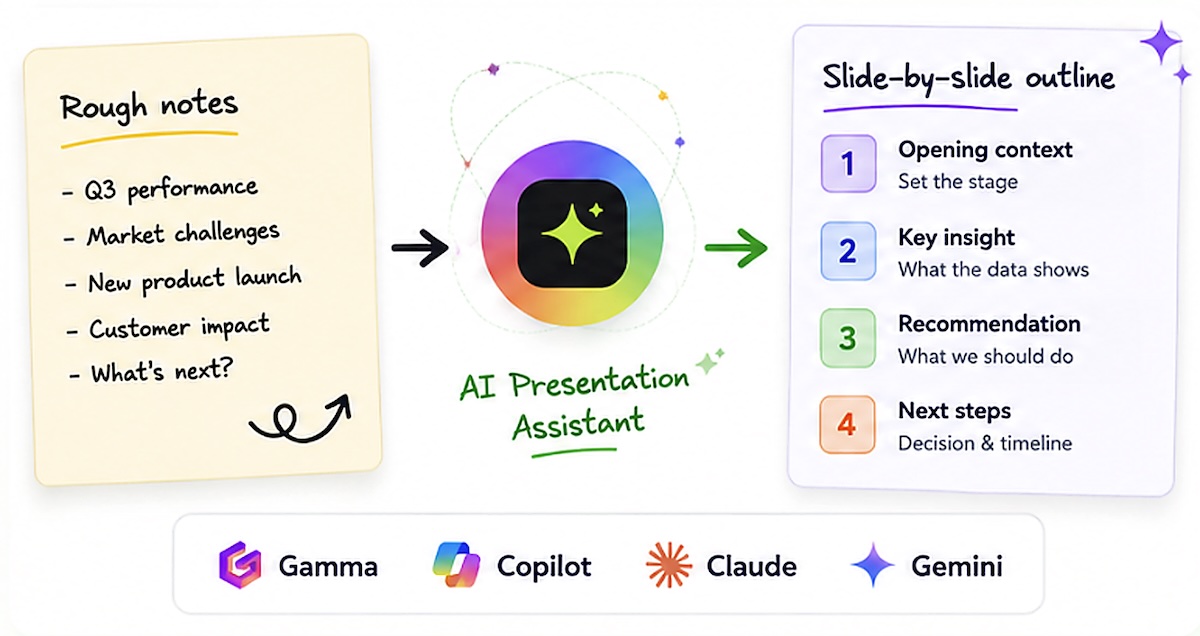
The first is for the thinking part, for the outline. This is where you work with core AI platforms like ChatGPT, Gemini, or Claude. You use them to structure the argument, stress-test the logic, and build the slide-by-slide plan before you ever open a presentation tool.
The second category is for designing. Here you have embedded copilots like Copilot in PowerPoint and (to some degree) Gemini in Slides, though it's "not really perfect", as well as newer options like Claude in PowerPoint.
And you have standalone tools built specifically for generating presentations, like Gamma AI or NotebookLM, which takes a unique approach by building decks directly from your research documents.
While the interfaces vary, the underlying workflow is very consistent.
One standalone tool is worth flagging before you go further: Claude Design.
Most tools here either live inside PowerPoint as a copilot or hand you a finished deck you cannot easily change.
Claude Design does neither. It is a dedicated canvas that takes your rough outline to a polished deck, then lets you tweak individual elements without regenerating the whole thing.
It exports to PowerPoint or HTML, and it comes with real tradeoffs on token cost and beta rough edges. I cover it in full as tool #6 below.
AI PowerPoint generators at a glance
The currently most popular AI PowerPoint generators include these platforms and plugins, each with their own pros and cons:
Tool
Best For
Key Strength
Main Limitation
Starting Price
Gamma AI
Standalone decks
Fastest path from prompt to polished deck; strong visuals.
No fact verification; free plan shows Gamma branding.
Free / $8+ mo
Gemini for Slides
Google Workspace
Canvas mode generates full decks; exports to Google Slides.
Output often image-based (not editable); limited templates.
$8 – $14+ mo
Copilot for PPT
Microsoft 365 users
Pulls from OneDrive/SharePoint; works natively in PPT.
Capabilities vary by version; high add-on pricing for business.
$18 – $30+ mo
Claude for PPT
Iterative editing
Edits individual slides without regenerating the whole deck.
Beta; no saved chat history between sessions.
Pro / Team Plans
NotebookLM
Research-to-slides
Source-grounded; every slide traces back to uploaded material.
Slides rendered as images; limited fine-grained editing.
Free / $20+ mo
Claude Design
Outline-to-deck drafting
Standalone canvas; tweak slides without regenerating; exports to PPT/HTML.
Not native to PowerPoint; token-heavy; beta, no saved chat history.
Pro / Team plans
Flagship AI Newsletter
The AI Newsletter That Makes You Smarter, Not Busier
Join over 30,000 leaders and receive our insights on AI platforms, implementations, and organizational change management.
Want to reach 30,000+ business leaders applying AI in their work, teams, and organizations? Advertise with us.
The 6 Best AI Presentation Generators
1. Gamma AI: best standalone AI presentation tool
Gamma AI is a dedicated AI presentation tool designed to take you from rough input to a credible, executive-ready deck in minutes. Instead of starting with slide templates or worrying about design, you start with a prompt, notes, or source material, and Gamma handles the structure, layout, and visuals.
How it works
From the Gamma workspace, you select Create New. Gamma gives you four ways to start: generate from a prompt, paste in text, import a file or URL, or start from a template. The option you choose depends on how well-formed your thinking already is. Pasting in text works well when you've already brainstormed an outline with your core AI.
Gamma creates a slide-by-slide outline based on your content. For text handling, you can keep the setting on "Preserved" so the wording stays exactly as written. Then you move into visual customization, the most time-consuming part of building a deck and where Gamma saves the most effort. You control the theme for visual consistency, image sources (stock, web, or AI-generated), the image model and style, the content format, and the card design mode, which affects layout and density. These settings ensure the deck looks intentional and cohesive, not random.
After a few seconds, Gamma produces a complete slide deck with copy, layout, and visuals based on your original outline. If you're not fully satisfied, you can edit slides manually or use Gamma's built-in AI tools to rewrite or regenerate individual slides. When you're done, you can present directly from Gamma, share the deck for collaboration, or export it to PowerPoint, PDF, or another format.
One exciting integration: Gamma now works with Claude, so you can generate presentations with Gamma directly inside your favorite LLM. ChatGPT integration is expected soon.
Gamma AI Pricing
Basic presentation generation is available on free plans, with a limit of 10 cards per generation.
Gamma Plus starts at around $8 per user per month on annual billing ($10 monthly), and the Pro plan runs $15 on annual billing ($20 monthly). An Ultra plan is available for heavy usage.
More cards, branded templates, and advanced controls generally require a paid tier, especially for external-facing decks.
Key strengths
Gamma excels at structure, layout, and design. It does not verify facts. You remain responsible for accuracy, assumptions, and decisions. Always do a final verification pass.
Free Kit: Turn Rough Notes
Into a Full-Blown Presentation
with AI
▣
Get the free kit
Includes the lesson, AI assistant, prompts, and tool demos.
2. Google Gemini for Slides: best for the Google Workspace ecosystem
There are two main ways to use Gemini to create slides, and they serve different purposes.
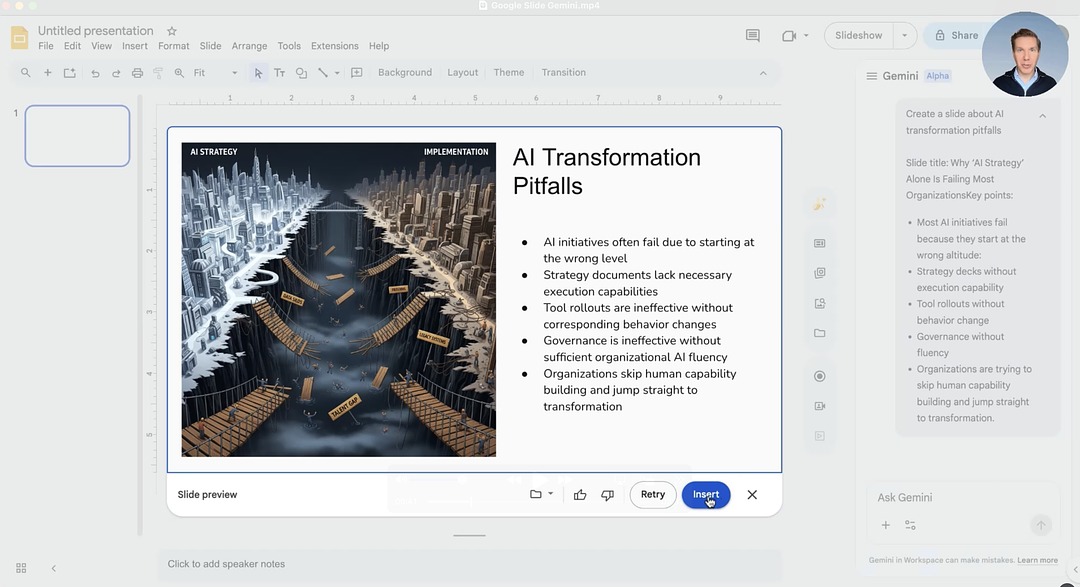
Gemini inside Google Slides appears as a side panel and is best for single-slide tasks: generating a new slide, rewriting text, summarizing content, or creating an image. You click "Ask Gemini" in the side panel and provide a short prompt.
For example, you can paste in a prompt to create a slide about AI transformation pitfalls with a specific title and key points, and Gemini generates a slide image you can insert into your deck. You can also redesign an existing slide by clicking "Beautify this slide."
There's a critical downside: the output is often an image-based slide, which means you can't edit individual elements. That's usually not ideal when you need to iterate quickly. You can prompt Gemini to generate editable slides with a text-based prompt, but the results are less visually polished.
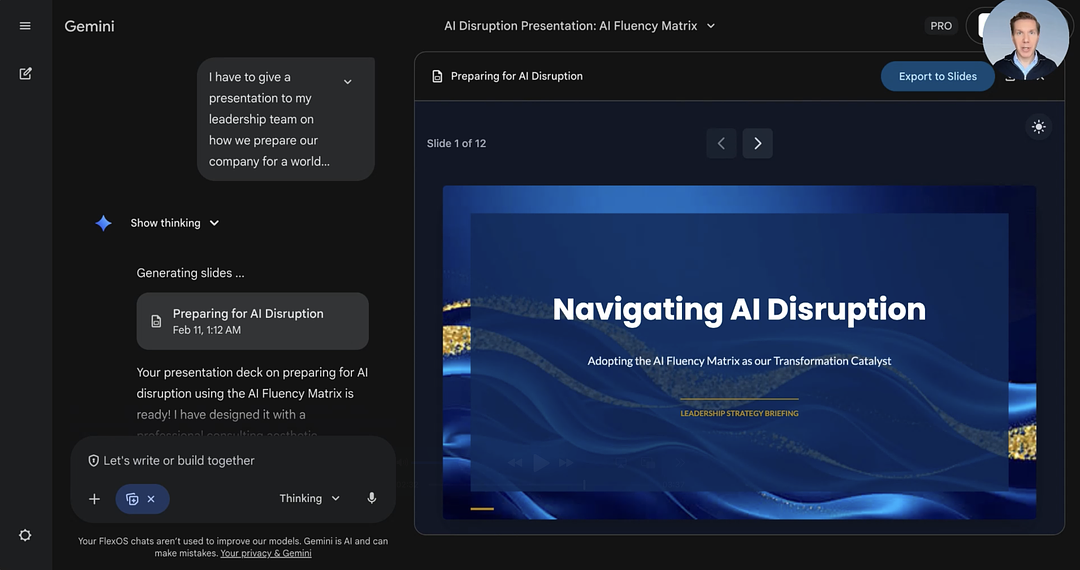
Gemini Canvas to Slides is the faster path to a credible deck. In the Gemini web app, you select Canvas from the tool menu and give Gemini a brief. For example: "I have to give a presentation to my leadership team on how we prepare our company for a world where AI disrupts significantly. Base it on the article below and make the case that we need to adopt the AI fluency matrix. Create 10 fully formatted slides for me."
Tip: include the phrase "create fully formatted slides" in your prompt. Otherwise, Gemini may generate only raw content instead of a presentation.
Gemini generates the full slideshow directly in Canvas. Canvas currently offers only a few templates, but it gets much closer to a full presentation from scratch than Gemini in Google Slides.
From there, you can iterate: asking Gemini to cut 20% of the words updates the slides accordingly. Once the deck is in good shape, click "Export to Google Slides" to edit, comment, and iterate using your normal workflow.
Gemini for Slides Pricing
Access varies by plan and admin settings.
Google AI Plus, Pro, or Ultra plans (roughly $7.99 to $249.99 per month) or Google Workspace Business Standard and above (starting around $14 per user per month on an annual plan) generally include Gemini for presentations.
3. Microsoft Copilot for PowerPoint: best for the Microsoft 365 ecosystem
Copilot in PowerPoint is Microsoft's built-in AI assistant for slide creation. It lives directly in the PowerPoint interface and uses large language models to turn raw ideas or documents into fully formed first drafts.
Under the hood, Copilot connects to Microsoft Graph, which lets it access files and data you already have permission to use, such as documents stored in OneDrive or SharePoint. It can pull relevant details from your existing content without you ever leaving PowerPoint.
How it works
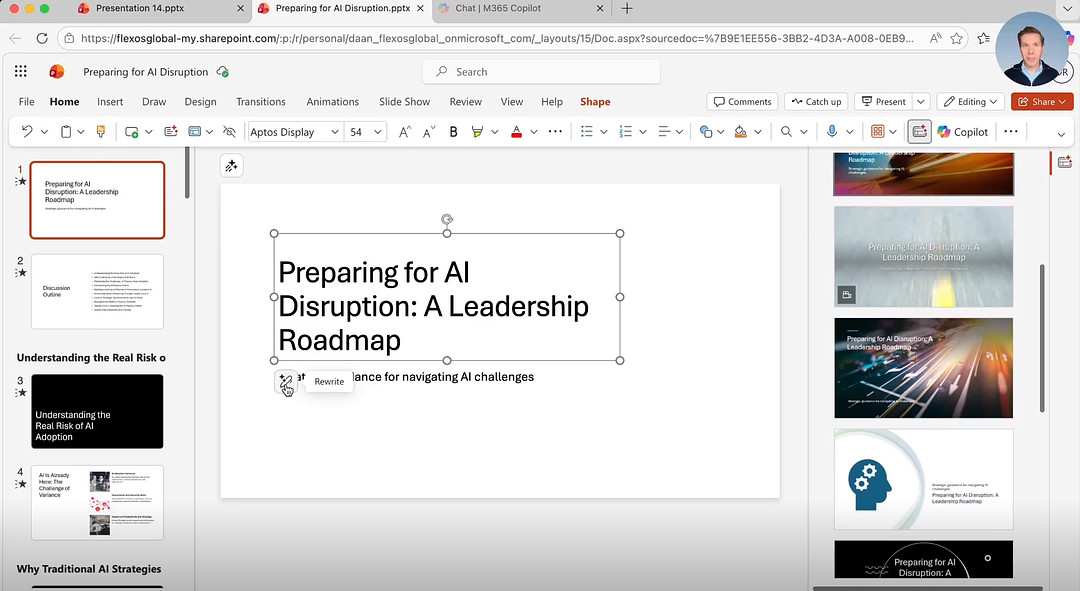
You'll find Copilot on the canvas as a sparkle icon near the top left of the slide, and in the ribbon under the Home tab. Clicking the Copilot button opens a prompt window.
You type your brief, for example: "Create a presentation for my leadership team about how we should prepare the company for a world where AI disrupts our industry significantly. Using the outline in my reference file." Then you attach an outline document by choosing "Reference a file" or typing "/" in the chat box.
Copilot first generates a suggested outline. You review the flow, remove irrelevant points, add topics, and confirm image sources. Once satisfied, click "Generate slides." When the deck is ready, you continue editing with Copilot to enhance visuals or reformat slides.
Copilot's capabilities vary between PowerPoint on the web and the desktop version. The desktop version offers deeper editing and design options; the web version focuses on fast drafting and refinement. The core workflow stays the same.
Microsoft Copilot for PowerPoint Pricing
Copilot in PowerPoint is directly integrated into Microsoft 365 Personal and Family plans.
Power users can opt for the Microsoft 365 Premium plan for higher usage limits.
For business and enterprise users, Copilot is available through Microsoft 365 Business Standard, Business Premium, and Enterprise tiers, as an add-on costing between $18 and $30 per user per month.
Free Kit: Turn Rough Notes
Into a Full-Blown Presentation
with AI
▣
Get the free kit
Includes the lesson, AI assistant, prompts, and tool demos.
4. Claude for PowerPoint: best for iterative editing inside your deck
Claude for PowerPoint is an add-in inside PowerPoint that lets you generate and edit slides using natural language, directly within your presentation.
Claude works inside your existing deck, reading your template, layouts, and content, then updating slides while preserving formatting. Instead of starting from a blank page or fixing formatting manually, you go from idea to structured draft to refined slides directly in PowerPoint.
Claude for PowerPoint can generate full deck structures from a prompt, edit specific slides without regenerating everything, convert bullets into charts and diagrams, maintain your template and formatting, and use connectors and Skills to bring in external context.
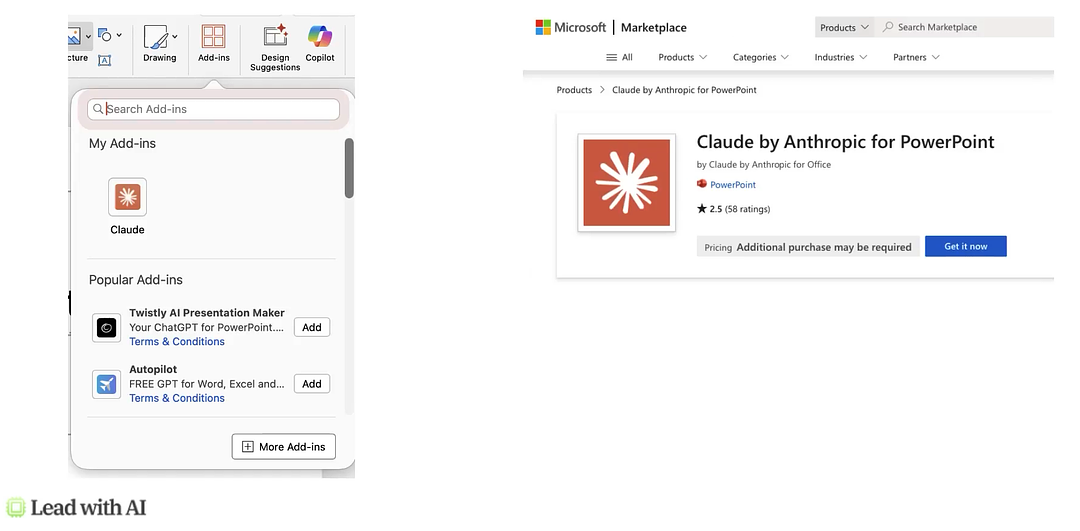
If you're an individual, install from the Microsoft Marketplace, or open PowerPoint, go to Home/Tools, then Add-ins, search for Claude, activate the add-in, and sign in. If you're in an organization, your admin may deploy it; you'll find it at the top right corner, or under the three dots next to the Copilot icon. Everything happens in the Claude sidebar.
How it works
Open Claude inside PowerPoint and type your brief, the same way you would with Copilot. Claude may ask clarifying questions in an interactive multiple-choice format, then begin creating a draft presentation. You review the flow, the storyline, and what's missing, then refine: "Add a slide on key risks." "Reorder to lead with recommendations." Claude updates the structure directly in the presentation.
The key difference from Copilot: Claude updates specific slides without regenerating the entire deck, while preserving formatting and layout. You can ask it to simplify text on a single slide, restructure slides 4 through 7 into a clearer narrative, or add a chart showing quarterly trends; all without touching the rest of the deck.
Keep in mind that chat history is not saved between sessions. Always review outputs before finalizing. Works best when a template is already applied. Not recommended for untrusted external files due to prompt injection risks.
Claude for PowerPoint Pricing
Claude for PowerPoint is currently in beta (research preview) and available on Pro, Max, Team, and Enterprise plans.
It works on PowerPoint web, Windows (Microsoft 365), and Mac, meaning you need to have a relevant Microsoft subscription as well.
5. NotebookLM: best for turning research into a presentation
NotebookLM takes "an interesting approach" to AI presentations.
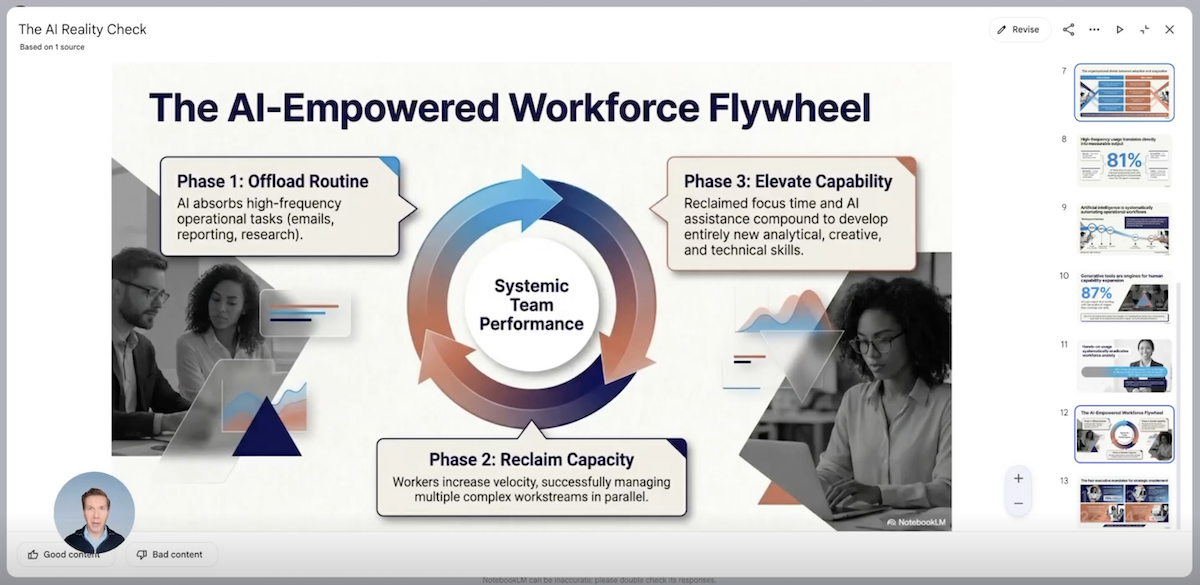
Most people still think of it as Google's summarization tool: upload some documents, get an audio overview, ask a few questions. That changed in February 2026 when Google shipped prompt-based slide revision and direct .pptx export, turning NotebookLM into something considerably more practical for presentation work.
The difference between NotebookLM and the other tools on this list: you don't start with a prompt or an outline. You start with your source material.
Upload PDFs, Google Docs, web links, YouTube video transcripts, or plain text notes into a notebook. NotebookLM reads everything, finds the most important ideas, and turns them into a structured slide deck. Every slide is grounded in your actual sources, not generated from thin air.
How it works
Open an existing notebook or create one and upload sources. In the Studio panel, select "Slide Deck" to start, or use the pencil icon to customize before generating. You get two format options: Detailed Deck (comprehensive, text-heavy, designed to stand alone and be emailed) or Presenter Slides (cleaner, visual, with key talking points to support you while you speak).
The custom prompt is where it stops being a toy. Before generation, you tell NotebookLM to emphasize certain themes, target a particular audience, or structure the deck around specific questions. "Focus on the financial implications and skip the technical architecture" produces a genuinely different deck from the default. That's not cosmetic; it changes which content gets surfaced and how arguments flow between slides.
You can also revise individual slides after generation. Click the revise button on any slide, type what you want changed ("add the Q3 revenue figures," "simplify this to three bullet points," "make this more visual") and it rebuilds that slide. This per-slide revision, added in February 2026, is what made the tool practical for real presentation work.
When you're done, export to .pptx for an editable PowerPoint file. All text boxes are editable in PowerPoint and Google Slides. Apply your brand theme after export.
NotebookLM's slides are rendered using Google's image generation model, which means each slide is essentially a high-resolution image during the generation phase. Adding or removing slides isn't yet supported during revision; you can edit text, change layouts, or update visuals on existing slides. For fine-grained adjustments, export to .pptx first, then polish in PowerPoint or Google Slides.
NotebookLM PowerPoint Generator Pricing
NotebookLM is free for all Google users.
The free tier includes slide deck generation with a daily limit of approximately 10 generations per day.
NotebookLM Plus, bundled with the Google One AI Premium plan at around $20 per month, provides higher usage limits and premium features.
For organizations, Google Workspace Business Standard ($14 per user per month) and above include NotebookLM Plus.
6. Claude Design: best for going from a rough outline to a polished, editable deck
Claude Design can create PowerPoints and Slideshows
Claude Design is a standalone design workspace, separate from standard Claude chat.
It sits in an odd middle ground between the other tools here, and that is the point.
Gamma builds you a finished deck fast, but you are largely stuck with what it gives you. Copilot lives inside PowerPoint but leans on Microsoft’s ecosystem and often rewrites more than you asked. Claude Design is a dedicated canvas where you drive the build, then keep shaping it.
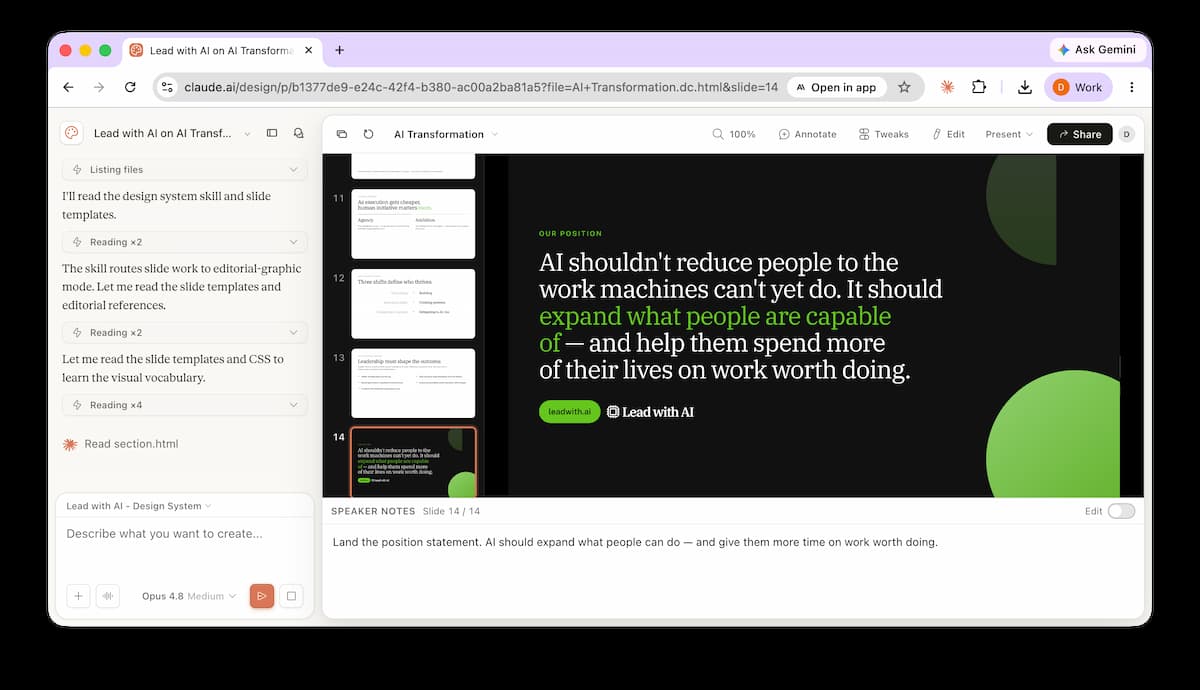
You choose Slides as your output, and the workspace splits in two. Chat and project controls sit on the left. A live canvas sits on the right, where the deck appears as it builds.
How it works
You give it a brief and point it at a reference file. Something like: “Create a presentation for my leadership team on preparing for AI disruption, using the outline in my reference file.”
Before it builds anything, Claude asks clarifying questions. How long the deck should be, which section of your reference to pull from, and how tightly to stay to the source. You answer with a few clicks.
Then it builds on the canvas and applies a design system as it goes. In testing, a single prompt produced a 10-slide leadership briefing with speaker notes.
The editing model is what sets it apart. You refine through chat, a Tweaks panel, annotations, or by editing text directly on the slide. Ask it to “animate the brand graphics” and it adds a live control panel to switch effects on or off and pick a style.
When the deck is ready, Share, then Export hands you PowerPoint for editable slides or standalone HTML for an interactive briefing.
Claude Design Pricing
Claude Design is available on Claude Pro, Max, Team, and Enterprise plans, and it usually shows up as Design in the left sidebar. If you do not see it, your Team or Enterprise admin may not have enabled it yet.
The downsides
This is not a native PowerPoint tool. You build in Claude’s canvas and export out, so it does not live inside the deck the way Copilot does. If your whole workflow runs through PowerPoint, that handoff is a real step.
Building slides this way can burn a lot of tokens. Generating and re-tweaking a deck on a live canvas is token-hungry work, and on the wrong plan you can watch your usage drop fast. This is worth understanding before you lean on it daily, and it is exactly the token maxing vs. budget maxing tradeoff we have written about.
Free Kit: Turn Rough Notes
Into a Full-Blown Presentation
with AI
▣
Get the free kit
Includes the lesson, AI assistant, prompts, and tool demos.
Crafting AI Presentations like the Top 1% AI Leaders
Any leader has lived the presentation tax. Decks for decisions, decks for alignment, decks for updates; often under deadlines, often with very incomplete inputs.
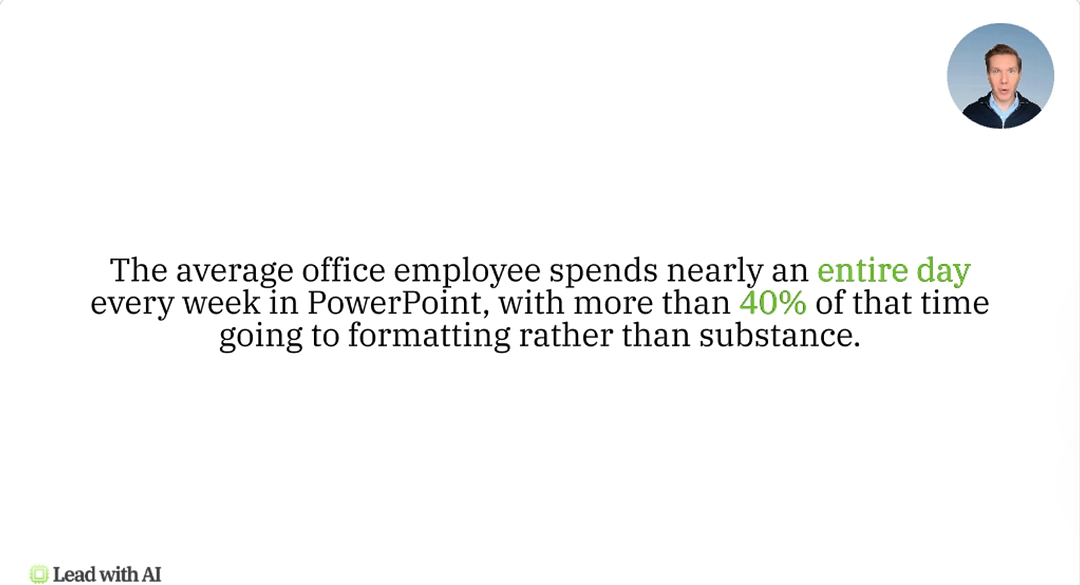
And the time sink is real. One large workplace study found that the average office employee spends nearly an entire day every week in PowerPoint, with more than 40% of the time going to formatting rather than thinking. For more numbers on how AI is reshaping this kind of work, see our roundup of the latest AI statistics.
Presentations are high-frequency work, and a lot of that work is very low leverage.
AI can help, mostly in two dimensions: the thinking part (crafting the story) and producing the slides, so you can spend more time on decisions and a lot less time on drafting and formatting.
Why are most bad AI presentations actually bad?
Most bad decks aren't bad because the slides are ugly. They're bad because the logic is unclear. There are too many points, there's no spine to the story, the sequencing is weak, there's no evidence, or there's no explicit ask to the audience.
This is actually where AI is unusually strong, because it's pattern-matched on exactly how good arguments are structured. It's "perfect at executive summaries, narrative arcs, and slide logic." You give it raw notes or source material, and it can propose a solid outline, then compress or expand sections and surface what's missing.
Once the story is clear, AI can help translate it into slides: layout suggestions, slide generation, image creation (no more stock images), theme consistency, and quick rewrites. This is where you reclaim that 40% formatting tax; but only after a solid narrative is in place.
Best-practice executive workflows for AI-generated presentations
The workflow has five steps, and the order matters. Jumping to slide generation before the story is clear is the most common mistake.
Step 1: Set a target. Who is the audience? What is the decision you're trying to drive? What is the one action you want them to take?
Step 2: Provide your inputs. Notes, docs, constraints, what should be included or excluded. Like any good prompt, the quality of the input determines the quality of the output. If you want to sharpen this step, our guide to prompt engineering covers how to brief AI for stronger results.
Step 3: Get a slide-by-slide outline. Each slide gets a headline and a clear intent. Then you stress-test it. Ask for gaps, for objections, and for what a skeptical executive would challenge. You can even feed it the exact audience that's going to see this presentation.
Step 4: Generate the slides. Only when you have all of that in place do you ask for layouts, visuals, and formatting help. This is where you may switch tools, from a core AI platform to a dedicated presentation tool.
Step 5: Finalize with your accountability. Verify the facts, make sure the tone is aligned, and make sure you own the message on the slides. The deck may be AI-assisted, but the judgment and the consequences remain yours.
What are the bad output signals to watch for?
AI presentations can be guilty of several patterns that look professional but don't actually work: generic headlines, a lot of buzzwords, a feeling that "everything is important," no clear ask, and slides that look really polished but don't make a decision or an outcome easier. The goal is to create decks that drive impact, not just more digital landfill.
Flagship AI Newsletter
The AI Newsletter That Makes You Smarter, Not Busier
Join over 30,000 leaders and receive our insights on AI platforms, implementations, and organizational change management.
Frequently Asked Questions
How did you select and rank these AI presentation tools?
Lead with AI is the leading executive AI transformation partner, working with senior leaders and teams at companies like McKinsey, Microsoft, Google, Apple, and NVIDIA.
The tools in this article are selected and ranked based on what executives in our programs actually prefer and use, not on feature lists or marketing claims. We revise these recommendations at least monthly, drawing on direct feedback from course participants, usage patterns from our AI Leader Advanced cohorts, and proprietary data from across our AI courses.
When hundreds of senior leaders across industries consistently reach for the same tools, that signal carries more weight than any product review.
Can I make AI presentations for free?
Yes:
Gamma offers a free plan with 400 AI credits (enough for roughly 10 full presentations), though free decks show Gamma branding.
NotebookLM's slide generation is free for all Google users with a daily generation limit.
Gemini Canvas can generate full decks on eligible Google plans, and Copilot is included in Microsoft 365 Personal and Family subscriptions.
For occasional use or internal decks where branding doesn't matter, free tiers are genuinely functional.
Should I build my outline in ChatGPT or Claude first, or go straight to a presentation tool?
Start with your core AI.
The tools covered in this article are strongest at layout, visuals, and formatting; they are weaker at building a tight argument from scratch.
Use ChatGPT, Claude, or Gemini to draft your thesis, stress-test the logic, and get a slide-by-slide outline with clear headlines and intent. Then move to a presentation tool for the visual layer. Separating the thinking step from the designing step consistently produces stronger decks. The same principle applies beyond slides, which is why we cover dedicated AI writing tools for drafting documents and communications.
Can AI replace a presentation designer?
For internal decks, weekly updates, and first drafts: in most cases, yes. AI tools handle layout, alignment, spacing, and basic design rules well enough that you don't need a designer for routine presentations.
For high-stakes external decks (investor pitches, keynote talks, major client presentations), AI gives you a strong starting point, but you'll likely still want a human designer for the final polish, brand precision, and visual storytelling that AI tools don't yet match.
How do I keep AI-generated slides on brand?
Most tools offer some level of brand control.
Gamma's paid plans let you set brand colors, logos, and custom fonts. Copilot pulls from your existing PowerPoint templates stored in OneDrive or SharePoint. Claude for PowerPoint reads and preserves whatever template is already applied to your deck.
NotebookLM has the least brand control during generation, but exports to .pptx, so you apply your brand theme in PowerPoint or Google Slides after export. The most reliable approach across all tools: start from a branded template rather than a blank deck.
Can AI generate charts and data visualizations in slides?
AI can format your numbers into charts, but it should not invent your numbers.
Copilot can pull data from Excel files linked through Microsoft Graph and generate charts directly. Claude for PowerPoint can convert bullet points into diagrams and charts within your deck.
Gamma and NotebookLM generate chart-style visuals, but you'll want to verify accuracy and provide the actual data rather than letting the AI estimate.
The rule: give it the data and tell it what the chart must prove.
What are other AI presentation tools if none of these fit?
The six tools in this article are the ones executives in our programs consistently tell us they get the most value from. But the market is broader, and a few alternatives are worth knowing about if your needs are more specialized:
Beautiful.ai focuses on design automation. Its smart templates auto-adjust spacing, alignment, and visual hierarchy as you add content, making it a strong choice when consistent, polished design matters more than AI content generation. Paid plans start around $12 per month.
Genspark takes a research-first approach. Its AI agents browse the web, verify facts, and synthesize sources before generating slide content. It's best suited for data-heavy presentations where you need current statistics and source citations. The visual output requires more manual polish than dedicated design tools. Free tier available; paid plans from $25 per month.
Canva has integrated AI into its presentation builder and works well for teams that need brand-consistent slides with a large template library. It's more of a design tool with AI features than an AI-first presentation generator. Free tier available; Pro plans from $13 per month.
Pitch combines AI generation with strong real-time collaboration features, making it a good fit for teams where multiple people contribute to the same deck. Popular with startups and early-stage companies.
SlidesAI works as a Google Slides add-on, generating presentations directly inside the Google ecosystem. Useful if you want AI generation without leaving Google Slides.
These tools serve more specific niches. For most senior leaders managing a mix of internal updates, board decks, and client presentations, the six tools covered in depth above will handle the majority of use cases.
Key takeaways
Start with the story, not the slides. Set a target (audience, decision, action), provide your inputs, and build a stress-tested outline before you ever generate a single slide. Jumping to slide generation before the story is clear is the most common mistake.
Pick the tool that fits your workflow. Gamma is the fastest standalone option. Gemini and Copilot work best if your team already lives in Google or Microsoft. Claude shines at iterative editing without regenerating the whole deck. NotebookLM is unmatched when you're turning research documents into a presentation.
Watch for bad output signals. Generic headlines, buzzwords, no clear ask, and slides that look polished but don't make a decision easier are signs the AI produced digital landfill, not a useful deck.
Reclaim the formatting tax, not the thinking. AI saves the most time on layouts, visuals, and rewrites. It does not replace your judgment on what matters and what to ask for.
Finalize with accountability. Verify the facts, make sure the tone is aligned, and make sure you own the message. AI-assisted is not AI-decided.
This article is based on the AI for Presentations module in Lead with AI's AI Leader Advanced program. Lead with AI helps senior leaders build practical AI fluency through hands-on courses and a membership community.
Want to reach 30,000+ business leaders applying AI in their work, teams, and organizations? Advertise with us.