This step-by-step guide is exclusively available for Lead with AI PRO membership. 🚀 With Lead with AI PRO, you’ll get: ✅ Access to expert-crafted step-by-step guides ✅ AI-powered workflows to boost productivity ✅ Exclusive tools and resources for smarter work Upgrade to Lead with AI PRO and access all premium content instantly.
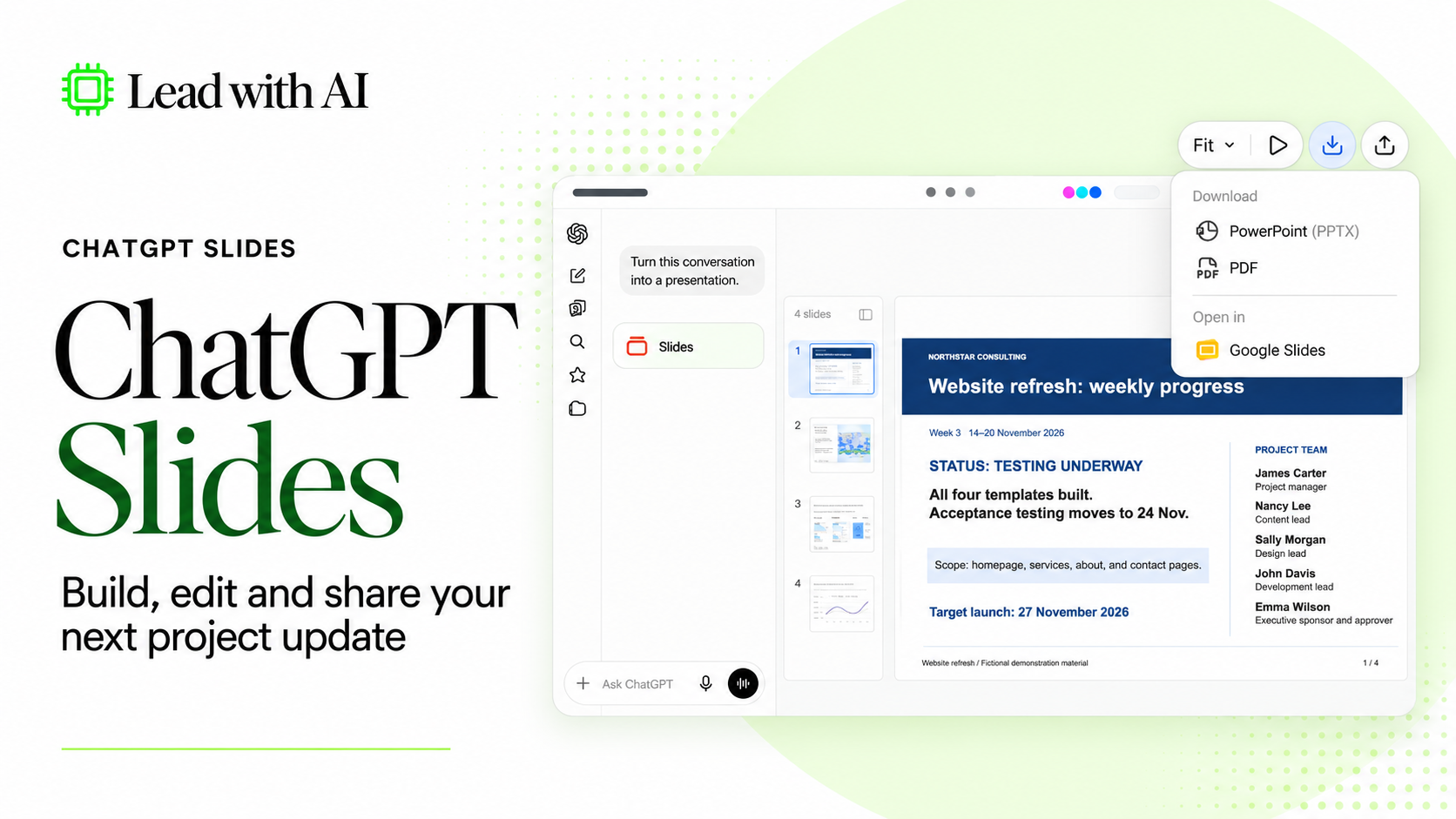
ChatGPT Slidesadds a dedicated place to edit those decks and work on them with teammates. Presentations are then saved in ChatGPT Space.
You can start in a ChatGPT Work conversation with your notes and reference files, then refine the slides by asking ChatGPT directly for changes.
Flagship AI Newsletter
The AI Newsletter That Makes You Smarter, Not Busier
Join over 30,000 leaders and receive our insights on AI platforms, implementations, and organizational change management.
What's New in ChatGPT Slides?
Create from your own materials. In a Work conversation, describe your needs, specify the outline you want ChatGPT to follow, and share relevant files to guide the style and layout.
Edit directly or ask ChatGPT. Change text, images, tables, and charts yourself, or describe the revision you want in conversation.
Work on the same deck together. Teammates with edit access can edit in real-time, leave shared comments, and mention collaborators.
Present natively or export the deck. Present inside ChatGPT, or export on the web to PowerPoint (.pptx), PDF, or Google Slides.
Who has access? Slides is rolling out to eligible Pro, Business, and Enterprise users with Space access. Check OpenAI's Slides guidance for the latest availability updates.
How I Built a Weekly Report with ChatGPT Slides
To test reference-based creation and editing, I used a fictional website refresh project for Northstar Consulting. The weekly report needed to cover progress updates, a delay, and pending leadership decisions.
Step 1: Give ChatGPT Slides the previous reports and new notes
I started a ChatGPT Work conversation and attached three files covering consecutive reporting periods:
Nov 2-6 Weekly report showed the project's history.
Nov 9-13 Weekly report supplied the structure and blue, white, and black styling.
Nov 14-20 Project Notes detailed the current updates, owners, and decisions needed.
I made those roles explicit in my prompt. Here's the prompt I put into Work:
"Create a new, editable ChatGPT Slides presentation in Space titled "Nov 14-20 Weekly Report" for Northstar Consulting's leadership team.
The attached files cover three consecutive reporting periods for the same website refresh. Use the Nov 2-6 Weekly Report for historical context, the Nov 9-13 Weekly Report as the main reference for structure, layout, typography, and blue, white, and black styling, and Nov 14-20 Project Notes for current updates.
Create four slides: project overview and status, progress by workstream with owners, risks and decisions needed, and next priorities with owners and deadlines.
Summarize what changed. Separate completed work from plans and recommendations from approvals. Use only the supplied information and flag missing details. Keep text and tables editable, preserve the original files, and check the deck against the latest notes."
I attached all three files before sending the creation prompt.
Step 2: Review the ChatGPT Slides draft
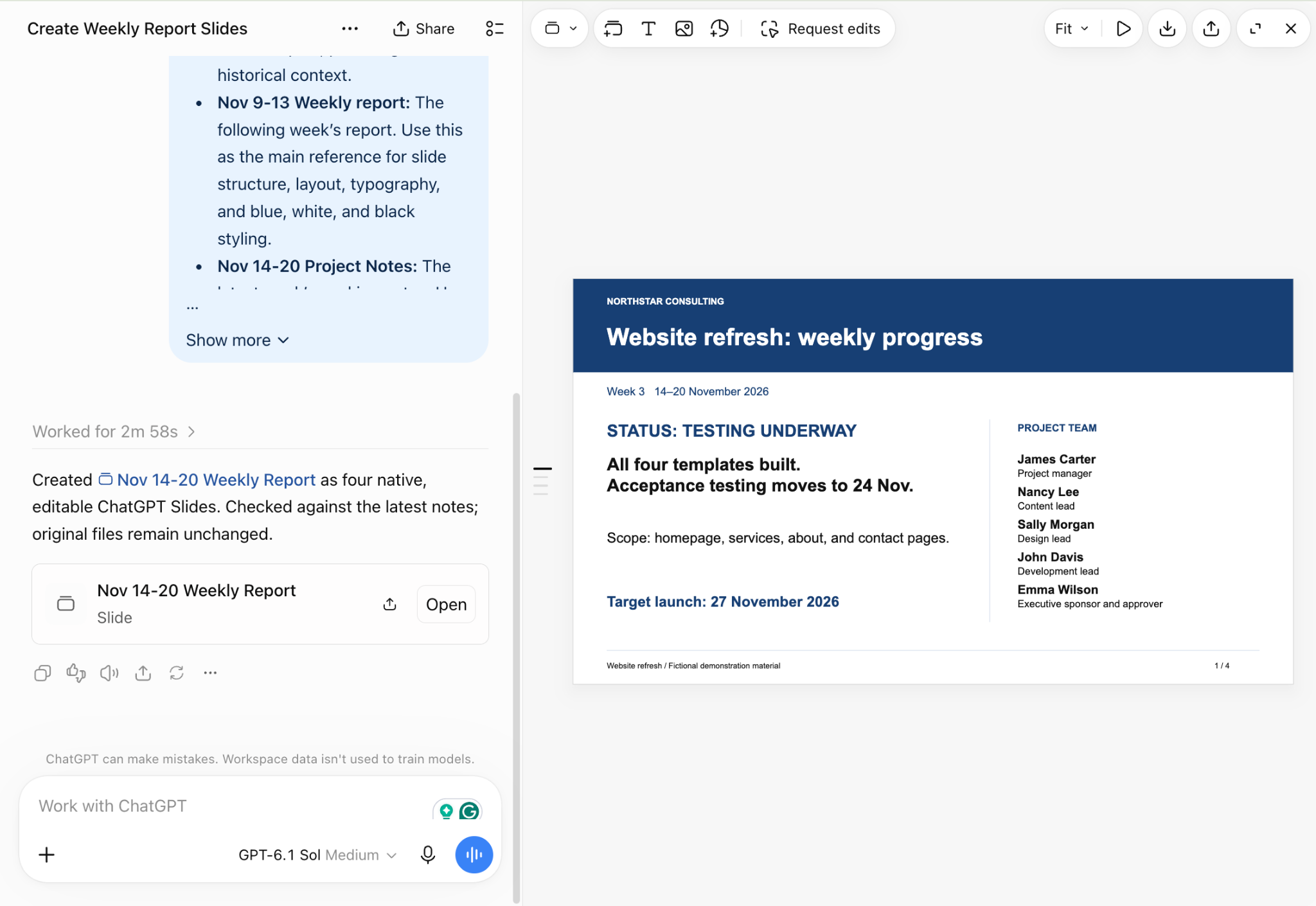
ChatGPT came back with four slides in a window beside the conversation. The overview reused the reference design and included the new week's updates.
Before sharing, compare the draft with the latest project notes. Check that deadlines and owners are correct, and that decisions still awaiting approval haven't been presented as confirmed.
The generated report appeared alongside our Work conversation.
We expanded the deck for a closer look.
The full view gave the presentation more screen space.
I checked that deadlines and owners are correct, and that decisions still awaiting approval aren't presented as confirmed.
Flagship AI Newsletter
The AI Newsletter That Makes You Smarter, Not Busier
Join over 30,000 leaders and receive our insights on AI platforms, implementations, and organizational change management.
Editing, Sharing and Presenting Your Deck
Step 3: Ask ChatGPT Slides to change one detail
The scope label needed more visual emphasis. I sent this follow-up in the same Work conversation:
"Edit the existing "Nov 14-20 Weekly Report" presentation in Space. On slide 1, replace the scope text with these two lines:
Website scope
Homepage, services, about, and contact pages
Make "Website scope" bold and dark blue. Keep the page names black. Preserve the text box's position and leave every other element unchanged. Apply the change to the existing presentation, rather than describing the edit or creating a new deck."
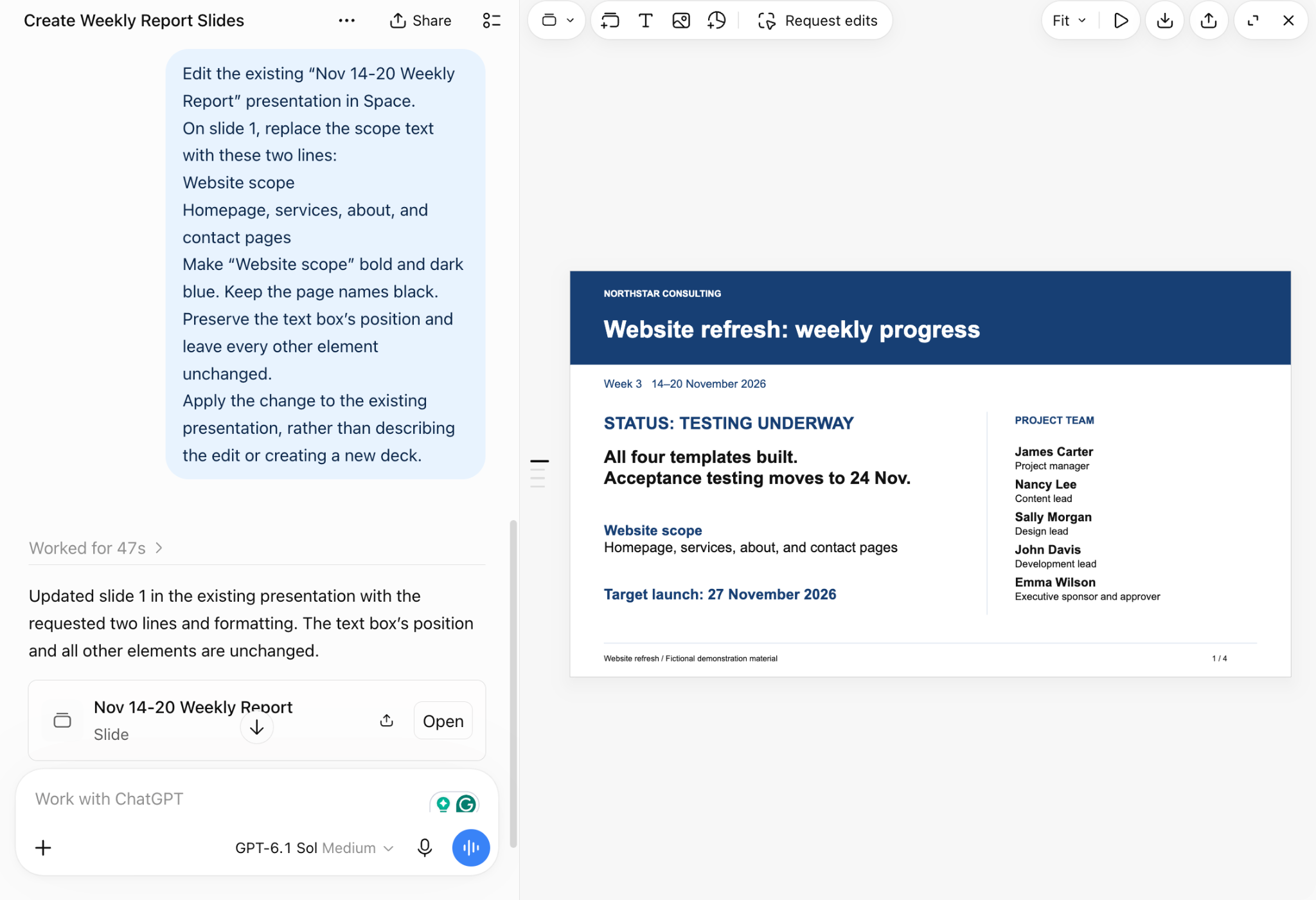
The follow-up prompt and revised overview appeared together.
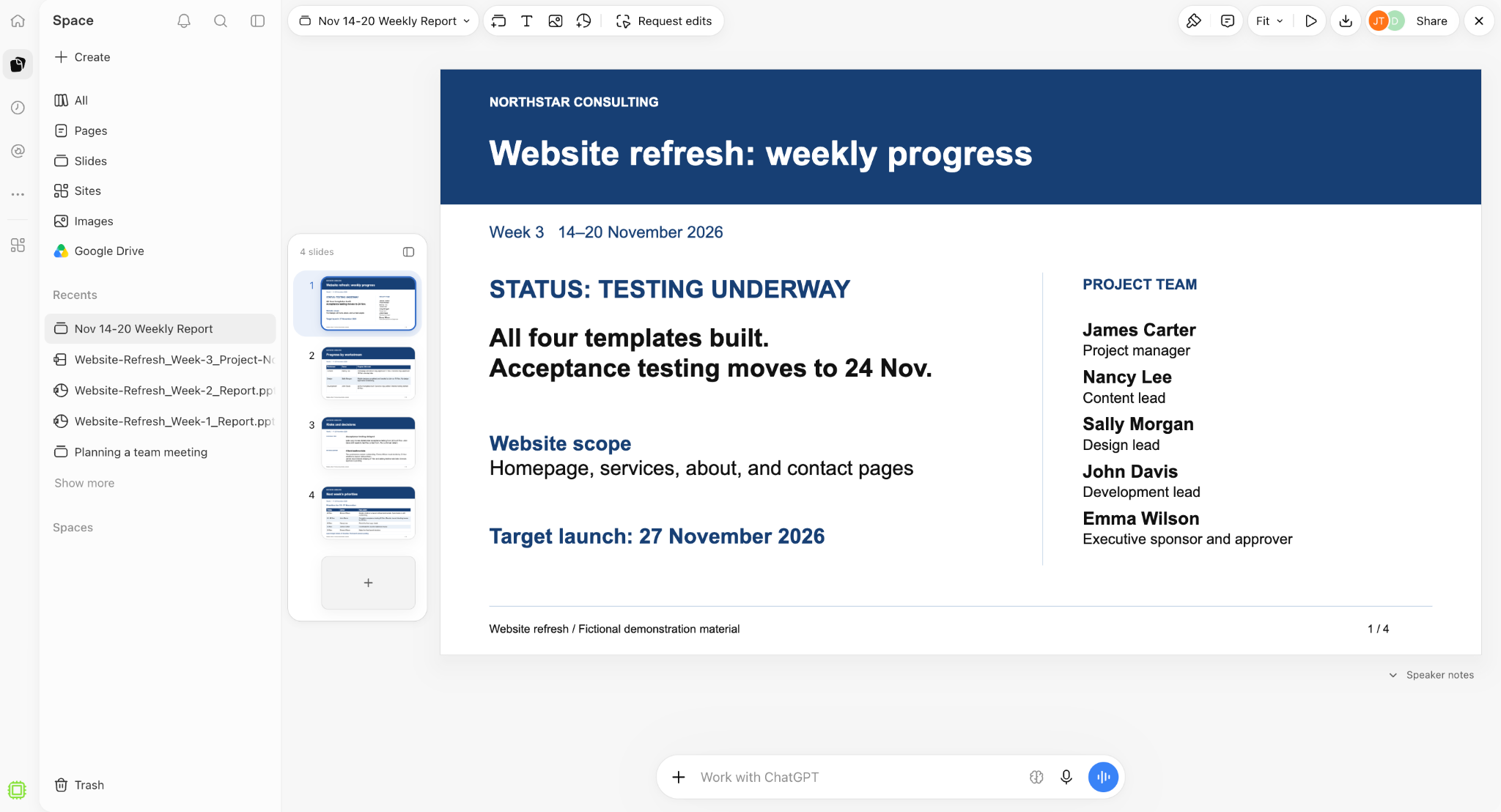
The scope label changed as requested. The screenshot shows the blue label above the black page names.
Step 4: Try a selected edit in ChatGPT Slides
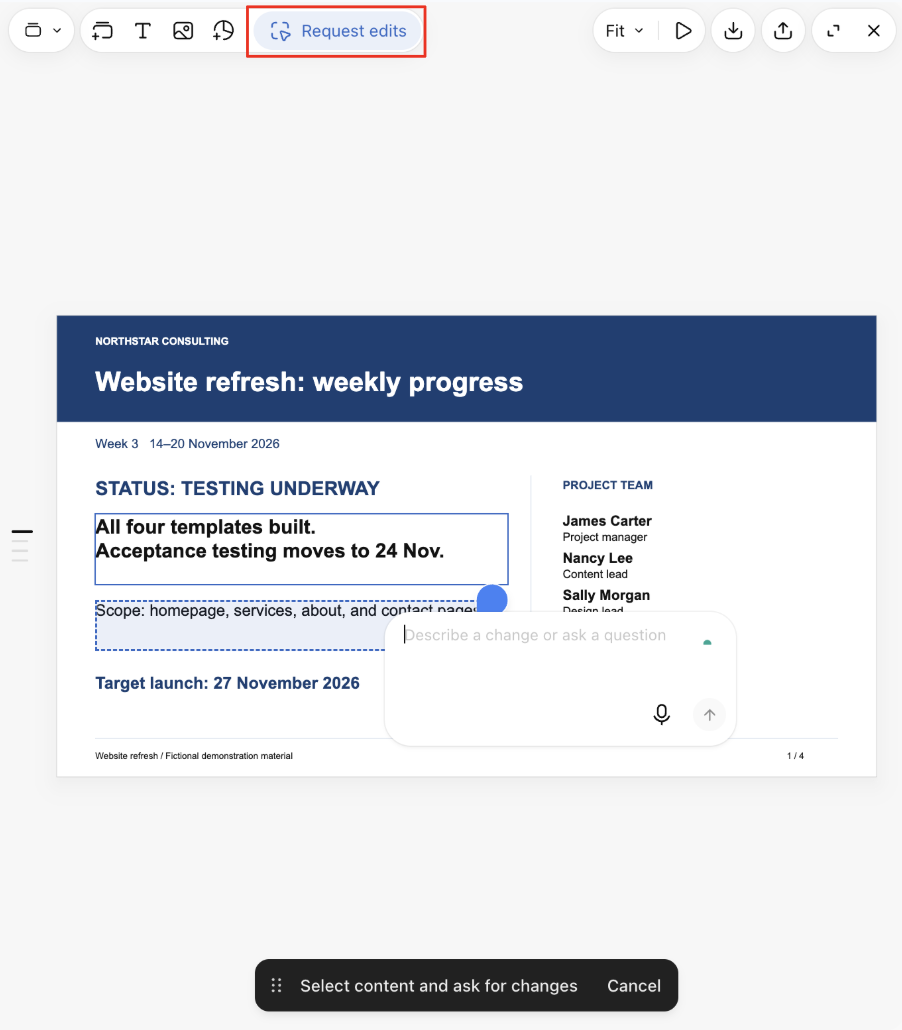
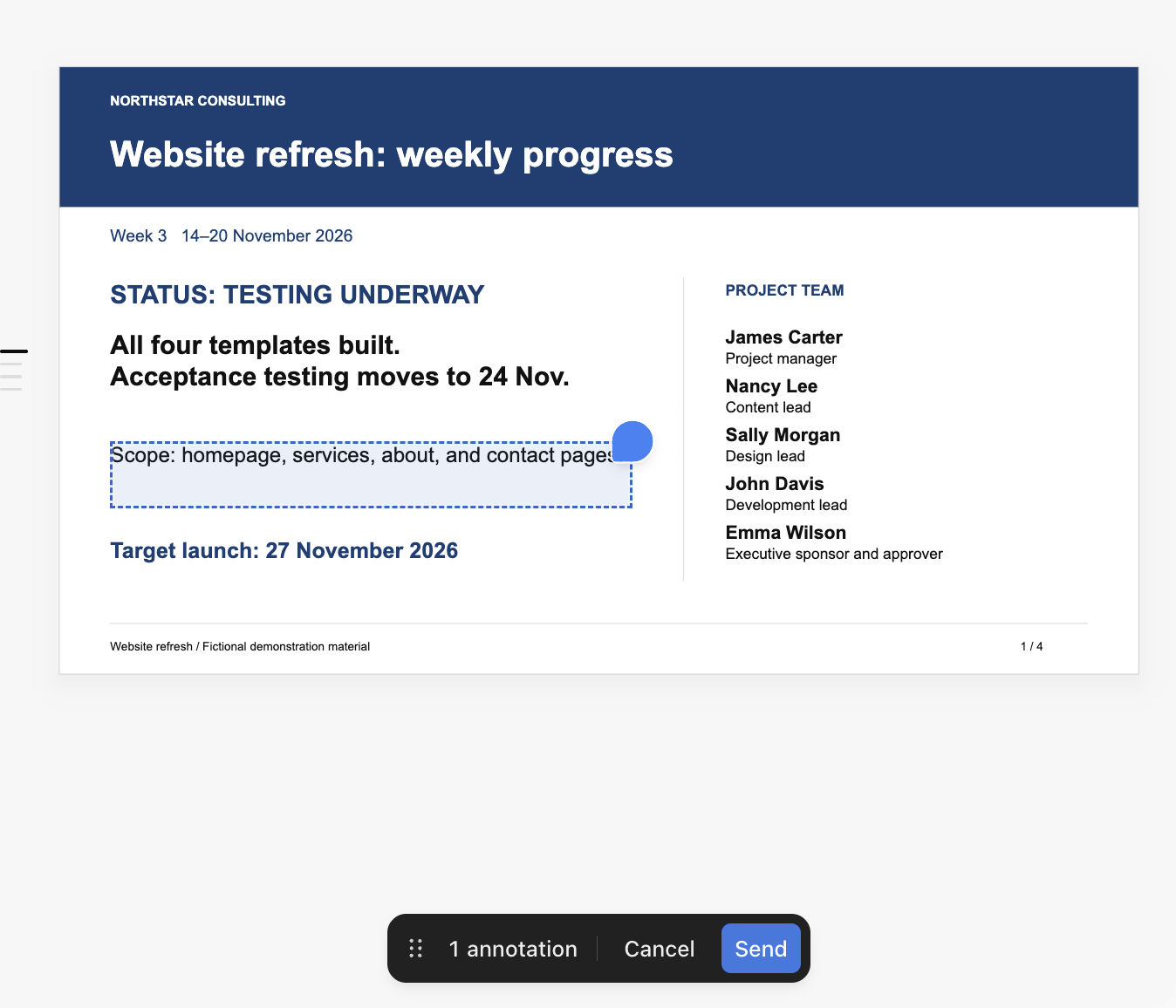
Alternatively, I also tried Request edits on the scope text box.
I selected the scope text and chose Request edits.
I entered the formatting instruction on the selection, then submitted the annotation.
The instruction is attached to the selected text box.
The Send button submitted the annotation.
Both the direct Work prompt and the "Request edits" route came back with the same results in this example.
However, "Request edits" allows you to drop the pin and conveniently signal the exact location of change in cases where text descriptions don't suffice.
The saved deck showed the updated overview.
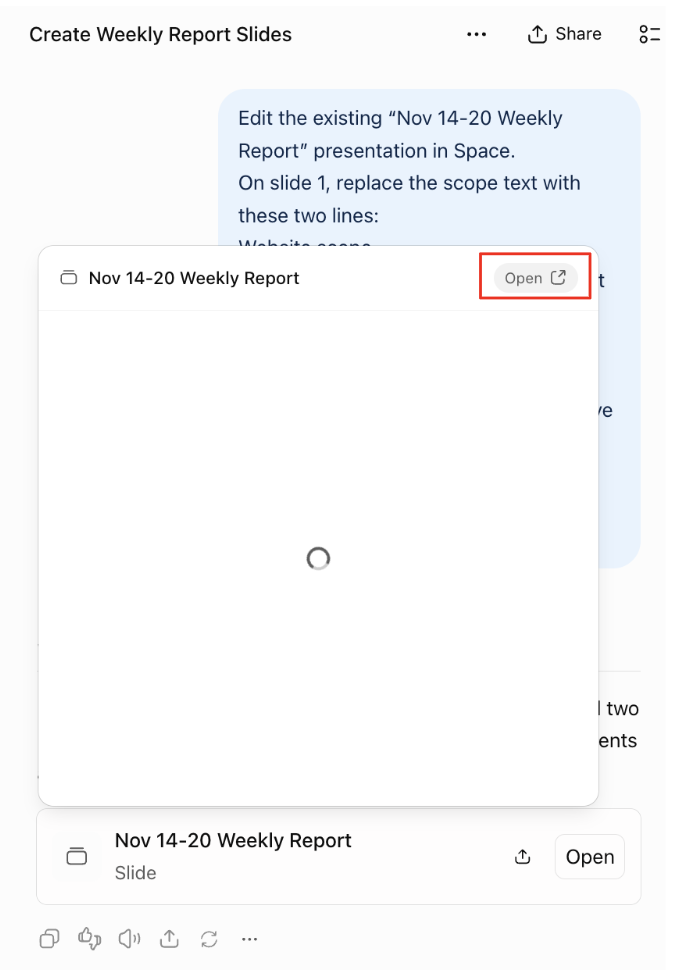
While these edits can all occur inside the chat, you can also review the slide deck more closely inside ChatGPT Space. To access this slide deck in Space, click Open.
Open pointed to the saved presentation.
Step 5: Explore sharing and presenting in ChatGPT Slides
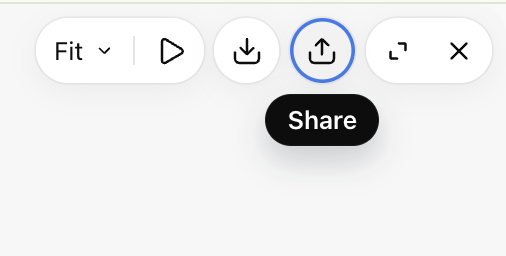
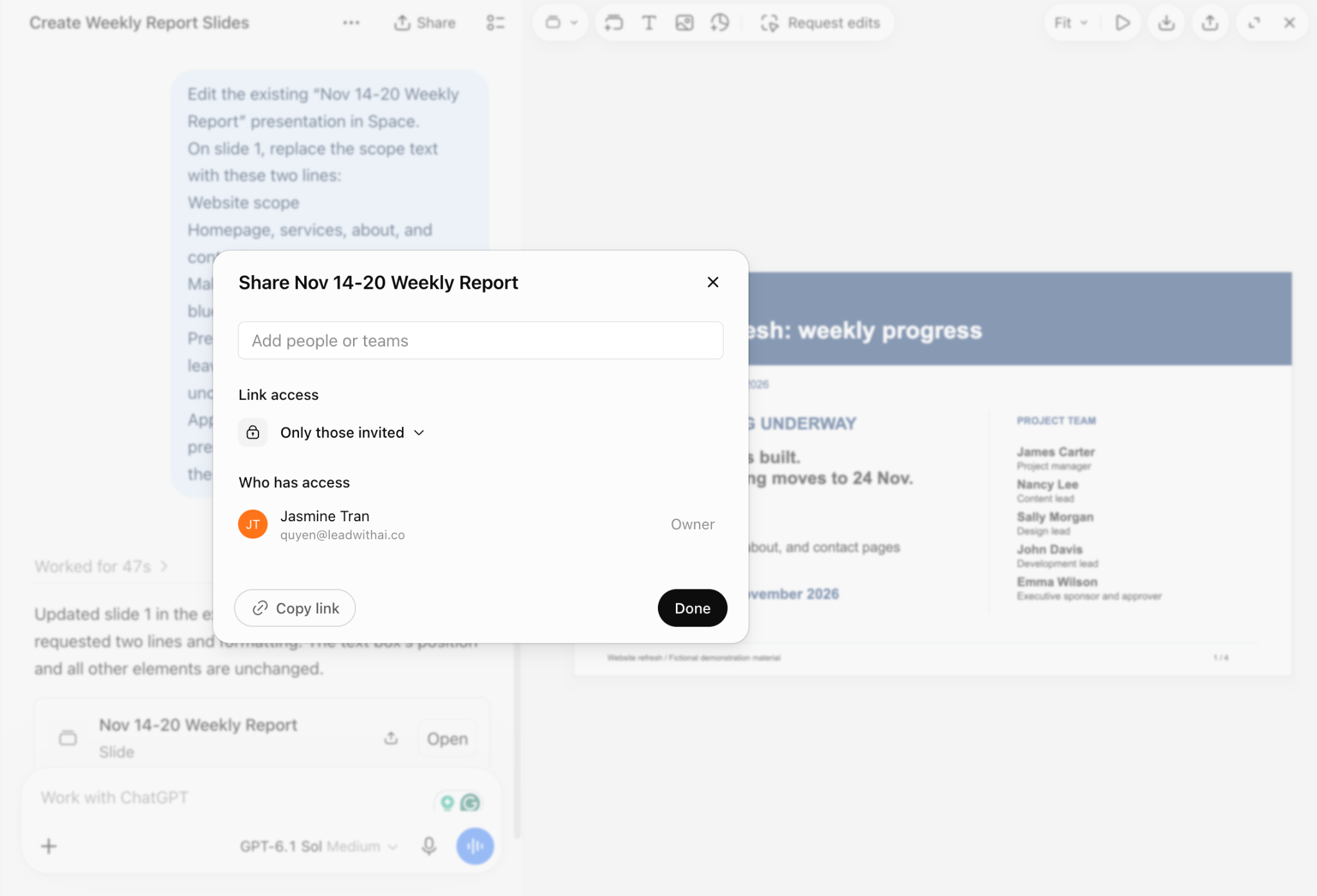
I opened Share to inspect the access options.
Share opened the presentation's access controls.
The dialog showed options for adding people or teams.
The sharing dialog showed who had access.
If you add teammates with the "Editor" role, they can open the shared deck and edit the slides simultaneously, which is helpful for collaborative projects.
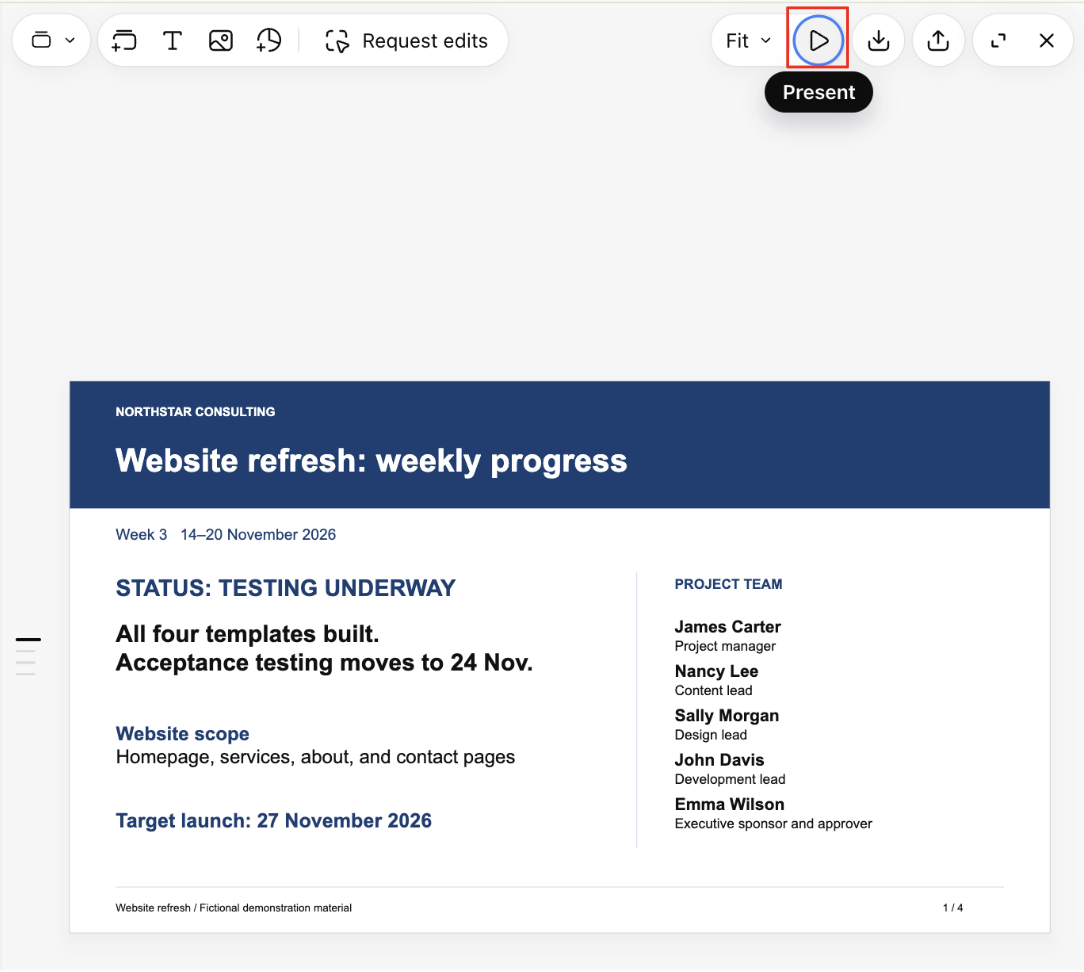
I also tried opening the presentation view.
The toolbar included a Present control.
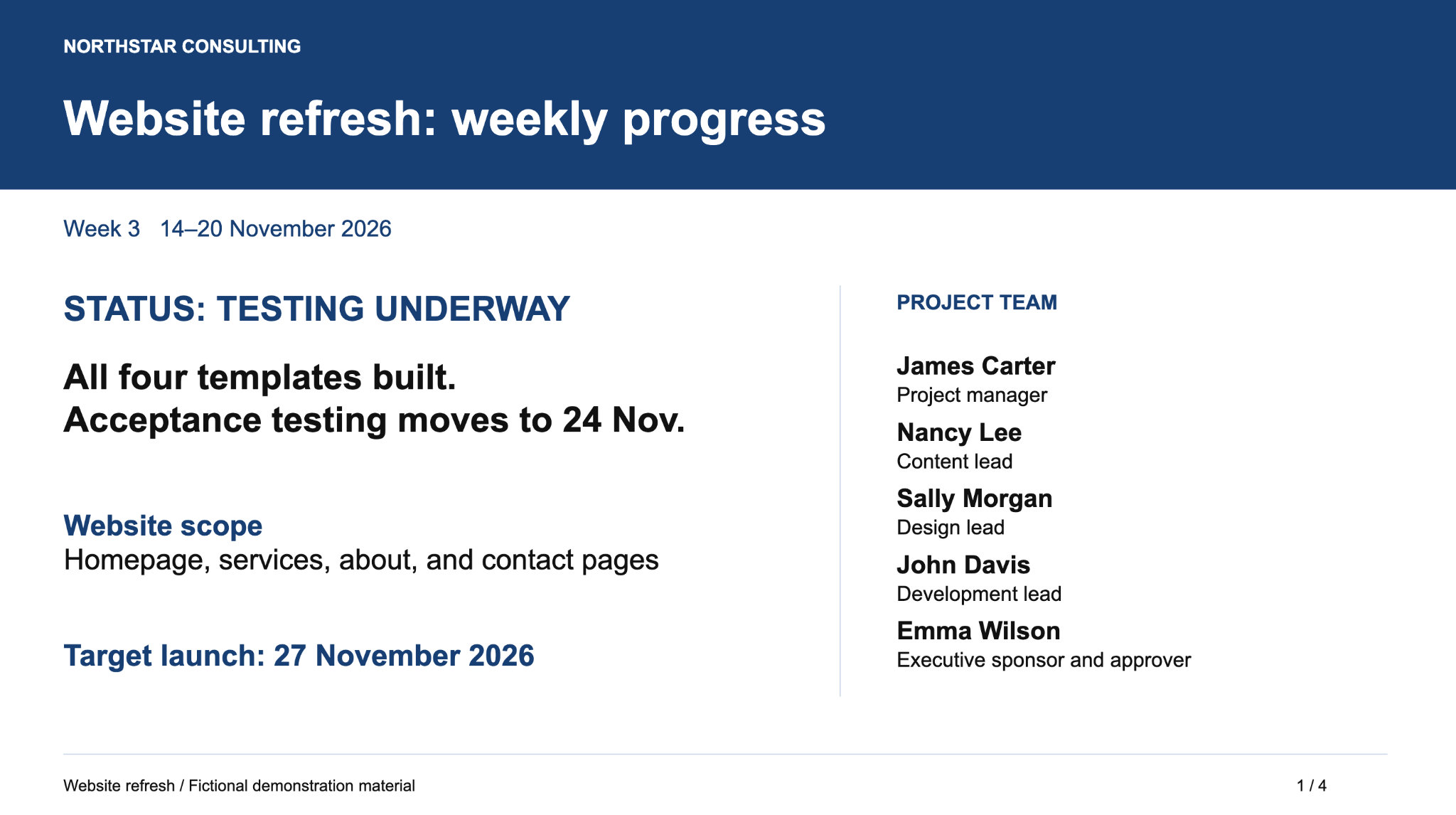
The report opened in a presentation view.
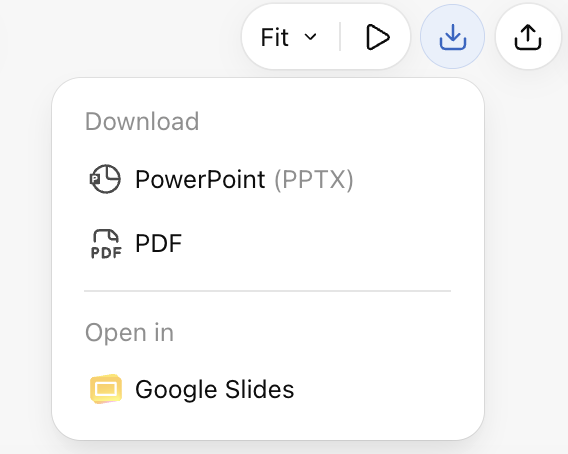
If you'd like to export this presentation, which originally is a native ChatGPT deck saved in Space, the download options include PowerPoint (.pptx), PDF, and Google Slides.
The export menu showed the available formats.
The Bottom Line on ChatGPT Slides
I'd try this with a recurring report you already know well.
Examples include weekly project updates, monthly department reviews, and client reports with an established format. Give ChatGPT the previous decks for reference so it can build the next version.
Two other tips before you begin:
Assign each source a clear role. Use older reports for history, the latest approved deck for design instructions, and latest notes for facts the presentation deck can rely on. This helps ChatGPT distinguish what to keep consistent from what to update.
For revisions, choose the route that makes the change easiest to explain. Use the Work conversation for broader changes, such as reorganizing slides around leadership decisions. Use Request edits to target a specific element, or let teammates edit the shared deck directly and simultaneously if needed.
Attach past weeks' decks and this week's project notes, and get started with ChatGPT Slides today.