This step-by-step guide is exclusively available for Lead with AI PRO membership. 🚀 With Lead with AI PRO, you’ll get: ✅ Access to expert-crafted step-by-step guides ✅ AI-powered workflows to boost productivity ✅ Exclusive tools and resources for smarter work Upgrade to Lead with AI PRO and access all premium content instantly.
Gemini Takes Over Mac Dictation with Speak to Window
Google's Speak to Window turns your Mac's Fn key into an AI dictation button. Here's what stood out, how to set it up, and how it compares to Wispr Flow.
By
Daan van Rossum
Founder & CEO, Lead with AI
Presented by
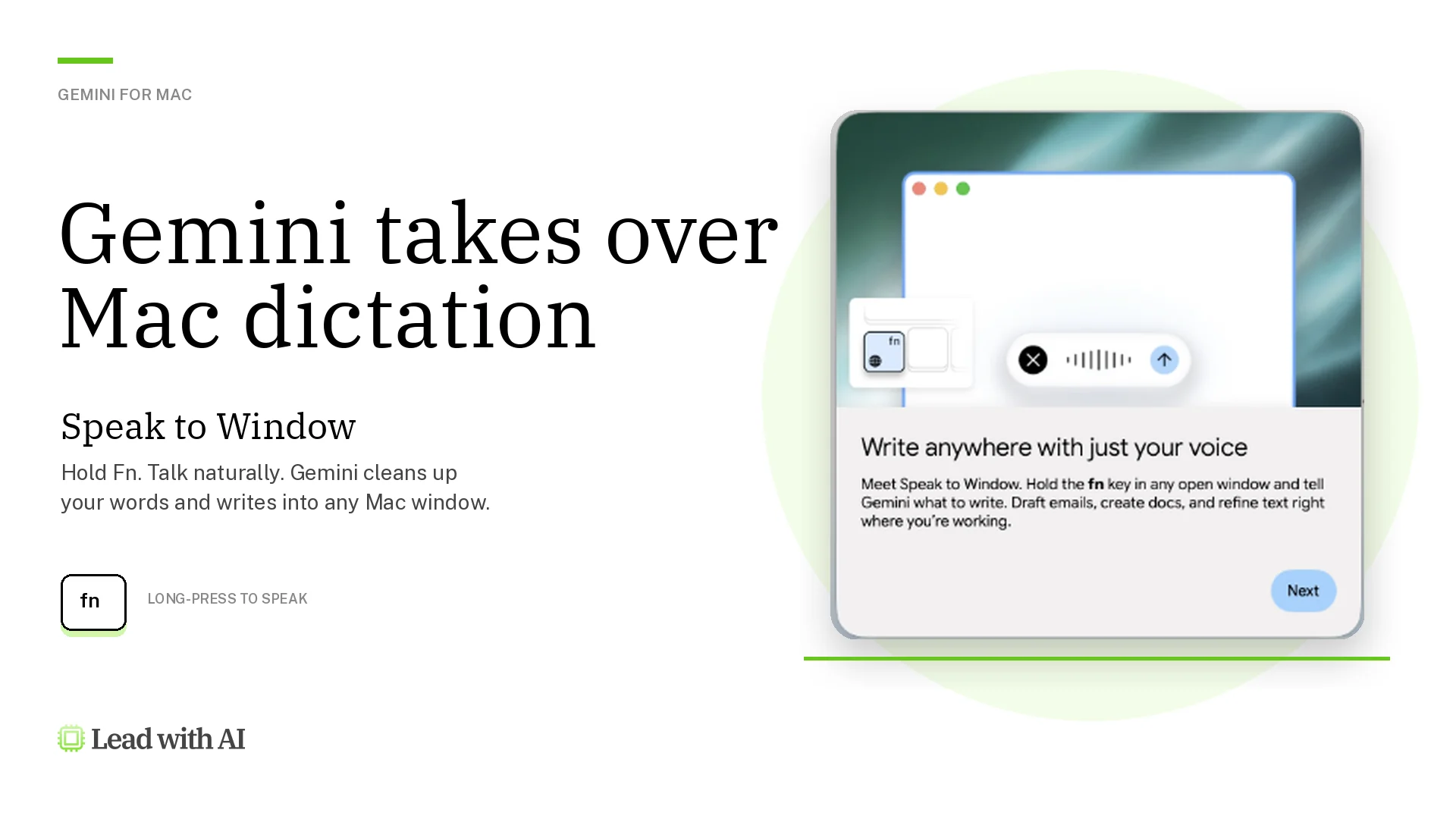
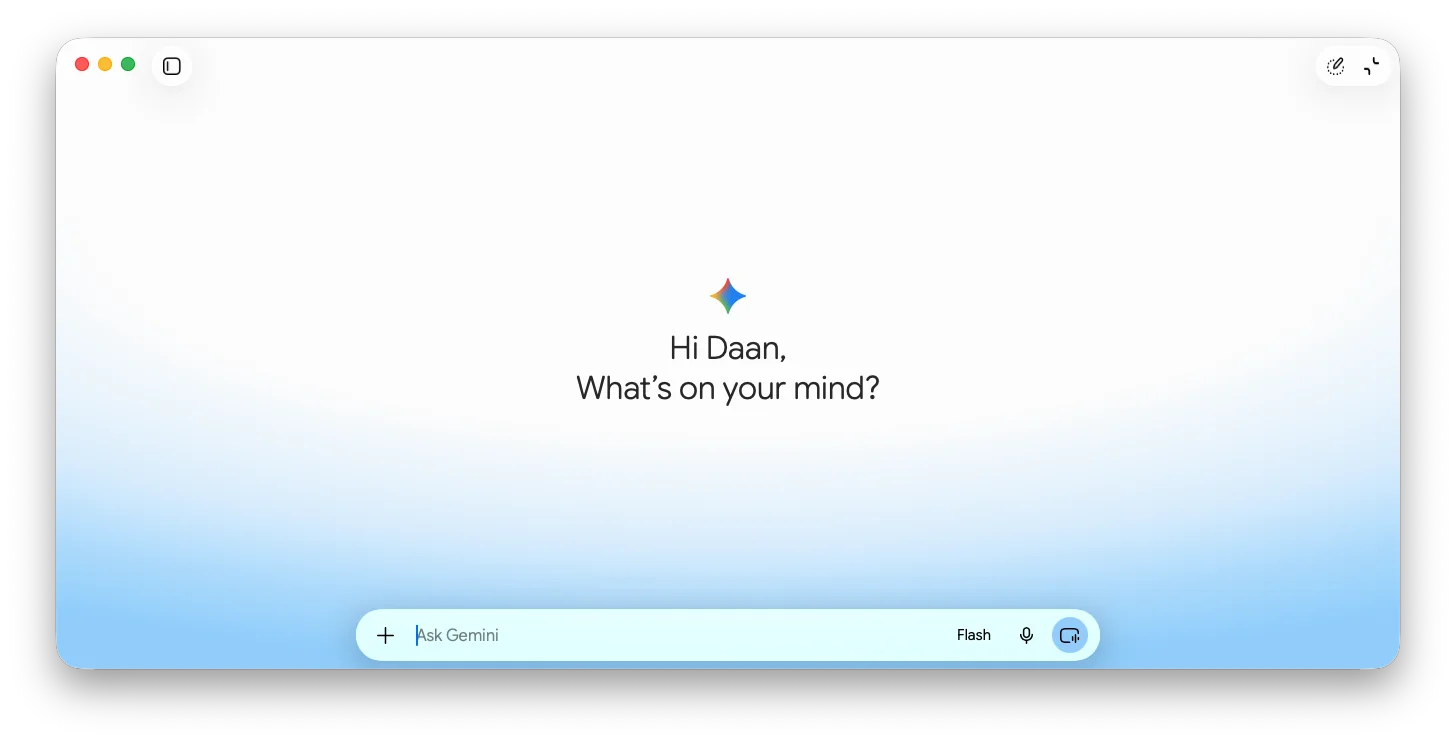
Your Mac’s Fn key is now an AI dictation button with a new Google Gemini voice feature.
Long-press it in any window, speak, and Gemini writes the text right where your cursor is. The finished text lands right in the document, email, or Slack message you were already writing.
So instead of opening Gemini and asking it something, you dictate to whatever app, website, or window you're in.
Google calls this Speak to Window, and it's now live for everyone on the Mac app in English, with more languages promised.
Flagship AI Newsletter
The AI Newsletter That Makes You Smarter, Not Busier
Join over 30,000 leaders and receive our insights on AI platforms, implementations, and organizational change management.
What Stood Out to Me
There are two key features:
I found mid-sentence corrections especially powerful. For example, if you say "email Priya, no wait, email Marcus," Gemini catches the correction and writes only Marcus.
Pro tip: for longer stretches, double-tap Fn instead to start hands-free recording, and then tap again to finish. (There's also a Speak to Window icon in the prompt bar if you'd rather click.
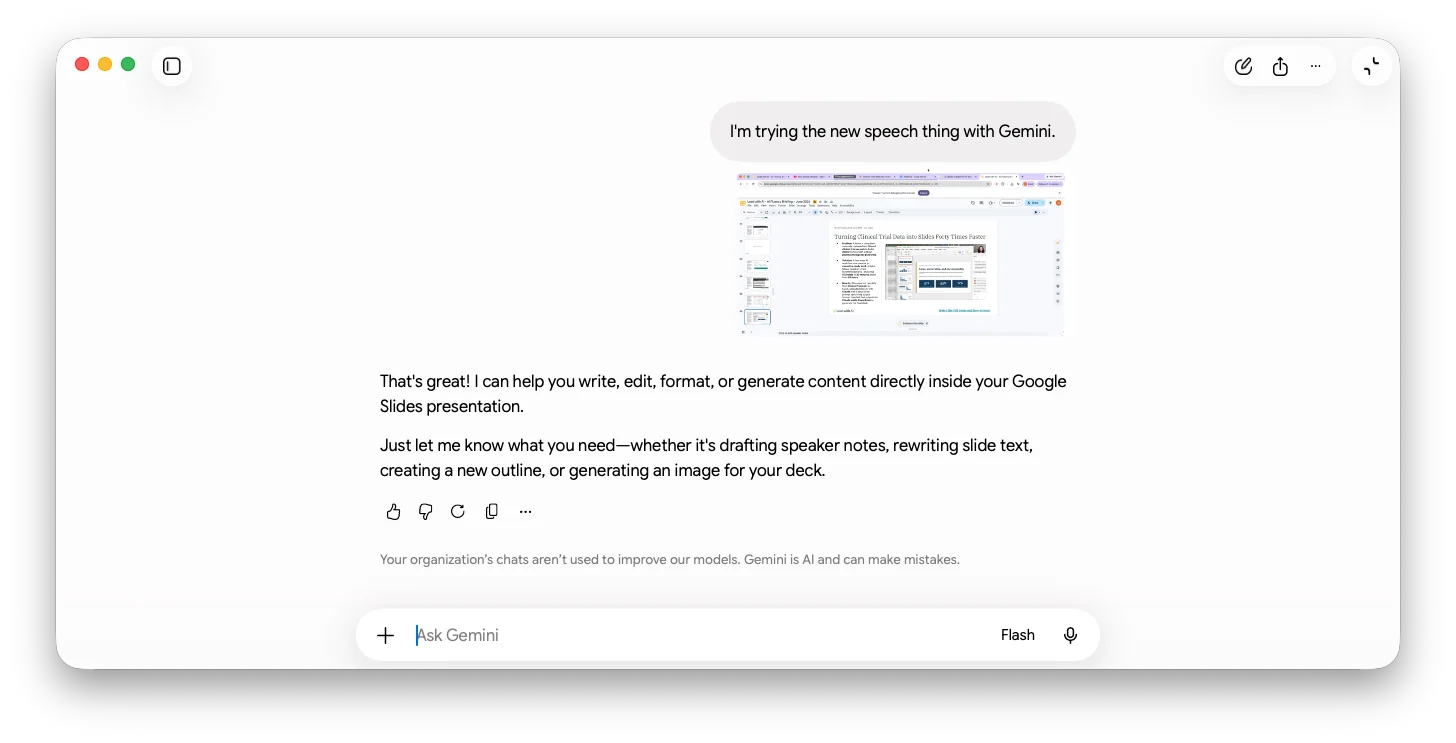
I tested screen-aware reasoning with a Google Slides deck open, an internal one on turning clinical trial data into slides, and said out loud, "I'm trying the new speech thing with Gemini."
Gemini saw the deck and offered to rewrite slide text, draft speaker notes, or generate an image for a slide.
It works the same way with images: have the file or illustration open on screen to provide more context as you use Speak to Window.
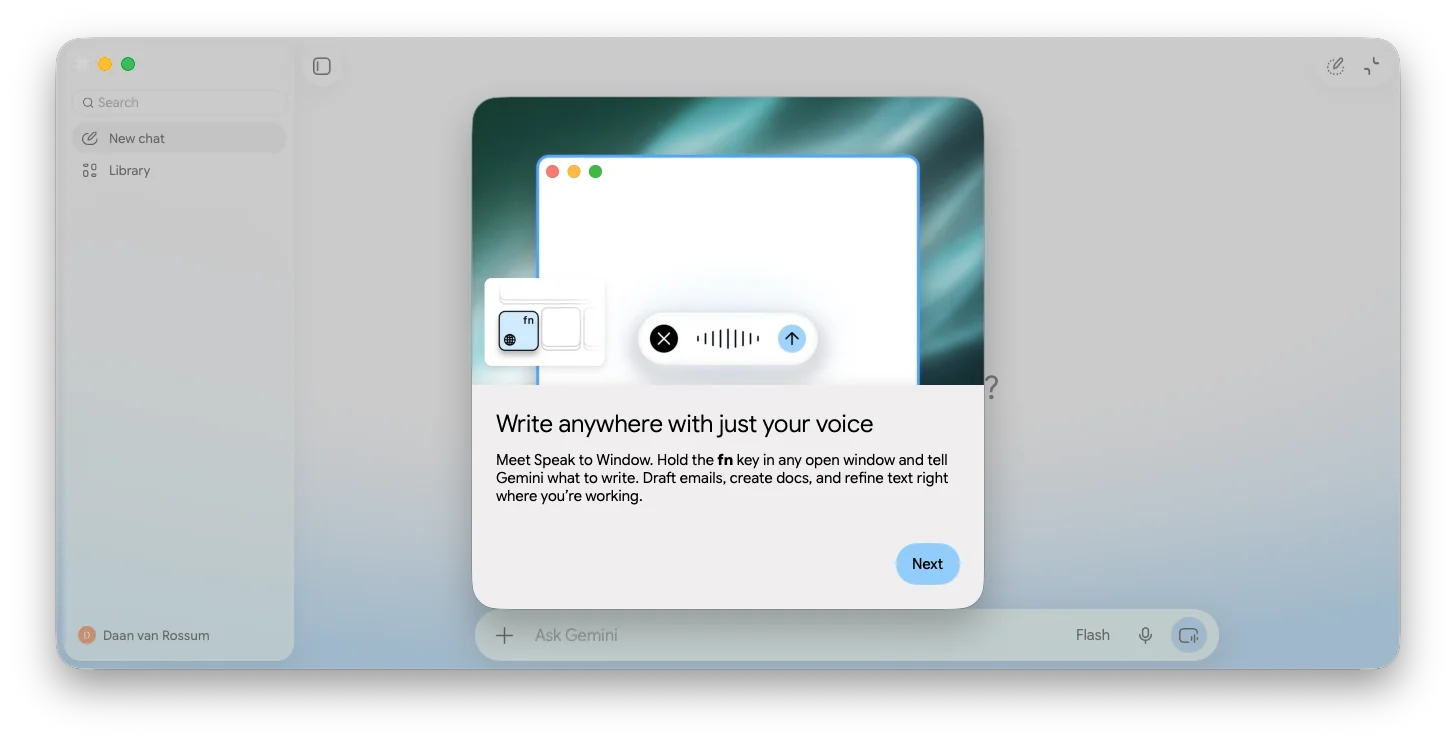
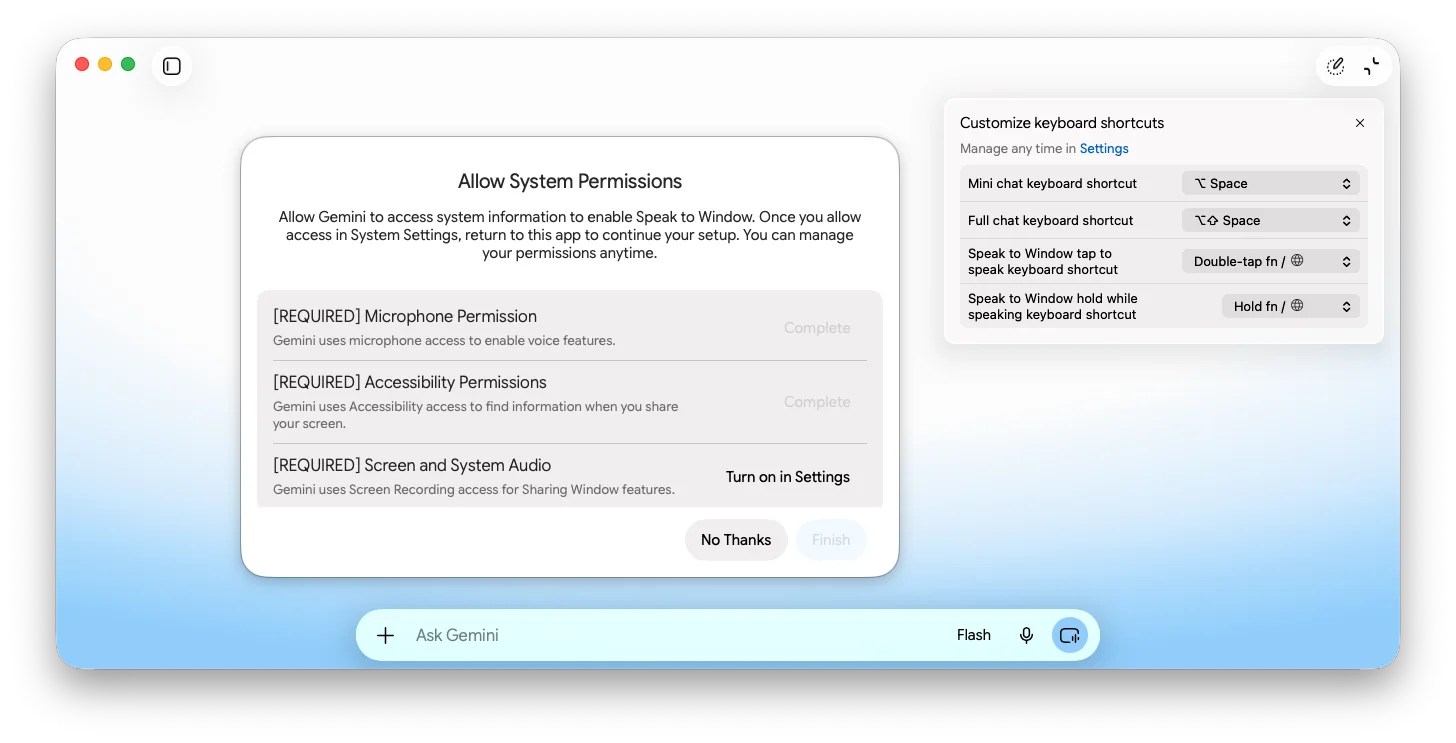
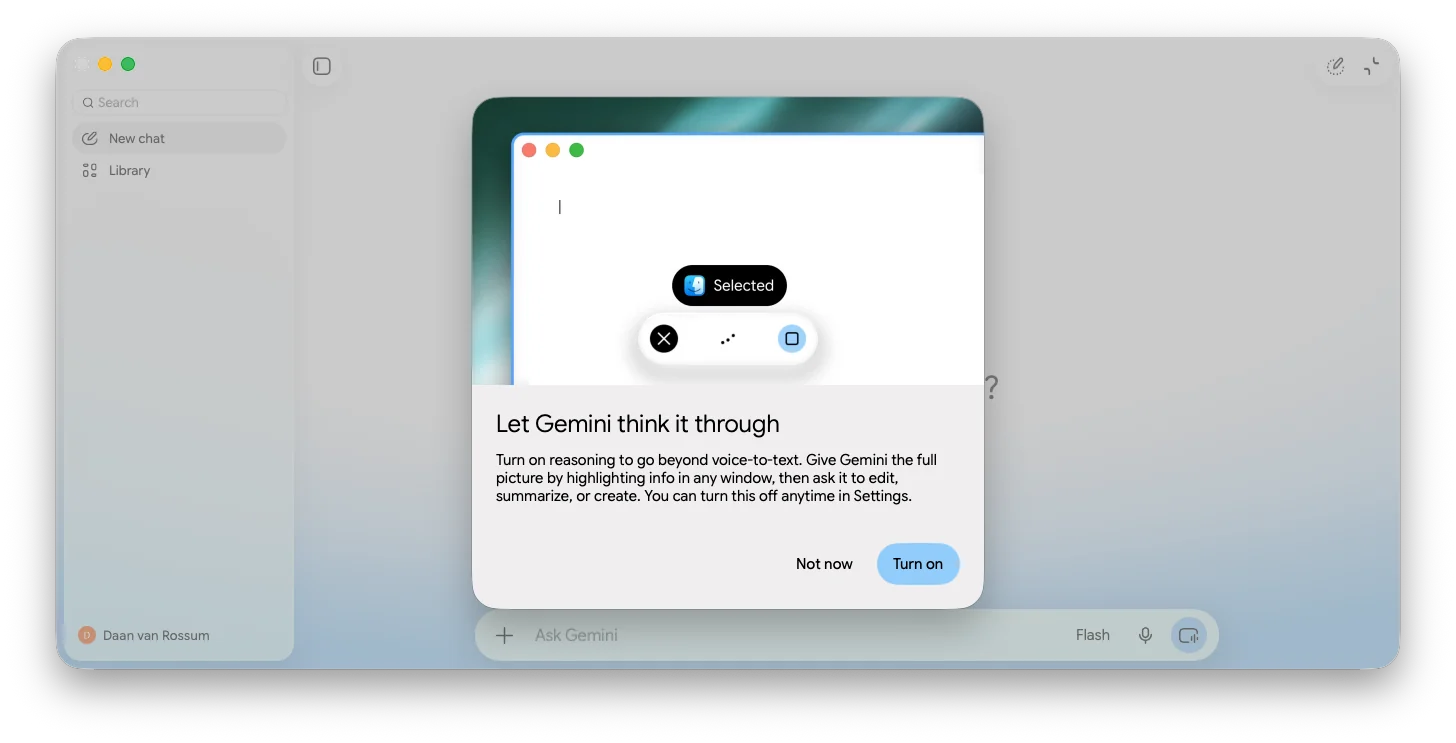
Click through the two onboarding cards. One introduces Speak to Window, the other asks if you want screen-aware reasoning on. You can say "Not now" and turn reasoning on later in Settings. (Both shortcuts, hold-Fn and double-tap-Fn, are remappable here too.)
Grant all three permissions when Gemini asks: Microphone, Accessibility (so it can read your screen), and Screen and System Audio. You have to switch that on in macOS System Settings, not in the Gemini app itself.
Restart the Gemini app. Once you restart, Speak to Windofw works in any window from then on.
Flagship AI Newsletter
The AI Newsletter That Makes You Smarter, Not Busier
Join over 30,000 leaders and receive our insights on AI platforms, implementations, and organizational change management.
How Gemini Voice Compares to Wispr Flow
Wispr Flow is a favorite among Lead with AI PRO members, as mentioned in our top AI website review. So I wanted to see how Gemini Voice holds up against Wispr Flow. The two share some similarities:
You can’t see the transcription as you talk. The finished text appears only once you stop, so it might feel like talking into a bit of a void.
Text is formatted properly. When you dictate something long, you get a workable draft with bulleted lists that require less editing.
Wispr Flow’s mobile availability is its standout feature.
On the other hand, Gemini Voice scores major points for two reasons:
You're not paying for another subscription. Wispr Flow is a separate purchase, while this is included in your Google plan.
More importantly, your data can stay inside your own workspace. This was always my concern with Wispr Flow: dictating real work meant sending it to a third party.
On a qualifying Google Workspace plan, Google states submissions aren't used to train models, aren't reviewed by humans, and stay inside your domain.
Please note that on a personal account, chats may be reviewed by humans and used to improve Google's products, so don't dictate anything confidential.
Here's what to try if you’re on a Mac: install the Gemini desktop app if you haven’t yet, open the next email or doc you were about to type, hit Fn, and talk instead of typing.
Ten minutes with Speak to Window might completely change how you interact with AI.