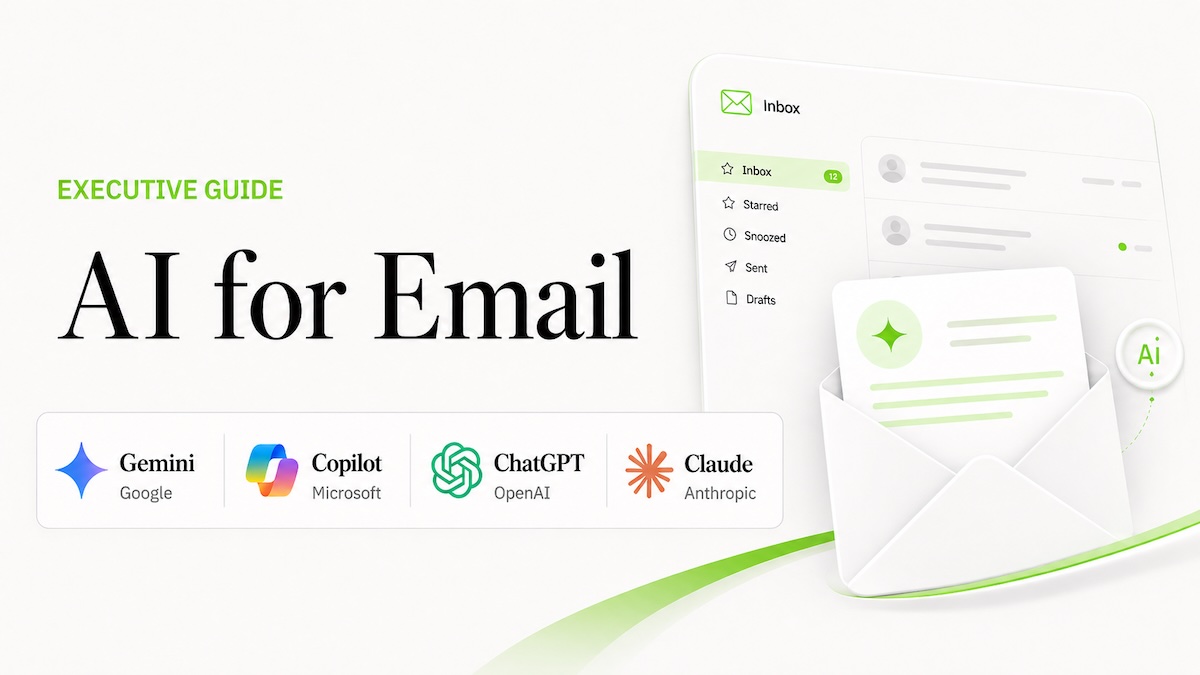

Based on the Lead with AI AI Leader Advanced program, Day 8: Reclaim Time with AI for Email.
Email has three characteristics that make it unusually well-suited for AI: it's high volume, it's highly repetitive, and it's primarily cognitive work.
That combination means AI can do a lot more than help you write faster — it can take over some of the thinking itself.
Why Email Is One of the Best Starting Points for AI
The sheer volume of email creates constant cognitive load. But the patterns are repetitive: requests, updates, clarifications, follow-ups, status checks.
And the actual work is cognitive; reading, interpreting intent, deciding what matters, choosing a response, and translating that decision into clear language.
Those are exactly the areas where modern AI performs well.
AI can read and synthesize large amounts of text quickly. It can extract intent from messy or incomplete input. And it can move you from information to action faster than manual processing.
The mindset shift that makes this work: AI isn't "sending emails for you." It's not replacing judgment or automating relationships.
Think of it as a thinking assistant inside your inbox, designed to reduce cognitive load. It helps you understand long or complex threads without rereading everything, draft a clear first response instead of starting from a blank page, and adjust tone based on context: direct, diplomatic, concise, or detailed.
These benefits compound when applied to recurring email types: status updates, approvals, routine decisions.
Two Ways AI for Email Shows Up
You'll typically encounter AI for email in two forms.
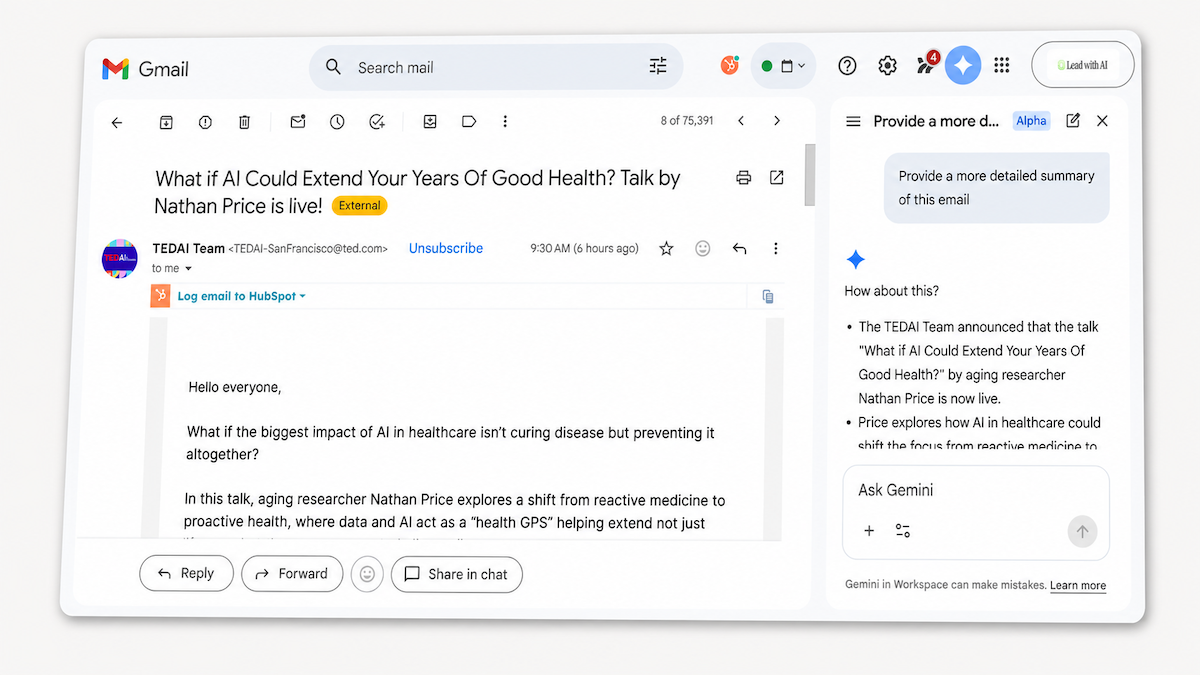
Inside the inbox: Tools like Gemini in Gmail or Copilot in Outlook live directly in your email environment.
They fit naturally into the flow of work: they can read entire threads, understand context across messages, summarize what's happening, suggest replies, and help you think through how to respond.
In this setup, AI acts less like a writing tool and more like a thinking partner, helping you decide what matters, what needs action, and how to respond in the moment.
Outside the inbox: Using a core AI platform like ChatGPT or Claude, either by pasting emails manually or connecting your inbox through integrations. Here, you step out of the inbox to think more deliberately.
This approach works especially well for higher-stakes emails: clarifying complex situations, drafting sensitive responses, thinking through implications before replying.
Across both approaches, the real value is offloading cognitive work: interpretation, judgment, structuring a response.
How Gemini, Copilot, ChatGPT, and Claude Compare
At a glance:
| Tool | Best For | Key Strength | Main Limitation | Price |
|---|---|---|---|---|
| Gemini in Gmail | Google Workspace users | Side panel plus skills for recurring email types. | Side panel and AI Inbox depend on your Workspace edition. | From $7/user/month |
| Copilot in Outlook | Microsoft 365 users | Grounded in your calendar and files across Microsoft 365. | Requires Copilot-enabled plan; admin setup needed. | From $30/user/month |
| ChatGPT | Gmail or Outlook, scheduled automation | Scheduled inbox tasks via the Gmail or Outlook plugin. | Can send from your account; add “draft only” to review first. | From $20/month |
| Claude | Thread-heavy research | Cites every email used with links to originals. | Can send from your account; keep Manual mode to approve each send. | Included in the free plan |
Gemini in Gmail
Gemini lives inside Gmail as a side panel and inline assistant, accessible from any open thread, from a draft in progress, or from the Gemini panel on the right-hand side of your inbox.
The most practical use cases: turning a long thread into an actionable brief (decisions made, open questions, owners, due dates), drafting a reply in your tone without starting from scratch, and getting strategic counsel on a tricky message before you write.
What makes Gemini particularly strong is skills: saved instructions you can call with @ in the side panel. If you handle recurring email types (customer questions, internal requests, media inquiries), a well-built skill makes each response faster and more consistent. Skills replace Gems, which Google is retiring, as our guide to Gemini skills explains.
Thread summaries and Help me write are now included for all Google Workspace users aged 18 and older. The side panel, AI Inbox and the newer features depend on your Workspace edition or Google AI plan, and admins can turn Gemini features off.
Our step-by-step guide to Gemini in Gmail covers where to find each feature, a triage prompt to copy and how to use skills for recurring emails.
Copilot in Outlook
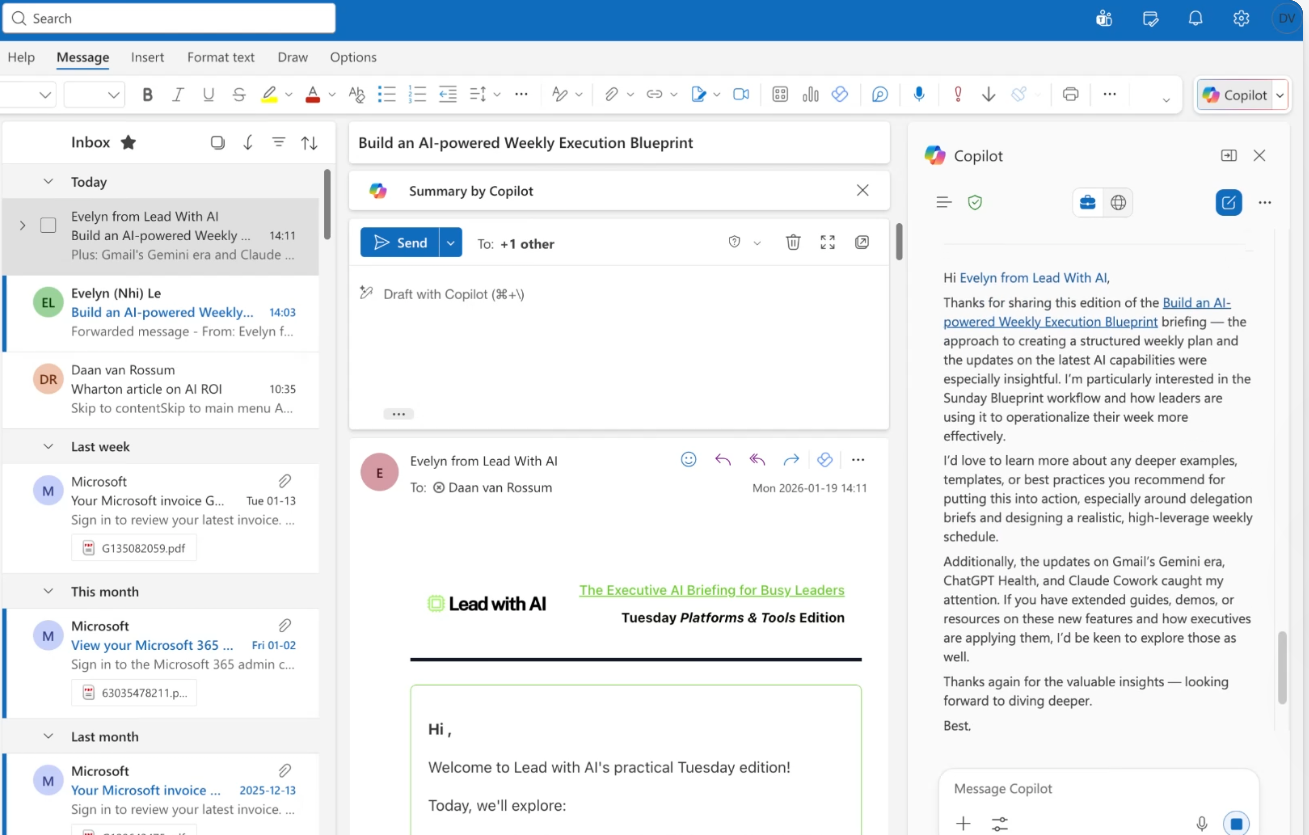
Copilot works inside the email reading pane and the compose window. It's grounded automatically in your calendar and Microsoft 365 files: not just the message you're looking at, but documents in OneDrive and SharePoint that you already have access to.
That grounding is the differentiator. When you ask Copilot to draft a reply referencing a document you received last week, it can find it. When an email involves scheduling, it can pre-populate a calendar event for review. It also works alongside Grammarly if you have it installed.
Copilot works in classic Outlook, the new Outlook for Windows, Outlook on the web, Outlook for Mac and the mobile apps, and new features often reach the new Outlook and the web first. Copilot Chat, included with Microsoft 365 business plans, can summarize a thread and answer questions about your inbox. Drafting in the compose window and the newer agent features need a Microsoft 365 Copilot license, which your organization's admin assigns.
Our step-by-step guide to Copilot in Outlook covers what a license unlocks, a triage prompt to copy and the questions your IT team will ask.
ChatGPT for Email
ChatGPT works two ways for email: a fast no-setup copy-paste option and a connected option through Plugins, which links your Gmail or Outlook account for real-time inbox access.
The copy-paste approach is already a meaningful upgrade for most people, especially if ChatGPT has context on how you write and what you care about from prior conversations. The Gmail and Outlook plugins add the ability to search and sort emails on demand, and to set up scheduled tasks: for example, a daily priority list delivered each morning before you open your inbox.
Be careful here: once your inbox is connected, ChatGPT can send email from your account. A request like “reply to Sarah and confirm Friday” may go out without a confirmation step, so end every email request with “Draft only. Do not send.” What you can do also depends on your plan, your workspace settings and your region.
Our step-by-step guide to ChatGPT for email covers the setup, a triage prompt to copy and the questions your IT team will ask.
Claude for Gmail
Claude connects to Gmail via Customize > Connectors. Once connected, it uses Gmail automatically when your request calls for it, with no mode-switching required.
The integration is well-suited for thread-heavy situations: pulling the history of a relationship across multiple messages, summarizing what's been agreed, drafting based on what was actually said rather than just the most recent message. Claude cites the emails it used and links back to the originals, so you can verify before acting.
Claude can also send, reply to and forward email from your account. By default, it asks for your approval before each one, but in Auto mode an automated check can let it act without asking, so keep Manual mode for email. Embedded images and attachment contents are not visible, only metadata. The connector is available on every Claude plan, including the free plan, and on Team and Enterprise plans an admin has to enable it first.
Our step-by-step guide to Claude for Gmail covers the setup, the approval settings to check and a triage prompt to copy.