This step-by-step guide is exclusively available for Lead with AI PRO membership. 🚀 With Lead with AI PRO, you’ll get: ✅ Access to expert-crafted step-by-step guides ✅ AI-powered workflows to boost productivity ✅ Exclusive tools and resources for smarter work Upgrade to Lead with AI PRO and access all premium content instantly.
Anthropic's Claude Motion is now in beta, and it turns a prompt, an image, or existing content into a short animation inside Claude.
Artifacts are editable outputs that open beside your Claude conversation.
Motion is another artifact type, built for animation. You adjust the result through conversation or in the editor, then export it as an MP4.
Flagship AI Newsletter
The AI Newsletter That Makes You Smarter, Not Busier
Join over 30,000 leaders and receive our insights on AI platforms, implementations, and organizational change management.
What Makes Claude Motion Different?
It animates designed elements, not filmed scenes. Motion uses code to animate text, graphics, charts, and images, so it doesn't create realistic footage or new people.
You can edit individual words and adjust the timing to ensure accuracy.
You can ask Claude for changes in the chat. When I wanted the session guest credited at the start, I asked Claude to add the name near the opening, and it appeared in the next version.
How I Turned an Event Graphic Into a LinkedIn Promo
To test animating existing artwork, I used a Lead with AI PRO graphic for "What Atlassian’s New Research Reveals About AI and Team Collaboration," featuring Molly Sands. The goal was a 15-second promo for LinkedIn.
Here’s the final product:
Step 1: Open Motion
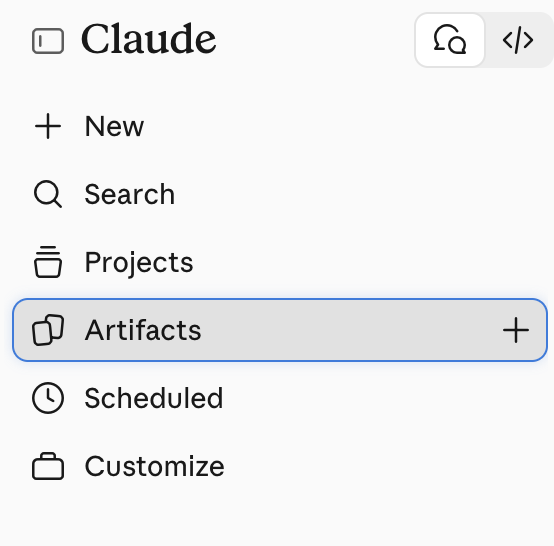
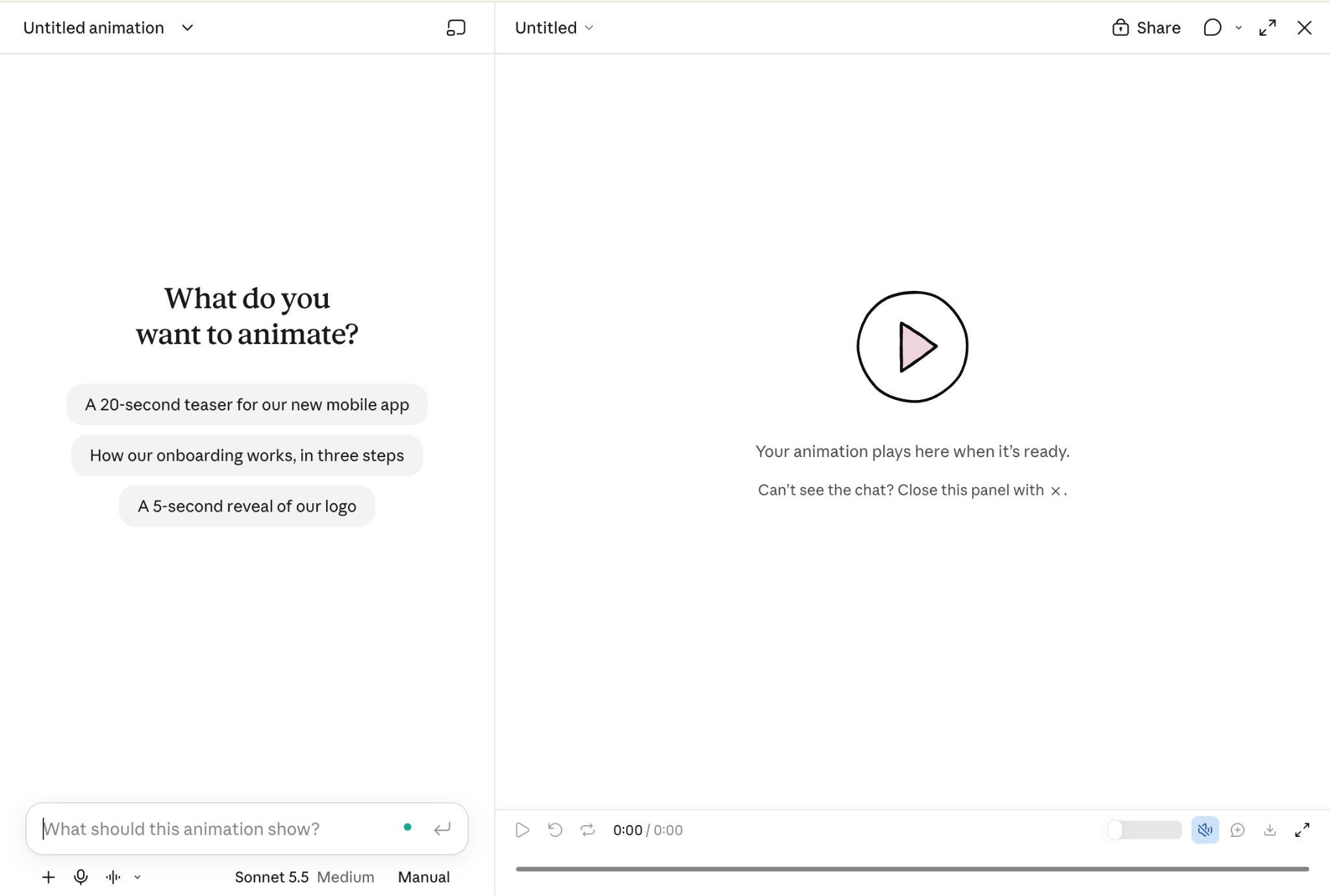
In Claude, open Artifacts from the sidebar and select Motion under "Make something new." That opens a workspace where you can describe the animation and attach your artwork.
Select Artifacts. This opens the page where every artifact type is created.
On the Artifacts page, choose Motion (marked Beta) under "Make something new," next to Docs, Slides, Design, and Dashboard.
Step 2: Upload the graphic and provide a detailed prompt
I attached the event graphic and put the length, style, brand color, and text behavior into the first prompt:
"Turn the attached event graphic into a 15-second LinkedIn promo in a quiet editorial style: white background, large serif headlines that fade in line by line from grey to near-black, small floating pill tags, a green timeline with ringed nodes for the time zones, and a clean logo end card held for 3+ seconds. Use only the brand green as an accent. Use the supplied speaker photo, logos, title, date, and times exactly as written. Do not invent event details, a URL, or a call to action. It should read clearly with the sound off."
The Motion workspace opens with the chat on the left and a preview panel on the right. Your animation plays in the preview once it is ready.
Step 3: Edit the video with additional prompts
The first version didn't credit the guest at the beginning, so I asked Claude to add the guest's name near the opening.
The revised first scene now shows the guest name as a small pill under the headline.
Step 4: Review and export
I played the video from start to finish and checked the pacing, names, text visibility, and audio. Then I clicked Download to export the MP4.
Play the video from start to finish and review each scene. The red box marks the Download button, and the scene tabs under the timeline let you jump between scenes.
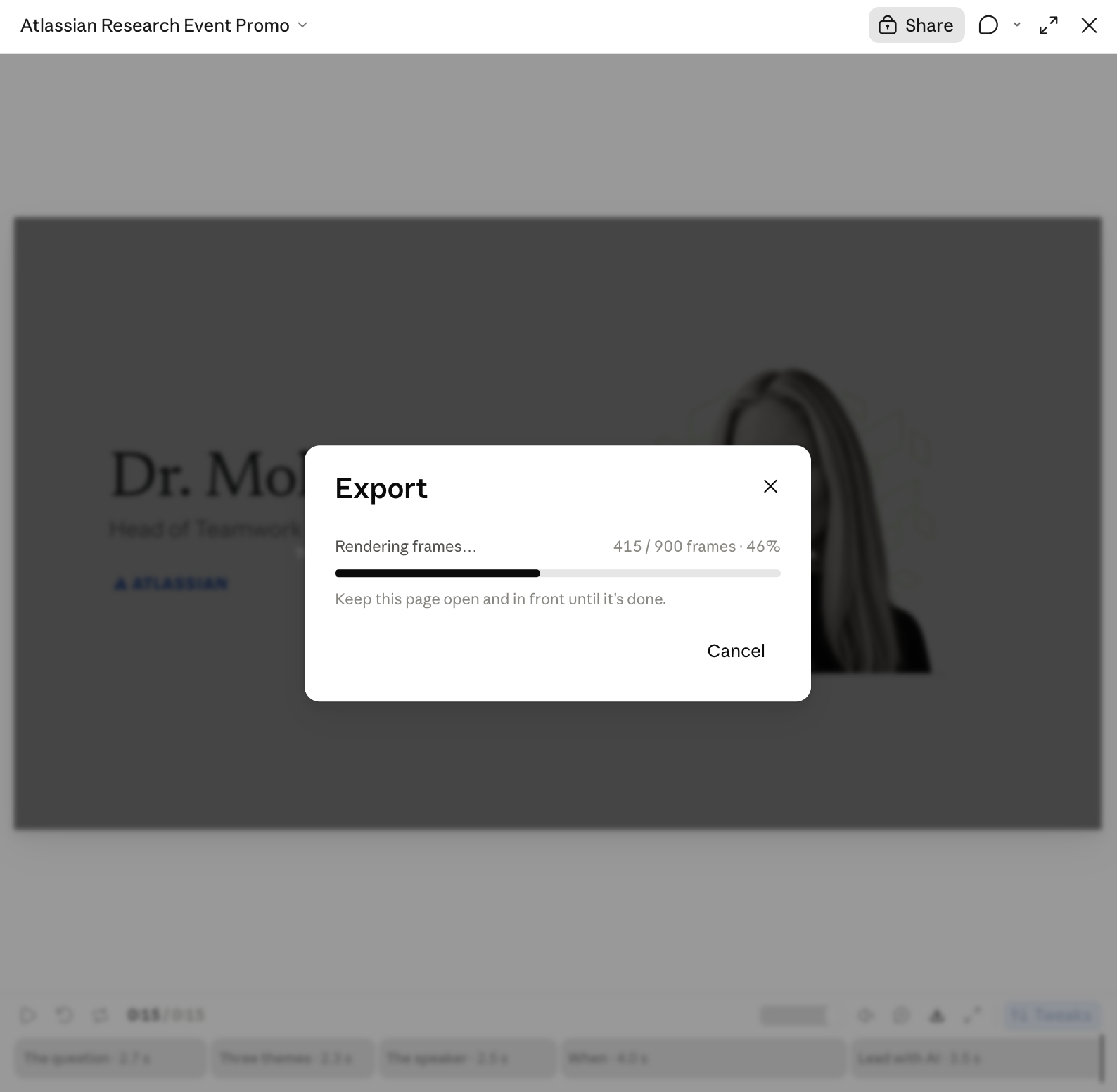
Clicking Download opens the Export dialog, which renders the frames. Keep the page open and in front until it finishes, then your MP4 is ready.
Flagship AI Newsletter
The AI Newsletter That Makes You Smarter, Not Busier
Join over 30,000 leaders and receive our insights on AI platforms, implementations, and organizational change management.
Tips for Your First Promo Video
I'd start with an already approved graphic, such as an event announcement or a presentation opener. Three tips before you begin:
Put the audience, duration, style, and required content in your first prompt. It's the same idea behind our CODO prompting framework: the more context the AI has up front, the less you fix later.
Check every name, date, and logo against the original graphic before you post. Use our DRAFT Framework to review the result before posting.
Keep the first few test versions short. Longer or more complex animations use more of your plan’s usage credit.
Plans and Availability
Claude Motion is in beta on Team and Enterprise plans. For Team, it's enabled by default. On Enterprise, an owner has to turn it on under Organization settings > Artifacts. Motion counts directly against your plan's existing usage limits.