Presented by

ChatGPT Images 2.5 could already turn a prompt into an image.
Images 2.6, released in November 2026, adds GIF creation and saved reference images, and OpenAI says it generates images 50% faster than before.


This step-by-step guide is exclusively available for Lead with AI PRO membership.
🚀 With Lead with AI PRO, you’ll get:
✅ Access to expert-crafted step-by-step guides
✅ AI-powered workflows to boost productivity
✅ Exclusive tools and resources for smarter work
Upgrade to Lead with AI PRO and access all premium content instantly.

ChatGPT Images 2.5 could already turn a prompt into an image.
Images 2.6, released in November 2026, adds GIF creation and saved reference images, and OpenAI says it generates images 50% faster than before.


Choose the prompt for your task: create an image, edit an existing one, or animate it. Replace the bracketed placeholders with your own details.
Create a clean, reusable visual of [subject / mascot / product] for [audience and use]. Keep these details fixed: [shape, colors, outfit, proportions, distinctive features]. Use [style and brand palette]. Keep the background simple and avoid small text.
Clearly define what you want to create, the audience, and details ChatGPT should not alter. See our CODO framework for more tips on structuring your request.
Keep the subject, proportions, colors, outfit, camera angle, and composition unchanged. Change only [one specific area or detail]. Do not redesign anything else. Compare the result with the original before making another edit.
Naming one change keeps the request focused. Check the result for unintended changes elsewhere.
Animate only [one simple movement]. Keep the face, text, logo, product shape, and camera fixed. Make a short seamless loop. If the visual contains a real person, keep the portrait static and move only surrounding elements.
One simple movement makes it easier to check the loop for flicker or distorted features.
Start with a sketch, illustration, or brand mascot. A mascot could wave in a welcome message, a butterfly could flap its wings, or a product illustration could show one moving part.
The example below shows a butterfly sketch and the colored version ChatGPT generated.
To animate it, use the GIF prompt above and ask for gentle wing movement while keeping the body and background still.


Top: the sketch you start with. Bottom: the colored version ChatGPT generated from it.
Reuse a visual for different messages while keeping the speaker, brand colors, and other key details consistent.
For the Lead with AI PRO graphic example below, the variations include a session promotion, a question-led post, and a summary of the main ideas.
Use the targeted edit prompt to change a headline or another specific detail. If you want a new layout, remove the instruction to keep the composition unchanged. Check that the portrait, names, and logos still match the original.


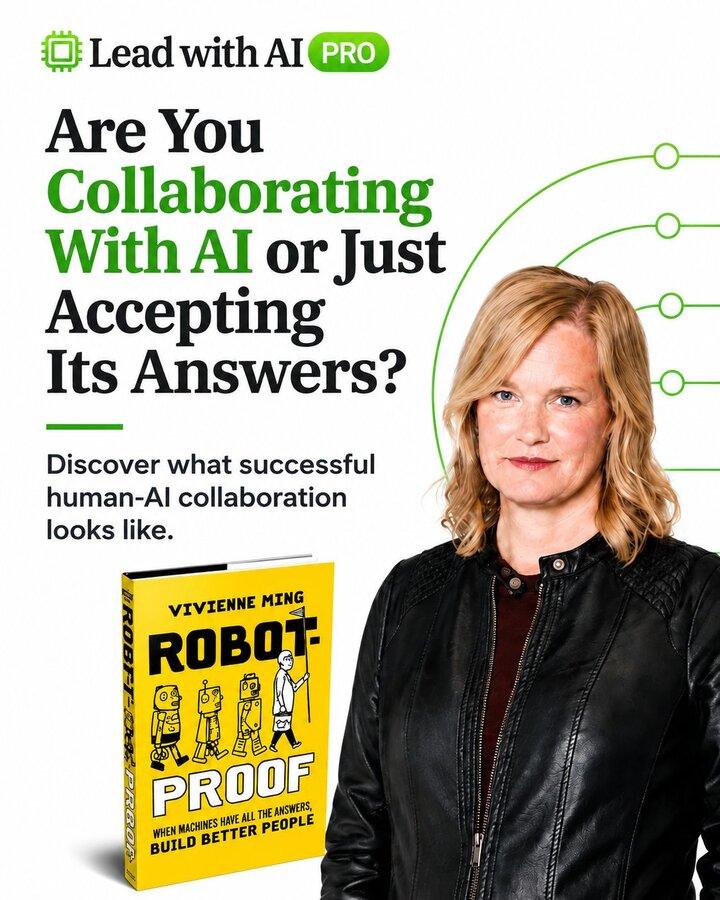
One PRO visual adapted into three variations.
Other uses include product images with seasonal backgrounds, a mascot in different campaign graphics, and event graphics resized for email, presentation slides, or social posts.
Images 2.6 is available on all plans, in ChatGPT and Codex, on the web, desktop, and mobile.
GIF creation is rolling out gradually, so it may not appear in your account yet. Check back if you don't see it.
Timely insights from the Lead with AI team.


