This step-by-step guide is exclusively available for Lead with AI PRO membership. 🚀 With Lead with AI PRO, you’ll get: ✅ Access to expert-crafted step-by-step guides ✅ AI-powered workflows to boost productivity ✅ Exclusive tools and resources for smarter work Upgrade to Lead with AI PRO and access all premium content instantly.
Claude in Chrome Is Now a Full Cowork Session: What Leaders Need to Know
Anthropic turned Claude in Chrome into a full Cowork session, with shared history, skills, and connectors. Here's what changed, who has access, and how to test it.
By
Daan van Rossum
Founder & CEO, Lead with AI
Presented by
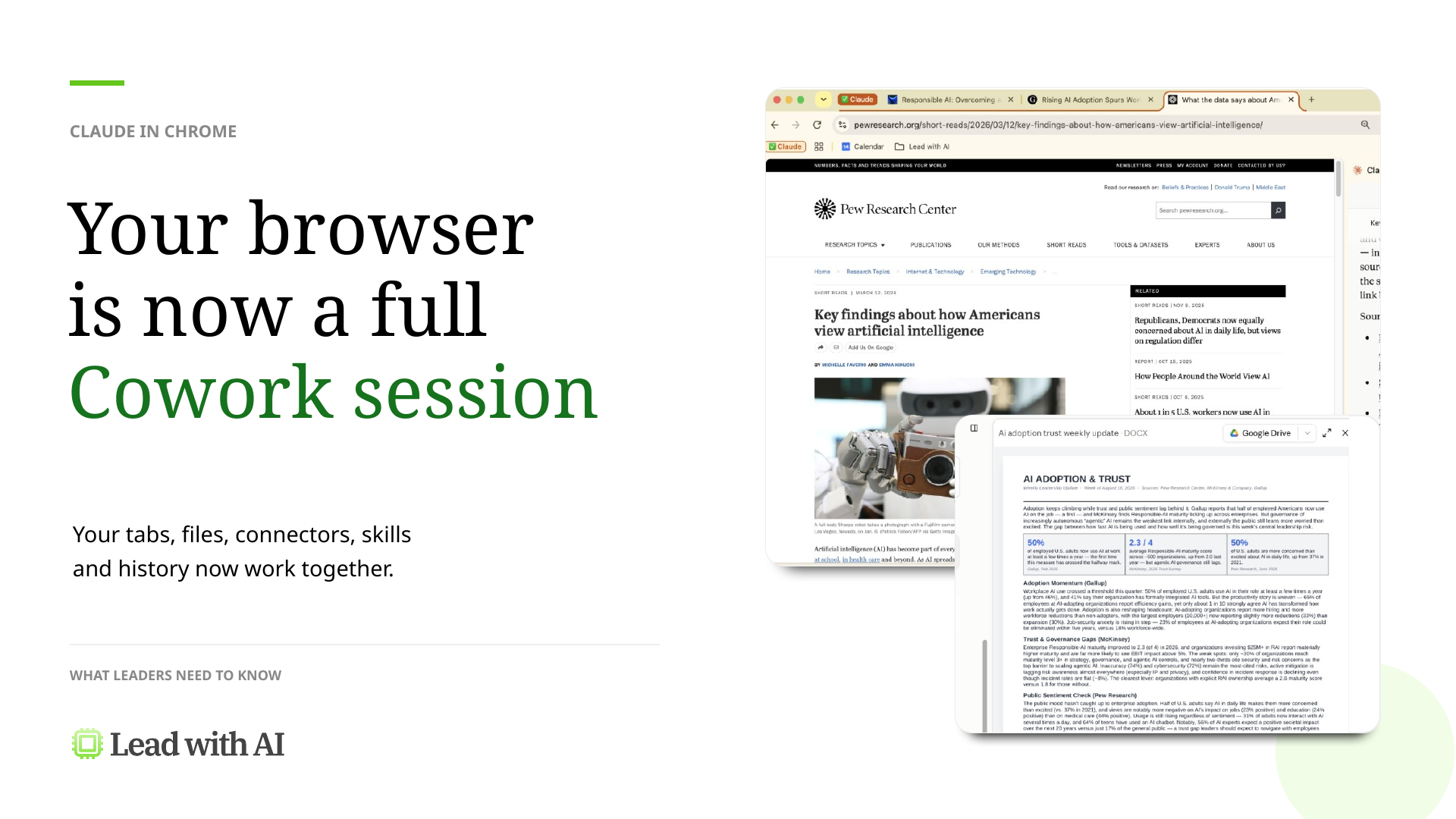
Anthropic just turned its Chrome extension into a real Cowork session.
If you haven't used Claude Cowork yet, it lets you give Claude a goal, and it does the work itself across your files and whatever tools you've connected (our beginner's guide to Claude Cowork covers the rest).
As of today, it also runs inside your open browser tabs.
The classic Claude in Chrome extension could already click through pages, fill in forms, and read tabs.
What it could not do, until now, was work the way a Cowork session on desktop or web already does. Here is what it means for you, who has access today, and what my test revealed.
Flagship AI Newsletter
The AI Newsletter That Makes You Smarter, Not Busier
Join over 30,000 leaders and receive our insights on AI platforms, implementations, and organizational change management.
Claude Cowork in Chrome: What Actually Changed
Three things are worth knowing before you open the panel.
Your browser conversations now save to your Claude history. Open the side panel, start a task, and it shows up in your history exactly like a Cowork session on desktop or web would.
A task can start in Chrome and finish somewhere else. Begin something in a tab. Close the laptop, and pick it back up later on desktop, web, or your phone, with full context intact.
Skills and connectors you already built now work in the browser. Whatever you have connected on desktop — your Drive, your Slack, your custom skills — these are available in Cowork for Chrome.
Claude in Chrome is live now for Max and Team users, while Pro gets it over the coming weeks.
On Enterprise, an admin has to turn on the Claude in Chrome extension itself, and turn on Cowork in the cloud for the whole organization. Admins can also specify which sites Claude is allowed to interact with.
I Put This to the Test: And Here's How You Can Too
What does that actually look like on a normal workday? Here is the example I ran.
I had three research pages open in three separate tabs: a Pew Research read on how Americans view AI, a McKinsey trust survey, and a Gallup workplace adoption report.
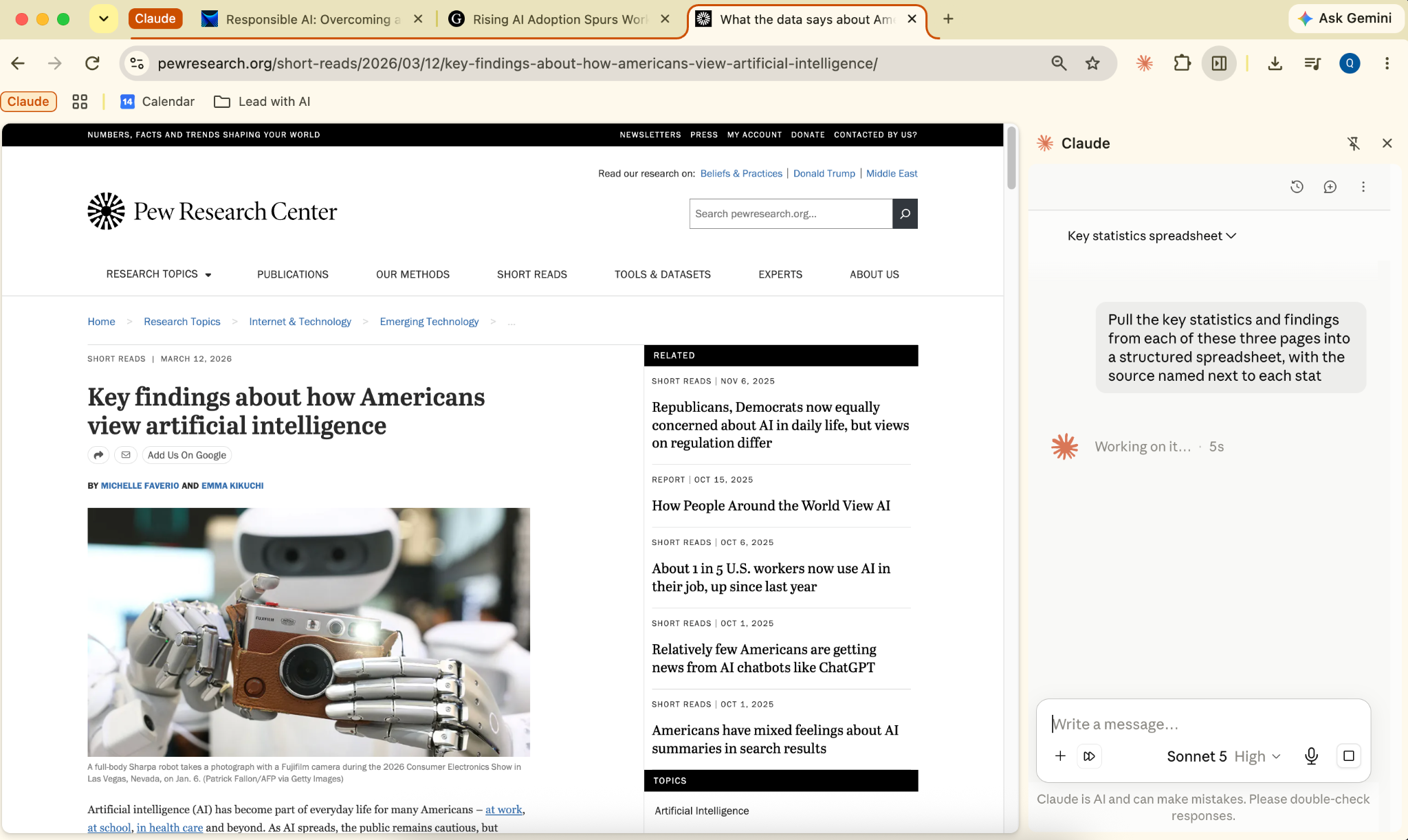
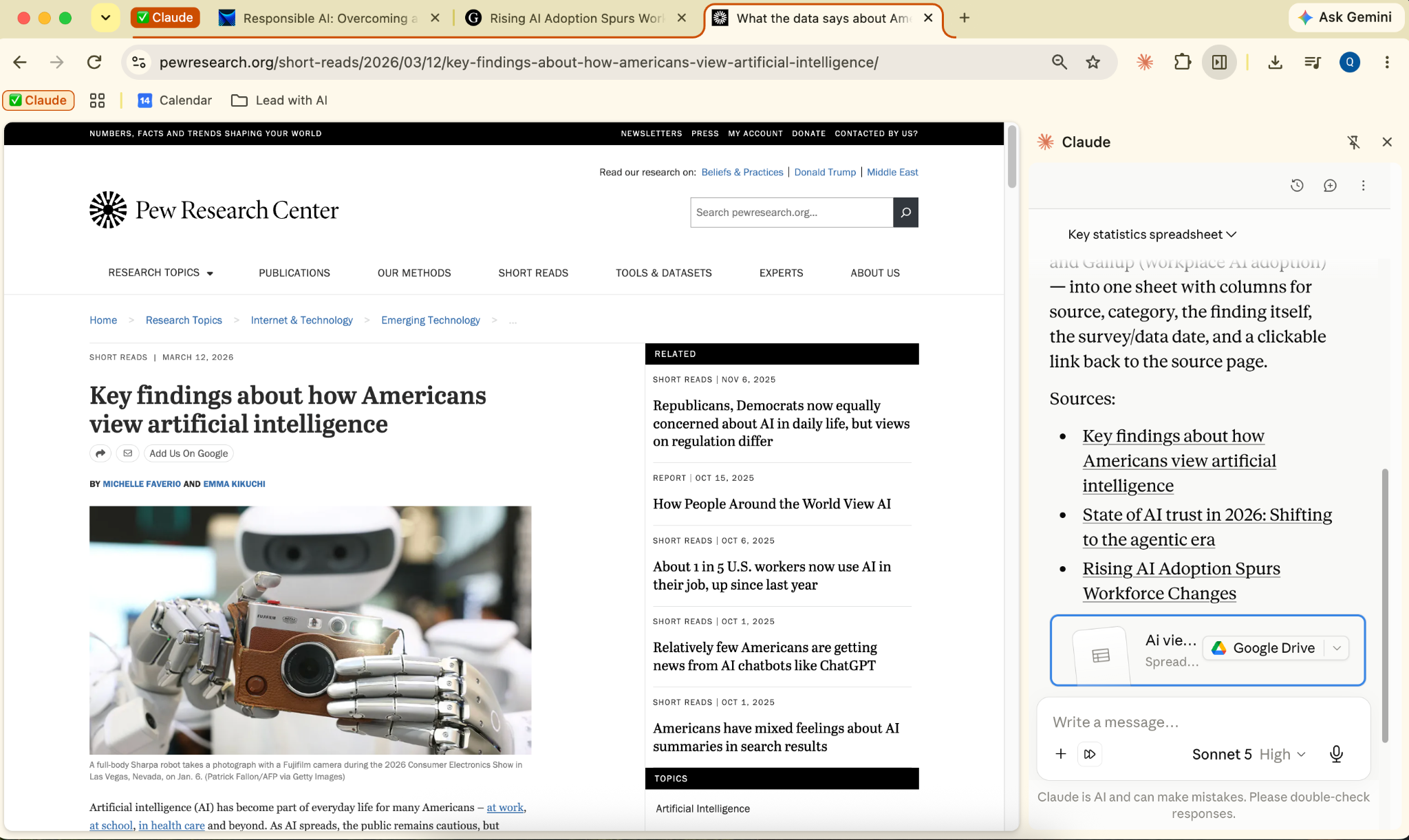
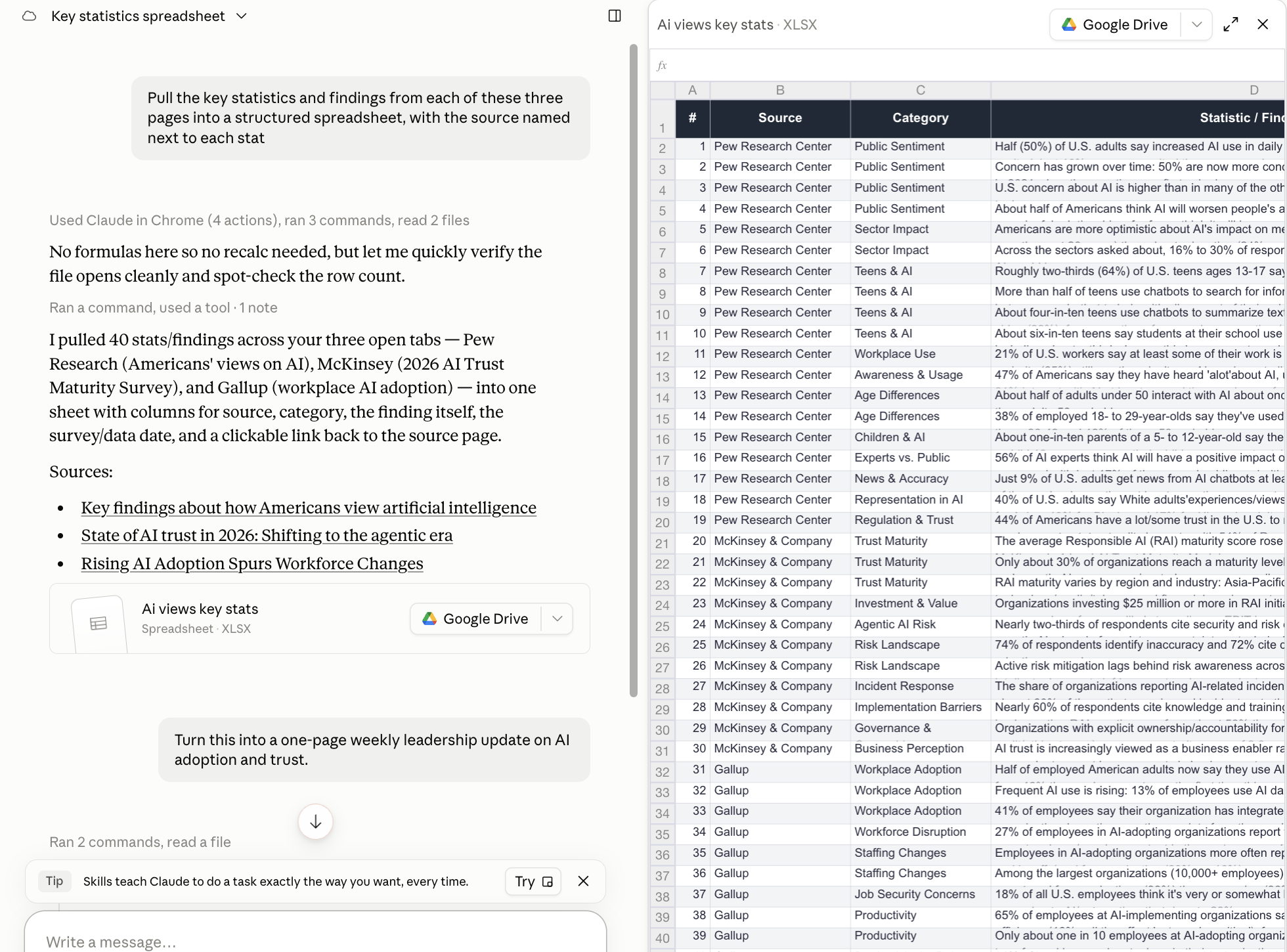
Instead of reading each one and pulling the numbers by hand, I told Claude, in the side panel, to pull the key statistics from each page into a structured spreadsheet, with the source named next to every stat.
It came back with 40 stats across all three sources, organized by category.
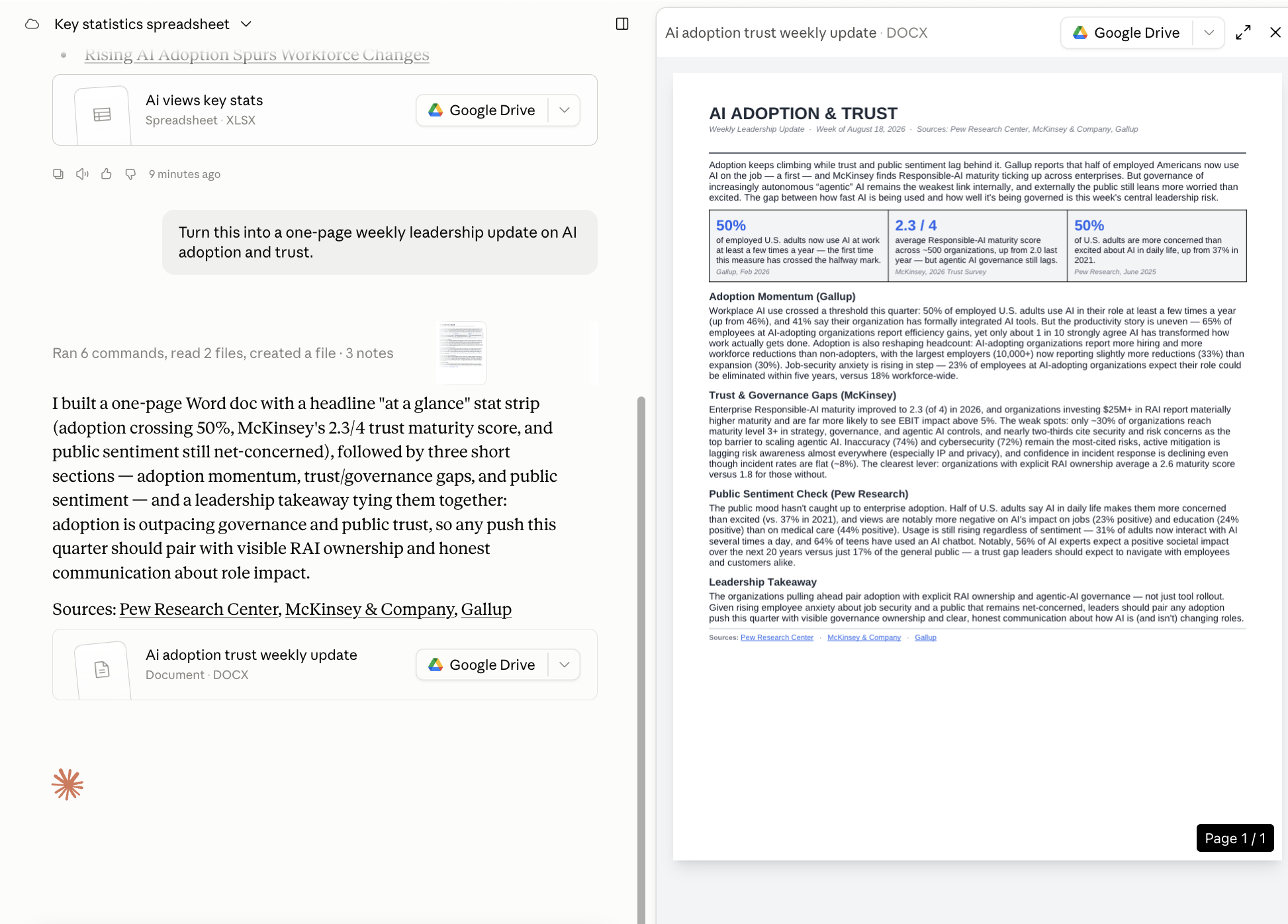
I opened the desktop app afterward, found the same conversation in my history, and asked it to turn that spreadsheet into a one-page weekly leadership update on AI adoption and trust.
Here are the steps I took:
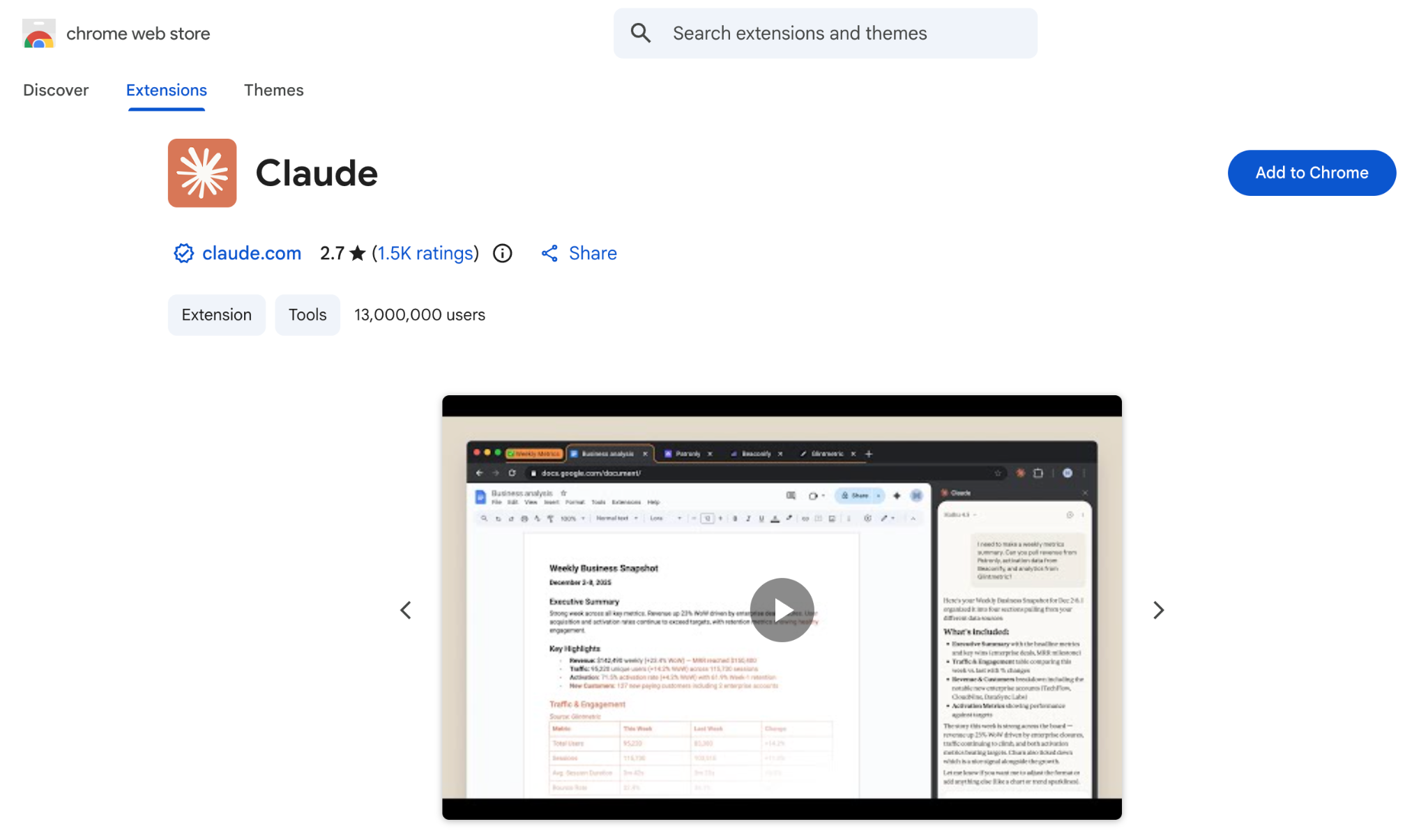
1. Install the extension. Go to the Chrome Web Store, search "Claude," add it, and sign in.
The Claude extension listing in the Chrome Web Store
2. Open the side panel and confirm you are in a Cowork session. Look for the same history you would see on desktop.
3. Group the tabs you want Claude to read. Drag them into one Chrome tab group so the color runs across all of them. The tabs in that group are what Claude actually sees.
The three report tabs grouped together, with the actual task typed into the side panel
4. Give it the actual task the same way you would prompt Cowork anywhere else.
Claude compiling the sourced stats into a spreadsheet inside the Chrome side panel
5. Hand it off. Open the Claude desktop app, find the same conversation in your history, and keep going from there.
The same conversation and spreadsheet, picked up in the Claude desktop app
The finished one-page AI Adoption and Trust leadership update, produced on desktop
Flagship AI Newsletter
The AI Newsletter That Makes You Smarter, Not Busier
Join over 30,000 leaders and receive our insights on AI platforms, implementations, and organizational change management.
Human in the Lead
None of this is free of risk. A bad actor can hide instructions inside a web page, an email, or a document, also known as a 'prompt injection,' and if Claude follows them without you noticing, it's effectively acting as you, inside your own logged-in session, which could mean getting your data stolen.
Claude aims to protect you with a separate check that reviews consequential actions (submitting a form, sending a message, downloading a file) against what you actually asked for, but I wouldn't rely on this alone.
Claude still pauses and asks before important steps like a purchase or sharing personal data. While this is a legitimate safeguard, it is not a reason to stop paying attention.
Using trusted sites and giving Claude access to only what the task needs is a crucial step in the right direction.
This is why we often talk about Human in the Lead: someone who actively chooses what an AI system is allowed to see and do before handing off the task. This is the same lens behind the people-centric AI transformation we build our work around.
So, Is It Worth Turning On?
For me, yes. It's great to have full Cowork capabilities right in your browser, especially the session history being available across desktop, web, and mobile.
To get the most out of Cowork in Chrome:
Keep the group small. Claude only reads the tabs you have grouped together, so include only the tabs this task needs. This also helps you save tokens and reduce Claude's processing time.
Check your permission mode. Automatically approve is the default in the Cowork panel. It is convenient, but know what it is approving on your behalf before you lean on it for anything significant.
The leaders getting the most out of this are the ones staying in the lead, who decide what an agent can touch and the restrictions to place on it. That is exactly the judgment we build in AI Leader Advanced.