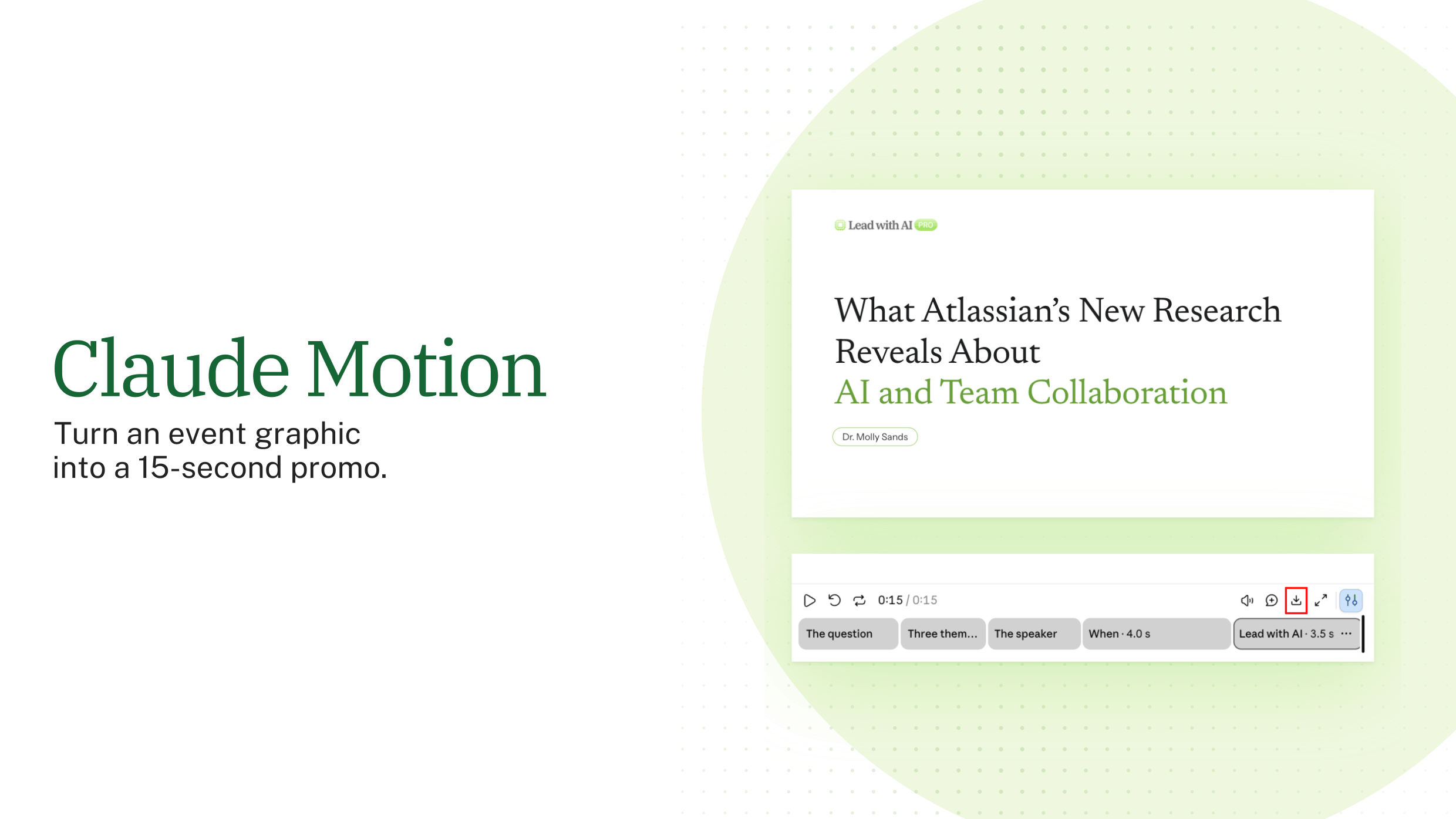
A launch, an event or a quarterly result often deserves more than a static post, but few leaders have time to open a video editor.
Claude Motion turns a prompt, your data or an existing graphic into a short animation of text, charts and images, which you export as an MP4. It is in beta on Claude Team and Enterprise plans.
Motion does not film anything. Claude writes code that animates the elements you give it, so the wording, numbers and branding stay exactly as you specify. Anthropic is clear that it does not create realistic footage or people.
Where to find Motion
- From any chat: ask Claude for an animation, or select Output in the message box and choose Motion.
- From the Artifacts tab: select Artifacts in the sidebar and choose Motion under Make something new.

What your plan includes
- Team: Motion is in beta and on by default.
- Enterprise: Motion is off until an owner turns it on in Organization settings, then Artifacts. Owners can also limit it to specific groups.
- Free, Pro and Max: Motion is not included.
- Usage: animations count toward your plan's usage limits, and longer or more complex ones use more than a typical message.
When Motion earns its place
There are four situations where Motion pays off quickly:
- A social post or event promo where every name, date and time must be exact.
- An animated chart that opens or closes a presentation.
- A short explainer for an internal meeting or an all-hands.
- A product walkthrough or onboarding clip built from images you already have.
How to make an animation, step by step
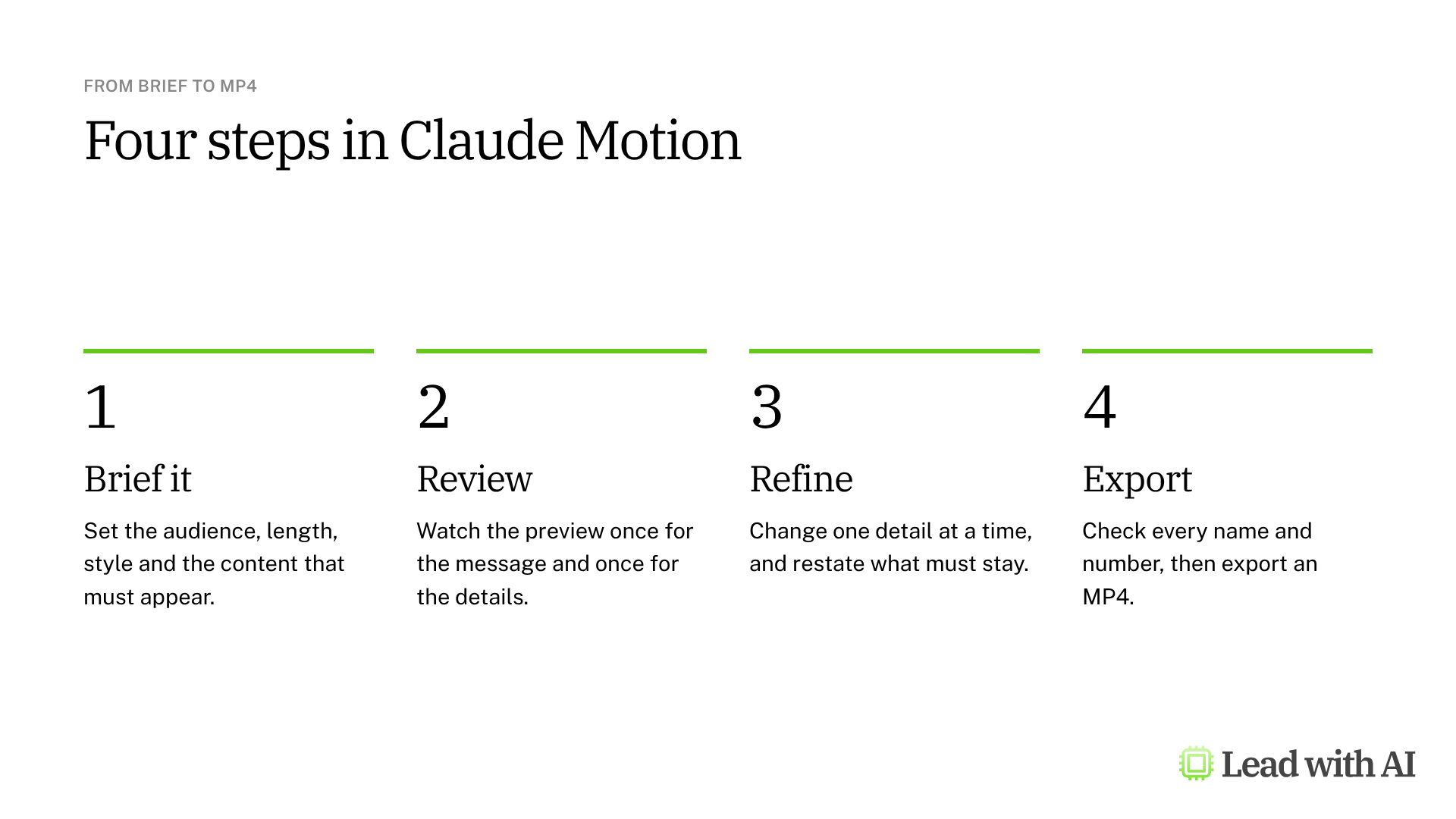
Step 1: Write a complete first prompt. Say who will watch the animation, where it will play and how long it should be. Set the style, the structure and the content that must appear. Attach your own graphic, data or images, and tell Claude to use names, dates and logos exactly as given.
Step 2: Review the first version. The animation plays in a preview beside the conversation. Watch it once for the message and once for the details.
Step 3: Refine one detail at a time. Ask for small, targeted changes, such as a name in the opening scene or a label that overlaps a line, and restate what must stay the same. Because each animation is code, changing one detail leaves the rest unchanged. You can also adjust the animation directly in the editor.

Step 4: Check, then export. Play the whole animation and check the pacing, every name, date and number, and that all text is readable with the sound off. Then select Export and choose MP4. Keep the page open while the video renders.
Step 5: Share or post. Animations start private to you. To share one with colleagues, open it and select Share. Post the MP4 yourself, after a final review.
A CODO prompt for your first animation
This prompt, built with our CODO framework, turns an existing graphic into a short promo. Attach the graphic and replace the bracketed parts.
Character: You are a motion designer who makes calm, editorial animations for a professional audience.

Objective: Turn the attached [event graphic, chart or report] into a [15]-second animation for [LinkedIn or an internal meeting] that tells [audience] about [topic].

Do:
- Use the attached images, logos, names, dates and times exactly as given.
- Use a [white] background, [large serif headlines] that appear line by line, and [your brand color] as the only accent.
- Make every line readable with the sound off.
- End with a logo card that stays on screen for at least three seconds.

Don't:
- Don't invent details, links or calls to action.
- Don't add people, footage or images I have not supplied.

Output:
A [15]-second animation in Motion, plus a list of every name, date and number it shows, so I can check them.
Want to go further? Our walkthrough of turning an event graphic into a 15-second LinkedIn promo shows a complete Motion project from prompt to MP4.
What will your IT and legal teams ask?
- Who can use it? Team and Enterprise members, while Motion is in beta. On Enterprise, an owner turns it on and can limit it to specific groups.
- Who can see an animation? Only you, until you share it.
- Can it create realistic people or footage? No. Motion animates the text, charts and images you supply, without a video generation model.
- What should never go in? Confidential figures and unreleased plans, until you know who will see the final video. Check that you have the rights to every logo and photo you attach.
Claude Motion or another video tool?
Claude Motion is the right choice when the exact words, numbers and branding matter most, such as an event promo, an animated chart or a short explainer.
To present a message as yourself, use an avatar tool such as HeyGen. For a short scene or an animated image, try Gemini Omni. Our overview of AI video generation compares the options.
Key takeaways
- Use Motion for words, numbers and brand, not for filmed scenes.
- Put the audience, length and must-have content in your first prompt.
- Refine one detail at a time, and say what must stay the same.
- Check every name, date and number before you export.
- Post the MP4 yourself, after a final review.