
A proposal, a plan or a product idea often lands better when people can click through it. Until recently, that meant briefing a designer or a developer.
Claude can turn a brief or your existing documents into an interactive prototype, a landing page or a one-pager, as an artifact beside your conversation. Anthropic describes an artifact as anything Claude makes that you would put in front of someone.
This is also where Claude Design now lives. The standalone Claude Design site closes on December 14, 2026, and every new design you make in Claude is an artifact.
Where to find it
- In any chat: describe the prototype or page you want, or select Output in the message box and choose Design.
- From the Artifacts tab: select Artifacts in the sidebar and choose Design. The chat sits on the left and the design canvas on the right.
- In Claude Code: type /design followed by your brief.
- On iOS and Android: ask for a design, view it and edit it. Change sharing settings on the web or in the desktop app.
What your plan includes
- Every plan: artifacts and the Design template are available on Free, Pro, Max, Team and Enterprise, and they are on by default.
- Design systems: saving your brand as a reusable design system is in beta on paid plans.
- Team and Enterprise: owners manage artifacts, design systems and sharing in Organization settings, then Artifacts.
- Usage: artifacts count toward your plan's usage limits, like the rest of your work with Claude.
- Settings: artifacts need code execution and file creation, which are turned on under Settings, then Capabilities.
When Claude artifacts earn their place
There are four situations where an artifact pays off quickly:
- A proposal a client can explore, such as a clickable timeline of a project or campaign.
- A landing page or one-pager that tests a message before you brief a designer.
- A product or process prototype that lets people react to an idea before you ask for budget.
- Branded visual work built from your own pitch deck or style guide.
How to build a prototype, step by step
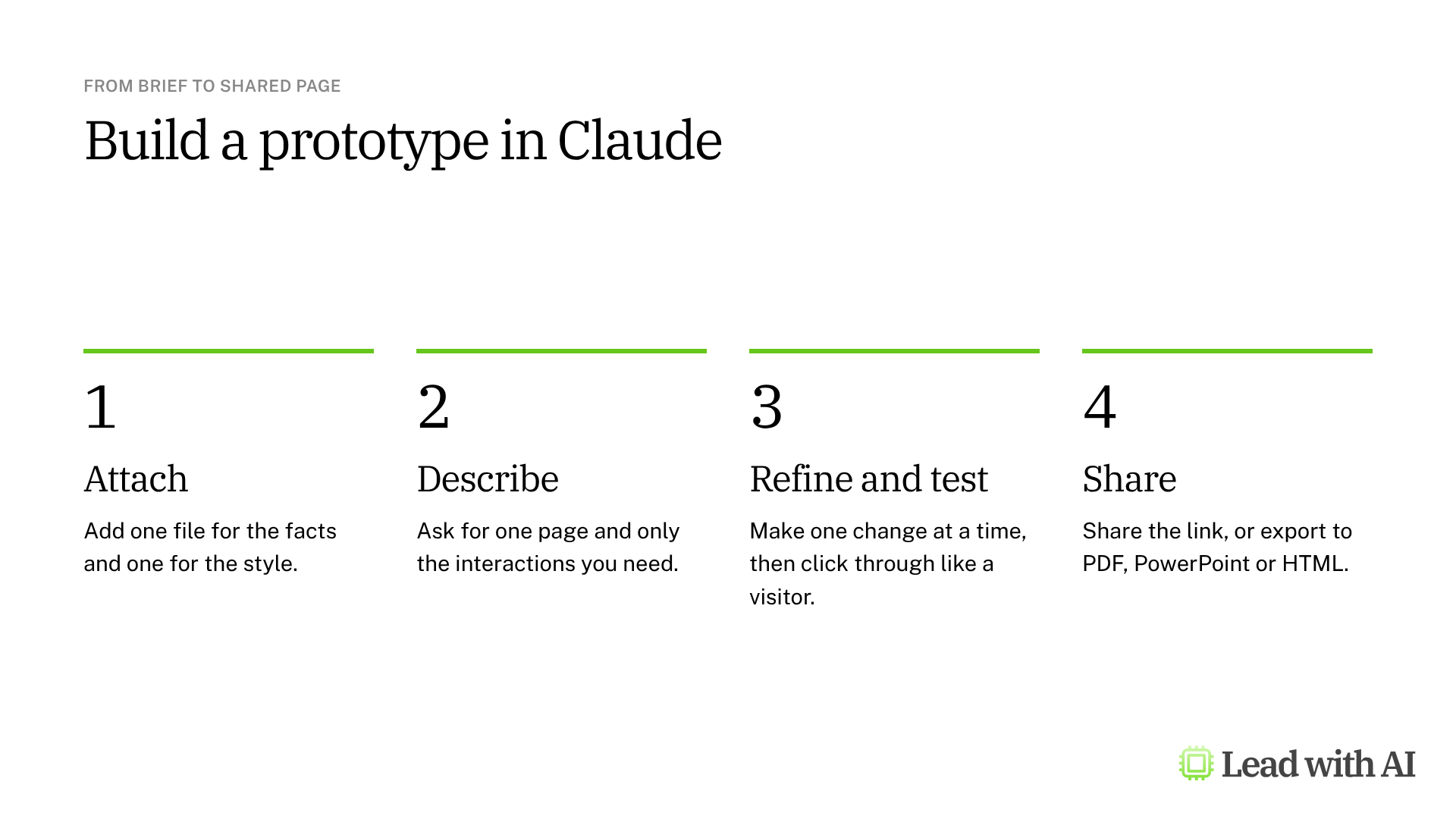
Step 1: Attach your content and your style. Give Claude a document with the facts, such as a proposal or plan, and an example of the look you want, such as a pitch deck. Say which file supplies the content and which sets the style.
Step 2: Describe one page and its interactions. Ask for a single page with one clear message, the interactive parts you need, such as tabs or a timeline, and a layout that works on a phone. The CODO prompt below is a starting point.
Step 3: Check the first version. Compare the look with your style example, and every fact with your source document.
Step 4: Refine one change at a time. Ask for one addition per message, such as a preview of an ad or a landing page, and tell Claude what must stay exactly as it is.
Step 5: Test it like a visitor. Click every tab and link, check that the numbers match your source, and narrow the window to phone width.
Step 6: Share or export. Designs start private to you. Select Share to give people access, or export the design as a PDF, a PowerPoint file or standalone HTML.
Treat every preview as a mockup. Check any copy Claude adds, keep placeholders clearly labeled and confirm the final content before a client sees it.
A CODO prompt for your first prototype
This prompt, built with our CODO framework, turns a document into an interactive page in your style. Attach both files and replace the bracketed parts.
Character: You are a product designer who builds clear, interactive web pages for business audiences.

Objective: Build a single-page, interactive [proposal website or product prototype] for [audience] from the attached [document], styled like the attached [example deck or style guide].

Do:
- Use the facts, figures and timeline from [document] only.
- Match the colors, fonts and visual style of [example].
- Include [clickable tabs, a timeline or a simple calculator] so people can explore [what].
- Keep it clean and readable at phone width.

Don't:
- Don't invent prices, dates, names or claims. Label anything that is a placeholder.
- Don't add sections I have not asked for.

Output:
One interactive page on the canvas, plus a list of every figure it shows and the file it came from.
Want to go further? Our walkthrough of building slides, websites and branded assets with Claude Design shows more examples, and our guide to Claude Slides covers presentations.
What will your IT and legal teams ask?
- Who can see a design? Only you, until you share it. On Team and Enterprise plans, links stay inside your organization unless an owner turns on external sharing.
- Can people outside the company open it? On Free, Pro and Max plans, you can share with anyone who has the link. Anthropic says you need a Claude account to open an artifact someone shares with you, so test the link before you send it.
- What happens to standalone Claude Design work? It keeps working until December 14, 2026. Move your design systems before then, because chats, comments and public links to standalone projects do not carry over.
- What should never go in? Customer records, personal data and confidential figures, until you know who will see the page.
Claude artifacts or another tool?
Claude artifacts are the natural choice when the work starts in Claude and needs to look like your brand, such as a proposal site, a landing page or a prototype.
To publish an app with its own sign-in and stored data, use Lovable. For a dashboard or team page in ChatGPT, try ChatGPT Sites. Our overview of vibe coding compares the options.
Key takeaways
- Give Claude your content and your style, and say which file is which.
- Ask for one page with a clear message and only the interactions you need.
- Refine one change at a time, and say what must stay the same.
- Test it like a visitor, including at phone width.
- Move standalone Claude Design work before December 14, 2026.