This step-by-step guide is exclusively available for Lead with AI PRO membership. 🚀 With Lead with AI PRO, you’ll get: ✅ Access to expert-crafted step-by-step guides ✅ AI-powered workflows to boost productivity ✅ Exclusive tools and resources for smarter work Upgrade to Lead with AI PRO and access all premium content instantly.
Record a Skill on Claude: How to Teach Claude a Workflow in 5 Steps
Anthropic's Record a Skill turns a screen recording into a reusable Claude Skill. Here are the five steps, using my daily LinkedIn review as the worked example.
Claude Cowork now lets you create a custom Skill by doing a task while it watches, instead of writing out instructions for it.
You will find it under Record a skill in the plus menu of the Claude desktop app, on Pro, Max, and Team plans.
The mechanic is simple.
Instead of describing a skill in detail, Claude captures your screen activity, your clicks, and your voice, then processes the demonstration into a reusable Skill definition.
The narration matters as much as the clicks because it is how Claude learns the reasoning behind each step rather than only the sequence. The recording is basically a demonstration plus an explanation that gives Claude the context it needs.
Flagship AI Newsletter
The AI Newsletter That Makes You Smarter, Not Busier
Join over 30,000 leaders and receive our insights on AI platforms, implementations, and organizational change management.
Capturing Tactic Knowledge
Providing this narration matters because most of what you know about your own work is hard to put into words.
The British-Hungarian philosopher Michael Polanyi named this in his 1966 book The Tacit Dimension. He called it tacit knowledge, and he summed up the problem in eight words: we can know more than we can tell. There are tasks we know perfectly well how to perform and still cannot state the rules for.
That is exactly the problem with writing prompts for a recurring task, something I see all the time in our work with leaders. You know how to do something, what matters in your process, even exceptions to your own rules, and the thing you always double-check before you act.
But getting all of that into written instructions like a CODO prompt is slow, and it is easy to leave out the parts that feel obvious to you. No amount of prompt engineering fixes that.
People often leave out crucial details when asked to describe familiar work from memory, while a live demonstration can reveal ordering, checks, visual cues, naming rules, fallback decisions, and small quality-control habits that never make it into a standard operating procedure.
Flagship AI Newsletter
The AI Newsletter That Makes You Smarter, Not Busier
Join over 30,000 leaders and receive our insights on AI platforms, implementations, and organizational change management.
How to Record a Skill in Claude, Step by Step
The task I chose was my daily LinkedIn review.
Every morning I scan my feed for posts about AI from the last 24 hours, from my first-degree connections, and I am reading for two specific things.
The first is anything worth resharing or commenting on. The second is anything that signals a person, topic, point of view, or case study worth booking for a PRO live session.
I picked this task because it is daily, I follow the same process every time, and almost all of the value sits in my judgment about what qualifies.
Those three things together make a good first recording. If you want a more systematic way to choose, the GED-RT framework is how I rank which workflows to hand over first.
Step 1: Open Cowork and start a recording
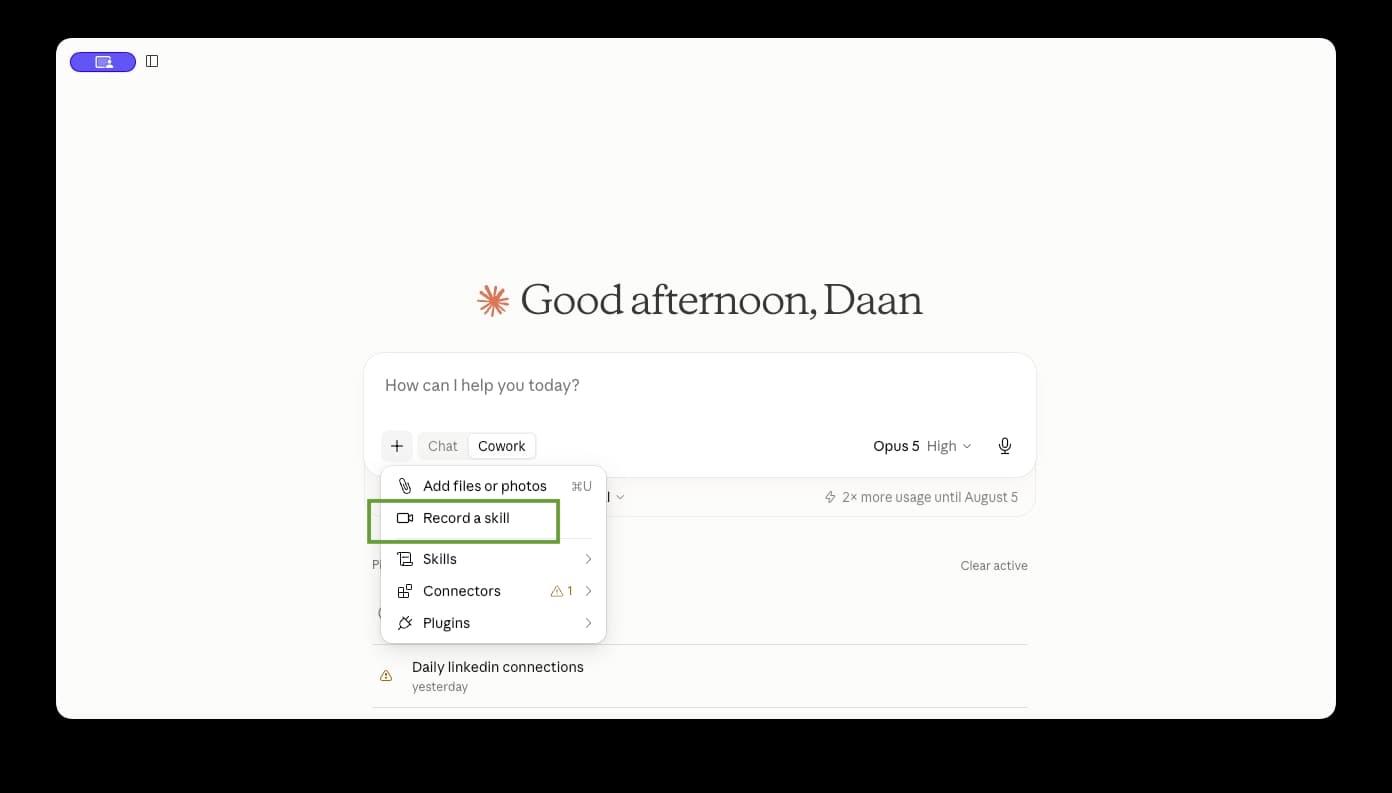
Open Cowork in the Claude desktop app, select the plus button, and choose Record a skill.
Starting to record a skill in Claude Cowork
You can also reach it through Customize → Skills → Add → Record your screen.
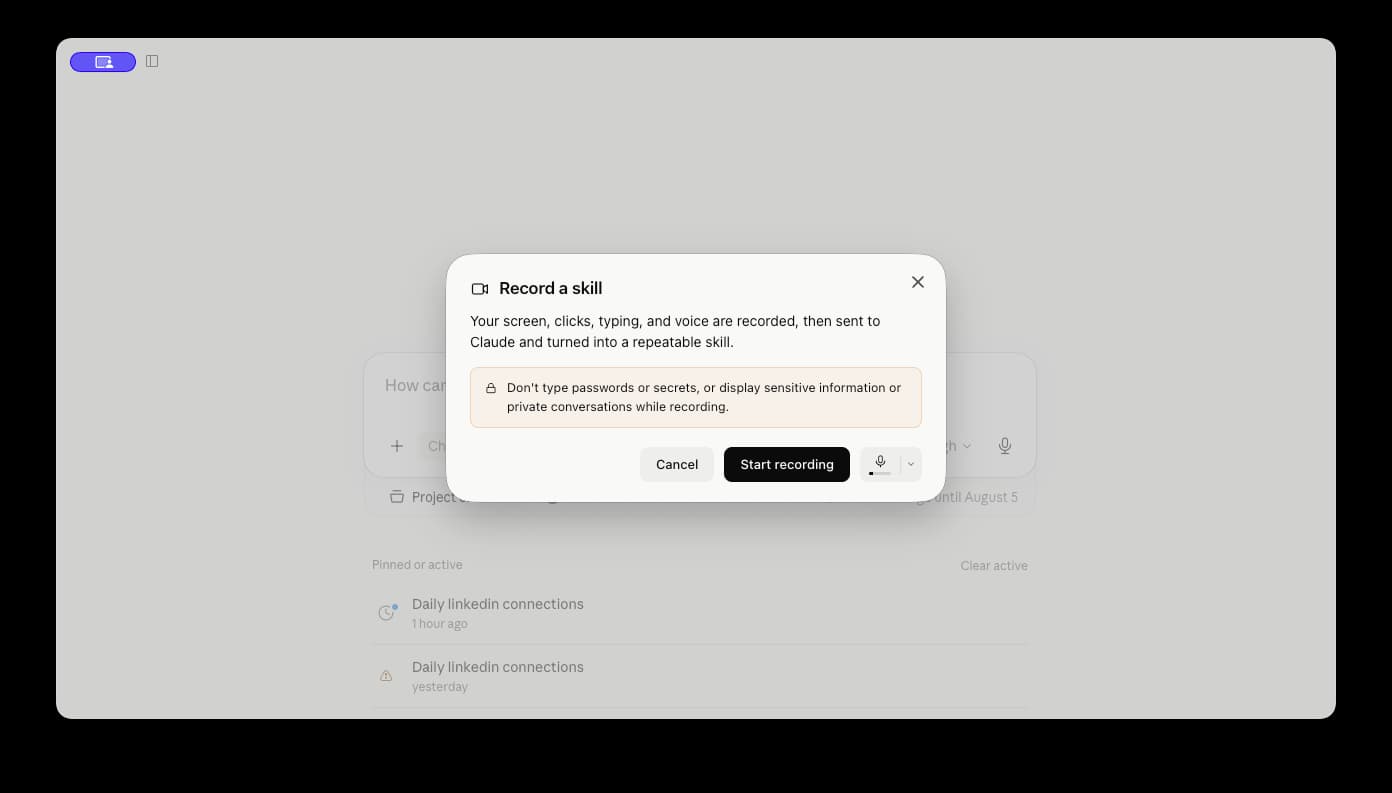
The first time you do this, your system will ask for screen and accessibility permissions. You just need to grant them once and you will not be asked again.
Step 2: Do the task and narrate your reasoning as you go
Select your microphone, then click Start recording.
Recording a skill in Claude Cowork
Then talk while you work, because this is the part that determines whether you end up with a Skill worth keeping.
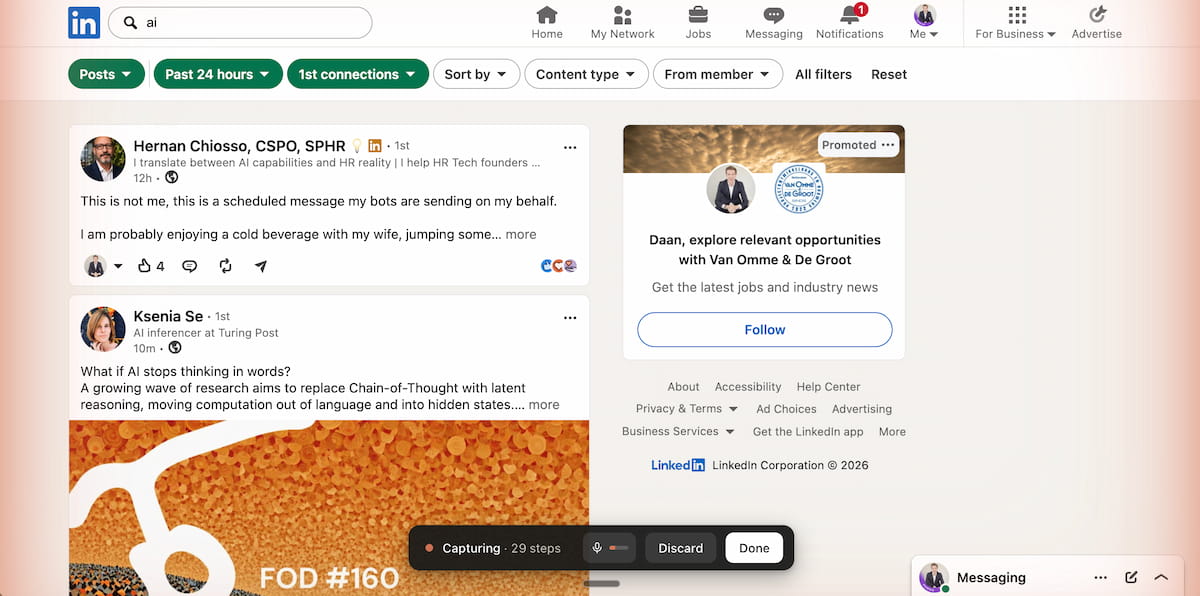
In my recording, I opened my LinkedIn feed and started scrolling as I normally would.
Out loud, I set the filters I apply in my head: posts from the last 24 hours, from first-degree connections, on AI and the future of work.
I also said what I was skipping, which was job updates, engagement bait, and reshares with no added commentary from the poster.
Claude Cowork recording my LinkedIn skill
Then I explained the two piles I sort into, because that distinction is the whole point of the task.
For the share pile, I said what earns a reshare: a specific finding, a real number with a named source, or a first-hand account of something someone actually implemented. A generic take about AI changing everything does not qualify, and I said that out loud too.
I also want a pile of potential guests to reach out to for Lead with AI PRO. So I explained what I am really looking for in these speakers and which details to capture.
Keep narrating until the workflow has been captured. After that, simply select Done.
Step 3: Answer Claude's follow-up questions
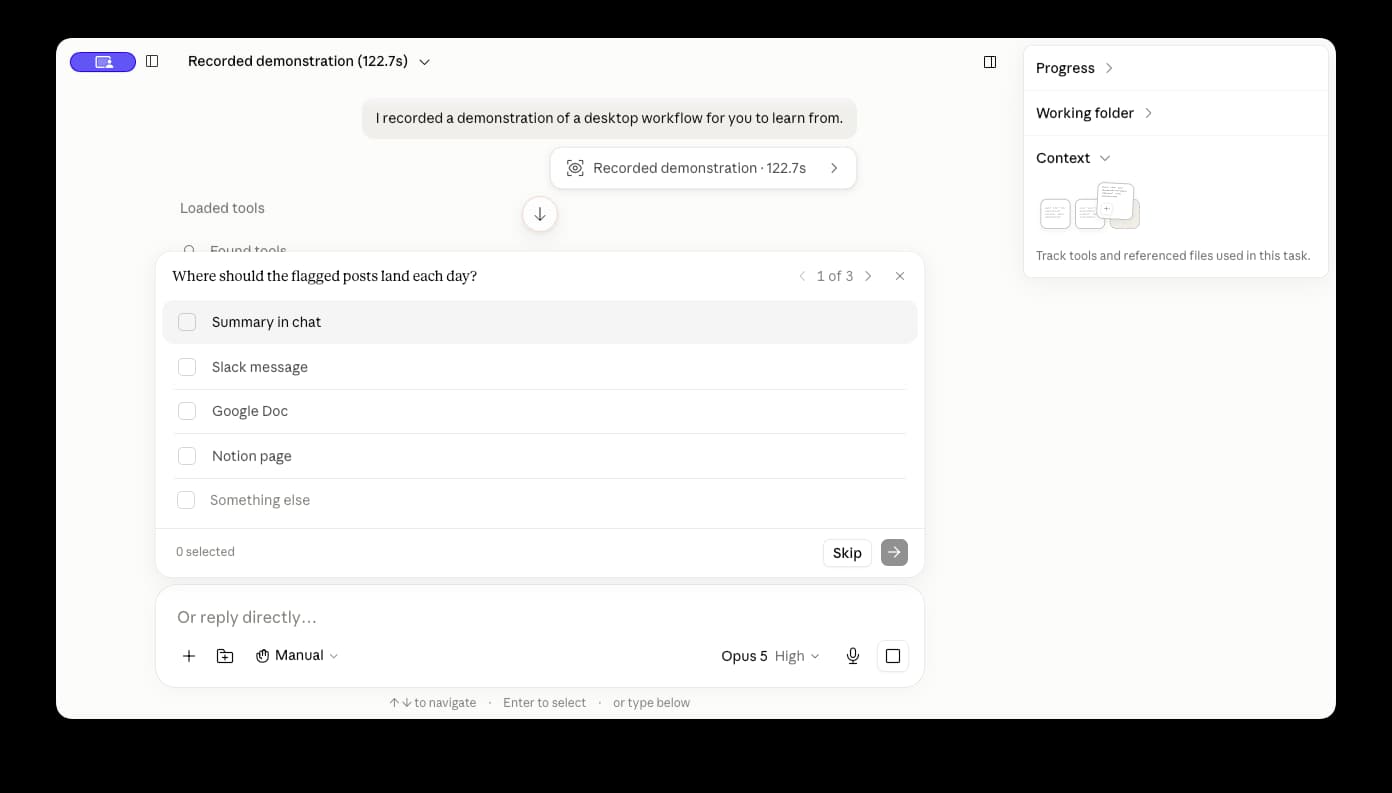
Claude now internalized everything you shared and can ask you a few follow-up questions.
These questions are worth taking seriously, because they are usually pointed at the parts of the workflow your narration left open.
In my case, it wanted to know where the results of this daily scan should land:
Claude asks questions after recording their skill
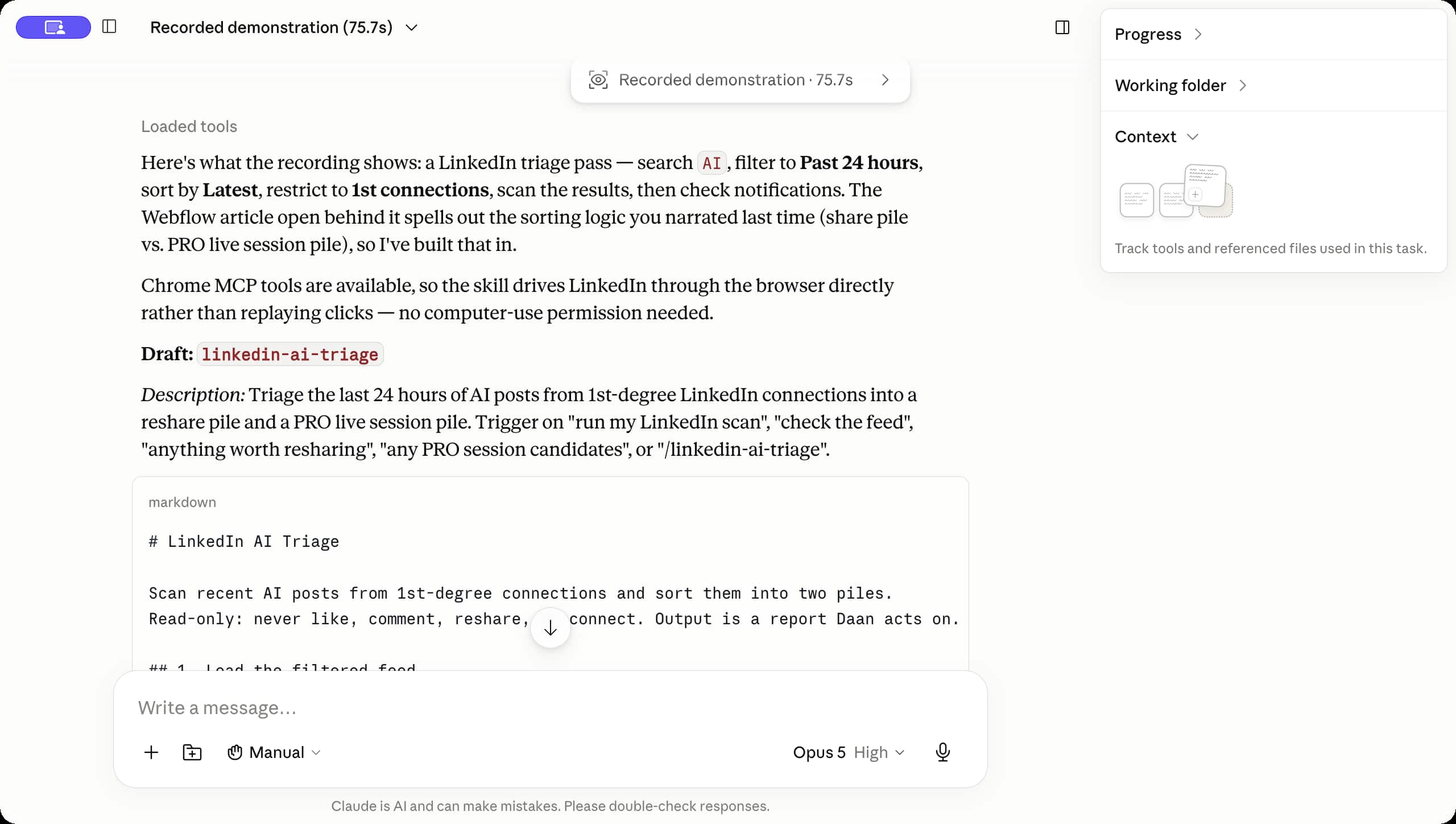
Claude then shows you the new Skill and may ask, as it did in my case, whether you want to edit anything before saving it.
Claude confirms the skill following you narrating your workflow during the recording
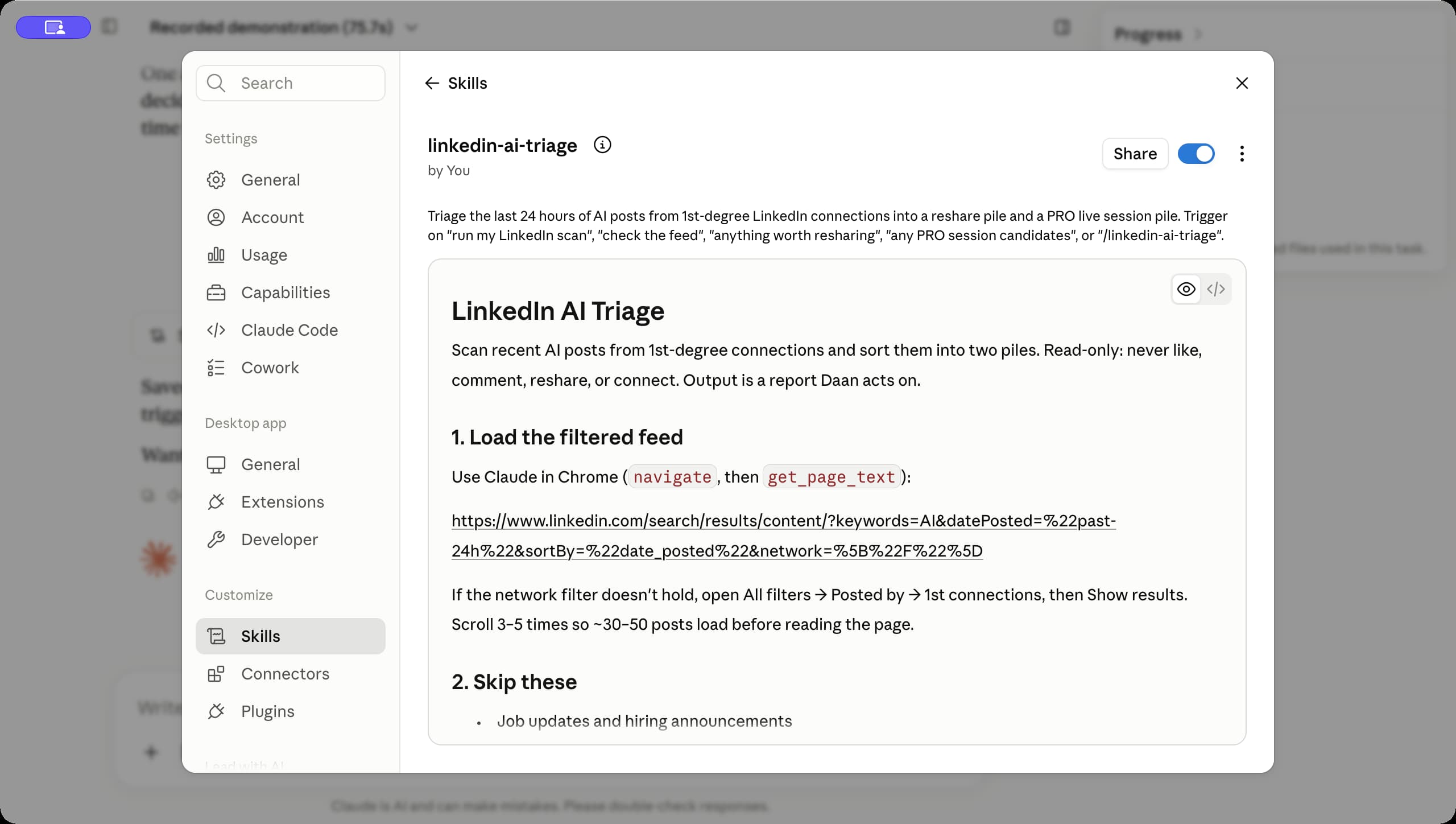
Step 4: Read the Skill content before you save
Expand Content and read it properly before saving.
Check the activation conditions, priorities, exclusions, and output structure against how you actually work, and correct anything that feels too vague.
Reviewing and editing the skill
It is crucial to check these final instructions, because it is the only way you can rely on this Skill to replicate your human way of executing the workflow.
A recording only shows one instance of the task. A useful Skill has to generalize beyond that single file, customer, date, or project, so it is worth checking whether Claude learned the underlying rule or simply copied an accidental detail from your demonstration.
In my case, this is where I tightened the definition of the two piles. My narration had been looser than I thought.
You can also share the Skill with others on your team or in your organization from this screen.
After saving, you can open Customize → Skills at any time, to view, edit, share, disable, or delete a Skill.
Step 5: Test it on a fresh example, then set the schedule
Run the Skill once on new inputs before you automate it. A recorded Skill is a first draft of your judgment, and a fresh example is the fastest way to find out which of your rules survived the translation.
Pay attention to the judgment calls specifically, since those are the parts most likely to have been captured loosely.
Claude may also ask whether you want to run the Skill on a schedule, which for me is exactly what I wanted, so I set it to daily.
Review the cadence and the permissions before you confirm, and remember that scheduled Cowork tasks require a paid plan.
Key Takeaways, Plans and Access
Keep each Skill to one workflow. A recording that gets too broad produces a Skill that is vague about when to activate and won't do the work like you would.
Read the instructions before you save the skill. This is where you catch a rule Claude took too literally or any other assumptions it made.
Test it on a fresh example before you schedule it. Use different inputs and check that the rules you've provided, especially when it relates to judgment, still holds.
Do not record passwords, confidential files, or private conversations. Read the permission warning before you start recording.
Explain why, not only what. Saying "I skip these because they are engagement bait" teaches Claude more than just silently scrolling. Again, this is all about transferring tacit knowledge to AI (see also my take on 'context offloading'.)
Narrate your exclusions. With a filtering task like mine, what you leave out defines the output as much as what you keep.
Plans and access
Record a Skill is available in Cowork for Mac on Pro, Max, and Team plans.
Scheduled Cowork tasks require a paid plan.
On Team plans, Skill sharing and feature availability can depend on your organization's administrator settings.
If Record a skill does not appear, update Claude Desktop and confirm your plan first.
Frequently Asked Questions
What is Record a Skill in Claude? It is a feature in Claude Cowork that creates a custom Skill from a demonstration instead of written instructions. You record your screen while completing a task, narrate what you are doing, and Claude converts the recording into a reusable Skill it saves for later use.
Do I need to write code or a prompt? No. Describing a workflow to Claude in a chat and having it draft the Skill file already worked. What is new is the input: you demonstrate the workflow instead of describing it, and Claude writes the Skill from what it saw you do.
Which plans include Record a Skill? It is available in Cowork for Mac on Pro, Max, and Team plans, in the plus menu of the Claude desktop app.
Can a recorded Skill run automatically? Yes. Ask Claude to turn it into a scheduled task, then review the cadence and permissions before confirming. Scheduled Cowork tasks require a paid plan.
Can I share a recorded Skill with my team? Yes, through Customize → Skills. On Team plans, your administrator settings may affect what you can share.
What should I avoid recording? Passwords, confidential documents, and private conversations. Keep the recording to the workflow itself.