



Most leaders re-record or retype the same explanations again and again: deck walk-throughs, team updates and onboarding explainers.
HeyGen turns one recording of you into an AI avatar that presents any script you write. You record yourself once, and from then on you write scripts instead of setting up cameras. HeyGen can also translate the result into other languages.
How does HeyGen work?
- It learns how you look and sound from a short recording, including your facial movement, timing and speech patterns.
- It maps your script to speech and lip movement, so your avatar says the words naturally.
- It renders the scene with your avatar, background and layout as a standard video file. This takes a few minutes, because video is compute-heavy.
How to create your avatar
Sign in at heygen.com, select Avatars in the sidebar and create a new avatar. You have two options:
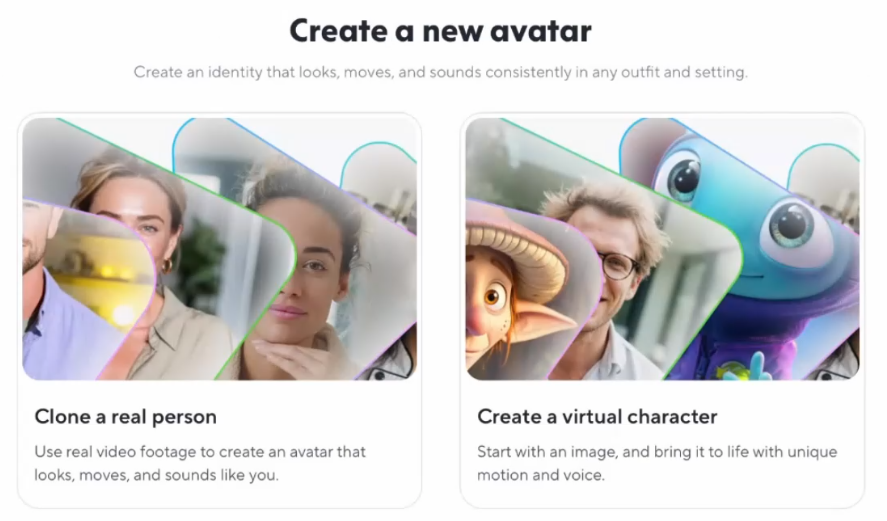
- Clone a real person: record a short webcam video of yourself, and HeyGen creates a digital twin that looks, moves and sounds like you.
- Create a virtual character: start from an image and give it motion and a voice.
For a digital twin, allow access to your webcam and microphone, select Start Recording and read the on-screen script at a steady pace. Then select Create Avatar. Processing takes a few minutes, and you can start a video right away.
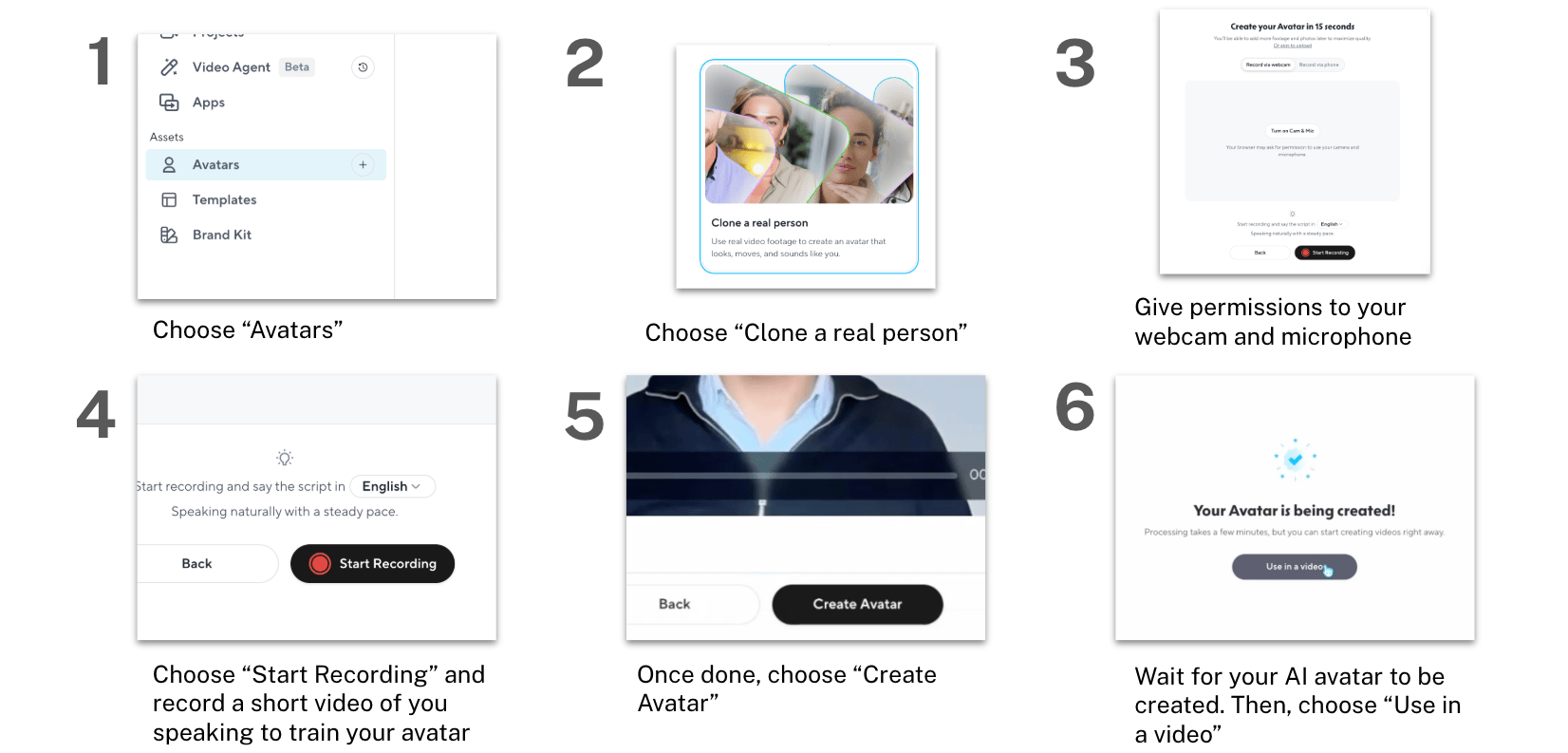
A webcam recording is the fastest start. You can record a higher-quality studio version later to improve your avatar.
How to create a video, step by step
Step 1: Write the script. Keep it short and spoken, around 100 words for 40 seconds. The CODO prompt below drafts one for you.
Step 2: Start the video. Select Use in a video, choose your avatar and paste your script.
Step 3: Choose the avatar engine. HeyGen offers several avatar models. The newest give more realistic movement but use more of your monthly credits, so test with a lighter one and use the best one for final videos.
Step 4: Preview, then generate. Select Render Scene to preview your avatar speaking the script, then generate the video.
Step 5: Translate if you need to. In Projects, open the video's menu, select Edit as New and change the voice language, then generate again.
Step 6: Download and share. Find every video under Projects, select Download and attach it to a deck, a channel post or an update.
What your plan includes
- Free: a few short videos a month, with a HeyGen watermark, one custom digital twin and a trial of the most realistic avatar engine.
- Paid plans: Creator, Pro and Business remove the watermark, allow longer videos and include a monthly credit allowance. Realistic avatar engines use credits much faster than standard ones.
- Enterprise: custom terms, central management of roles and access, and custom credit allowances.
- Older plans: HeyGen stopped selling its unlimited plans in May 2026. New subscriptions are all credit-based.
When HeyGen earns its place
- Weekly updates for a team spread across time zones, instead of another call or a long message.
- Course and onboarding introductions you can update by rewriting the script, not reshooting.
- Short point-of-view videos for LinkedIn, as a faster alternative to a long article.
Graduates of our AI Leader Advanced program use it the same way. An AI enablement specialist at TRATON Financial Services turns governance updates and process reminders into short avatar videos in about three minutes. A partner manager at Deel turns written team shout-outs into localized video messages, after first removing sensitive details with his company's approved AI tool.

AI speeds up the production. You still own the outcome. Check the script, the permissions and the disclosure before any video leaves your team.
A CODO prompt for your avatar script
This prompt, built with our CODO framework, drafts a script your avatar can deliver. Run it in ChatGPT, Claude, Gemini or Copilot, edit the result until it sounds like you, then paste it into HeyGen.
Character: You are a speechwriter who writes short, natural scripts for leaders to deliver on video.

Objective: Write a [40-second] video script for me, [name and role], to share with [audience] about [topic]. The goal is [what you want people to understand or do].

Do:
- Open with one sentence that names the challenge.
- Make three points at most, in short sentences that are easy to say out loud.
- End with one clear next step for the audience.

Don't:
- Don't use jargon, long lists or anything I would not say in person.
- Don't add facts, numbers or names I have not given you.

Output:
A script of about [100] words, written as I would speak it, with a suggested title for the video.
Want to go further? If you want a narrated video without an avatar, our guide to turning a document into a narrated how-to video walks through it in five steps.
What will your IT and legal teams ask?
- Whose likeness can we use? Only people who have given consent. HeyGen's policies require consent from the person you clone.
- Who can use my avatar? Decide who in your workspace can create videos with your digital twin, and review what goes out in your name.
- Should we label avatar videos? Yes. Tell viewers when a video uses an AI avatar, especially outside the company.
- What about our data? Ask HeyGen for its security documentation and data processing terms, and use Enterprise for central control.
HeyGen or another tool?
HeyGen is the strongest choice when you want to present the same message repeatedly, or in several languages, without filming each time.
For a short scene from a prompt or an image, use Gemini Omni. If your company runs on Google Workspace, Google Vids also offers personal avatars. Our overview of AI video generation compares the options.
Key takeaways
- Record once, then write scripts instead of filming.
- Start with a webcam recording, and upgrade later.
- Save realistic engines for final videos.
- Translate with Edit as New.
- Get consent and label every avatar video.




