




The same assistant that helps you shape a message can now turn it into a short video.
Gemini Omni is Google's video model, built into the Gemini app and Google Vids. It creates short clips from text, images or existing footage, and edits them when you describe a change. It replaced Google's earlier Veo model in the Gemini app in May 2026.

Where to find Gemini Omni
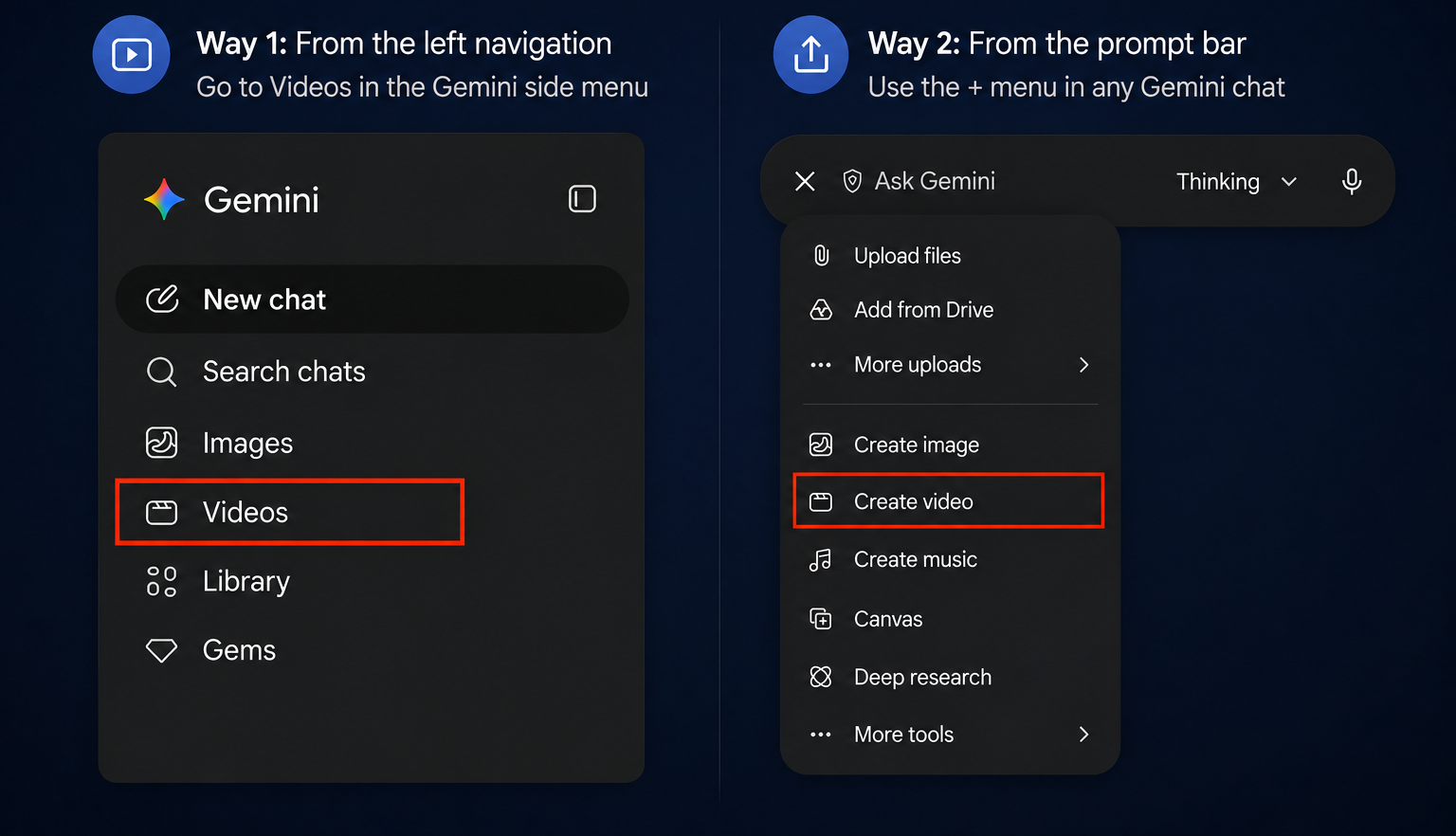
In the Gemini app, there are two ways in:
- From the sidebar: select Videos to go straight to video creation.
- From any chat: select the plus icon in the prompt bar, then Create video.
In Google Vids, go to vids.new on a computer and select Create AI videos. Vids is Google's video editor for work, so you can combine generated clips with slides, voiceover and music in one project.
What your plan includes
- Gemini app: Gemini Omni is available to users 18 and older on Google AI Plus, Pro and Ultra plans. Clips are up to ten seconds, and limits depend on your plan and on how complex the video is.
- Google Vids: since September 2026, anyone with a Google or Workspace account can generate videos in Vids at no cost, within a usage limit.
- Workspace: Business and Enterprise editions get larger generation limits in Vids and central admin controls.
- Regional limits: some features, such as avatars and editing your own footage, may not be available in every country.
When Gemini Omni earns its place
- A strong opening clip for a presentation or town hall, instead of searching a stock library.
- Animating a still image, such as a product shot or an office photo.
- A short process-change update for a team channel.
How to create a video update, step by step
Step 1: Choose the format. Select Create video and pick horizontal for laptops and team channels, or vertical for phones.
Step 2: Add a reference. Upload an image, such as a photo of your office, to set the scene.
Step 3: Describe the video. Say who is in the scene, what they do, how the camera moves and exactly what they say. For example:
Create a short video of an executive standing in this office, speaking calmly and directly to camera: "Hi team, a quick reset today. Starting this week, I want one real AI use every workday, on something you were going to do anyway."
Step 4: Refine in conversation. Watch the clip, then describe what to change, such as the camera angle, the lighting or the pace.
Step 5: Download and share. Check the result against your intent, then download it for your channel, deck or update.
Keep it short. A ten-second clip works best as an opener or a single message. For longer explainers, build the video in Google Vids or use an avatar tool.

AI speeds up the production. You still own the outcome. Check the script, the permissions and the disclosure before any video leaves your team.
A CODO prompt for your first clip
This prompt, built with our CODO framework, gives Gemini Omni a clear brief for a short business video. Paste it after selecting Create video, and fill in the brackets.
Character: You are a video director creating a short clip for a business audience.

Objective: Create a [horizontal or vertical] video of [subject] in [setting] that [what happens], to open [where it will be used, such as a town hall or a team update].

Do:
- Describe the camera: [for example, a slow push-in at eye level].
- Keep the look [realistic, warm and professional].
- If someone speaks, use exactly these words: "[your line]".

Don't:
- Don't add on-screen text, logos or people I have not described.

Output:
One clip of up to ten seconds that matches the description above.
Want to go further? Gemini Notebook can also turn your documents into narrated how-to videos, and our guide to Nano Banana shows how to create the still images you can animate.
What will your IT and legal teams ask?
- Can people tell a video is AI-generated? Every Gemini Omni video carries Google's invisible SynthID watermark, which can be checked in the Gemini app.
- Who controls access? Workspace admins can manage access to video generation in Google Vids.
- Can it create real people? Google restricts some likeness features, and you should only show people who have agreed to it.
- Is our data used for training? Google states that Workspace content is not used to train its generative AI models without permission.
Gemini Omni or another tool?
Gemini Omni is the natural choice for short scenes and clips, especially if your company already runs on Google Workspace.
To present the same message as yourself, repeatedly or in several languages, use HeyGen. Our overview of AI video generation compares the options.
Key takeaways
- Select Videos or Create video in Gemini to start.
- Try Google Vids for free generation and longer projects.
- Add a reference image to set the scene.
- Refine in conversation instead of starting over.
- Check and label every video before you share it.




