



Email is where much of a leader's day disappears. Microsoft's research found that the average worker receives 117 emails a day, most of them skimmed in under 60 seconds.
ChatGPT is most useful here as a thinking assistant for your inbox. It reads, sorts and drafts, so your attention goes to the few conversations that need you.
What can ChatGPT do with your email?
There are three ways to use it, and each one builds on the last.
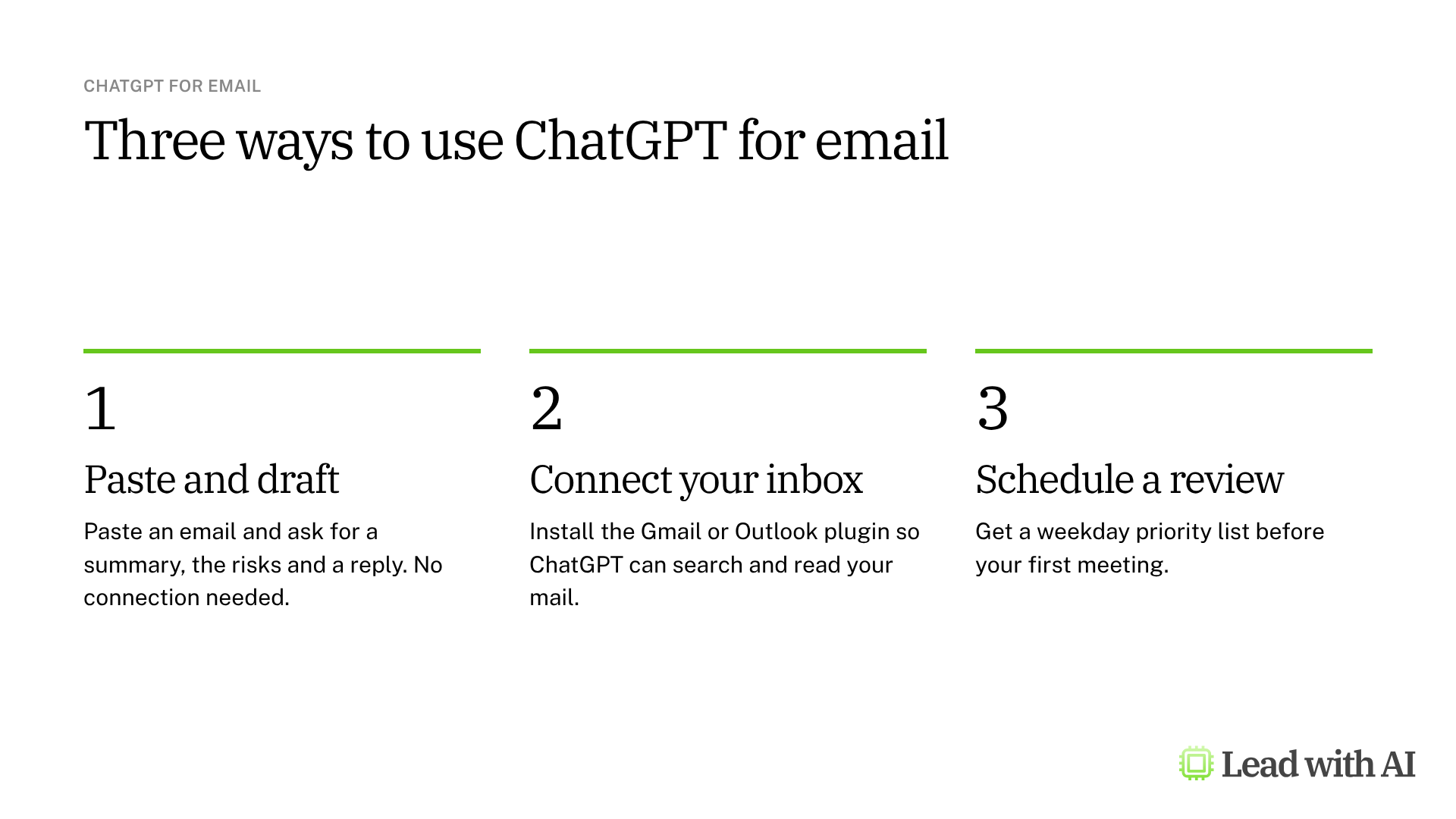
- Paste and draft. Paste an email into a chat and ask for a summary, the risks and a reply. No inbox connection is needed.
- Connect your inbox. With the Gmail or Outlook plugin, ChatGPT can search, read and summarize your email when you ask. It can also send email from your account, so tell it clearly when you only want a draft.
- Schedule a review. A scheduled task can check your inbox every weekday morning and give you a short priority list.
When should you use ChatGPT for email?
It earns its place in four situations:
- A thread is long or messy, and you need the request, the decision and the open questions pulled out.
- A reply is sensitive, and you want to think it through before you answer.
- Your morning starts in the inbox, and you want a priority list waiting for you.
- You already work in ChatGPT, and you want your inbox in the same place as the rest of your work.
If your company runs on Microsoft 365 Copilot or Google Workspace, the AI built into Outlook or Gmail keeps you in your inbox. We compare the main options in our guide to AI for email.
Want a ready-made routine? These how-to articles give you prompts to run with your inbox connected. Add “Draft only. Do not send.” to each one:
- Build your AI executive daily briefing: a three-minute morning report on your top priorities, the emails that need a reply and the meetings to prepare for. You can turn it into a scheduled task.
- Build an AI-powered workload audit: a review of your email, calendar and files that ranks which of your tasks to automate first.
- Write a custom report from your data: a five-step walkthrough that combines your email, files and other connected apps into one report.
How do you connect Gmail or Outlook to ChatGPT?
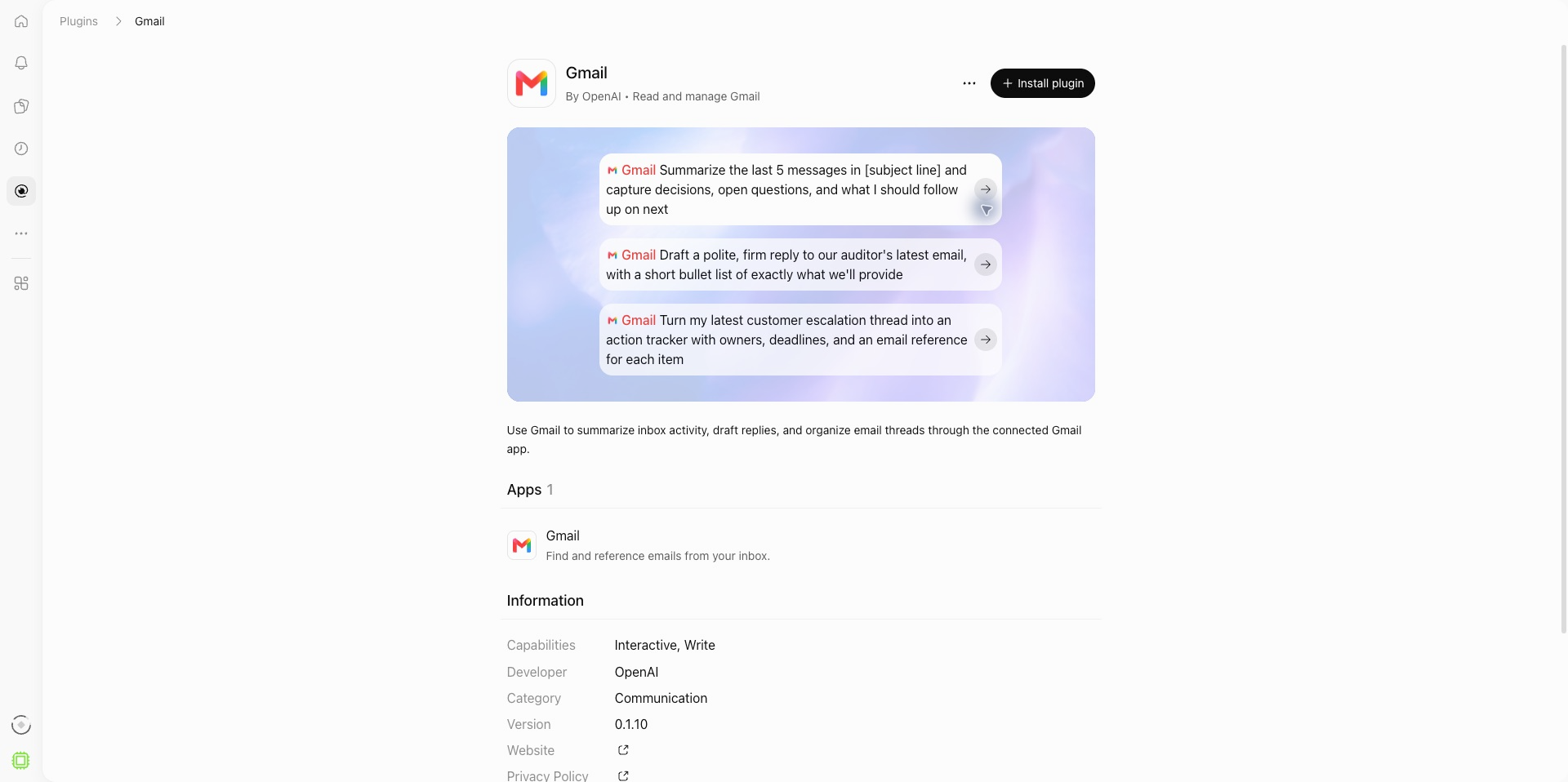
- Open Plugins in the ChatGPT sidebar. On some accounts it still appears as Apps.
- Choose Gmail or Outlook Email, and select Install plugin.
- Pick your account and review the permissions. They include read, compose and send access.
- Back in ChatGPT, select Try in chat and ask a first question about your inbox.
What you can do depends on your plan, your workspace settings and your region. On Enterprise and Edu workspaces, an admin may need to turn on new plugins first.
How to triage your inbox with ChatGPT, step by step
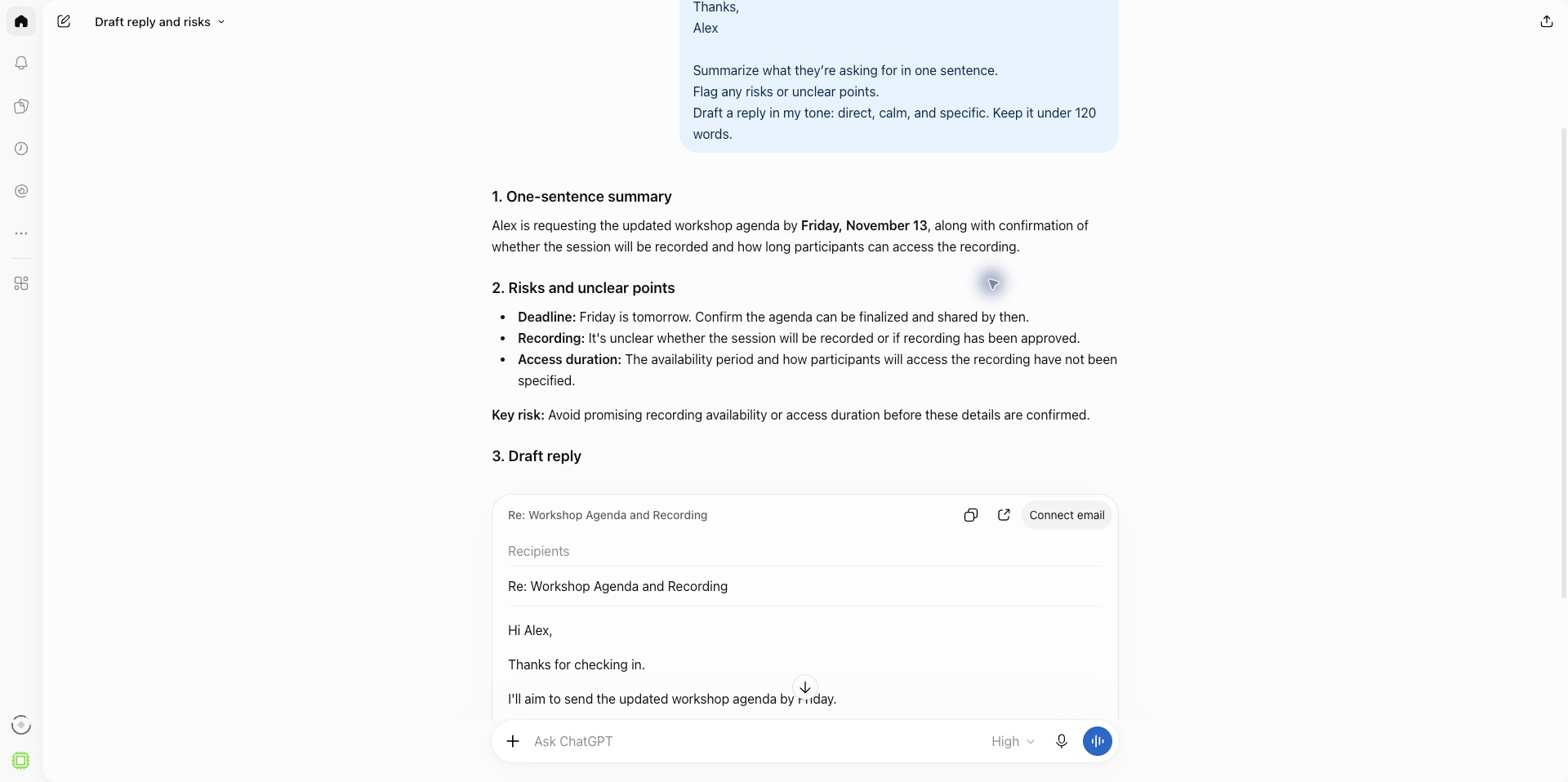
Step 1: Start without a connection. Paste one email into a chat and add: “Summarize what they are asking for in one sentence. Flag any risks or unclear points. Draft a reply in my tone: direct, calm and specific, under 120 words.”
Step 2: Connect your inbox, and start narrow. Ask: “Use Gmail to check today's emails. Group them into newsletters and everything else.” Widen to the last seven days once you trust the results.
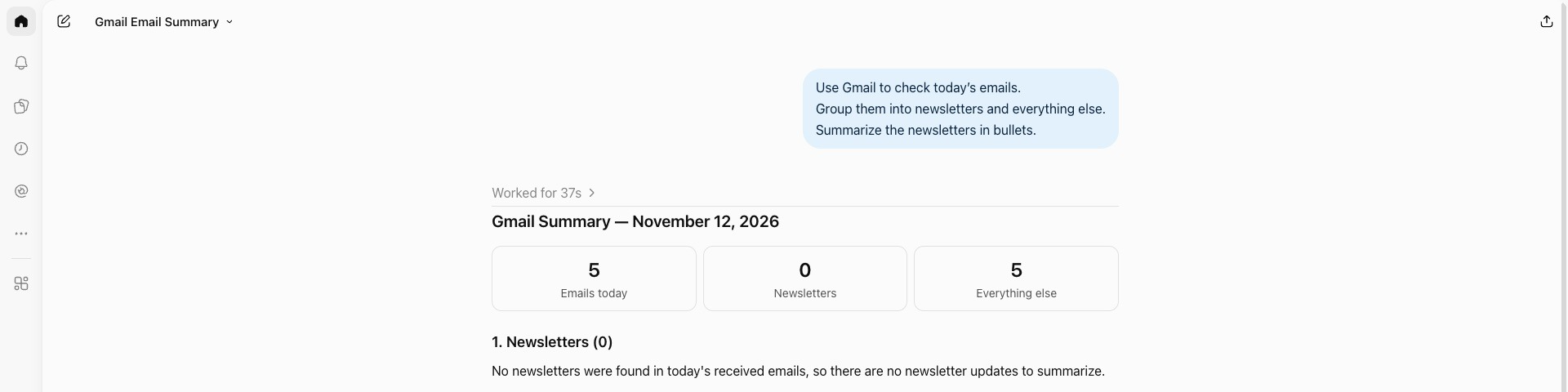
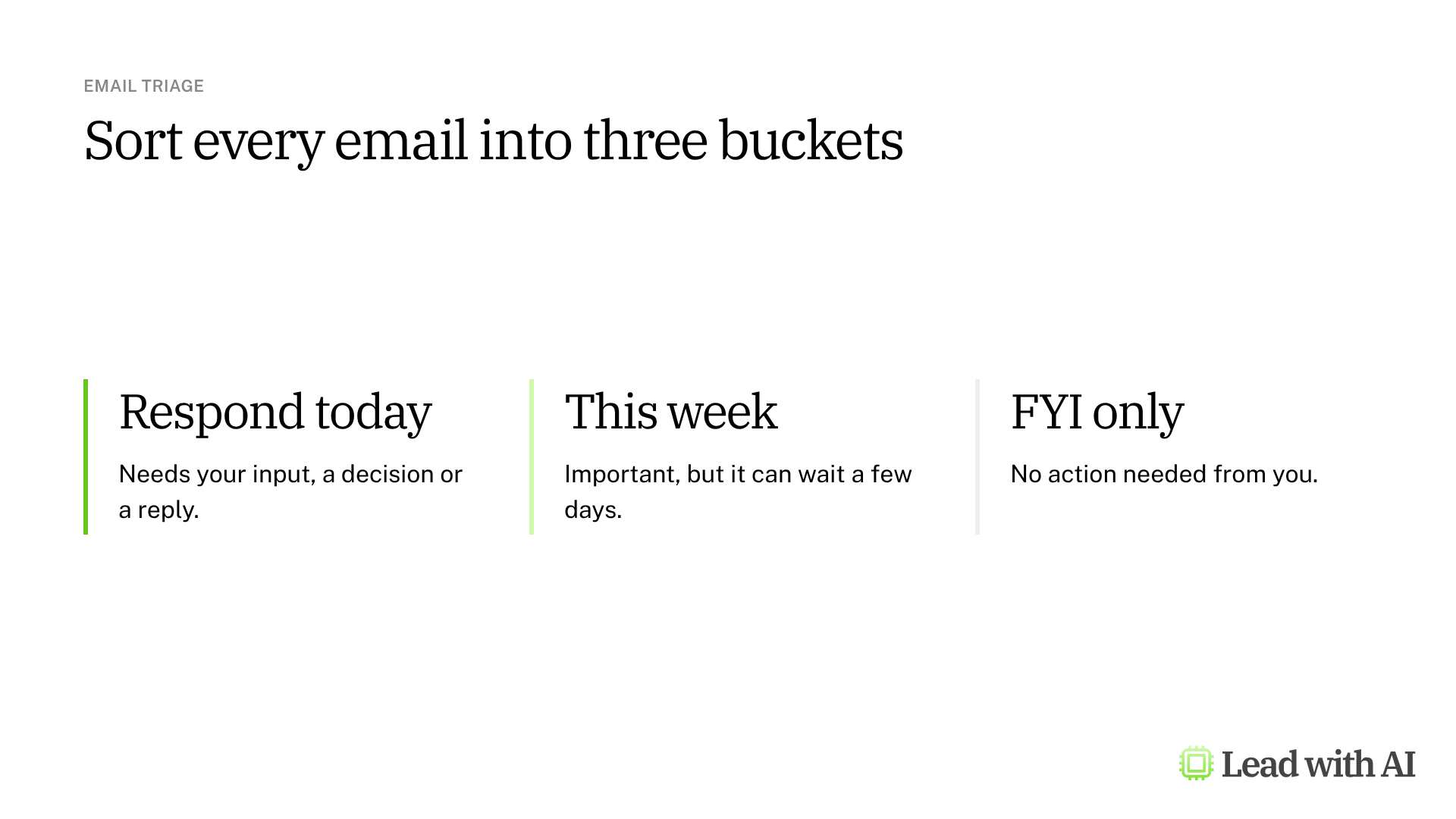
Step 3: Write your triage request with CODO. We recommend structuring every request with our CODO framework. Tell ChatGPT who to be (Character), what you need (Objective), what to do and avoid (Do and Don't), and what to hand back (Output). The prompt below is a ready-made version that sorts every email into three buckets.
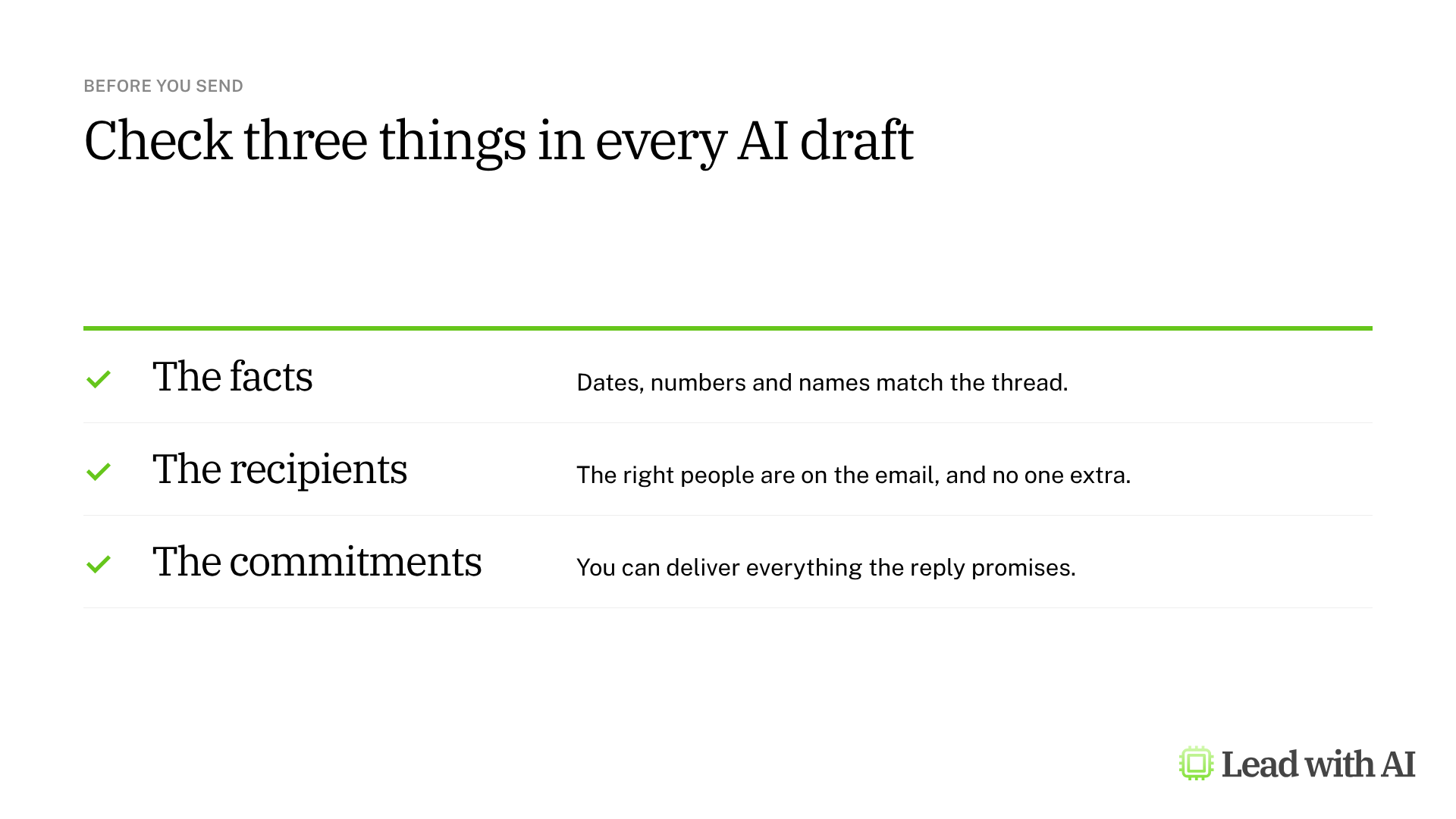
Step 4: Review before you act. An unread email does not always need your reply, because someone else may already have answered the thread. Check the facts, the recipients and the commitments in every draft.
Step 5: Schedule a weekday review. Open Scheduled in the sidebar and select New task, or ask in a chat: “Every weekday at 7 a.m., use Gmail to review recent inbox conversations. Identify emails that appear to need my reply. Skip newsletters and promotional messages. Give me a short priority list with the sender, subject and reason for following up. If nothing needs attention, say All clear. Do not send, reply to or change any email.”
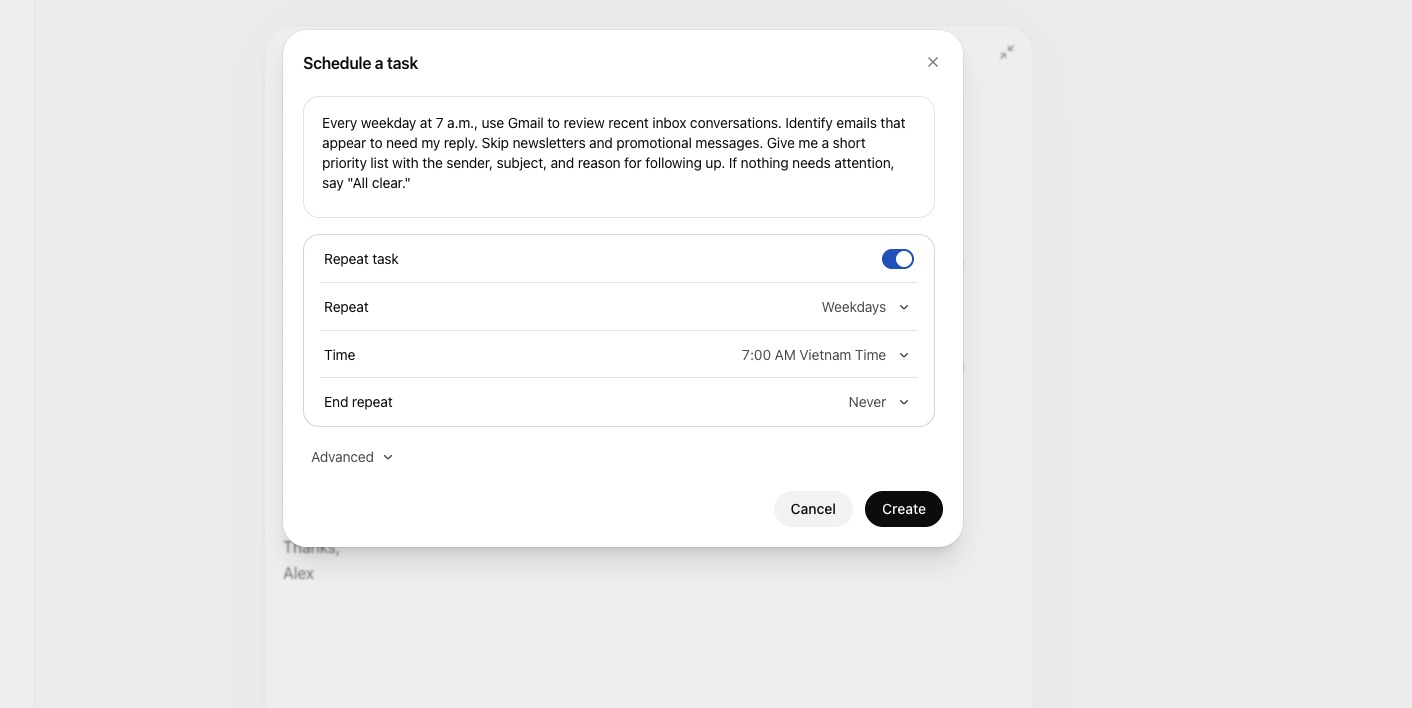
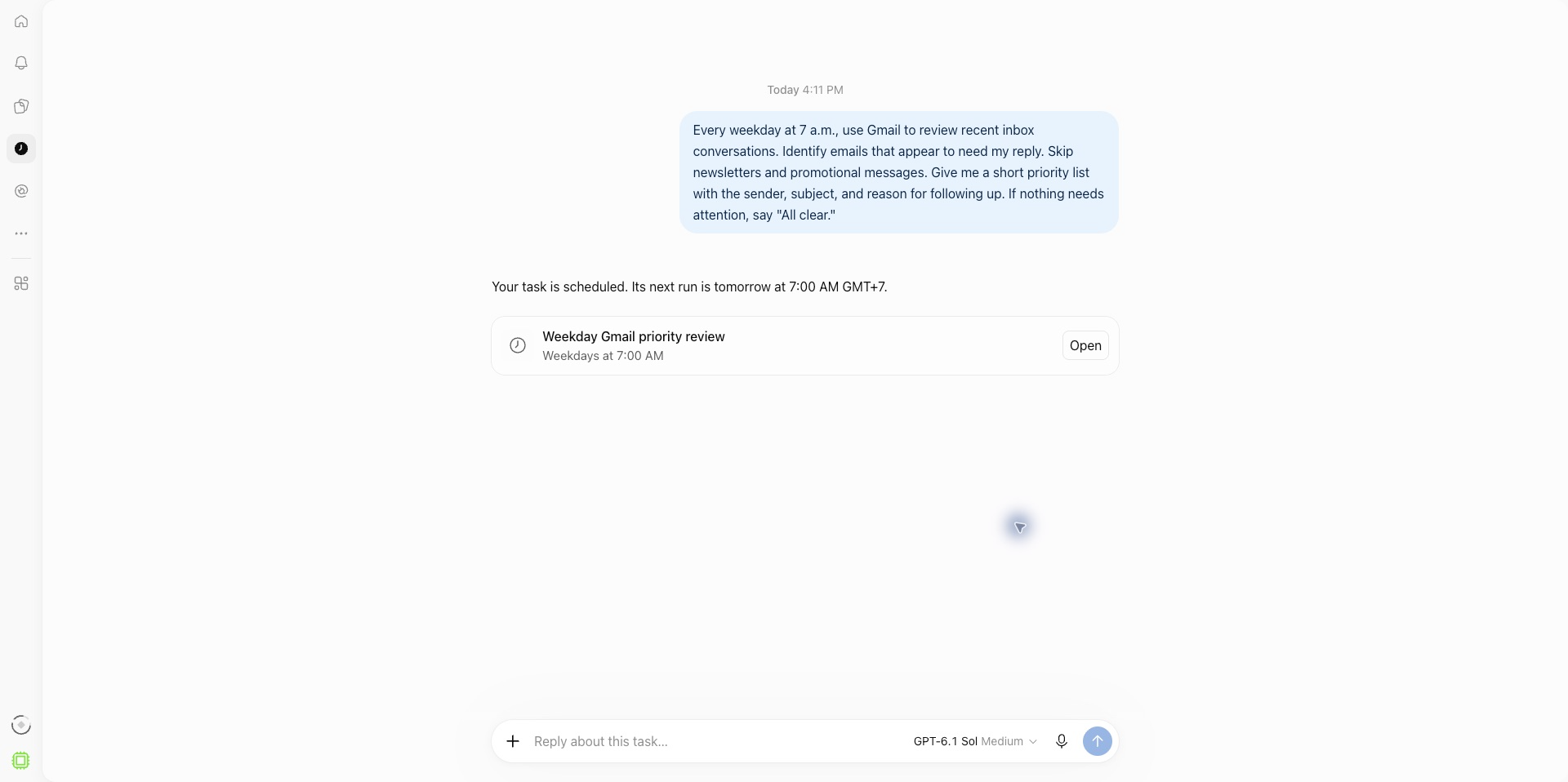
On the Scheduled page, you can see when each task runs next, and pause, edit or delete it. Scheduled tasks are available on the Go, Plus, Pro, Business and Enterprise plans. After the first run, check the results and the notification.
Step 6: Say “draft only” unless you want it sent. Once your inbox is connected, ChatGPT can take a request like “reply to Sarah and confirm Friday” as an instruction to send. Do not count on a confirmation step. End every email request with “Draft only. Do not send.” Then either send the email yourself, or tell ChatGPT plainly when a draft is ready to go.
A CODO prompt to start with
This is the prompt from step 3. Paste it into a chat with your inbox connected, or paste your last 24 hours of email below it.
Character: You are the world's most efficient executive assistant, someone who has managed inboxes for demanding senior leaders for 20 years and knows what is urgent, what can wait and what is noise.

Objective: Look at my emails from the last 24 hours and triage them, so I open my inbox knowing exactly what needs my attention today.

Do:
- Put every email in one of three buckets: Respond today (needs my input, a decision or a reply), This week (important but not time-sensitive) and FYI only (no action needed from me).
- For every Respond today email, give me a one-line summary of what is being asked and a suggested first sentence for my reply.
- List Respond today emails in priority order, most urgent first.
- If an email looks routine but hides a request or an escalation, put it in Respond today and tell me why.

Don't:
- Don't send, reply to, archive or change any email. Suggest drafts only.
- Don't summarize emails I do not need to act on. The label is enough.
- Don't write full replies. One strong opening sentence is enough.
- Don't add extra commentary.

Output:
One prioritized list, organized by bucket: Respond today first, then This week, then FYI only. Respond today emails get the subject line, the one-line summary and a suggested first sentence. The others get the subject line only.
What will your IT and legal teams ask?
- What can ChatGPT see? It can search and read the mailbox you connect. For Gmail, the permission screen also asks for compose and send access.
- Can it send without me? Yes, if your request reads like an instruction to send. A connected inbox gives ChatGPT send access, so a loosely worded request can go out from your account. Make “draft only” the default in every prompt and in your team's guidance.
- Can admins control it? On Business, Enterprise and Edu workspaces, admins can decide which plugins members can use and which actions they can take.
- Is a work inbox allowed? That is your company's call. Check your data policy before you connect a work account or paste client emails into a chat.
ChatGPT or the AI already in your inbox?
Copilot in Outlook and Gemini in Gmail live inside your inbox, so they fit the flow of reading and replying.
ChatGPT asks you to step out of the inbox. That is the better move for a sensitive reply, a messy thread or a decision that needs documents and research alongside it.
Many leaders use both: the built-in assistant for quick replies, and ChatGPT for the emails that need thinking.
Key takeaways
- Start by pasting one email. You do not need a connection to get value.
- Connect your inbox when you want ChatGPT to find and sort, not only to draft.
- Write your triage request with CODO, and schedule it for every weekday morning.
- Check the facts, recipients and commitments before anything goes out.
- Make “draft only” your default. A connected inbox can send, so say so plainly whenever you do not want an email to go out.




