



For leaders who live in decks, Claude for PowerPoint is one of the most practical ways to start using AI at work. It is also easy to use badly, because polished slides are easy to mistake for a good argument.
What is Claude for PowerPoint?
Claude for PowerPoint is Anthropic's add-in that puts Claude in a sidebar inside PowerPoint. It reads the deck you have open, including your template, and builds or edits slides in place instead of handing you a separate file.
It is available on the paid Pro, Max, Team and Enterprise plans, and it runs on your existing Claude account with the same usage limits. You work in the sidebar chat, and the changes land directly on your slides.
What can it do?
- Generate a full deck structure from a plain-language description.
- Build slides in your corporate template, using the slide master, layouts, fonts and colors.
- Edit specific slides without regenerating the whole deck.
- Turn bullets into diagrams and native PowerPoint charts that you can still edit.
- Pull in outside context through connectors, and apply the Skills you have enabled in Claude automatically.
- Share context with Claude for Excel, Word and Outlook, so one conversation can cover your deck, a workbook and your inbox.

Story first, slides second
Bad decks usually fail on logic before they fail on design. They have too many points, no spine to the story, weak evidence or no explicit ask.
That shapes how you should use Claude for PowerPoint. The add-in is very good at producing and polishing slides, so the bigger risk is polishing a weak argument.
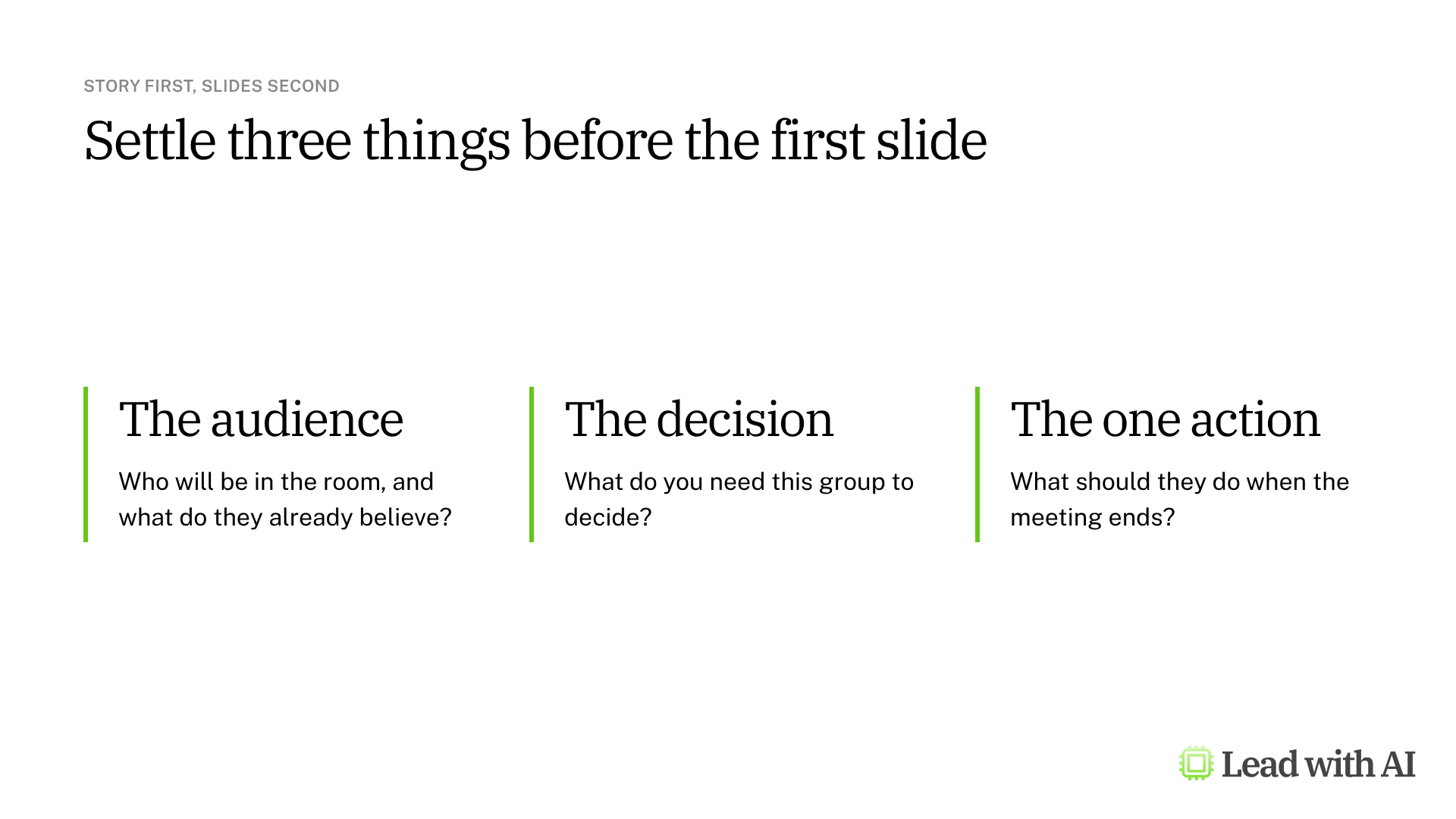
Settle three things before you ask for a single slide: the audience, the decision you need, and the one action you want them to take. Then ask Claude for a slide-by-slide outline, and ask what a skeptical executive would challenge.
When should you use Claude for PowerPoint?
It earns its place in four situations:
- You already have a deck or a corporate template and need to add, restructure or tighten slides.
- You iterate a lot, for example after feedback from your CEO or a client.
- You need charts from data you already have, and you want them as editable PowerPoint charts.
- You already use Claude and want your Skills and instructions to follow you into PowerPoint.
Want to see it in action? Our article on how to work with Claude across Microsoft 365 apps follows a typical executive workflow from an email to a brief, a model and a deck, with Claude carrying the context between Outlook, Word, Excel and PowerPoint.
Anthropic itself does not recommend it for final client deliverables without human review, or for highly sensitive or regulated data without proper controls. It also should not replace your own judgment on design and narrative.
If you are starting from a rough outline and want a finished, designed deck, Claude Design may fit better. We compare both, along with Copilot, Gamma and others, in our guide to the best AI presentation generators.
How do you install Claude for PowerPoint?
For yourself:
- Open the Claude for Microsoft 365 listing on Microsoft AppSource and select Get it now.
- Open PowerPoint, activate the add-in from Home > Add-ins on Windows or Tools > Add-ins on Mac, and sign in with your Claude account.

For your organization: an admin deploys it through the Microsoft 365 Admin Center, and users then find Claude in PowerPoint's Home ribbon. A full rollout can take up to 24 hours. Companies that send their AI traffic through Amazon Bedrock, Google Cloud Vertex AI or Azure AI Foundry can deploy it without individual Claude accounts.

It runs on PowerPoint on the web, on Windows with Microsoft 365, and on Mac. It does not run on PowerPoint 2016 or 2019 perpetual licenses, on iPad or on Android.
How to build a deck with Claude for PowerPoint, step by step
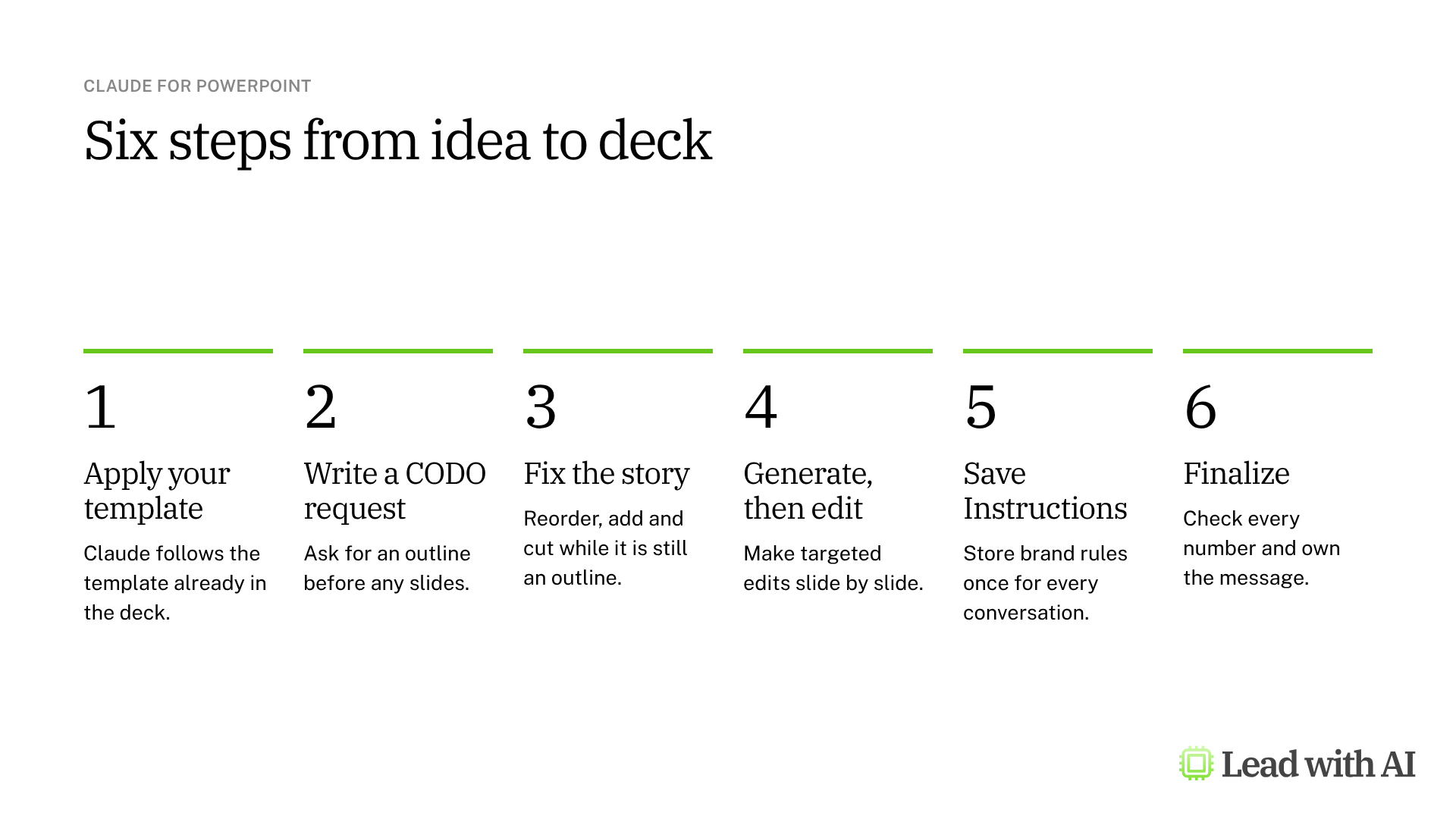
Step 1: Apply your template first. Claude follows the template that is already in the deck, so start from your company or client template rather than a blank file.
Step 2: Write your request with CODO, and ask for the outline first. We recommend structuring every request with our CODO framework: tell Claude who to be (Character), what you need (Objective), what to do and avoid (Do and Don't), and what to hand back (Output). Ask for a slide-by-slide outline before any slides, and attach a reference file if you have one. The prompt below is a ready-made version. Claude may first ask a few clarifying questions in a multiple-choice format.
Step 3: Fix the story while it is still an outline. Review the flow, the storyline and what is missing. Changes are cheapest here. You might say “Add a slide on key risks” or “Reorder to lead with recommendations.”
Step 4: Generate the slides, then edit them one by one. Once the structure holds, let Claude build the slides and then make targeted edits, such as “Simplify the text on this slide,” “Restructure slides 4 to 7 into a clearer narrative” or “Add a chart showing the quarterly trend.” Claude changes only what you point at and keeps your formatting.
Step 5: Save your rules as Instructions. The Instructions field in the add-in's settings applies to every PowerPoint conversation. Put brand rules and your preferred slide structure there, so you stop repeating them.
Step 6: Finalize with accountability. Check every number, make sure the “so what” is obvious on each slide, and make sure you can stand behind the message. Our DRAFT Check is a quick way to review AI output before it reaches a board.
A CODO prompt to start with
This is the prompt from step 2. Paste it into the Claude sidebar with your template already applied, and replace the brackets.
Character: You are an executive presentation strategist who builds decision decks for senior leadership teams.

Objective: Help me build a [NUMBER]-slide deck for [AUDIENCE] that gets them to [DECISION OR ACTION]. Use the template already applied to this presentation.

Do:
- Start with a slide-by-slide outline in this chat: a title and the one sentence each slide must land. Wait for my approval before you create slides.
- Build the story around one thesis and one clear ask.
- Use the layouts in this template, and use native charts where a chart makes the point faster than bullets.
- Flag missing data or unsupported claims as questions instead of guessing.

Don't:
- Don't add facts, numbers or quotes I have not given you.
- Don't default to bullet-heavy slides.
- Don't change the template's fonts, colors or master layouts.

Output:
- First, the outline in this chat.
- After my approval, the slides in this deck, followed by 3 to 5 points I should verify before presenting.
What will your IT and legal teams ask?
Leaders often get stuck here, so know these answers before you ask for access.
- Where does the data go? When you sign in with a Claude account, your conversations go to Anthropic. That includes what Claude reads from your presentation and any files you attach. Anthropic says it deletes inputs and outputs within 30 days, with some exceptions.
- Is chat history saved? It is saved locally in your browser. It does not sync across devices, and clearing it does not delete what Anthropic has already received.
- Does it follow our retention and audit settings? The add-in does not inherit your organization's custom data retention settings, and its activity does not appear in Enterprise audit logs. Enterprise customers with Anthropic's Compliance API do get these sessions there.
- Is it safe with outside files? Anthropic advises using it only with trusted files, because downloaded templates or vendor decks can hide instructions that manipulate the add-in. Claude asks you to confirm before risky actions.
- Are there known issues? As of November 2026, some Windows users lost their chat history and uploaded Skills after Microsoft 365 updates. Anthropic says it is working on a fix with Microsoft.
Claude for PowerPoint or Copilot in PowerPoint?
There are now two ways to use Claude inside PowerPoint, and they are easy to confuse.
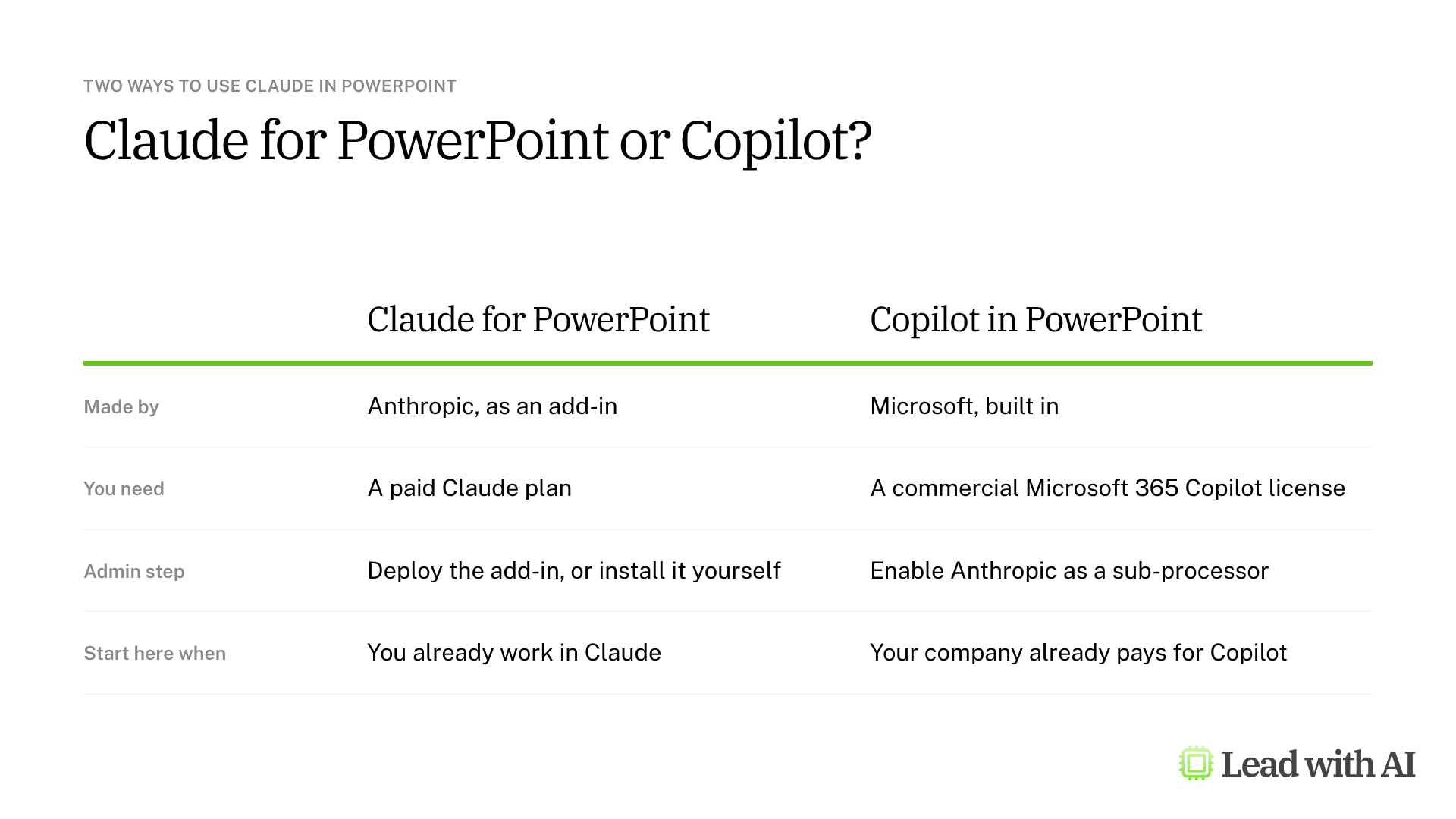
Claude for PowerPoint is Anthropic's add-in. It runs on a Claude subscription and under Anthropic's terms.
Copilot in PowerPoint is Microsoft's assistant, and it now lets you choose Claude as the model when you edit a presentation. That option requires a commercial Microsoft 365 Copilot subscription, and an admin must first enable Anthropic as a sub-processor.
Which should you use? If your company already pays for Microsoft 365 Copilot, start there. Microsoft's existing Copilot security and compliance controls still apply, which makes it the easier conversation with IT.
Claude for PowerPoint makes the most sense when you already work in Claude and want your Skills, instructions and connectors to come with you into the deck.
Key takeaways
- Claude for PowerPoint works inside your existing deck and template, which makes it strongest for editing and iterating.
- Fix the story before the slides. Ask for an outline, stress-test it, and only then build.
- Write your requests with CODO and save your brand rules as Instructions.
- Clear the data questions early. Retention, audit logs and untrusted files are what IT will ask about.
- Own the final deck. The slides may be AI-assisted, but the judgment and the consequences stay yours.




