




If your company runs on Microsoft 365, Copilot is built into Word.
Copilot in Word drafts a document from your own files, emails and meetings, then helps you edit it without leaving the page. It works under your existing Microsoft 365 permissions, so it only uses content you can already open.
Where Copilot shows up in Word
There are three places to find it.
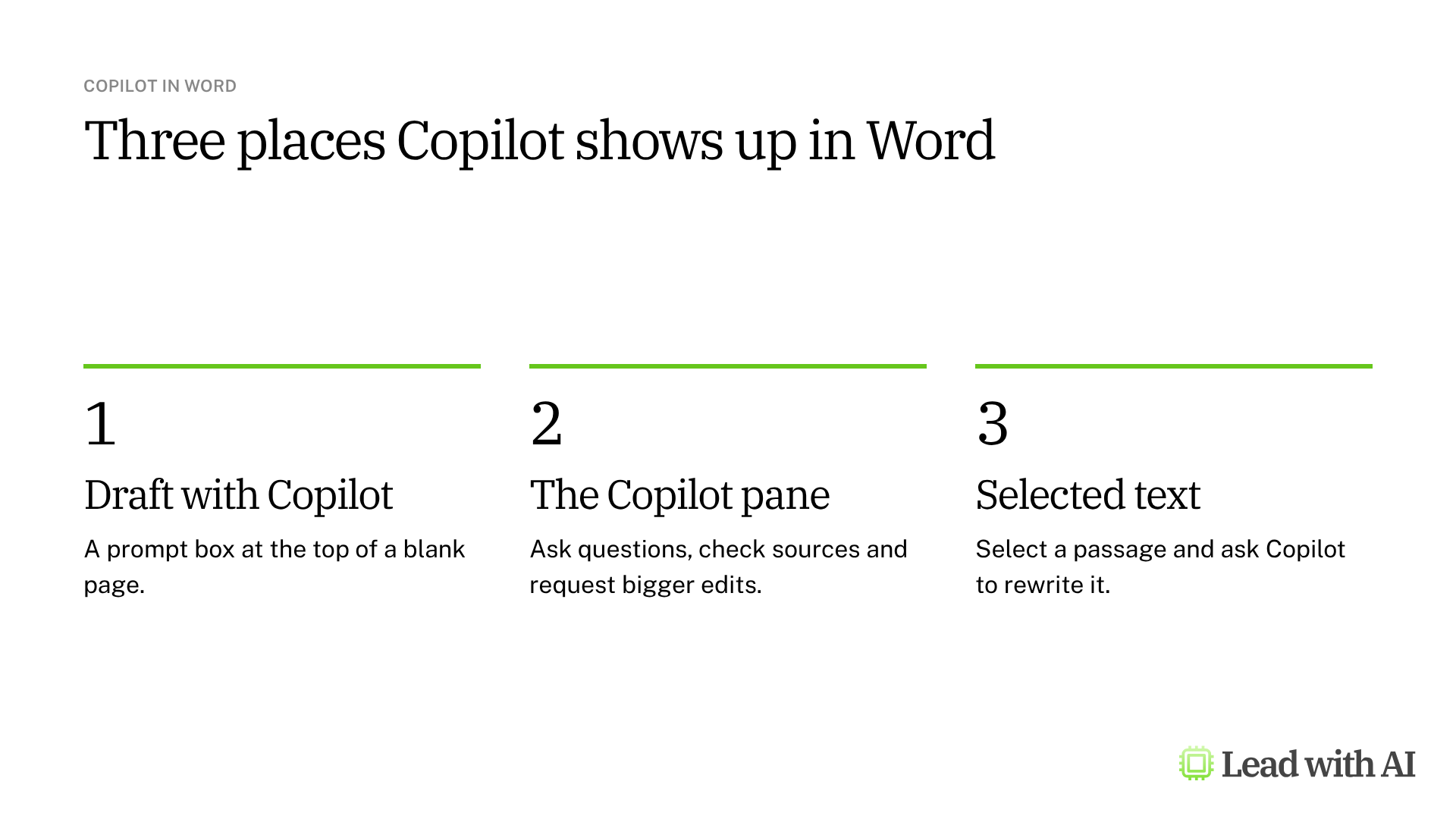
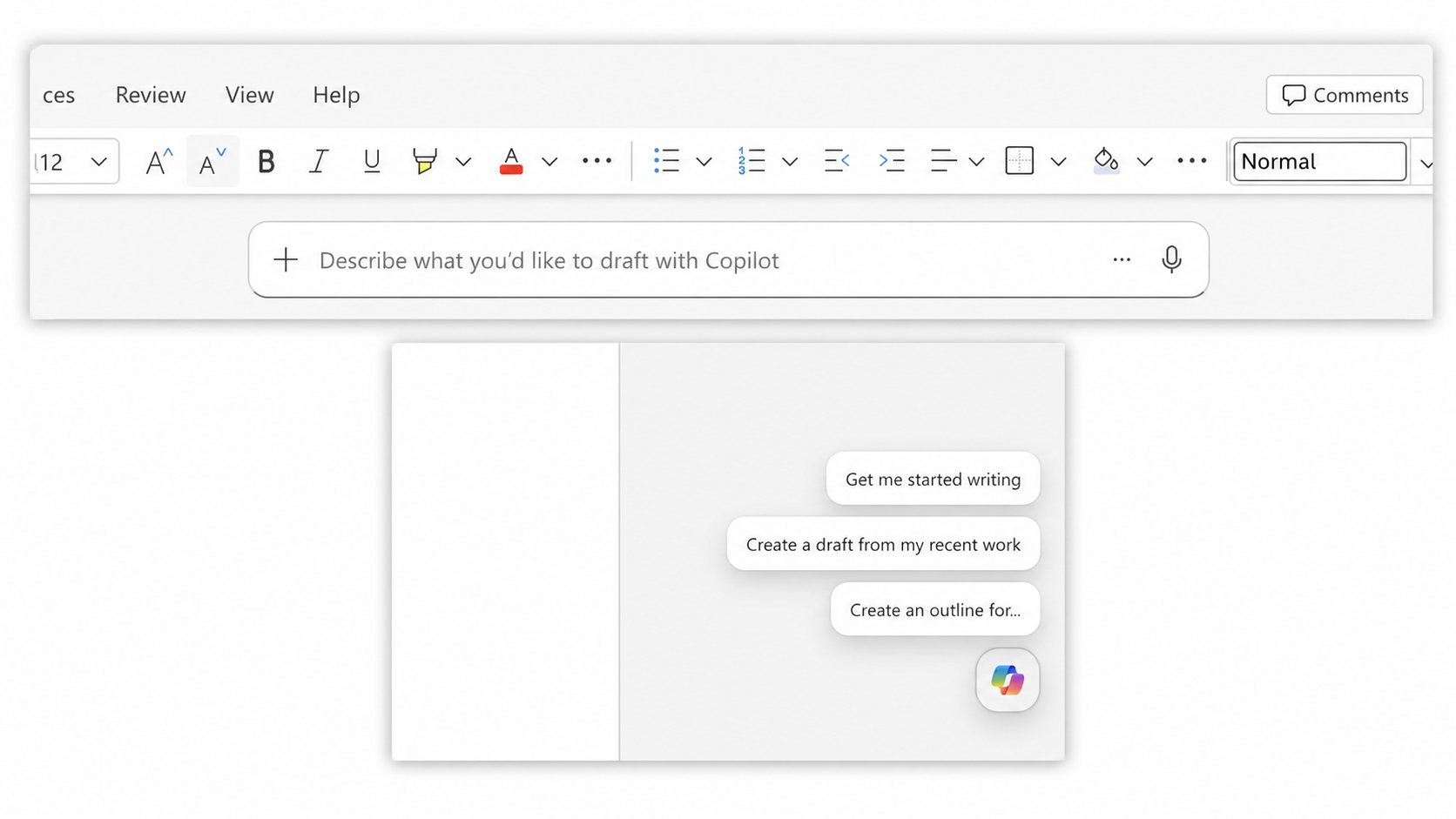
- Draft with Copilot. In a blank document, a prompt box sits at the top of the page. Describe what you need and select Generate.
- The Copilot pane. Select the Copilot icon to open the pane on the right. This is where you ask questions about the document, check sources and request bigger edits.
- Selected text. Select a passage and ask Copilot to rewrite it. Pick Auto Rewrite or describe the change, then review the result before you keep it.
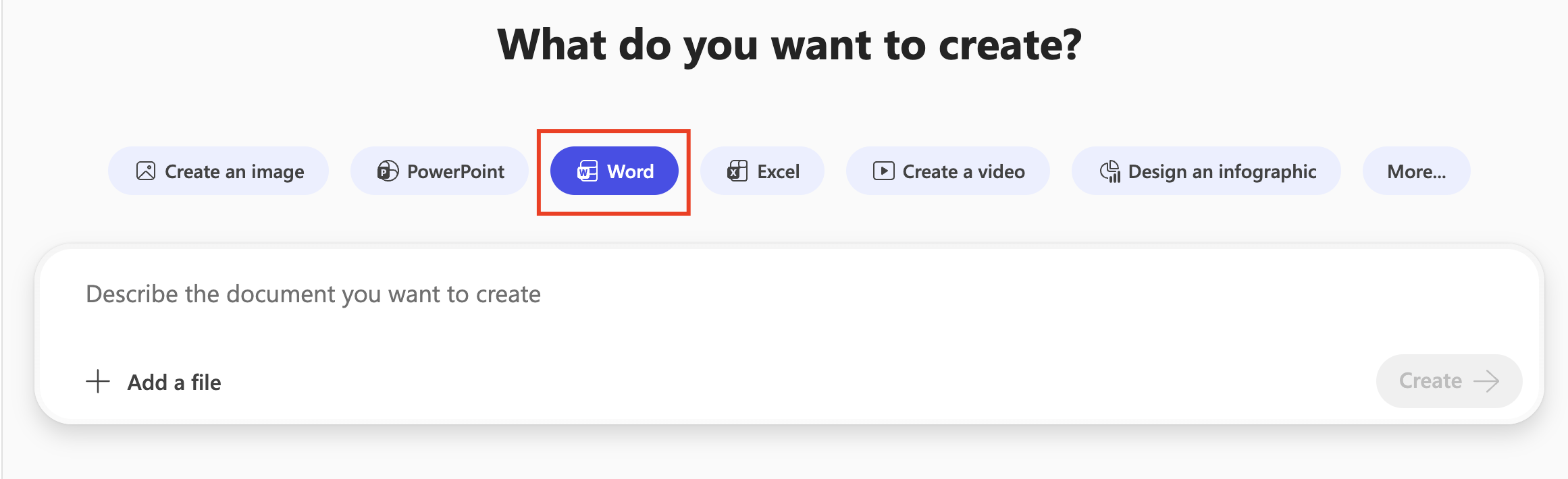
You can also start from the Microsoft 365 Copilot app. Select Create, choose Word and describe the document you want.
What your license includes
The full Copilot experience in Word needs a paid license. Copilot Business costs $21 per user per month for organizations with up to 300 users. Above that size, Microsoft 365 Copilot costs $30.
Without a license, Copilot may not appear in Word at all. Since spring 2026, Copilot Chat users at organizations with more than 2,000 seats no longer see Copilot in Word, Excel, PowerPoint or OneNote. They can still use Copilot Chat in the Microsoft 365 Copilot app and upload a document there.

The label in the pane tells you which version you have. “M365 Copilot (Premium)” means you have the full license. “Copilot Chat (Basic)” means you do not.
On personal accounts, Microsoft 365 Personal, Family and Premium plans include Copilot in Word.
When Copilot in Word earns its place
There are four situations where it helps most:
- Your source material already lives in Microsoft 365, such as a report in SharePoint, last quarter's updates in a folder or a thread in Outlook.
- You need a first draft in a set format, such as a one-pager, a board memo or a project summary.
- A long document needs a quick read, and you want the key points, risks or open questions.
- One section needs a sharper edit, such as a stronger opening or a shorter summary.
Want to practice on a real document? These how-to articles give you prompts you can run in the Copilot pane:
- Build SOPs for any workflow: a prompt that interviews you about a process, then writes a standard operating procedure your team can follow.
- Draft a personal introduction that positions you strategically: prompts for a conference introduction, an internal meeting and an authority-focused bio.
For email, read our guide to Copilot in Outlook. We compare Copilot with ChatGPT, Claude and Gemini in our guide to the best AI writing tools for senior leaders.
How to draft a document with Copilot, step by step
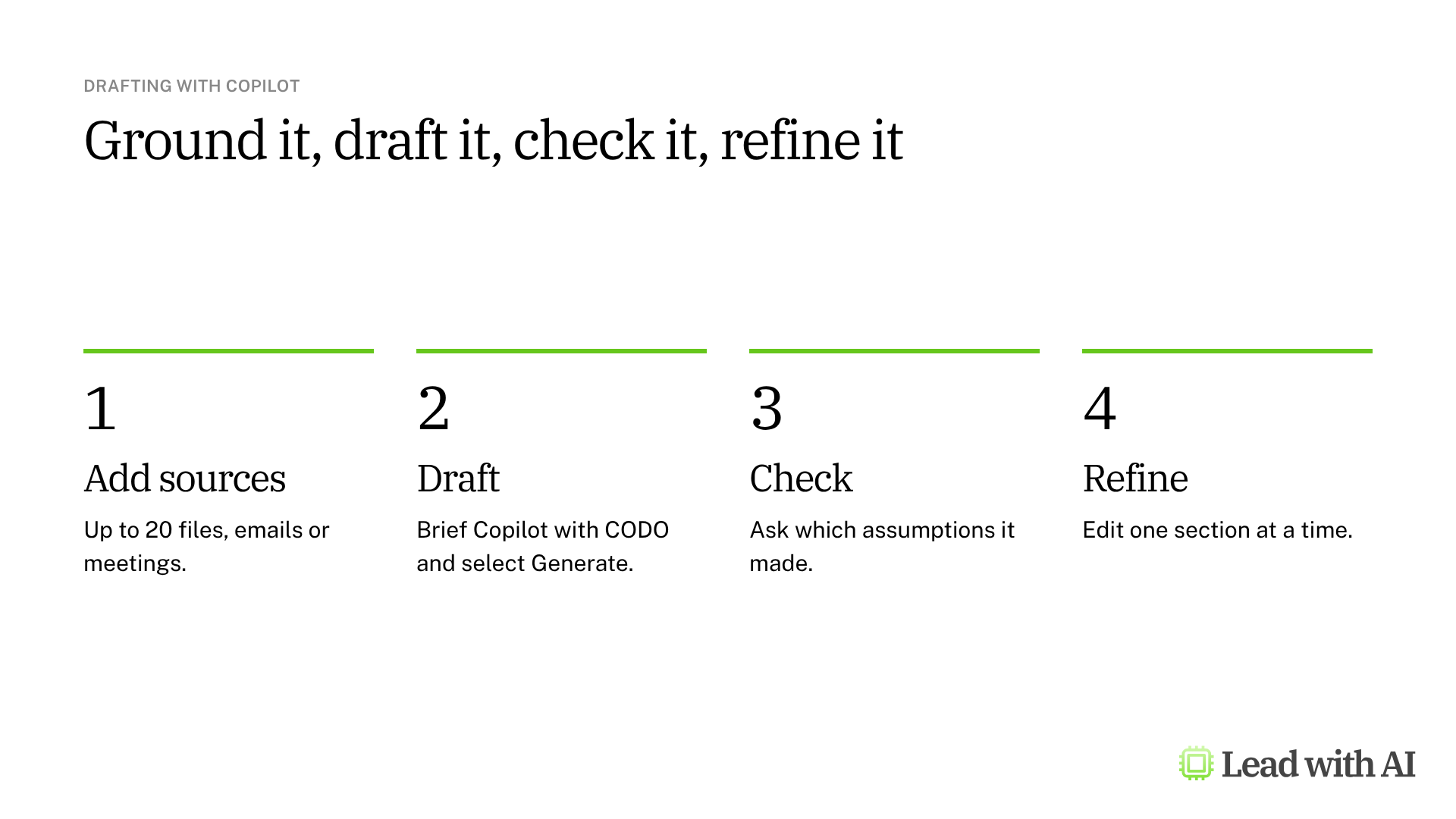
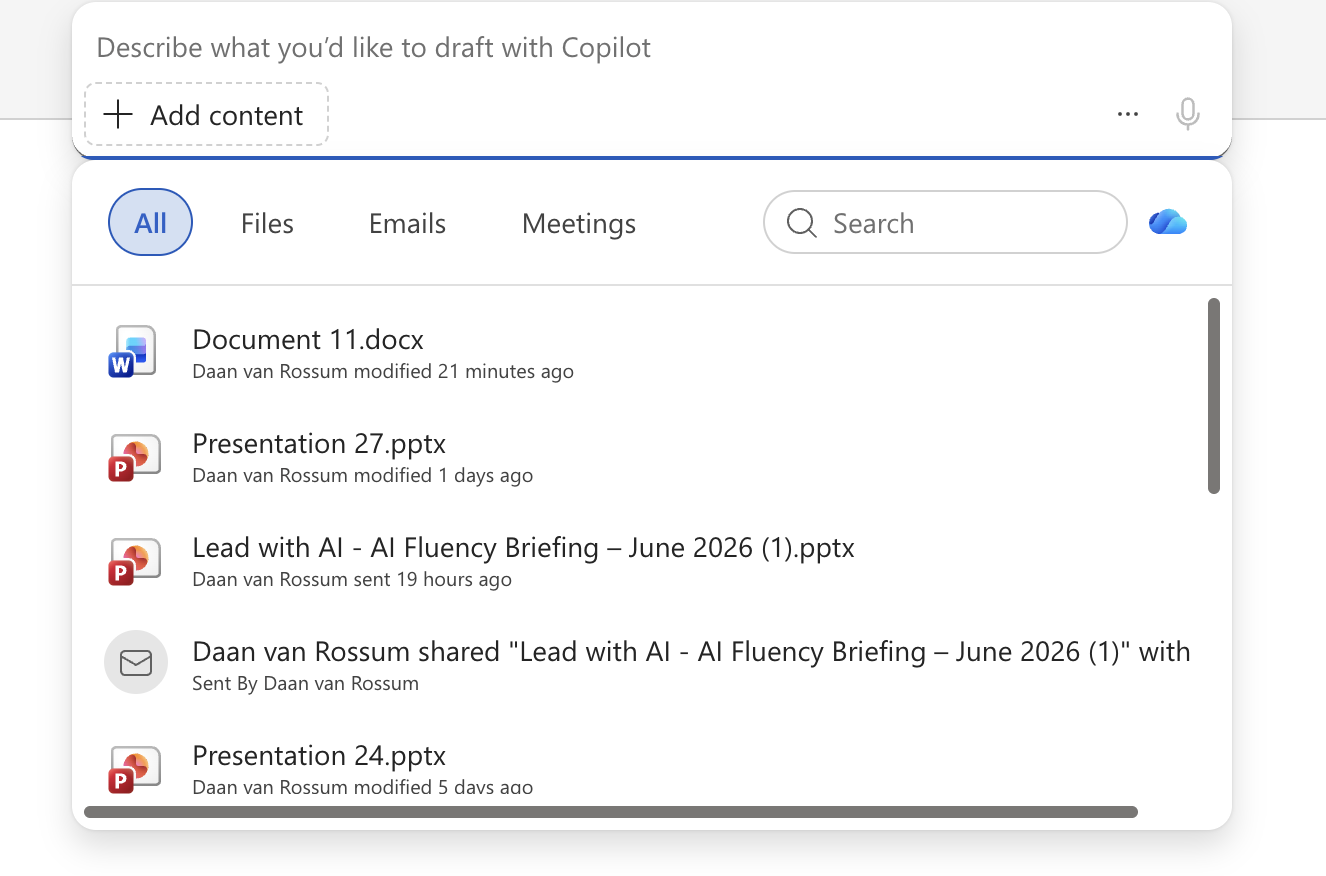
Step 1: Ground Copilot in your sources. In the Draft with Copilot box, select + or type / to add files, emails or meetings. You can add up to 20 items. If you add a folder, Copilot uses its 10 most recent files.
Step 2: Write your request with CODO, then select Generate. We recommend structuring every request with our CODO framework. Tell Copilot who to be (Character), what you need (Objective), what to do and avoid (Do and Don't), and what to hand back (Output). Copilot opens the pane on the right, shows its steps and writes the draft into your document.
Step 3: Ask for an audit trail. In the same pane, ask: “Highlight any assumptions you made because the sources did not contain something.” Check each flagged point before you share the document.
Step 4: Refine one section at a time. Select a section and ask: “Strengthen the opening and make it more decisive.” Review the change, then keep it or undo it.
Step 5: Bring in more power for harder work. In the pane, select the three dots to choose a different model for complex analysis. You can also call an agent such as Researcher or Analyst. In agent mode, Copilot chats with you but does not edit the document.
A CODO prompt to start with
Add your sources first, then paste this into the Draft with Copilot box.
Character: You are a chief of staff who writes crisp one-page briefs for a senior leadership team.

Objective: Turn the attached sources into a one-page brief that helps my leadership team decide [decision].

Do:
- Use only the attached files as your sources, and keep their terminology.
- Open with the decision we need to make and your recommended option.
- Summarize the three insights from the sources that matter most for this decision.
- For each insight, explain in one or two sentences what it means for us.
- End with risks and next steps, each with an owner placeholder.

Don't:
- Don't add facts, figures or examples that are not in the sources. If something is missing, flag it as a question.
- Don't use filler phrases or generic AI language.
- Don't go beyond one page.

Output:
A one-page brief with these headings: Decision, Recommendation, Key insights, What it means for us, Risks, Next steps. Use plain language and short paragraphs.
What will your IT and legal teams ask?
- What can Copilot see? Only Microsoft 365 content the user already has permission to open. It does not raise anyone's access.
- Is our data used to train models? Microsoft says prompts, responses and data accessed through Microsoft Graph are not used to train foundation models.
- Does it respect our policies? Copilot follows your data loss prevention policies and applies sensitivity labels to what it generates.
- Who needs a license? Each user who wants Copilot inside Word needs a Copilot license, which your admin assigns. Admins can also manage Copilot app by app.
Copilot in Word or another AI tool?
Copilot's advantage is grounding. It drafts from the files, emails and meetings already in your Microsoft 365, under the permissions you already have.
If prose quality and tracked changes matter more to you, consider Claude for Word. If your company runs on Google Workspace, Gemini in Google Docs is the equivalent. We compare all four in our guide to the best AI writing tools for senior leaders.
Key takeaways
- Check the label in the Copilot pane to see which version you have.
- Add your sources before you prompt: up to 20 files, emails or meetings.
- Write the request with CODO, and tell Copilot not to add facts.
- Ask for the assumptions it made, and check them before you share.
- Refine one section at a time, and keep only the changes you want.




