




If your company runs on Microsoft 365, the AI for your inbox may already be in Outlook.
Copilot in Outlook works inside the email you are reading. It knows the thread, the people on it, your calendar and your meetings. With a license, it also knows your files. A separate chatbot only sees what you paste into it.
What Copilot can do in Outlook
There are three ways to use it, and they go from reading to acting.

- Summarize and ask. Select Summarize at the top of an email to get the key points of the thread. In Copilot Chat, you can ask questions about the email in front of you, or about your whole inbox, calendar and meetings.
- Draft and refine. Copilot writes a first draft in the compose window. It asks about your goal, audience and tone, and updates the email as you answer. You can also select your own text and make it shorter, more formal or more detailed.
- Let it act. Newer agent features can flag, categorize, move and archive email, create inbox rules and handle routine calendar decisions. Some of these are still in Frontier, Microsoft's early access program.
What you get with and without a license
Copilot Chat is included with Microsoft 365 business plans. In Outlook, it can summarize a thread in one click and answer questions across your inbox, calendar and meetings.
The full experience needs a Microsoft 365 Copilot license. That covers drafting in the compose window, standing instructions for drafts and your calendar, sending from Copilot Chat, and the agent features that act in your inbox.
The license costs $30 per user per month on enterprise plans. Microsoft also offers a lower-priced Copilot Business tier for organizations with up to 300 users.

If you cannot find Copilot, or you only see the chat, ask your IT team which license you have. Admins also decide whether Copilot Chat is pinned in Outlook.
When Copilot in Outlook earns its place
There are four situations where it helps most:
- A thread is long or messy, and you need the decision, the open questions and the owners.
- A reply depends on something else, such as a document someone sent last week or what was said in a meeting.
- An email should become a meeting, and you want the invite and the agenda drafted for you.
- Your morning starts in the inbox, and you want a first pass before you read anything.
Want a ready-made routine? These how-to articles give you prompts to run in Copilot Chat:
- Build your AI executive daily briefing: a three-minute morning report on your top priorities, the emails that need a reply and the meetings to prepare for. The article also explains how to receive it automatically every morning.
- Build an AI-powered workload audit: a review of your email and calendar that ranks which of your tasks to automate first.
For a sensitive reply, or a decision that needs research alongside it, stepping out of the inbox can work better. We cover that option in our guide to ChatGPT for email, and we compare the main tools in our guide to AI for email.
How to find Copilot in Outlook
- Open Outlook. Copilot works in the new Outlook for Windows, Outlook on the web, classic Outlook, Outlook for Mac and the mobile apps. New features often reach the new Outlook and the web first.
- Select the Copilot button in the ribbon to open Copilot Chat in a side pane.
- Open an email and select Summarize at the top of the message.
- In a new email, select the Copilot icon and describe what the email should say.
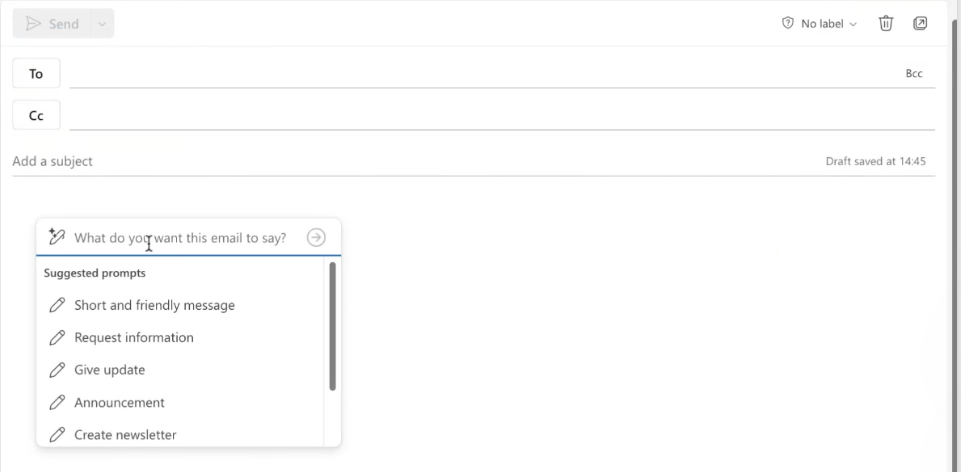
How to triage your inbox with Copilot, step by step
Step 1: Summarize the thread in front of you. Open your longest thread and select Summarize. Then ask Copilot Chat a follow-up: “What is being asked of me, by when, and what is still undecided?”
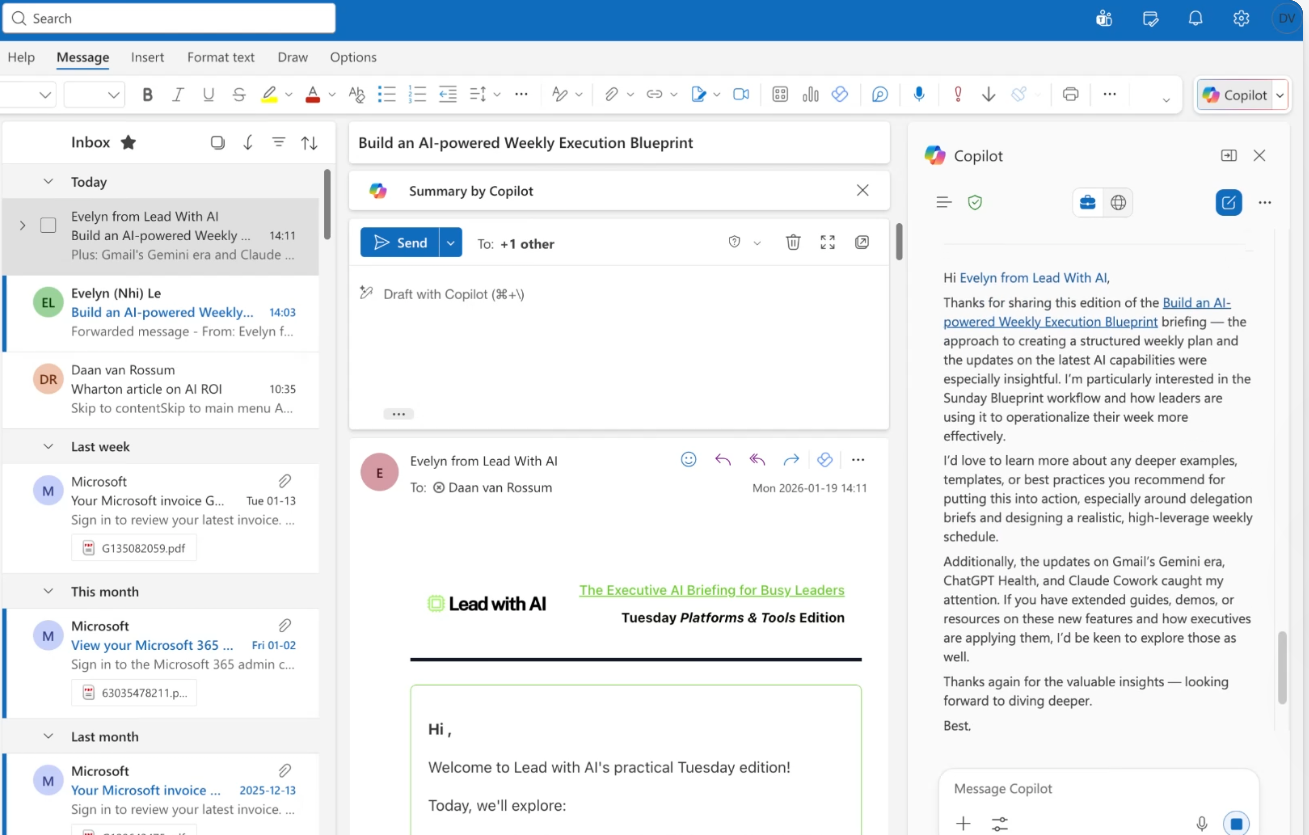
Step 2: Ask across your inbox, and start narrow. In Copilot Chat, ask: “Which emails from today need a reply from me? Skip newsletters and notifications.” Widen it to the whole week once you trust the answers.
Step 3: Write your triage request with CODO. We recommend structuring every request with our CODO framework. Tell Copilot who to be (Character), what you need (Objective), what to do and avoid (Do and Don't), and what to hand back (Output). The prompt below sorts every email into three buckets.
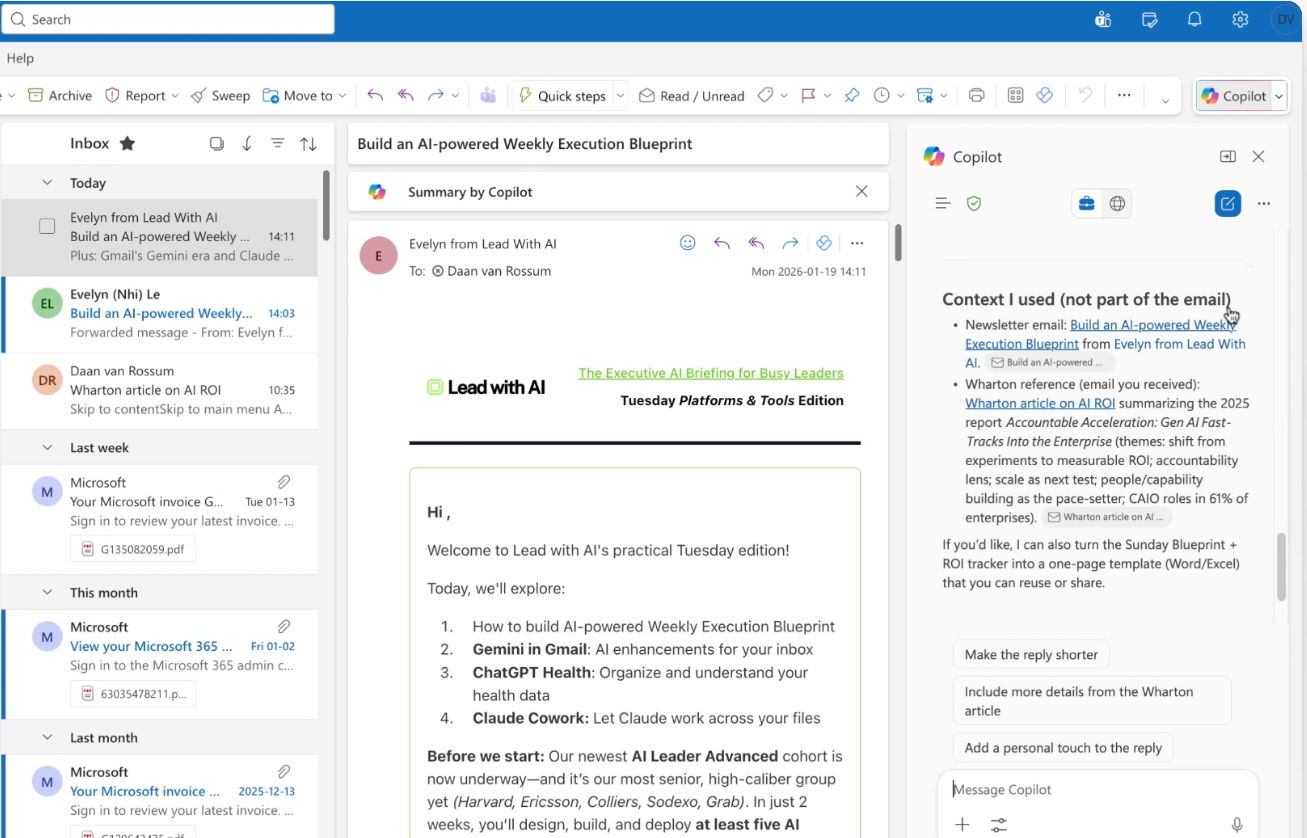
Step 4: Draft the reply with the right context. Ask Copilot to use a specific email, meeting or file: “Draft a reply that uses the Wharton article on AI ROI I received last week.” Copilot lists the sources it used, so check them before you send.
Step 5: Turn the email into a meeting. Ask: “Set up a 30-minute prep meeting with the team this Friday at 3 p.m.” Copilot fills in the invite and can draft an agenda and suggest a room. You review it and send.

Step 6: Set standing instructions. Go to Settings > Copilot. Add draft instructions so every draft starts in your tone and at your length. Add calendar instructions for routine decisions, such as declining meetings after 5 p.m.
Step 7: Hand over actions in stages. If your organization has the agent features, Copilot can flag, categorize, move, archive and delete email when you ask. It only asks for confirmation when an action affects more than five emails. Start with actions that are easy to undo. Add cleanup once the results match your judgment.

A CODO prompt to start with
Paste this into Copilot Chat in Outlook. It only asks Copilot to read, so it is safe to run on day one.
Character: You are the world's most efficient executive assistant, someone who has managed inboxes for demanding senior leaders for 20 years and knows what is urgent, what can wait and what is noise.

Objective: Look at my emails from the last 24 hours and triage them, so I open my inbox knowing exactly what needs my attention today.

Do:
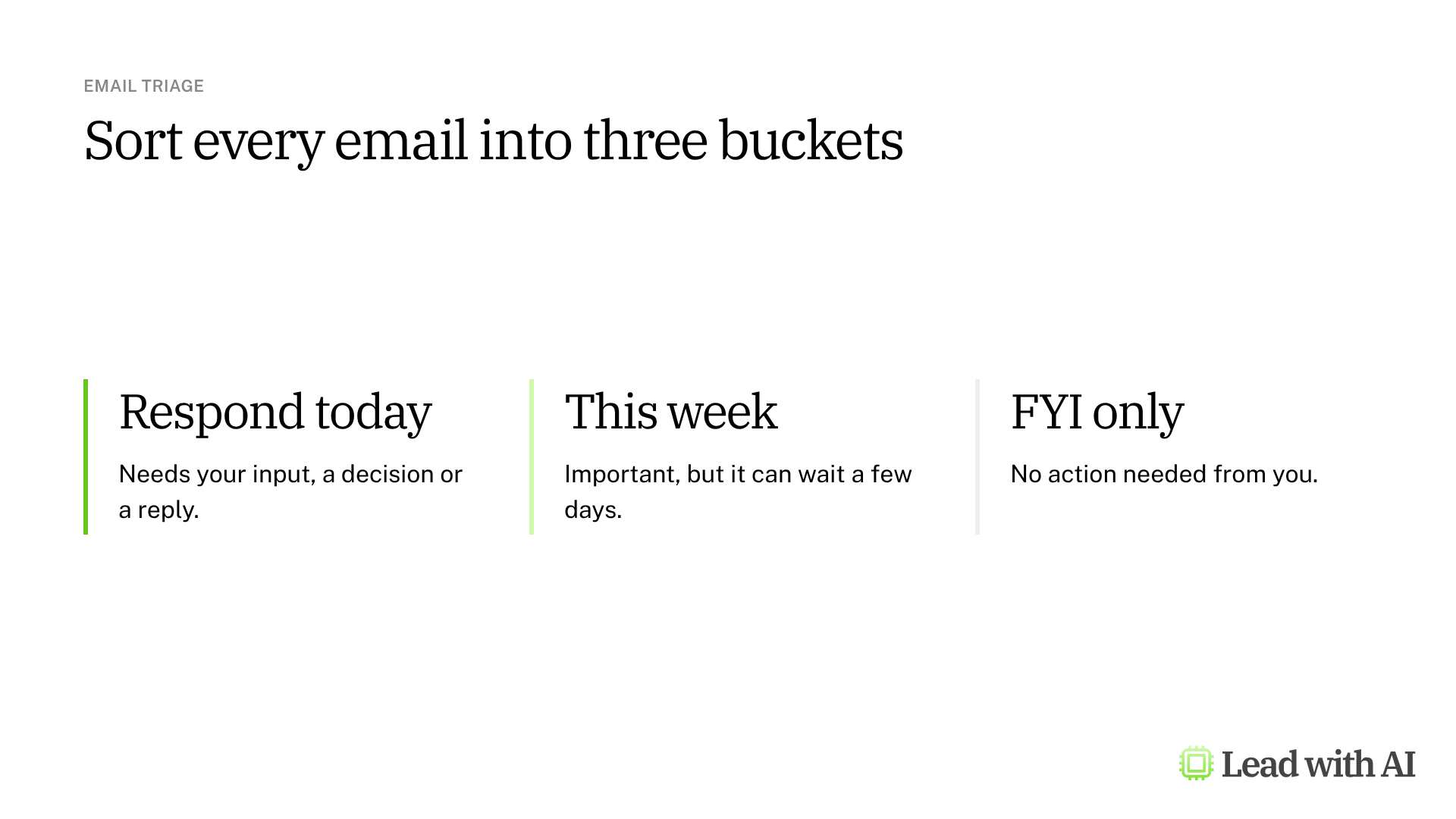
- Put every email in one of three buckets: Respond today (needs my input, a decision or a reply), This week (important but not time-sensitive) and FYI only (no action needed from me).
- For every Respond today email, give me a one-line summary of what is being asked and a suggested first sentence for my reply.
- List Respond today emails in priority order, most urgent first.
- If an email relates to a meeting on my calendar in the next two days, say so.
- If an email looks routine but hides a request or an escalation, put it in Respond today and tell me why.

Don't:
- Don't send, move, archive, flag or delete any email. Suggest drafts only.
- Don't summarize emails I do not need to act on. The label is enough.
- Don't write full replies. One strong opening sentence is enough.
- Don't add extra commentary.

Output:
One prioritized list, organized by bucket: Respond today first, then This week, then FYI only. Respond today emails get the subject line, the one-line summary and a suggested first sentence. The others get the subject line only.
What will your IT and legal teams ask?
- What can Copilot see? Only what you already have permission to see in Microsoft 365. That is your mailbox, calendar and meetings, plus files in OneDrive and SharePoint if you have a license. It also works in shared and delegated mailboxes you have access to.
- Can it act without me? Agent features act when you ask, and Copilot only confirms first when an action affects more than five emails. Calendar instructions accept or decline invites under the rules you set. For email, you press Send, both in Outlook and in Copilot Chat.
- Where does our data go? Copilot runs inside your Microsoft 365 environment. It follows the security, retention and compliance policies your company already has.
- Can admins control it? Admins assign licenses, decide whether Copilot Chat is pinned in Outlook, and choose whether to join Frontier for early agent features. Availability of the newest features can vary by region.
Copilot in Outlook or ChatGPT?
Copilot lives where your email already is. It knows your calendar, your meetings and your files, and it works under the controls your IT team already runs.
ChatGPT asks you to step out of the inbox. That suits a sensitive reply or a decision that needs wider research. If your company pays for Copilot, start there, and use a separate platform for the emails that need more thinking.
Key takeaways
- Check what you already have. Copilot Chat comes with Microsoft 365, and the license unlocks drafting and actions.
- Start with Summarize on your longest thread of the week.
- Ask for drafts that use context, such as the document, the meeting or the earlier email.
- Write your triage request with CODO, and run it before your first meeting.
- Hand over actions in stages, starting with flags and categories.




