




If your company runs on Google Workspace, the image tool you need may already be on your screen.
Nano Banana is Google's image model, built into Gemini. It creates and edits images from your descriptions, keeps people and objects consistent across versions, combines several images into one and handles text inside images well.
Where to find Nano Banana
In the Gemini app: go to gemini.google.com, select Create image and enter your prompt. You can also open the sidebar and select Images to start from a template.
- Reference images: upload one or more images to set a style, or to combine people and objects into a new composition.
- Mark up: select an uploaded image to draw or annotate on it, so Gemini knows exactly where to make a change.
- Redo with Pro: on paid plans, select More under an image, then Redo with Pro, for a more detailed version with sharper text.
In Google Workspace: Gemini also generates images inside Google Docs, Slides and Vids. Our guide to Gemini in Google Slides shows how to use it for slide visuals, and Gemini Notebook infographics turn your documents into visuals.
What your plan includes
- Every Gemini user: image creation and editing with the default Nano Banana model, with a daily limit.
- Google AI Pro and Ultra: higher daily limits and Redo with Pro.
- Workspace accounts: limits depend on your edition. Most include a small daily allowance of Pro redos, and higher editions or add-ons raise it.
- Age: editing images is not available to users under 18.
When Nano Banana earns its place
- Turning an idea into a reusable visual for any document or deck.
- Editing an existing image without opening a design tool.
- Keeping a consistent look across a series of visuals.
How to create a visual in Gemini, step by step
Step 1: Generate the first draft. Select Create image and direct Gemini like a visual collaborator, with the style, structure, hierarchy and constraints. Add photos as style references if you have them.
Step 2: Upgrade if you need detail. On a paid plan, select More, then Redo with Pro. Save Pro for final versions, because it has its own daily limit.
Step 3: Edit in conversation. Describe what to change, or mark up the image to point at the exact spot:
Simplify the visual slightly. Increase white space, make section headers more prominent, and reduce visual density in the bottom section so it is easier to scan on a slide.
Step 4: Check and download. Look for typos, a mismatch with your intent, anything missing or overstated, and visual distortions.
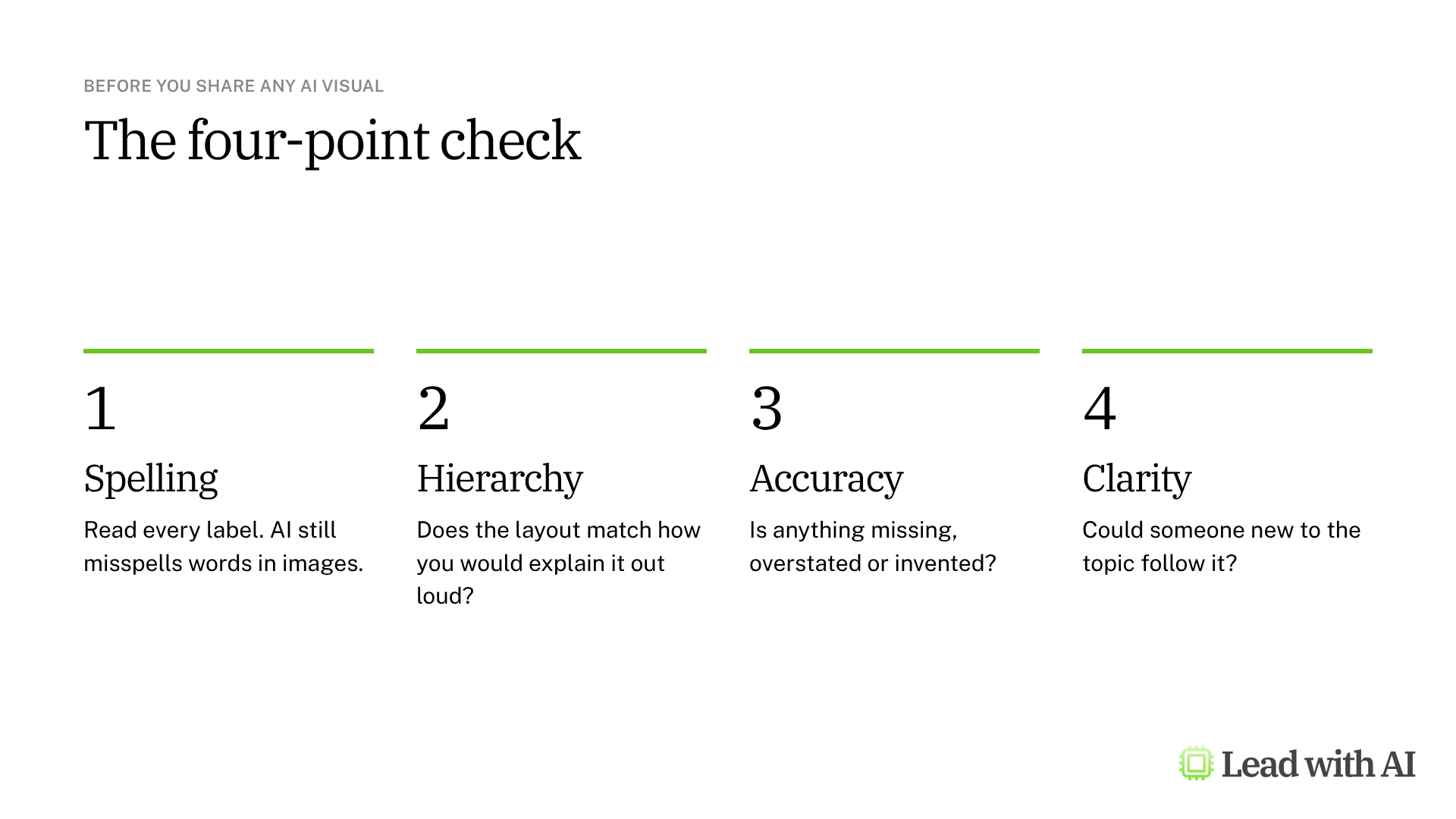
Run the four-point check before you share anything. AI visuals look finished long before they are correct, so read every label and compare the content with your source.
Work on a computer for complex edits. The mobile apps create and edit images, but multi-image compositions and repeated refinements are more reliable at gemini.google.com. Consistency improves when you reuse the same prompt and reference earlier images, but it is not guaranteed.
A CODO prompt for your first visual
This prompt turns any idea, framework or plan into a one-page visual. It is built with our CODO framework. Paste it into Gemini after selecting Create image, fill in the brackets and add your source content at the end.
Character: You are a visual strategist who turns leadership thinking into clear, structured visuals.

Objective: Create a single-page [infographic, framework or diagram] that explains [your idea, framework or plan] to [audience, such as my leadership team]. It will be used in [where, such as a strategy deck or an all-hands]. Base it strictly on the content below.

Do:
- Use a clear hierarchy: a short title at the top, then three to five sections that are easy to scan.
- Keep labels short, and use my wording where possible.
- Use a clean layout with plenty of white space and a limited color palette.

Don't:
- Don't add any content that is not in my source material.
- Don't use generic filler such as "Innovation" or "Excellence".

Output:
One image in [landscape for a slide, or portrait for a one-pager].

[Paste your source content here.]
Want to go further? Our guide to Gemini skills shows how to save a visual brief you reuse, so every image starts from the same instructions.
What will your IT and legal teams ask?
- Can people tell an image is AI-generated? Every image Nano Banana creates carries Google's invisible SynthID watermark, and Gemini can check images for it.
- Is our data used for training? Google states that Workspace content is not used to train its generative AI models without permission.
- Who controls access? Workspace admins decide who can use the Gemini app.
- What should employees avoid? Uploading confidential material or photos of people who have not agreed to it.
Nano Banana or another tool?
Nano Banana is the natural choice in Google Workspace, and it is strong at editing photos and keeping a look consistent.
For framework visuals you refine over several rounds, ChatGPT Images works well. To build a visual only from your own documents, use Gemini Notebook infographics. In Microsoft 365, use Copilot Create. Our overview of AI image generation compares all four options.
Key takeaways
- Select Create image in Gemini to start.
- Use Redo with Pro for final, text-heavy versions.
- Mark up the image to point at the change you want.
- Work on a computer for complex edits.
- Run the four-point check before you share.




