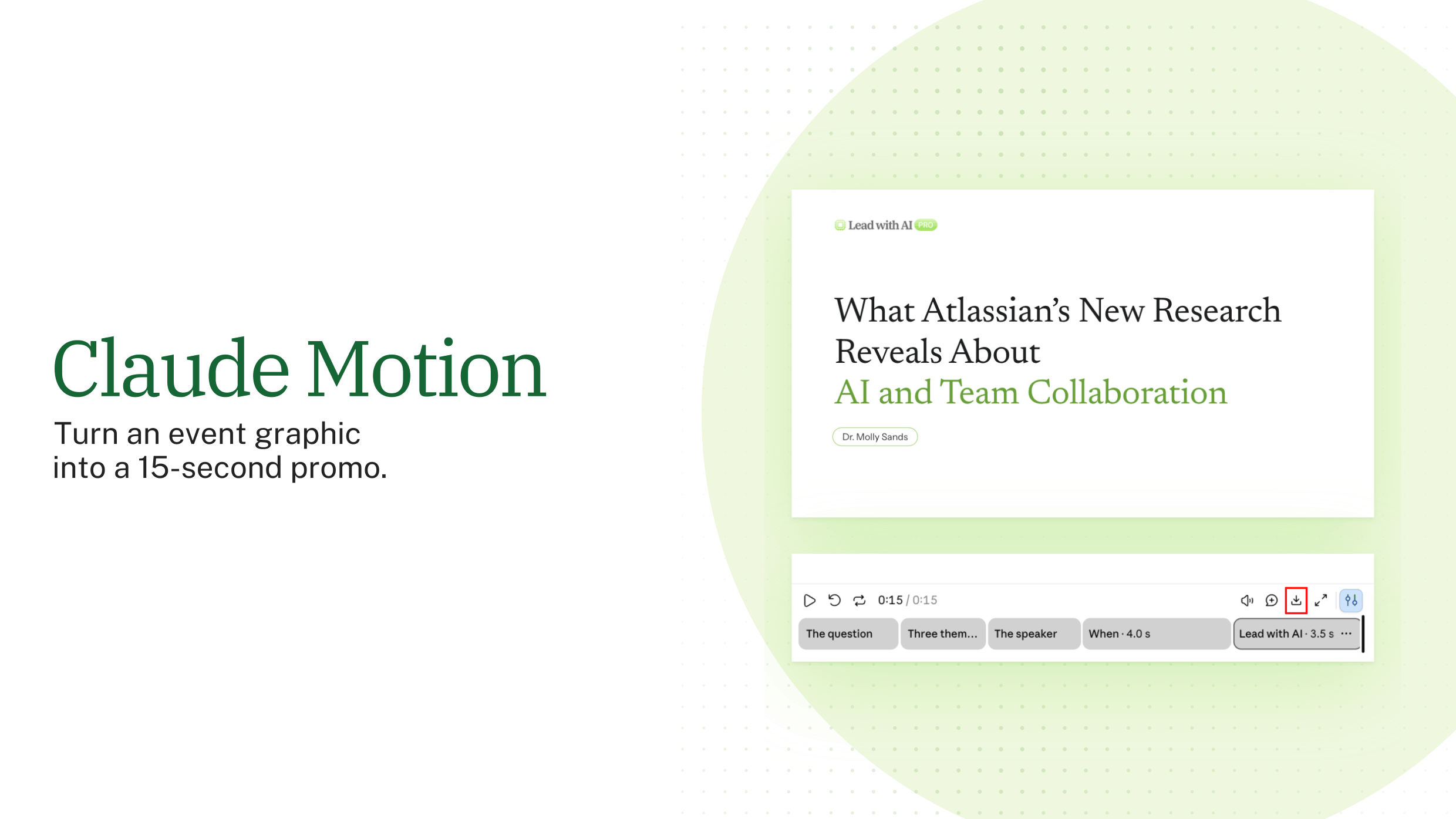

If your thinking already happens in a Claude conversation, the deck can now come out of that same conversation.
Claude Slides builds an editable presentation from your notes, reports or the work already in your chat, then lets you edit, present and export it. It replaced Claude Design as the way to make presentations in Claude, and it does not check facts, so the content stays your job.
What happened to Claude Design?
Claude Design started in April 2026 as a separate workspace for visuals, prototypes and slides. In September 2026, Anthropic brought it into ordinary Claude conversations and launched Claude Slides for presentations and Claude Docs for documents. All three left beta on October 8, 2026.
The standalone Claude Design site closes on December 14, 2026. If your team set up a design system there, migrate it from the Artifacts page in Claude before that date, because chats and comments in the standalone version do not move over. Claude Design itself remains for designs and prototypes, while presentations now belong in Claude Slides.
What your plan includes
- Every plan: Claude Slides is available on all Claude plans, including Free. Decks count toward your plan's usage limits.
- Team and Enterprise: owners can switch Slides on or off under Organization settings, then Artifacts, and decide whether decks can be shared outside the organization.
- File creation: Slides needs the file creation capability switched on in your settings, which most accounts have by default.
When Claude Slides earns its place
There are four situations where Claude Slides pays off quickly:
- A report you just wrote with Claude, which now needs to become a presentation.
- A deck that must follow your company design system, set up once in Claude.
- A presentation several colleagues need to shape, through comments and shared editing.
- A briefing you present yourself, with speaker notes and a presenter view.
How to build a deck, step by step

Step 1: Ask for the deck. In any Claude conversation, attach the material the deck should use, such as a memo, approved figures or an outline, and describe the audience and the decision. You can also start from Artifacts in the sidebar, or ask Claude to turn a Claude Doc into a presentation. A template is below.
Step 2: Check the story before the design. Read the slide sequence first. Does it open with the recommendation? Does every slide earn its place? Then check each number and claim against your sources.
Step 3: Edit in three ways. Double-click any text to change it, or drag elements to move and resize them. Click an element and leave a comment with Send to Claude checked, and Claude makes the change and replies in the thread. For changes across several slides, ask in the chat and name the slides by number or title.
Step 4: Keep it on brand. If your organization has a design system in Claude, new decks use its fonts and colors. If not, attach an existing deck or brand guide and ask Claude to match it.
Step 5: Present, share or export. Select Present to play the deck full screen, or Present with speaker notes to get a presenter window with your notes and the next slide. Share the deck with colleagues as viewers, commenters or editors, who need a Claude account. Or export it as a PDF, a web page or a PowerPoint file. With Google Drive connected, you can also send an editable copy to Google Slides.
What the PowerPoint export gives you

Text boxes, tables, pictures, slide backgrounds and speaker notes stay editable in PowerPoint. Charts, icons and shapes become pictures, and slide transitions are left out. So finish the charts in Claude before you export, or rebuild the key ones in PowerPoint.
Choose basic fonts when you do not know which fonts the recipient has installed, so the deck looks the same on their screen.
A CODO prompt to start with
Paste this into a Claude conversation with your files attached, using our CODO framework, and replace the bracketed parts.
Character: You are a chief of staff who builds clear presentations for a senior leadership team.

Objective: Turn the attached [report] into a [10]-slide deck for [my leadership team] that helps them decide [decision].

Do:
- Open with the recommendation and the decision you need.
- Give every slide a title that states the point, not just the topic.
- Keep each slide to three to five short points, and add speaker notes.
- Use only facts and figures from the attached files.
- End with next steps, owners and dates.

Don't:
- Don't add facts or figures that are not in the files. Flag gaps as questions.
- Don't use decorative images that carry no information.

Output:
An editable Claude Slides deck in our design system, followed by a short list of what you assumed.
Want a stronger starting point? These resources help you prepare the material Claude builds from:
- Claude Projects: keep the brand guide, past decks and instructions for recurring presentations in one place.
- Build a data visualization generator with Claude Artifacts: shape the charts before they go into a deck.
What will your IT and legal teams ask?
- Who controls it? On Team and Enterprise plans, owners switch Slides on or off in the organization settings and decide whether decks can be shared outside the company.
- Who can see a deck? Only the people you invite as viewers, commenters or editors, and they need a Claude account.
- Is our content used for training? On Team and Enterprise plans, Anthropic does not train its models on your content by default.
- What about the standalone Claude Design site? It closes on December 14, 2026, so migrate design systems now and save anything you need from old chats and comments.
Claude Slides or another presentation tool?
Claude Slides is the natural choice when the thinking already happened in Claude, because the deck comes out of the same conversation and context.
If the deck must live inside a corporate PowerPoint template, Claude for PowerPoint works directly in that file. On Google Workspace, Gemini in Google Slides builds native slides from your Drive. Our roundup of the best AI PowerPoint generators compares the main options.
Key takeaways
- Use Claude Slides for presentations, now that Claude Design focuses on designs and prototypes.
- Migrate your design systems before the standalone site closes on December 14, 2026.
- Check the story first, then edit by hand, by comment or by chat.
- Finish charts in Claude, because they become pictures in PowerPoint.
- Check every fact before you present.