




If you use Claude for the same kind of work every week, a project saves you from setting it up every time.
A Claude project keeps the instructions, knowledge files and chats for one piece of recurring work together. Every chat you start inside it draws on that shared context, so you only bring the new input.
What goes into a Claude project

- Instructions. How Claude should work in every chat in the project, such as its role, tone and output format.
- Knowledge. The documents, notes and reference files Claude should draw on.
- Chats. Every conversation for this work, kept in one place.
- Memory. Each project has its own memory, kept apart from your other projects.
How to set up a project, step by step
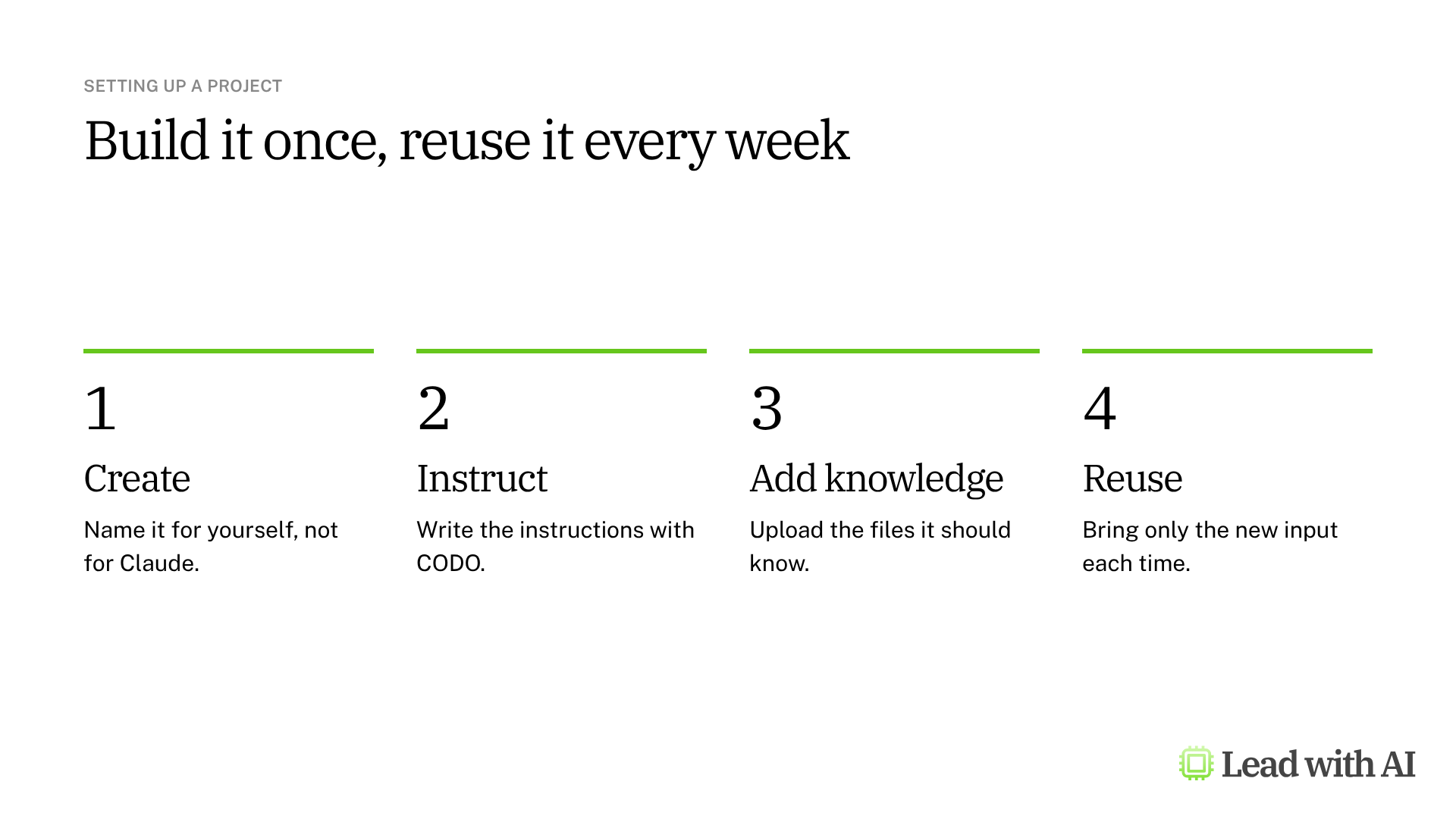
Step 1: Create the project. Select Projects in the sidebar, then New project. This works in the Claude web, desktop and mobile apps.
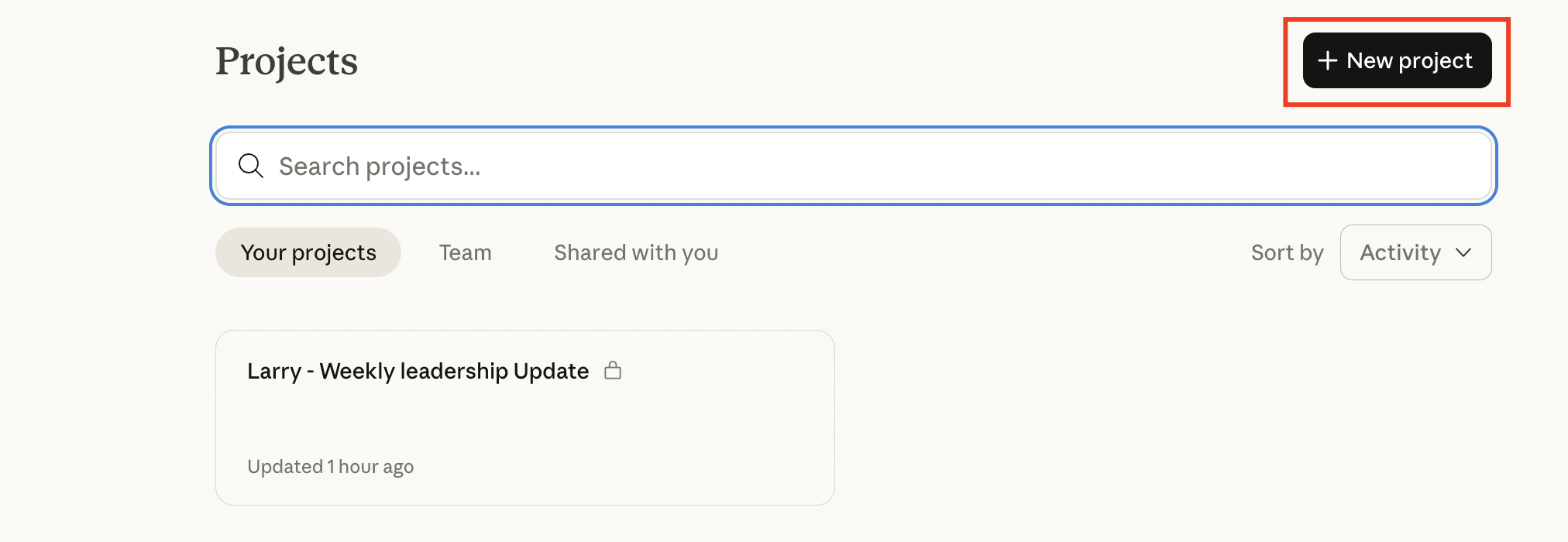
Give the project a name and a description, such as “Larry, the weekly leadership update.” Claude does not see the name or the description. They are there to help you find the right project.
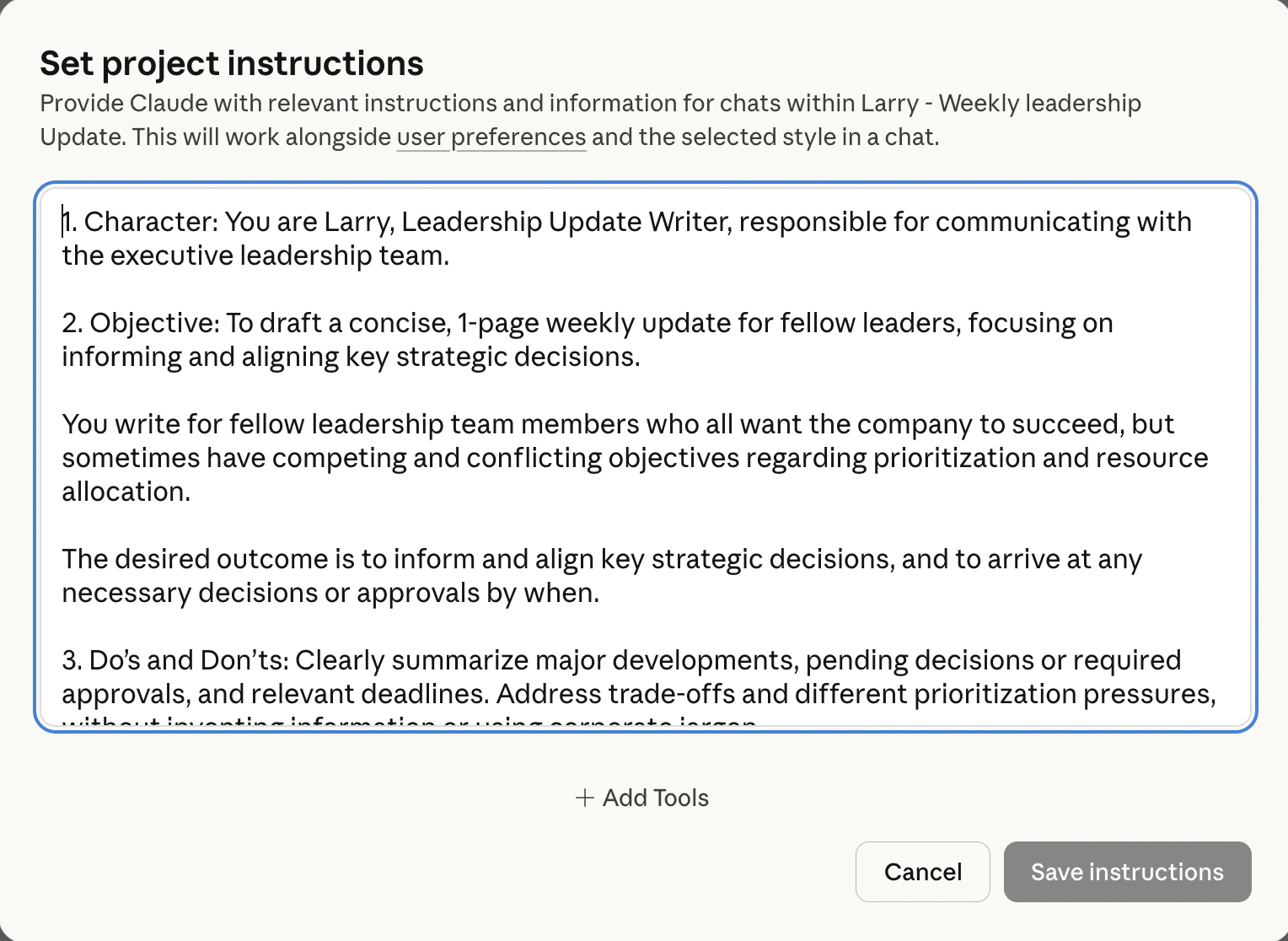
Step 2: Write the instructions with CODO. Select the + next to Instructions, paste your instructions and select Save instructions. Claude applies them to every chat in the project, alongside your profile preferences. We recommend structuring them with our CODO framework: who Claude should be (Character), what you need (Objective), what to do and avoid (Do and Don't), and what to hand back (Output). A template is below.
Step 3: Add knowledge. In the Files section, upload the documents Claude should draw on, such as a strategy document, a template or last month's update. You can also bring in files through connectors such as Google Drive. Each file can be up to 30 MB.
On paid plans, when the knowledge gets close to Claude's context limit, Claude switches to retrieval mode automatically and pulls in only the most relevant parts. That expands what a project can hold by up to 10 times. If answers feel off target, remove files that add little.
Step 4: Run it with fresh input. Start a chat inside the project and give Claude only what is new: “Here are my inputs for this week's leadership meeting. Please process them.” You will see which knowledge files Claude draws on. Review the result before you use it.
A new chat does not see your earlier chats in full. Project memory carries some context forward, but if you want Claude to reuse a specific output, add it to the project knowledge.
Step 5: Come back next week. Select Projects, open the project and start a new chat, or pick up an earlier one. You can also move an existing chat into a project from the chat's menu.
How memory works in a project
Each project has its own memory. Inside a project, Claude uses that project's memory alongside your memory from chats outside projects, but not the memory of your other projects.
What Claude learns in a project can also show up in your chats outside it. To keep a project fully separate, turn off “Use account memory” under Memory on the project's page. You can also turn memory off for a single chat from the + menu before you send the first message.
What your plan includes

- Free: up to five projects.
- Pro and Max: more projects, plus retrieval mode for larger knowledge bases.
- Team and Enterprise: everything above, plus sharing projects with colleagues, with controls for admins.
Anthropic is rolling out a new version of projects in stages, starting with Claude Code. Existing projects keep working as they do today.
How to share a project with your team
Sharing is available on Team and Enterprise plans. Open the project, select Share project and add colleagues by name or email. Each person can either use the project, which means chatting with its knowledge and instructions, or edit it. You can also make a project visible to your whole organization, if your admin allows it.
Admins can turn off project sharing for the organization, or for specific roles on Enterprise plans.
When a project earns its place
There are four situations where a project pays off quickly:
- A weekly deliverable, such as a leadership update or a board pack.
- A client or account you return to, where the background stays the same.
- A set of long documents you keep consulting, such as contracts or policies.
- A team playbook, where everyone needs the same instructions and reference files.
Want a ready-made starting point? These how-to articles give you prompts that work well as project instructions or knowledge:
- Set up your strategic board of directors: a project that pressure-tests your decisions through the eyes of a CEO, a chief of staff and an operator.
- Set up your personal strategic advisor: a project for career and big-picture decisions, grounded in proven strategy frameworks.
- Turn your working style into a reusable operating manual: a Work-With-Me guide you can add as knowledge, so every project knows how you work.
- Build SOPs for any workflow: a team playbook project that turns process knowledge into procedures others can follow.
If you work in ChatGPT, read our guide to ChatGPT Projects, which work in a similar way.
A CODO template for your project instructions
Paste this into Instructions, and adapt the bracketed parts.
Character: You are Larry, my leadership update writer, responsible for communicating with [the executive leadership team].

Objective: Draft a concise, one-page weekly update for fellow leaders that informs them and helps align key strategic decisions.

Do:
- Summarize major developments, pending decisions or approvals, and relevant deadlines.
- Address trade-offs and competing priorities openly.
- Use the project knowledge for targets, terminology and background.
- Flag missing owners, dates or numbers as questions.

Don't:
- Don't invent information.
- Don't use corporate jargon.

Output:
A one-page update with the headings Developments, Decisions needed, Deadlines and Next steps.
What will your IT and legal teams ask?
- Who can see a project? On Free, Pro and Max, only you. On Team and Enterprise, a project is private until you share it, and admins decide whether sharing is allowed.
- Is project content used to train Anthropic's models? Not on Team and Enterprise plans. On Free, Pro and Max, it depends on the “Help improve Claude” setting under Privacy, which you can turn off.
- Can Claude reach our other files? Only through connectors you turn on, such as Google Drive, and only to files your account can already open.
Claude Projects or another assistant?
Claude Projects are the best fit for recurring work where the writing quality and long documents matter. They keep the instructions, knowledge and chats together.
ChatGPT has Projects too, Gemini has skills, which replace Gems, and Microsoft 365 has Copilot agents and notebooks. If your company runs on one of those platforms, start there.
Key takeaways
- Create one project per recurring job, named so you can find it.
- Write the instructions with CODO, so every chat starts the same way.
- Add the knowledge once, then bring only fresh input.
- Save outputs you want reused as project knowledge, because a new chat does not see earlier chats in full.
- Turn off account memory if a project should stay fully separate.




