




If your company runs on Google Workspace, you no longer need a separate app to get a first draft of a deck.
Gemini in Google Slides now builds a full, editable presentation from a prompt and your own Drive files. Every text box, shape and chart is a normal Slides element, so you can change anything afterward. It does not check facts, so the content stays your job.

Two ways to build a deck with Gemini
- Inside Google Slides, Gemini builds the deck where you will present it. It works from the files you add and can match the style of an existing deck. This is the route we recommend for most work decks.
- Canvas in the Gemini app drafts a deck in a few ready-made designs, then exports it to Google Slides. It is a quick way to test a storyline before you commit to it.
Both routes produce slides you can edit. The difference is where you start, and how much of your own style the deck carries.
What your plan includes
- Google Workspace: Business Standard and Plus and Enterprise Standard and Plus can create full presentations. Business Starter does not include it.
- Personal accounts: deck creation needs a Google AI Pro or Ultra plan.
- Language and device: for now, deck creation works on a computer and in English only.
- Limits: per-user usage limits apply, and Google has not published the numbers, so test it on a real deck before you plan a rollout around it.
When Gemini in Slides earns its place
There are four situations where Gemini in Slides pays off quickly:
- A recurring update built from a report or a sheet that already sits in Drive.
- A deck that must look like your last one, because Gemini can match its style.
- A long deck you need to shorten or restyle in one pass.
- A first draft of a proposal from your notes, a document and a few relevant emails.
How to build a deck in Google Slides, step by step
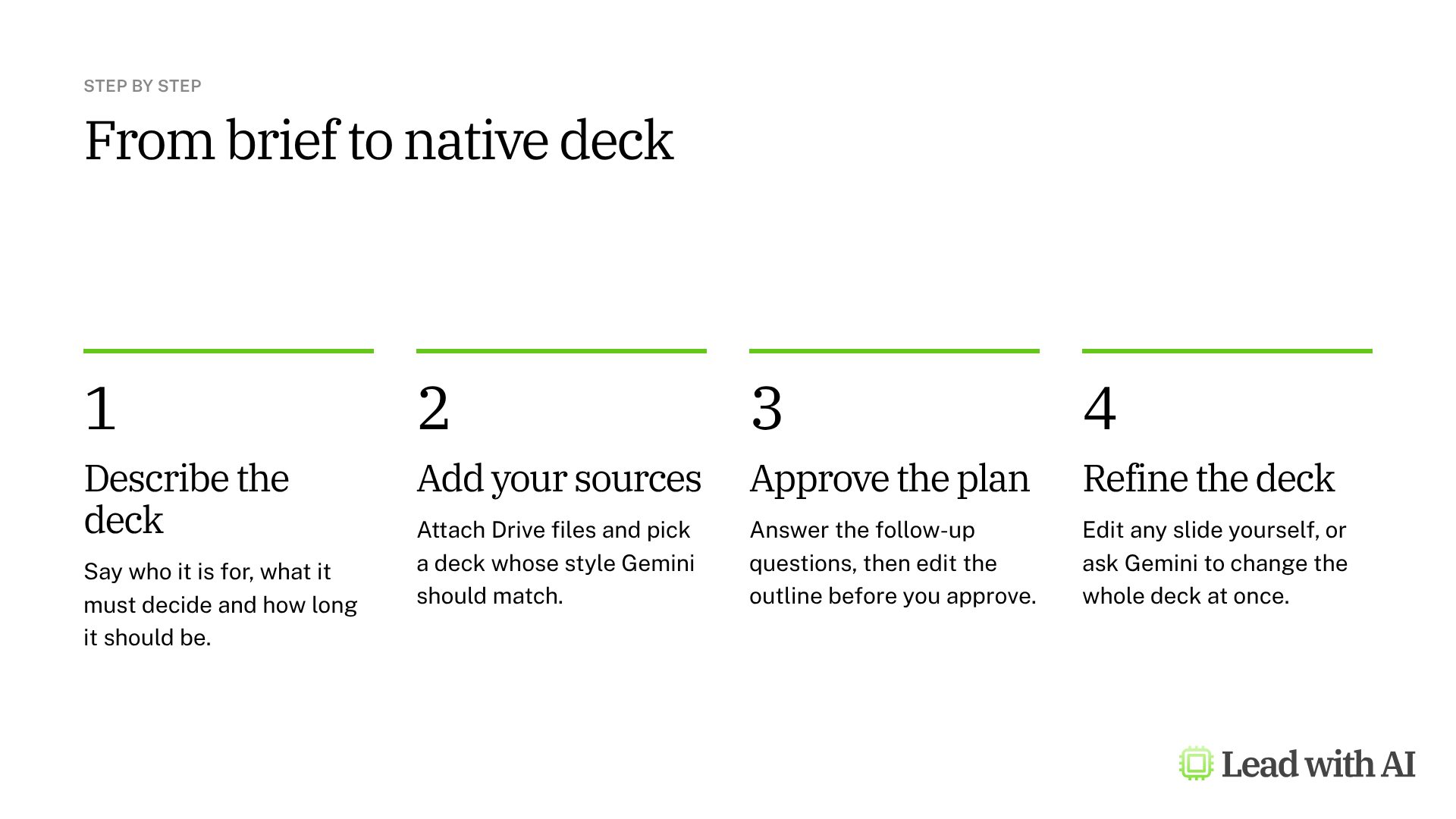
Step 1: Start the deck. Go to slides.new and select Generate presentation, or open a blank presentation and select Ask Gemini at the top right.
Step 2: Describe the deck. Say who it is for, what decision it must support and roughly how many slides you want. Our CODO framework keeps the brief tight, and a template is below.
Step 3: Add your sources. Add the reference files from Drive, such as Google Docs, Sheets, PDFs or earlier decks. To keep your house style, select an existing deck for Gemini to match. Gemini may also suggest relevant files, emails and chats. Add only the material you would be comfortable putting on a slide.
Step 4: Approve the plan. Gemini asks follow-up questions about tone, audience and content, which you can skip. Select Next to see the plan: an overview, the sources it used and a slide-by-slide outline. Edit the outline, select Update plan, and then select Approve. Fixing the outline here is much faster than fixing slides later.
Step 5: Let Gemini build the deck. Generation can take a few minutes. The result is a set of native slides you can edit like any other.
Step 6: Refine the deck. Edit any slide yourself, or ask Gemini to change a single slide. Since late October 2026, you can also give one instruction for the whole deck, such as “Summarize slides 5 to 7 into a single slide” or “Make all titles the same font size.” Gemini lists its changes in the side panel, and you can undo them or check the version history, just as with your own edits.
Use Canvas for a quick first draft
Step 1: Open Canvas. In the Gemini app, select Tools and then Canvas.
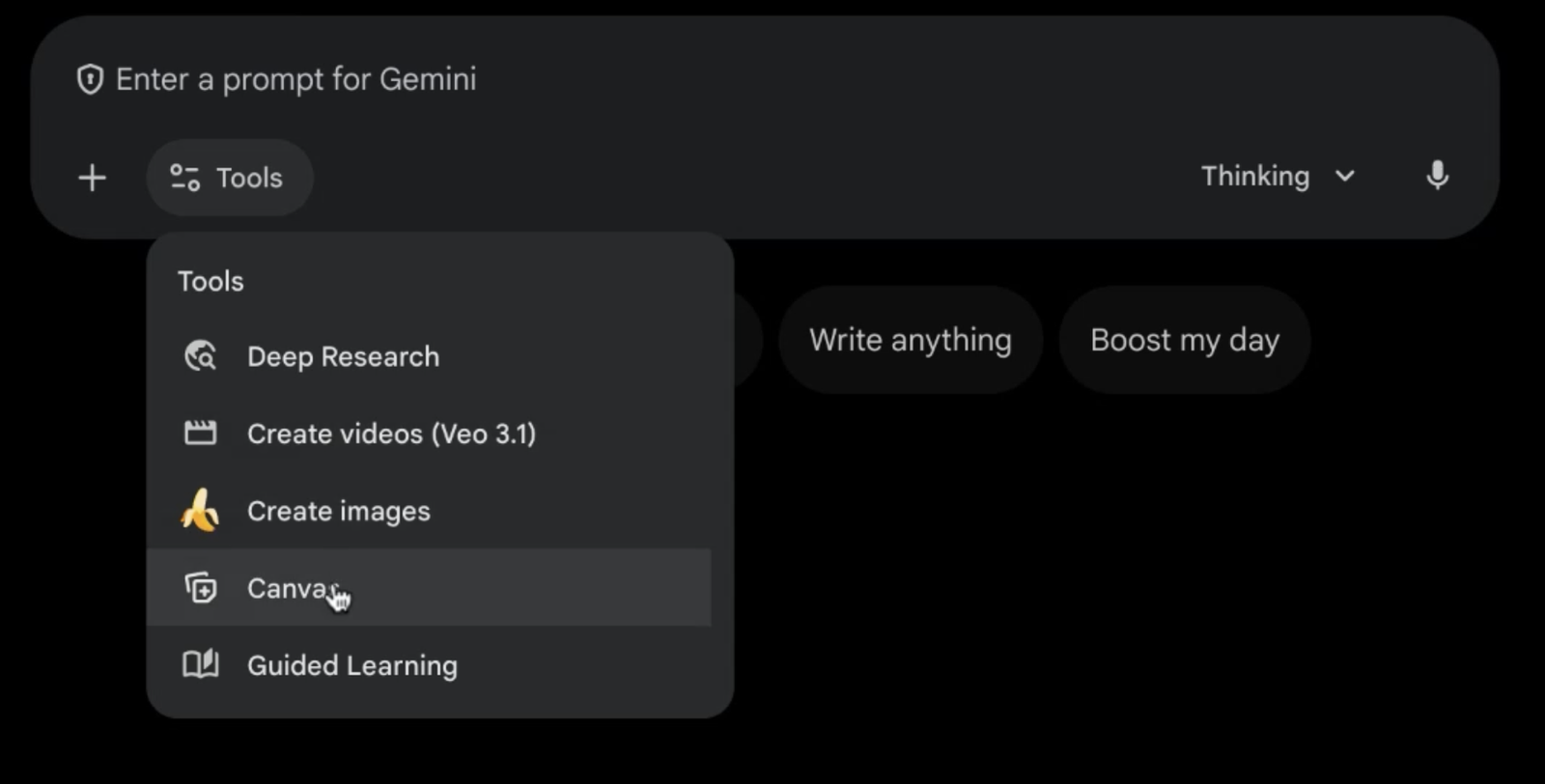
Step 2: Give your brief. Describe the audience, the goal and the number of slides. Include the phrase “create fully formatted slides”, or Gemini may return the content as text instead of a deck.
Step 3: Iterate in the chat. Ask for changes in plain language, such as “Cut 20% of the words.” Canvas updates the slides as you go.

Step 4: Export to Google Slides. Select Export to Slides. You get an editable presentation in Drive, ready to share, comment on and refine with Gemini in Slides.

Canvas offers only a few designs, so it suits a storyline test better than a deck in your house style.
Use image slides sparingly
Two features create a slide as a picture rather than as editable elements. Help me visualize, under Insert, can generate an image of a slide or an infographic. Beautify this slide, now in the Slide menu, redesigns the current slide as an image.
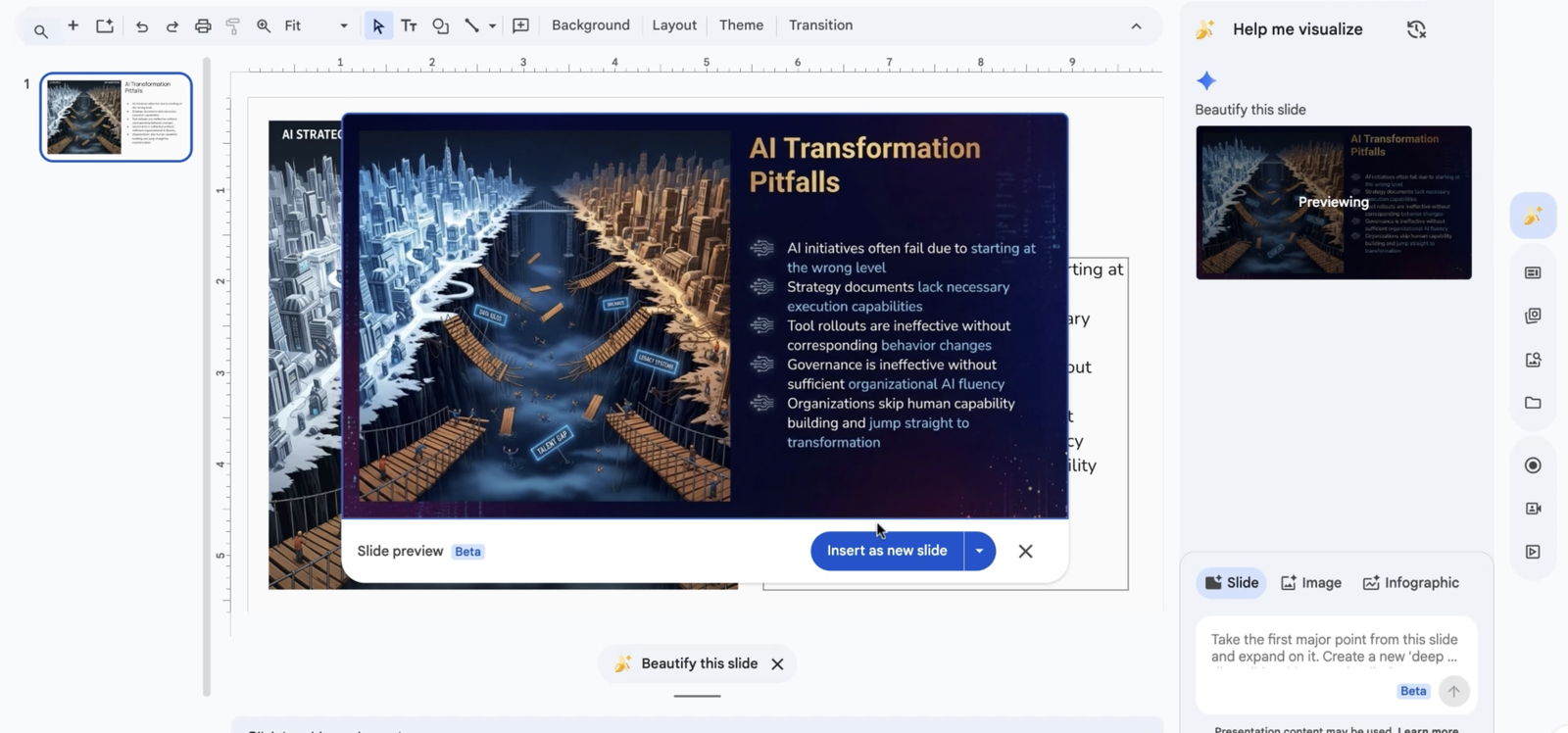
You cannot edit the text on an image slide afterward. Use these features for a one-off visual, not for a slide you will update. Google also says these images are for use only within Google Slides and Google Vids.
A CODO prompt to start with
Paste this into the Gemini side panel, then replace the bracketed parts and add your own files.
Character: You are a chief of staff who builds clear presentations for a senior leadership team.

Objective: Create a [10]-slide presentation for [my leadership team] that helps them decide [decision], using @[report] and @[data sheet] as sources.

Do:
- Open with the recommendation and the decision you need from the audience.
- Give every slide a title that states the point, not just the topic.
- Keep each slide to three to five short bullets.
- Use only facts and figures from the attached files.
- End with next steps, owners and dates.

Don't:
- Don't add facts or figures that are not in the attached files. Flag gaps as questions.
- Don't create image-only slides.

Output:
A native, editable deck that matches the style of @[last quarter's deck], with a final slide that lists the sources used.
Want a ready-made starting point? These how-to articles help you prepare the material Gemini builds from:
- Turn raw data into an actionable plan with Gemini in Sheets: shape the numbers first, then add the sheet as a source.
- Create slide decks and infographics with NotebookLM: build a deck straight from a set of research documents.
- Gemini skills: save your deck brief once and reuse it for every update.
What will your IT and legal teams ask?
- What can Gemini see? The files you add, plus any files, emails and chats it suggests that you choose to add. It works within the access you already have.
- Is our content used to train Google's models? On Workspace business, enterprise and education plans, Google says it does not use your content to train its models without permission.
- Can admins switch deck creation off? Google lists no separate admin control for it, so it follows your organization's general Gemini settings.
- What about personal accounts? Keep client and company material on your company Workspace account, not on a personal Google AI Pro or Ultra plan.
Gemini in Slides or another presentation tool?
If your company runs on Google Workspace, start with Gemini in Slides. It now does most of what used to need a separate presentation tool, and it works from the files already in your Drive.
If your deck must follow a corporate PowerPoint template, Claude for PowerPoint builds inside it. For a polished deck from scratch outside your template, Gamma AI is still quick. Our roundup of the best AI PowerPoint generators compares the main options.
Key takeaways
- Start inside Google Slides when the deck has to follow your own style.
- Add your sources and a reference deck before Gemini starts building.
- Edit the plan before you approve it, because changing an outline is faster than changing slides.
- Use one prompt for the whole deck when you need to shorten or restyle it.
- Avoid image slides for anything you will update, and check every claim before you present.




