




Excel is where much of a company's thinking lives, from budgets to forecasts. Copilot brings AI into that file without replacing how Excel works.
Excel still runs every formula, pivot and chart. Copilot interprets your request, reads the relevant tables and headers, and proposes or makes the changes. Since April 2026, Agent Mode is the default, so Copilot can carry out multi-step work in the workbook.
Where to find Copilot in Excel
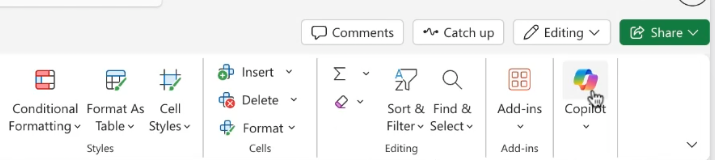
Open a workbook in Excel on the web or on your desktop and select Copilot on the Home tab. The Copilot panel opens on the right, and everything below happens there.
What your plan includes
- Microsoft 365 Copilot license: full Copilot in Excel, including Agent Mode, workbook rules and skills.
- No Copilot license: organizations with fewer than 2,000 seats keep standard access to Copilot in Excel. In larger organizations, unlicensed users use the Excel agent in the Microsoft 365 Copilot app instead.
- Personal and Family: Microsoft 365 Personal, Family and Premium include Copilot in Excel.
- The COPILOT function: it still requires a license and an early-access channel. Microsoft expects to make it generally available in December 2026.
When Copilot in Excel earns its place
- A workbook you inherited and need to understand before a meeting.
- Finance and operations analysis where pivots and charts must stay native and editable.
- Repeated analysis that should follow the same rules every time, whoever runs it.
- A formula you cannot get right, which Copilot can write or explain in plain language.
How to analyze data with Copilot in Excel, step by step
The examples below use a public job market dataset with roles, salaries, skills and locations. The same four prompts work on any dataset, from a sales export to survey results.
Step 1: Open the data. Copilot works best with clear headers and one record per row. Clean up merged cells or stray totals first.
Step 2: Check how Copilot reads it. Open the panel and ask:
List every column and explain what each appears to represent. List five random samples of the data for each column.
Copilot returns a data dictionary. Scan it against your file, because this step prevents most errors later on.
Step 3: Ask what the data can answer.
What are the five most interesting questions this dataset is sufficient to answer?
Step 4: Drill into a decision-relevant question.
Which job titles offer the highest salary ranges, after normalizing by required experience?
Copilot runs the aggregations and summarizes the result. Check which columns and definitions it used before you repeat the answer to anyone.
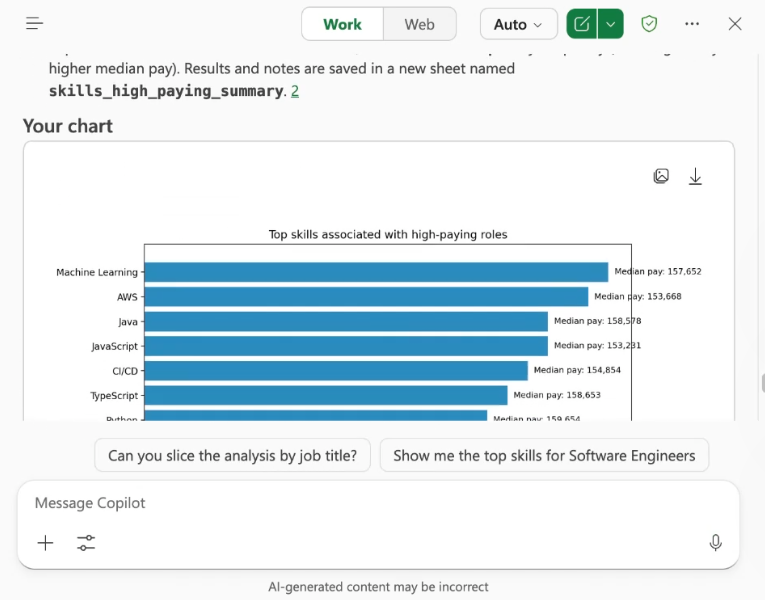
Step 5: Create a chart. Ask for one and select Add to sheet. Because this is Excel, the chart stays fully editable.
Create a chart showing the top skills associated with high-paying roles.
Step 6: Set workbook rules and use skills. Select + in the prompt box for two useful features:
- Create workbook rules: guardrails that stay with the file, such as never editing the raw data sheet, putting new analysis in a separate sheet or formatting salaries in US dollars. Everyone who uses Copilot in that workbook gets the same rules.
- All Skills: ready-made skills for tasks such as data analysis. Pick one from the list or mention it with @. With the right license and settings, you can create and share your own.
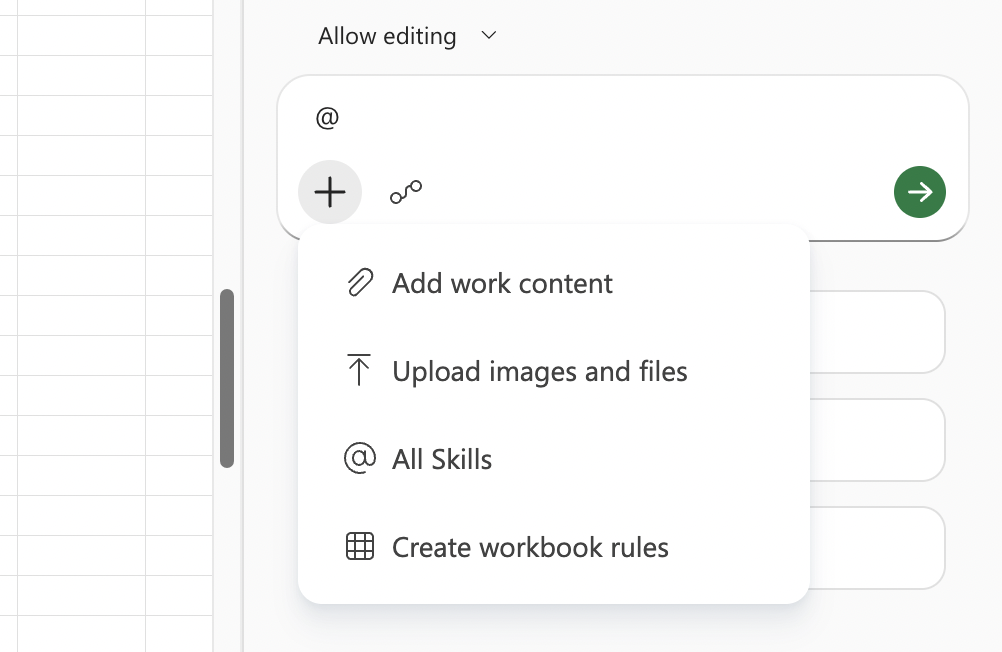
The menu above the prompt box also lets you choose whether Copilot may edit the workbook or only chat about it. Use chat only on files that must not change.
Classify a column with the COPILOT function
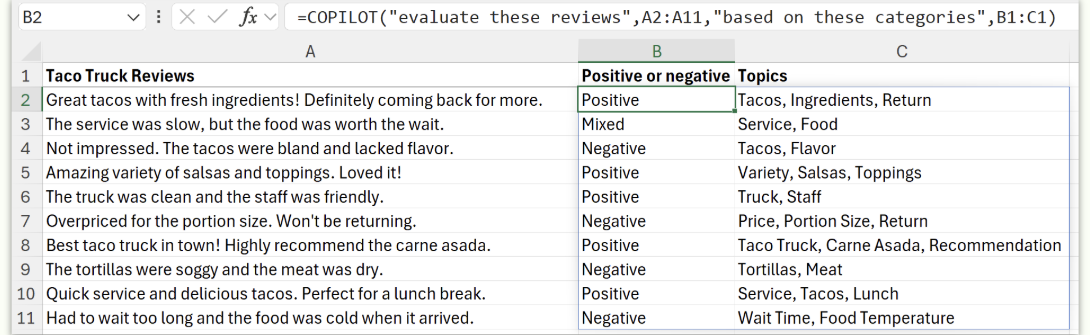
Where it is available, the COPILOT function runs a prompt on a range of cells, for example to rate customer reviews and tag their topics.
A CODO prompt to start with
Once you trust how the AI reads your data, use this prompt, built with our CODO framework, to turn the analysis into findings your audience needs. Replace the bracketed parts. Your own definitions matter most, because the AI otherwise picks its own.
Character: You are a senior data analyst who specializes in [sales data] and knows how to frame findings for [a leadership team].

Objective: I am the [Head of Sales] at [company] in [industry]. Analyze the [attached / open] dataset, surface the three most important patterns and flag anything concerning, so [my leadership team] can decide [where to focus next quarter].

Do:
- Before you analyze, list each column, what it appears to represent and any data quality issues you notice.
- Use my definitions: [a high-value customer has annual revenue above $50,000].
- Lead with the "so what", not the method.
- Show the calculation or the cells behind every number you report.
- Suggest one chart that would make the main finding clear.

Don't:
- Don't change or delete my original data. Put any new analysis in a separate sheet or file.
- Don't present estimates or assumptions as facts. Label them.

Output:
Three key findings of one paragraph each, followed by a 3 to 5 sentence summary for [my leadership team] that I can paste into an email or slide.
Running the same analysis every month? Our guide to Reusable AI assistants shows how to turn a prompt like this into an agent your team can reuse.
What will your IT and legal teams ask?
- Is our data protected? Copilot uses Microsoft's enterprise data protection, and your prompts and files are not used to train the underlying models.
- What can Copilot see? It follows the Microsoft 365 permissions you already have.
- Can we choose the AI model? Admins decide which models are available, including whether third-party models can be used.
- Can we stop Copilot from changing key data? Yes. Workbook rules travel with the file, and chat-only mode prevents edits.
Copilot in Excel or another tool?
Copilot is the natural choice if your company runs on Microsoft 365, because it works on your live workbook with native Excel features.
For deep work on financial models with cell-level citations, Claude for Excel is worth a look. If ChatGPT is your main assistant, ChatGPT for Excel works in the same workbooks. For quick exploration outside Excel, try ChatGPT data analysis or Claude. Our overview of AI for data analysis compares all eight options.
Key takeaways
- Excel stays the system of record, and Copilot directs it.
- Check how Copilot reads your data before you ask for insights.
- Add charts to the sheet so they stay editable.
- Set workbook rules to protect raw data and keep analysis consistent.
- Check your license situation, because access without a license depends on company size.




