




If your company runs on Microsoft 365, you may not need a separate note taker. Copilot can sit inside your Teams meetings.
Copilot in Teams follows the live discussion, answers your private questions and, after the call, turns the recap into decisions and actions. What it can do afterward depends on one setting you choose before the meeting.
Where to find Copilot in Teams meetings
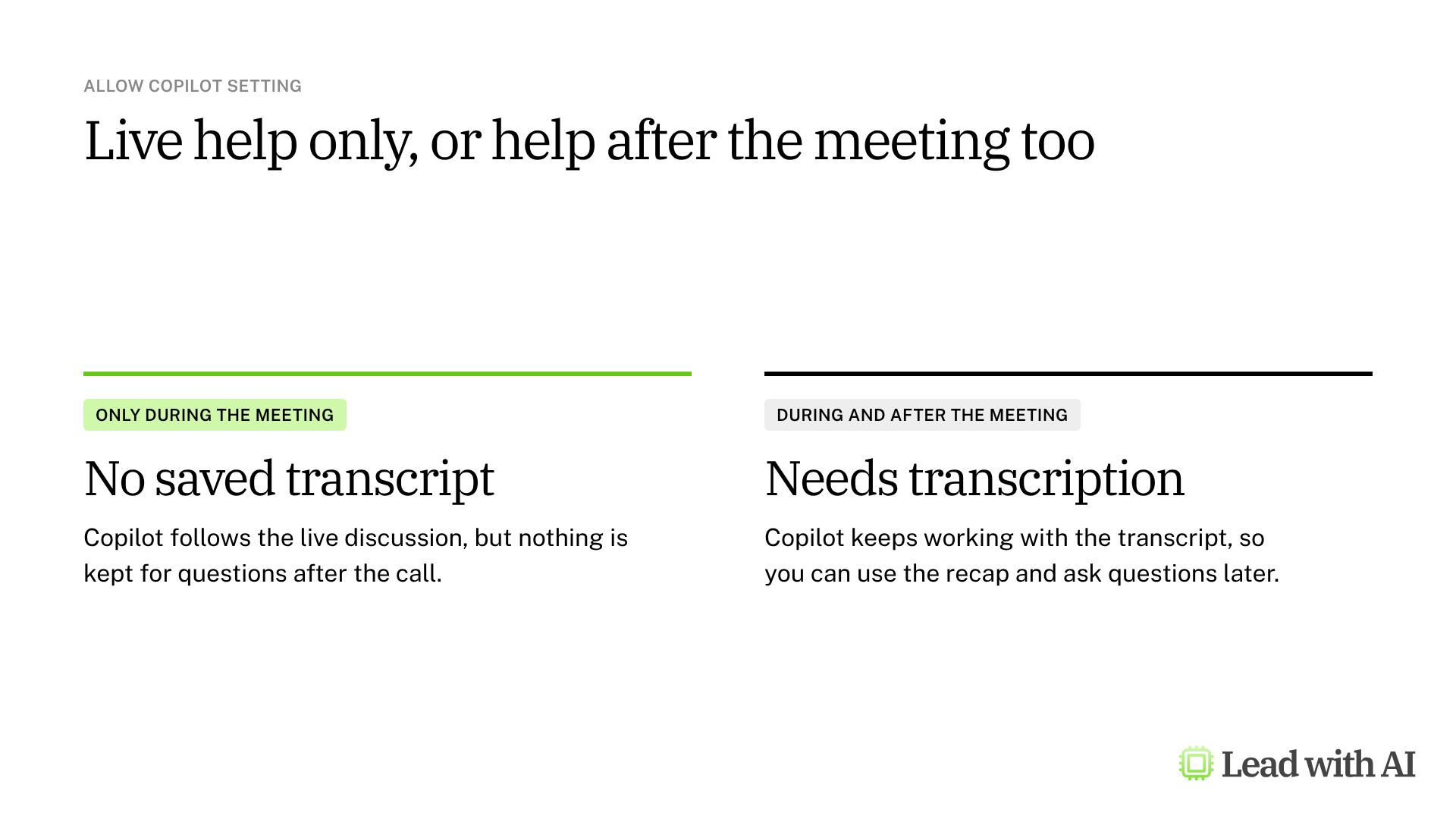
In your Teams calendar, open a meeting, select Options, then Copilot and other AI. Under Allow Copilot, choose how Copilot can work.

During the call, select the Copilot icon in the meeting controls. After the call, open the meeting and go to the Recap tab.
What your plan includes
- Microsoft 365 Copilot license: Copilot during and after meetings, Facilitator and the full intelligent recap.
- Teams Premium: intelligent recap with AI notes, chapters and suggested tasks, but not the live Copilot chat.
- Standard Teams: recording and transcription, without the AI features above.
- Admin settings: your organization's policies decide which options you see, and some may be locked.
When Copilot in Teams earns its place
- You joined late and need to catch up without interrupting.
- A decision meeting, where you want to see where people disagree before you commit.
- A meeting you missed, where the recap saves you an hour of recording.
- Leadership follow-up, where you turn the discussion into a summary for people who were not there.
How to use Copilot in a Teams meeting, step by step
Step 1: Choose the Allow Copilot setting. Pick During and after the meeting if you want help with the recap. Pick Only during the meeting when no transcript should be kept.
Step 2: Start transcription. In the meeting, select More actions, then Record and transcribe, then Start transcription. Copilot only knows what was said after it started.
Step 3: Catch up privately. Open Copilot from the meeting controls and ask:
What have I missed so far? Summarize the key discussion points and decisions.
Your questions and Copilot's answers are private to you, although they can fall under your organization's compliance policies.
Step 4: Use it as a thinking partner. Before a decision, ask:
What are the main points of disagreement, and what question should I ask before we make a decision?
Step 5: Add Facilitator if the group needs shared notes. Facilitator takes notes everyone can see and helps track the agenda. People with a Copilot license start it, and others in the meeting can read the notes.
Step 6: Review the recap. After the call, open the Recap tab for AI notes, suggested tasks and the transcript. Check decisions, owners and deadlines against the transcript before you rely on them. You can download the transcript as a Word or VTT file, depending on your permissions.
Step 7: Turn it into an executive summary. Open Copilot from the completed meeting and ask:
Create a one-page executive summary from this meeting. Include the objective, key discussion points, decisions, action items with owners and due dates, open risks or unresolved questions, and recommended next steps. Keep it concise, flag anything unconfirmed and do not invent missing details.
Newer controls worth knowing
- A Meeting AI switch in the toolbar. Licensed organizers and presenters can turn Copilot and Facilitator on or off during the call. Turning AI off also stops recording and transcription.
- A recap without a transcript. For meetings where no transcript may be kept, Copilot-licensed organizers can still get an AI summary.
A CODO prompt for the follow-up
The notes are only half the job. Use this prompt, built with our CODO framework, to turn any transcript into decisions, owners and a follow-up message. Replace the bracketed parts. Review the follow-up before you send it, and send it yourself.
Character: You are an experienced chief of staff who turns meeting transcripts into clear follow-up.

Objective: I am the [role] at [company]. Turn the attached transcript of [meeting name] into a post-meeting package I can act on today, for [the people who attended].

Do:
- Separate real decisions from things that only sounded like agreement.
- Use speaker names from the transcript for action items, and flag any item without a clear owner.
- Give every action item an owner, a next step and a deadline, and flag dates nobody actually stated.
- Keep it skimmable, with short headers and bullets.

Don't:
- Don't invent anything that is not in the transcript. If the transcript is thin, say so.
- Don't bury open questions. They are often the most valuable part.

Output:
A post-meeting package with five sections: a 3 to 4 sentence summary, decisions made, action items, open questions, and a follow-up message I can review and send myself.
Want to go further? These pages build on the same habits:
- How Jakob Knutzen (GM, Miro) uses AI before, during and after every meeting: a senior leader's routine for preparing, running and following up on meetings.
- Your meeting architecture is broken: decide which meetings should exist before you automate their notes.
- Our guide to reusable AI assistants: save the prompt above as an assistant you reuse after every meeting.
What will your IT and legal teams ask?
- What can Copilot see? The meeting it is part of, plus the content each person already has permission to open in Microsoft 365.
- Is our data protected? Copilot uses Microsoft's enterprise data protection, and meeting content is not used to train the underlying models.
- Can we keep sensitive meetings out? Yes. Set Allow Copilot to off, use the toolbar switch, or rely on admin policies for certain meeting types.
- Who keeps the transcript? Transcripts follow your organization's retention policies, so check them before you record legal, HR or board discussions.
Copilot in Teams or another meeting assistant?
Copilot is the natural choice if your meetings run on Teams, because everything stays inside your Microsoft 365 tenant.
If you also meet on Zoom or Google Meet, Granola takes notes on any call from your computer, with no bot. On Google Workspace, Gemini in Google Meet is the equivalent. Our overview of AI meeting assistants compares all five options.
Key takeaways
- Choose the Allow Copilot setting before the meeting.
- Start transcription if you want help after the call.
- Ask Copilot privately to catch up or test a decision.
- Check the recap against the transcript.
- Keep sensitive meetings out with the settings and toolbar switch.




