



If you already think out loud with ChatGPT, you can now do the same inside the deck you need to deliver.
ChatGPT for PowerPoint is an add-in from OpenAI that creates, edits and summarizes slides in a sidebar, while the slides stay fully editable. Instead of copying text between a chat window and PowerPoint, you ask for changes against the deck itself. It does not check facts, so the content stays your job.
Two ways to build a deck with ChatGPT

- ChatGPT for PowerPoint works inside PowerPoint, so it suits decks that must live in your company template. This guide covers this route.
- ChatGPT Slides builds the deck inside ChatGPT, where teammates can edit and comment together, and then exports it to PowerPoint, PDF or Google Slides. Our article on building a project update with ChatGPT Slides walks through it.
What your plan includes
- Personal plans: the add-in works on every ChatGPT plan, including Free, with the usage limits of your plan.
- Business, Enterprise and Edu: your admin decides whether the add-in is available. Usage draws on your workspace's shared credit pool, so check with your admin before you roll it out to a team.
- Connected apps and skills: where your plan and admin allow it, the add-in can use the apps and skills from your ChatGPT account.
- Microsoft 365: you need PowerPoint on the web, Windows or Mac.
When ChatGPT for PowerPoint earns its place
There are four situations where the add-in pays off quickly:
- A first draft from an outline you already shaped in ChatGPT or a document.
- A storyline that does not land yet, which needs reordering rather than new slides.
- A dense deck you inherited, which needs sharper titles and less text.
- A quick summary of a long deck before a meeting.
How to build a deck, step by step
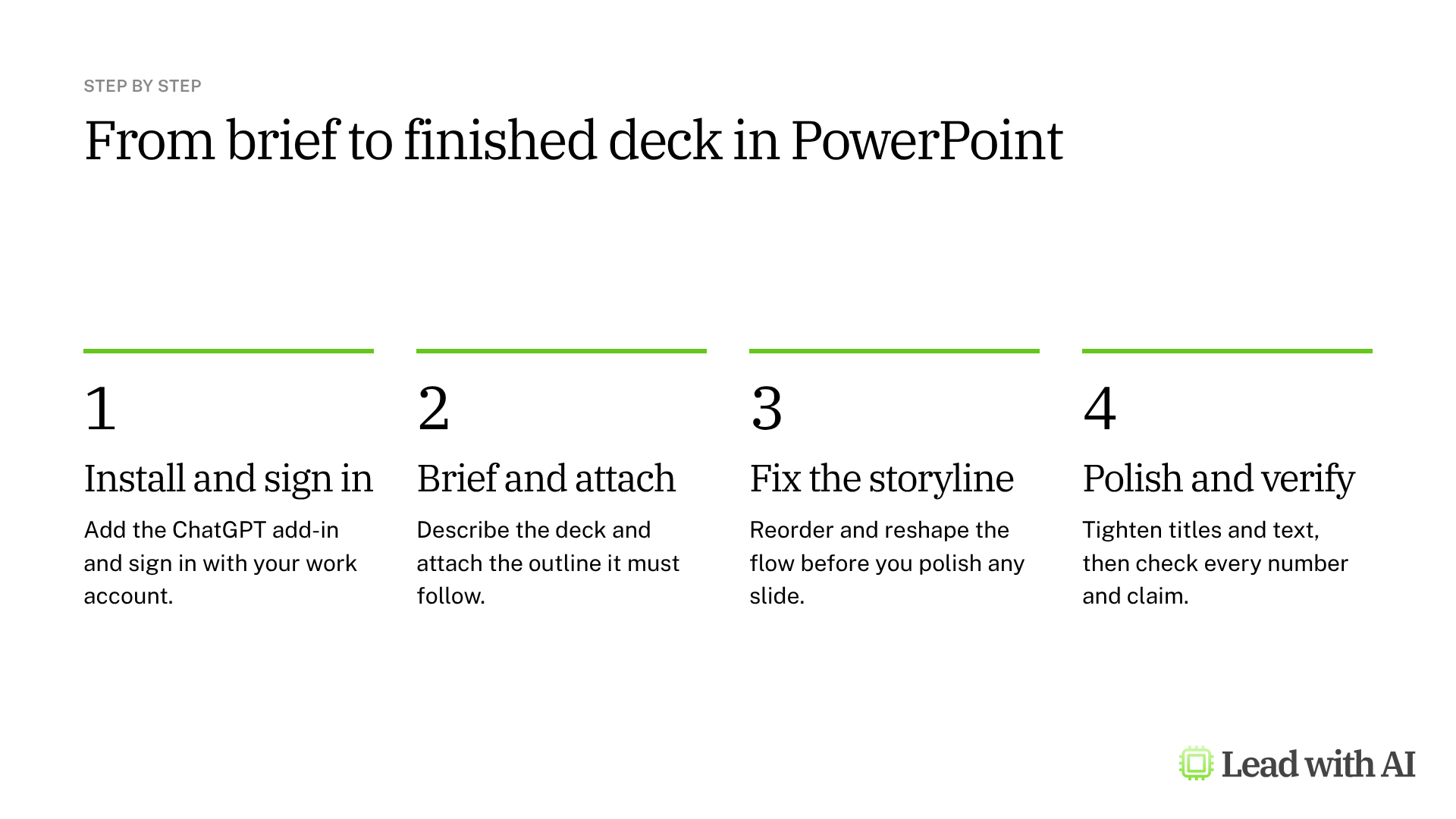
Step 1: Install the add-in. In PowerPoint, go to Home, then Add-ins, search for ChatGPT and add it. Sign in with the ChatGPT account that has the plan you expect. In many organizations, the admin has already deployed it, so look for ChatGPT in the ribbon first.
Step 2: Write your brief and attach your outline. Open the ChatGPT sidebar, describe the audience and the decision, and attach the file the deck should follow. A real outline keeps the draft grounded in your thinking, rather than in a generic version of the topic. A template is below.
Step 3: Fix the storyline first. Before you polish any slide, check the flow. Does the deck open with the business risk? Does it move from the problem to a decision? Does it end with clear actions? If not, ask for a new order, such as “Reorder this so the deck leads with the recommendations, then explains the risks, the operating implications and the next steps.”
Step 4: Polish the slides. Ask for edits against the deck itself, such as “Tighten the slide titles so they read like conclusions, and reduce the text on each slide.” For a weak section, be specific: “Add a slide on key risks and mitigation actions before the final recommendation.” ChatGPT changes the slides you name without rebuilding the rest.
Step 5: Verify before you hand it over. Review every slide ChatGPT changed, especially numbers, claims and recommendations. Then scan the formatting, because complex templates and custom fonts do not always come through perfectly.
A CODO prompt to start with
Paste this into the sidebar, using our CODO framework, and replace the bracketed parts.
Character: You are a chief of staff who builds clear presentations for a senior leadership team.

Objective: Create a [10]-slide presentation for [my leadership team] that helps them decide [decision], using the outline in the attached file.

Do:
- Open with the business risk and the recommendation.
- Give every slide a title that reads as a conclusion, not a topic.
- Keep each slide easy to scan, with three to five short points.
- Use only facts and figures from the attached file.
- End with clear leadership actions, owners and dates.

Don't:
- Don't add facts or figures that are not in the file. Flag gaps as questions.
- Don't change the slide master or the template fonts.

Output:
An editable draft deck in this presentation, followed by a short list of what you assumed.
Want a ready-made starting point? These how-to articles show practical ways to build decks with ChatGPT:
- ChatGPT Slides: build, edit and share your next project update: a weekly report built from earlier reports and new notes.
- Create a competitive brief and slide deck using ChatGPT Agent: let ChatGPT research the market first, then build the deck.
- Build training decks and visuals with Canva in ChatGPT: a designed training deck without leaving ChatGPT.
What will your IT and legal teams ask?
- Who can use it? On Business, Enterprise and Edu plans, admins enable the add-in in the workspace settings and can deploy it centrally through Microsoft 365.
- What can it reach? The open deck, the files you attach and any connected apps your admin allows. Apps follow your existing data permissions.
- Can it send or post anything? If you connect email or chat apps, ask for drafts only and send them yourself.
- Is our data used for training? On Business, Enterprise and Edu plans, OpenAI does not train its models on your workspace data by default. On personal plans, check the data controls in your ChatGPT settings.
ChatGPT for PowerPoint or another tool?
ChatGPT for PowerPoint is the natural choice if ChatGPT is already your main AI assistant, because it brings the same account, skills and apps into your deck.
If your company standardizes on Microsoft 365, Copilot in PowerPoint works with your files and brand kit. Claude for PowerPoint is strong at editing specific slides inside your template. Our roundup of the best AI PowerPoint generators compares the main options.
Key takeaways
- Attach a real outline so the draft reflects your thinking.
- Fix the storyline before the slides, because polish cannot rescue a weak flow.
- Ask for targeted edits against named slides instead of rebuilding the deck.
- Ask for drafts only when connected apps can send or post.
- Check every number and claim before you present.




