




If your company runs on Microsoft 365, the quickest route to a first draft of a deck is already inside PowerPoint.
Copilot in PowerPoint builds and edits slides through a conversation, drawing on the files you can already open in OneDrive and SharePoint. It handles structure and layout, so you can spend your time on the argument. It does not check facts, so the content stays your job.
Where to find Copilot in PowerPoint
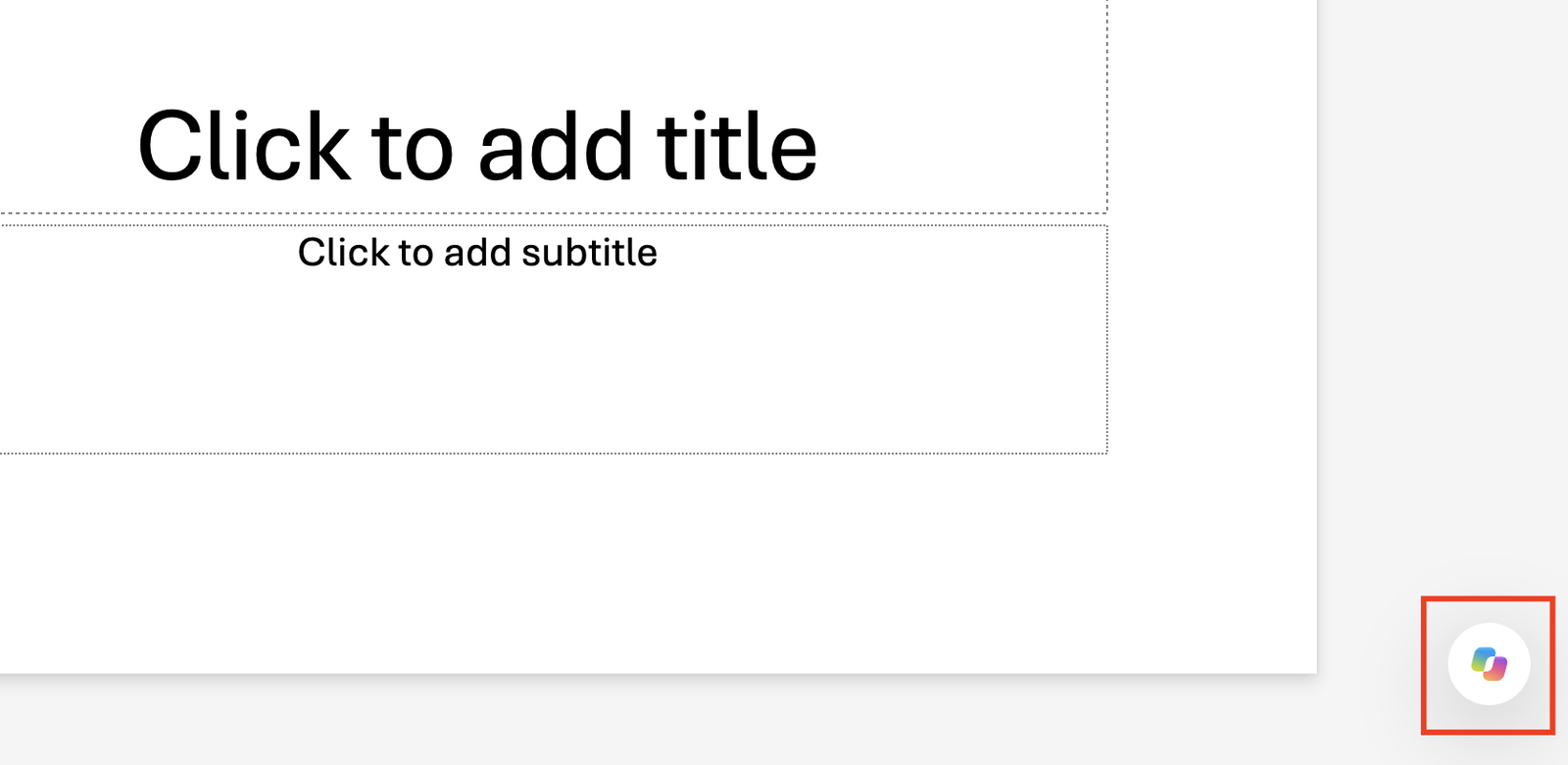
Open a presentation and select the Copilot icon at the bottom right of the slide, or Copilot on the Home tab.
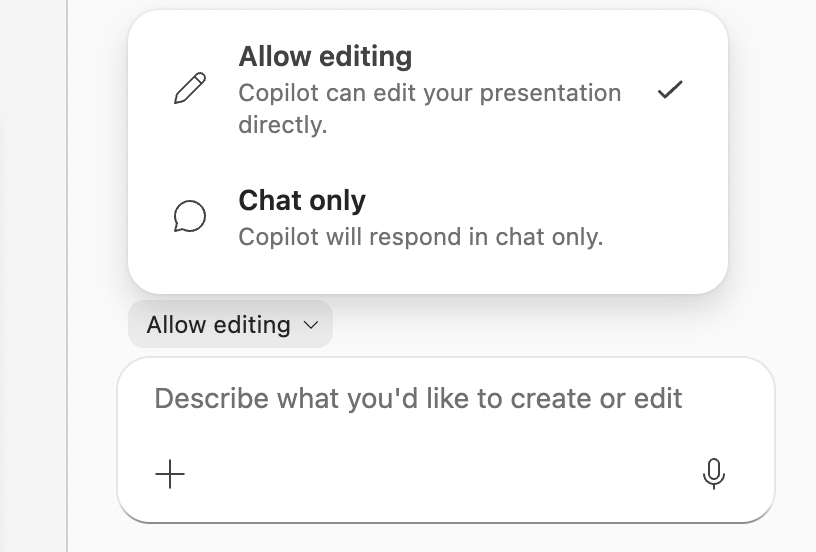
Copilot then asks how much it may change. Allow editing lets Copilot create and change slides directly in your presentation. Chat only keeps its answers in the chat, which is useful when you want feedback without changes.
What your plan includes
- Business plans without a Copilot license: what you get depends on company size. In organizations with fewer than 2,000 seats, Copilot Chat users keep standard access to Copilot in PowerPoint. In larger organizations, Copilot no longer appears inside PowerPoint for them, and they use the PowerPoint agent in the Microsoft 365 Copilot app instead.
- Microsoft 365 Copilot license: adds Copilot grounded in your email, meetings and files across the apps, plus brand kits for on-brand decks. It costs roughly $18 to $30 per user per month, depending on your plan and current promotions.
- Personal accounts: Microsoft 365 Personal and Family include Copilot with monthly usage limits, and Microsoft 365 Premium raises those limits.
- Web and desktop: Copilot works in PowerPoint on the web, Windows and Mac, but some features reach the web version first.
When Copilot earns its place
There are four situations where Copilot in PowerPoint pays off quickly:
- A deck built from a document you already have, such as a Word outline or a report in OneDrive.
- A presentation that must follow your brand, using your company's brand kit.
- A review of a colleague's deck, before it goes to leadership.
- Rehearsal for a high-stakes meeting, by asking Copilot which questions the audience will raise.
How to build a deck, step by step
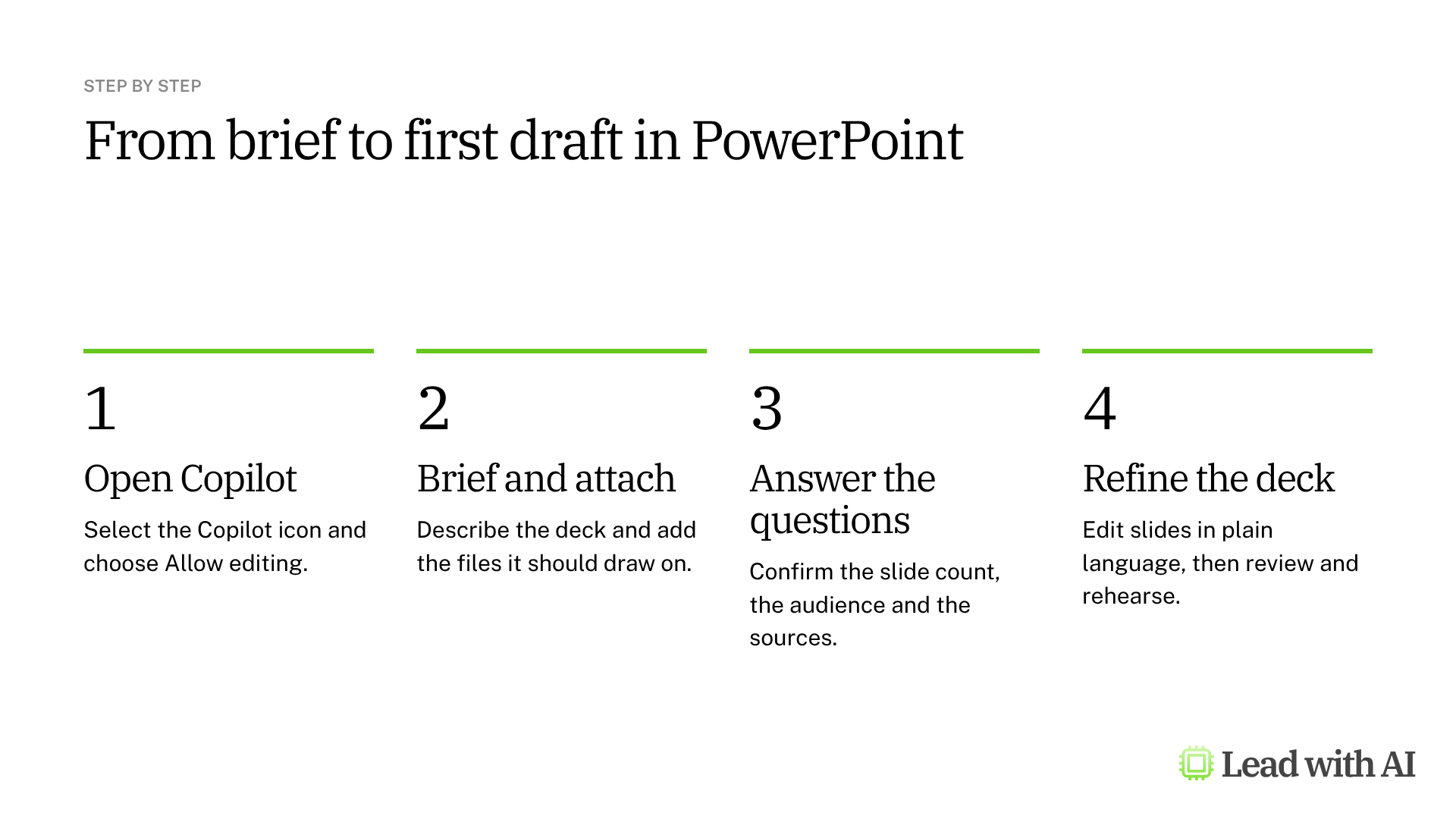
Step 1: Open Copilot. Select the Copilot icon and make sure Allow editing is selected.
Step 2: Write your brief. Describe the audience, the decision and the length, ideally with our CODO framework. A template is below.
Step 3: Add your files. Select + and choose Add work content or Upload files, or type / to reference a file in OneDrive or SharePoint. An outline you already worked on gives Copilot far more to build on than a one-line prompt.
Step 4: Choose your brand kit. If your organization has set one up, pick it so the logo, fonts and colors match from the first slide.

Step 5: Answer the follow-up questions. Copilot asks about the number of slides, the audience and whether to use outside sources. Then it builds the deck.

Step 6: Check, then refine. Read every slide against your sources first. Then select a slide and ask for a change in plain language, such as “Make this opening more compelling.”
Step 7: Use the built-in skills. Copilot offers three shortcuts that are worth using on every important deck:
- Visualize this slide turns a text-heavy slide into a cleaner visual.
- Review this presentation suggests how to strengthen the storyline.
- Prepare for questions predicts what your audience will ask or push back on.

A CODO prompt to start with
Paste this into Copilot, then type / to replace the bracketed file names with your own files.
Character: You are a chief of staff who builds clear presentations for a senior leadership team.

Objective: Create a [10]-slide presentation for [my leadership team] that helps them decide [decision], using the outline in /[outline document] and the figures in /[data file].

Do:
- Open with the recommendation and the decision you need.
- Give every slide a title that states the point, not just the topic.
- Keep each slide to three to five short bullets, with speaker notes.
- Use only facts and figures from the referenced files.
- End with next steps, owners and dates.

Don't:
- Don't add facts or figures that are not in the files. Flag gaps as questions.
- Don't change the company template.

Output:
A complete deck in our brand kit, ready for my review.
Want a stronger starting point? These guides help you prepare the material Copilot builds from:
- Copilot in Word: draft the outline as a document first, then reference it in PowerPoint.
- Copilot Notebooks: collect the references for one topic before you build the deck.
- Copilot agents: save a deck brief you reuse every month, such as a business review.
What will your IT and legal teams ask?
- What can Copilot see? Only the files and data the user already has permission to open in Microsoft 365.
- Is our data used to train the models? Microsoft says prompts, responses and the work data Copilot accesses are not used to train its foundation models.
- Does Copilot change slides without asking? In Allow editing mode it changes the presentation directly, so review the result. Undo and version history work as usual, and Chat only mode makes no changes.
- Who controls access? Admins decide who gets a Microsoft 365 Copilot license, and Copilot Chat follows your organization's settings.
Copilot or another presentation tool?
If your company runs on Microsoft 365, start with Copilot in PowerPoint. It works with the files and brand kit you already have, inside the app your team presents from.
If you want to edit specific slides without regenerating the deck, Claude for PowerPoint also works inside PowerPoint. On Google Workspace, Gemini in Google Slides is the equivalent. Our roundup of the best AI PowerPoint generators compares the main options.
Key takeaways
- Choose Allow editing to build a deck, and Chat only for feedback.
- Reference a real outline instead of starting from a one-line prompt.
- Pick your brand kit before Copilot builds the first slide.
- Use the built-in skills to review the story and rehearse the questions.
- Check every fact before you present.




