




Not every important conversation happens in a scheduled video call. Some happen on a phone call, in a hallway or in a room.
ChatGPT can take notes on your Mac without a bot joining the call. It records your microphone and system audio, then turns the conversation into a summary, a transcript and action items you can keep working with in ChatGPT.
There are now two ways to do this, and they suit different plans.

Where to find Record and Meetings
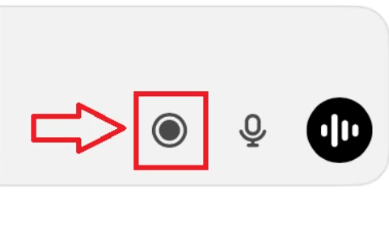
- Record: in the ChatGPT app for Mac, select the Record button at the bottom of any chat.
- Meetings: in the new ChatGPT desktop app for Mac, open Plugins in the sidebar and install Meetings.
What your plan includes
- Record: Plus, Pro, Business, Enterprise and Edu plans, in the Mac app only. On Enterprise and Edu, a workspace owner must turn it on first.
- Meetings plugin: in beta for Pro and Business plans, in the Mac app. OpenAI says Windows, iOS and Android are coming, and Enterprise access is in a limited alpha.
- Session length: both stop automatically after four hours.
- Business data: content from Business, Enterprise and Edu workspaces is excluded from model training by default.
When ChatGPT notes earn their place
- Calls outside the usual platforms, such as a phone call on your Mac.
- In-person conversations, captured by your Mac's microphone.
- Meetings you want to build on in ChatGPT, such as turning a discussion into a plan or a board brief.
- Personal voice notes, such as thinking out loud after a meeting.
How to use ChatGPT Record, step by step
Step 1: Tell people you are recording. Record does not appear in the call, so nobody knows unless you say so. Get consent, and follow your company policy.
Step 2: Start Record. Select Record and allow microphone and system audio access the first time. A small window with a timer confirms that ChatGPT is listening.
Step 3: Run the meeting. Pause and resume whenever you need to. When you finish, select the stop icon, then Send.

Step 4: Review the notes. ChatGPT opens a canvas with a summary, key points, action items and open questions, with timestamps that link to the transcript. Record distinguishes speakers, but it may label them Speaker 1 and Speaker 2, so rename speakers before you share anything.
Step 5: Turn the notes into what you need. Highlight the action items and ask ChatGPT to rewrite them as owner and deadline pairs, or ask for a board brief:
Create a one-page executive summary from this meeting. Include the objective, key discussion points, decisions, action items with owners and due dates, open risks or unresolved questions, and recommended next steps. Keep it concise, flag anything unconfirmed and do not invent missing details.
Step 6: Download or share. Export the canvas as a PDF, Word or Markdown file.

Good to know: with Google Calendar connected, Record can start for calendar events that use a Google Meet link. For Zoom, Teams and other platforms, start it yourself.
How the Meetings plugin differs
The Meetings plugin takes the same idea further. It saves each meeting as a private page in ChatGPT Space, adds your own notes alongside the transcript and suggests follow-up actions based on context from your connected apps.
- Reminders: connect Google Calendar or Outlook Calendar, and Meetings reminds you to start taking notes. It can also detect when you are in a call.
- Sharing: pages are private by default. When you share one, people see the notes, but not the transcript.
- Action items: you can start a suggested action with one click, such as drafting an email. Treat these as drafts, and send anything yourself after review.
- Questions across meetings: ask ChatGPT what was decided in last week's sync, and it answers from your meeting notes.
A CODO prompt for the follow-up
The notes are only half the job. Use this prompt, built with our CODO framework, to turn any transcript into decisions, owners and a follow-up message. Replace the bracketed parts. Review the follow-up before you send it, and send it yourself.
Character: You are an experienced chief of staff who turns meeting transcripts into clear follow-up.

Objective: I am the [role] at [company]. Turn the attached transcript of [meeting name] into a post-meeting package I can act on today, for [the people who attended].

Do:
- Separate real decisions from things that only sounded like agreement.
- Use speaker names from the transcript for action items, and flag any item without a clear owner.
- Give every action item an owner, a next step and a deadline, and flag dates nobody actually stated.
- Keep it skimmable, with short headers and bullets.

Don't:
- Don't invent anything that is not in the transcript. If the transcript is thin, say so.
- Don't bury open questions. They are often the most valuable part.

Output:
A post-meeting package with five sections: a 3 to 4 sentence summary, decisions made, action items, open questions, and a follow-up message I can review and send myself.
Want to go further? These pages build on the same habits:
- How Jakob Knutzen (GM, Miro) uses AI before, during and after every meeting: a senior leader's routine for preparing, running and following up on meetings.
- Your meeting architecture is broken: decide which meetings should exist before you automate their notes.
- Our guide to reusable AI assistants: save the prompt above as an assistant you reuse after every meeting.
What will your IT and legal teams ask?
- What happens to the audio? It is used for transcription and then deleted. Transcripts and notes follow your workspace retention settings.
- Is our data used for training? Not on Business, Enterprise and Edu plans by default. On personal plans, you can turn this off in your data controls.
- Can admins control it? Yes. Workspace owners can turn Record on or off, and decide whether ChatGPT may reference past recordings in later chats.
- Who handles consent? You do. The app reminds you to ask, but it does not notify other participants for you.
ChatGPT or another meeting assistant?
ChatGPT is a good fit when you work on a Mac and want your meetings to feed straight into ChatGPT, including calls outside the usual platforms.
For notes everyone in the call can see, Copilot in Teams and Gemini in Google Meet work inside your company's platform. Granola also works without a bot, on Mac and Windows, and blends your own notes with the transcript. Our overview of AI meeting assistants compares all five options.
Key takeaways
- Tell people you are recording, because nobody else can see it.
- Use Record on Plus and higher plans, or the Meetings plugin on Pro and Business.
- Rename speakers and check the notes before you share them.
- Turn the notes into a deliverable in the same chat.
- Treat suggested actions as drafts, and send them yourself.




