




Many good ideas start in a ChatGPT conversation and end there, as a long answer you scroll back through. A project plan, a dashboard or a team page would be more useful as something people can open and click.
ChatGPT Sites turns that work into a hosted website or lightweight app, without leaving ChatGPT. You describe what you want, ChatGPT writes the code, shows you a private preview and publishes the result to a link you control.
OpenAI suggests dashboards, project trackers, launch calendars, prototypes, internal portals and reports. Sites is in public beta, so expect it to change.
Where to find Sites
- On the web: switch from Chat to ChatGPT Work, then describe the website you want.
- In the ChatGPT desktop app: choose Work, or Codex, and do the same.
- To trigger it: include the word "website" in your prompt, or type @Sites.
- To manage your sites: open Sites in the sidebar, where each site stays after the chat that created it ends.
You can also start from a conversation you already have. If you planned a project with ChatGPT, mention @Sites in that chat and ask for the plan as a website.
How to build your first site, step by step
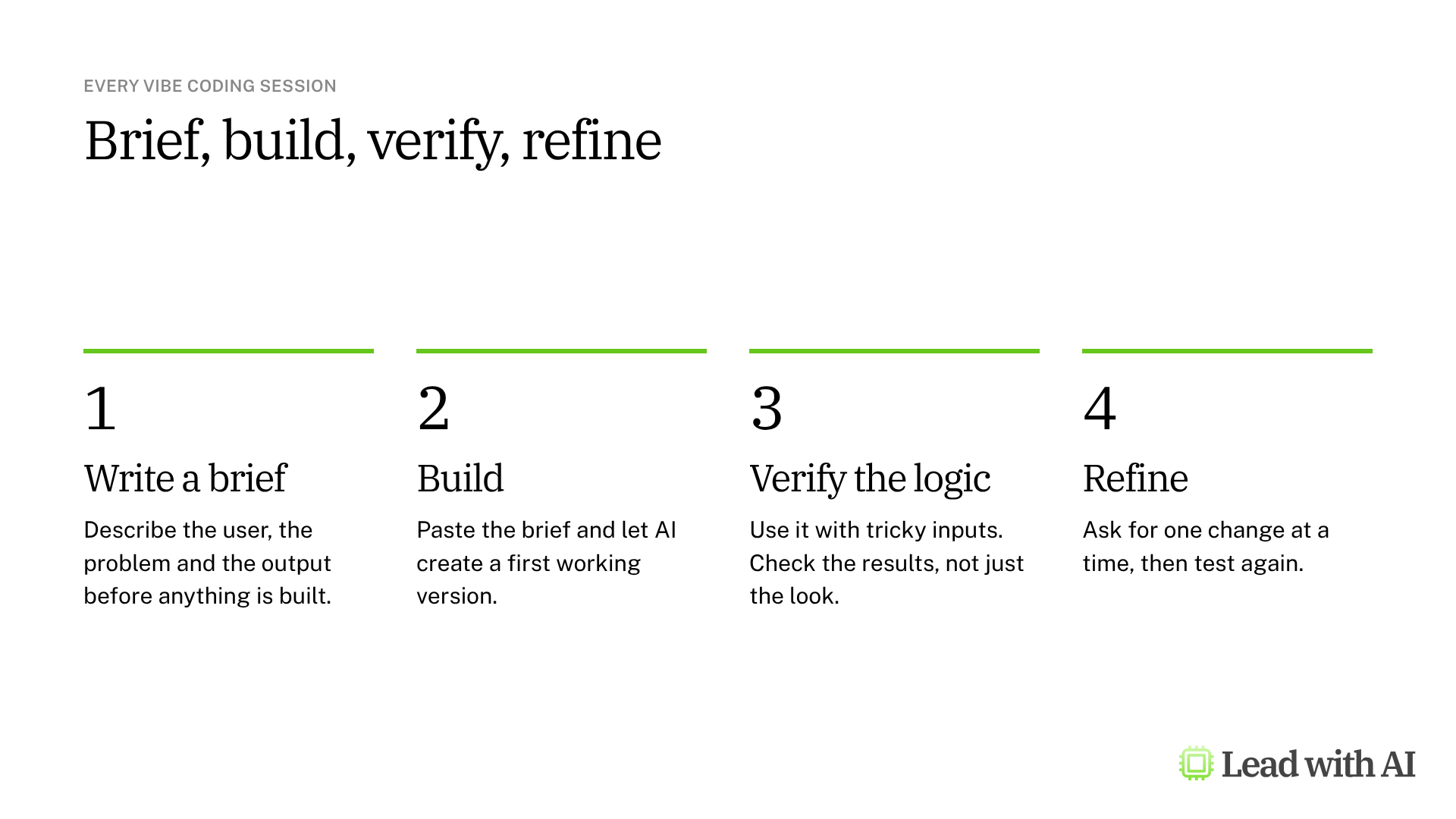
Step 1: Write a brief. Describe who the site is for, what they should be able to do and what result it must show. The CODO prompt further down drafts one for you.
Step 2: Ask Work to build it. Paste the brief and add the content, files, data and links ChatGPT should use. The more real content you give it, the less placeholder text you get back. Use sample data until you know who will see the site.
Step 3: Review the private preview. The first version is visible only to you and your workspace admins. Click through it as a visitor would.
Step 4: Verify the logic. Try tricky inputs on purpose, such as an empty field or an extreme number, and check whether the result makes sense. You are checking the reasoning, not just the visuals.
Step 5: Refine one change at a time. Ask for one improvement per message, such as a new filter, clearer labels or a mobile layout.
Step 6: Save a version, then publish. Every deploy updates the live site, so ask ChatGPT to save a version first and review it. Then open Share, choose who has access and select Publish.

Who can see your site?
Depending on your plan and workspace settings, you choose one of these audiences:
- Only you and your workspace admins.
- Selected people or groups, where supported.
- Anyone in your workspace, where supported.
- Anyone on the internet, where public publishing is turned on. Visitors do not need a ChatGPT account.
Start with the smallest audience that works, and widen it only after people you trust have tested the site. Access lets people visit. It does not let them edit.
What your plan includes
- Free and Go: Sites is not included.
- Plus and Pro: no fixed limit on the number of sites, with usage and storage limits that ChatGPT shows as you approach them. Where available, you can connect a domain you already own.
- Business: Sites is on by default. You can share inside your workspace, publish publicly and build sites that use connected apps, if your admin allows it.
- Enterprise: an admin must turn Sites on, and public publishing is off until an admin enables it. Custom domains were not available for Enterprise at launch.
Sites is also listed for Edu plans. At launch, public publishing was not available in the European Economic Area, Switzerland or the United Kingdom, so check what your account offers before you promise a public link.
When Sites earns its place
- Project dashboards that turn a spreadsheet into something people can filter and explore.
- Team pages and onboarding portals with key links, updates and next steps in one place.
- Prototypes that let people experience an idea before you ask for budget.
- Decision tools, such as a scorecard or calculator for a judgment call you make every week.
On Business and Enterprise plans, a site can also read from connected apps, such as an issue dashboard or a document finder. Each visitor uses their own connected accounts and existing permissions, so nobody sees data they could not already open. Your admin has to allow each app for Sites first.
A working site is not a reliable product
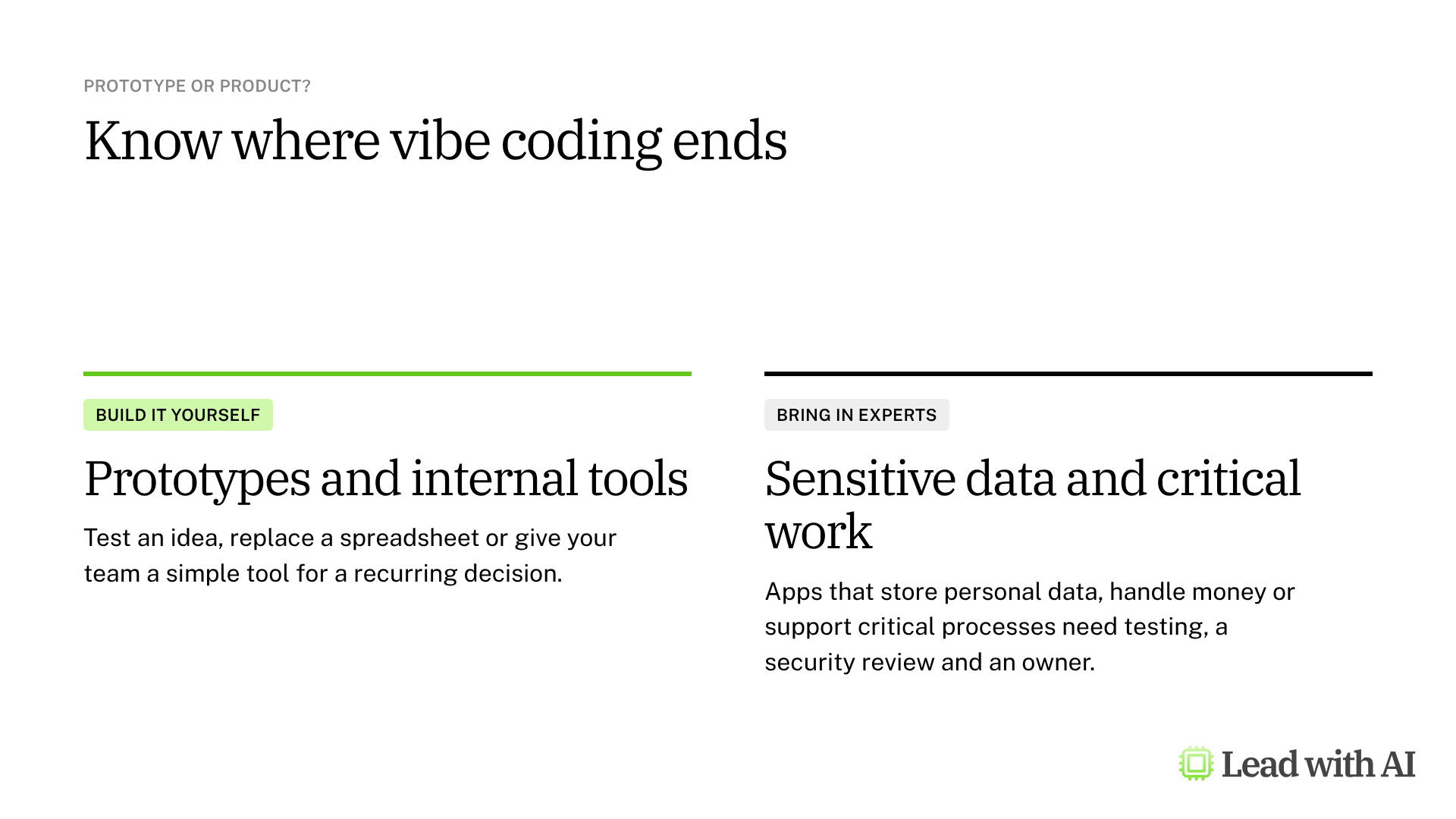
A site that works in a demonstration may still fail with real users. Keep Sites for prototypes and internal tools, and bring in technical experts before a site stores personal data, handles money or supports a critical process.
A CODO prompt for your first site
This prompt, built with our CODO framework, finds an app worth building for your role and drafts the brief. Run it in ChatGPT Work.
Character: You are a product strategist who helps senior leaders turn recurring decisions into simple internal tools.

Objective: Suggest one app I could build today to help with a recurring decision in my role as [your role] at [type of company]. A decision I make every week is [for example, which deals or projects get my attention first].

Do:
- Make it specific to my function and to how someone in my role works.
- Shape it as a scorecard, prioritizer, triage board, simulator or scenario tool.
- Keep it self-contained, with simple inputs and embedded sample data.
- Make the result tell me what to prioritize, escalate, fix, pause or stop.

Don't:
- Don't suggest tools for email, writing, research, meetings or presentations.
- Don't require integrations, API keys or confidential data.

Output:
The app idea in one sentence, then a build brief of 5 to 10 short bullets I can paste into an app builder: who uses it, the inputs, the screens, the scoring logic and the result.
Then reply in the same conversation:
@Sites Build a website from this brief. Use sample data only, and save a version for me to review before you publish anything.
Want to go further? Our step-by-step guide to turning a spreadsheet into an interactive project dashboard walks through a complete Sites project.
What will your IT and legal teams ask?
- Who can create and publish sites? Admins decide. Sites is on by default in Business workspaces, and Enterprise admins turn it on by role.
- Can a site go public? Only where public publishing is enabled. In Enterprise workspaces, it is off by default.
- Who can change a site? The owner can give edit access to trusted colleagues. Editors can publish new versions and inspect the site's stored data, so share edit access carefully.
- What should never go in? Customer records, personal data and confidential figures, until your security team has reviewed the site. Check forms and uploaded files before you share.
- Can we take a site down? Yes. The owner can restrict access or delete the site, and a deleted site cannot be restored.
ChatGPT Sites or another tool?
ChatGPT Sites is the natural choice when the work already lives in ChatGPT, and you want to turn a conversation, a file or a plan into something people can use.
To publish an app with its own sign-in and stored data outside ChatGPT, use Lovable. For a quick prototype inside Google Workspace, try Gemini Canvas. Our overview of vibe coding compares the options.
Key takeaways
- Start in ChatGPT Work and ask for a website, or type @Sites.
- Give it real content, but sample data until you know the audience.
- Verify the logic, not just the look.
- Save a version before you publish, because every deploy is live.
- Start with the smallest audience, and widen it later.




