




Most AI chats end with text you copy somewhere else. Canvas keeps the work in one place.
Gemini Canvas is a workspace inside Gemini where you build and edit documents, slides, apps and code. Gemini creates a first version from your prompt, and then you edit it directly or refine it with follow-up prompts. Changes save automatically.
For vibe coding, that means your app evolves in place, instead of being rebuilt from scratch with every request.
Where to find Canvas
- On a computer: go to gemini.google.com, select Add files below the text box, then choose Canvas.
- On your phone: in the Gemini app, tap Add, then Canvas.
You can upload files to guide the build. The Create menu can also turn your content into a web page, a quiz, an infographic, slides or an audio overview.
How to build an app, step by step
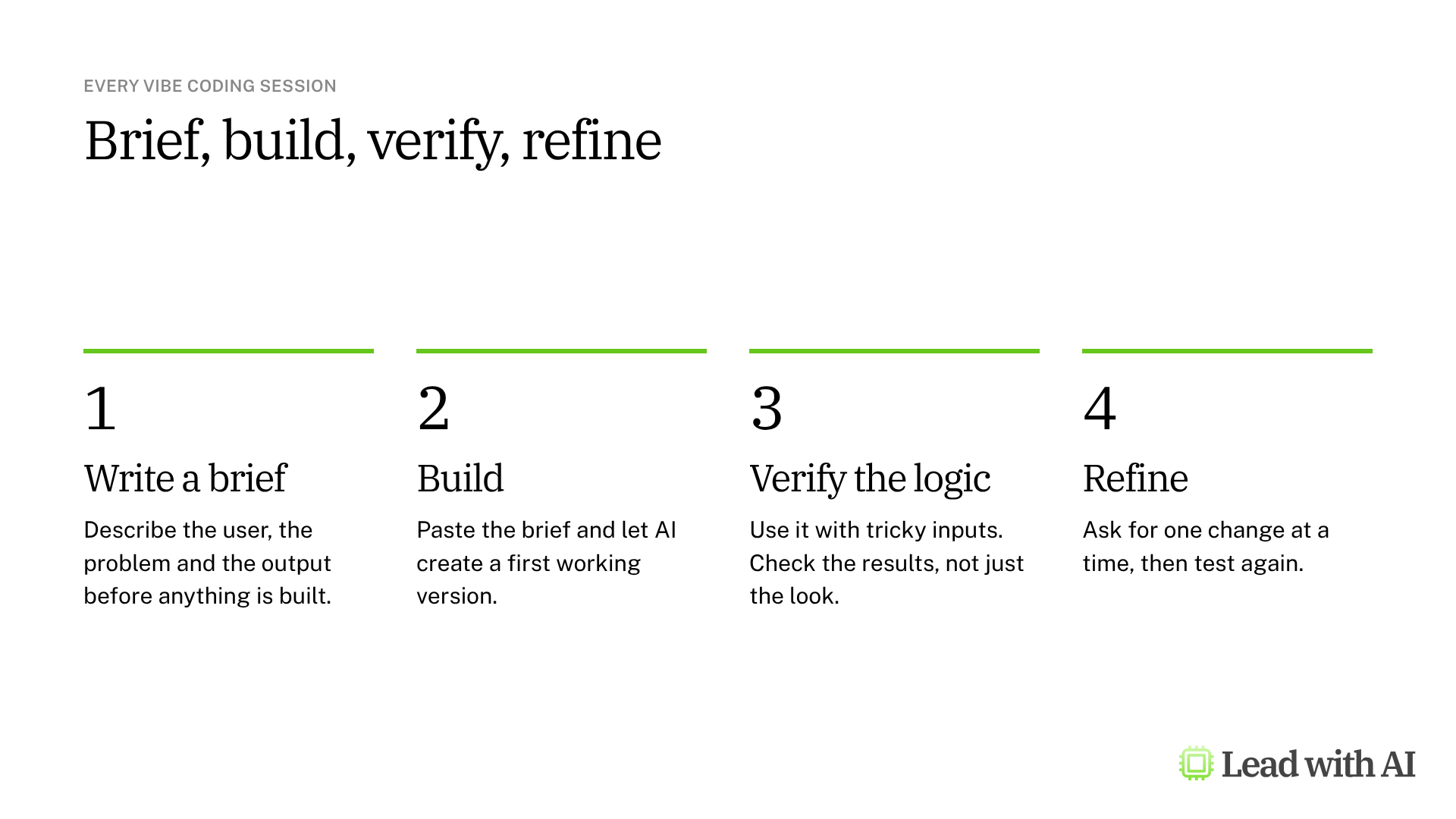
Step 1: Write a brief. Decide who the app is for, what problem it solves and what result it must produce. For example, a short self-assessment based on our AI Fluency Matrix that gives each leader a fluency level and next steps.
Step 2: Open Canvas and build. Select Canvas, paste your brief or the CODO prompt below, and ask for what matters: the flow, the questions, the scoring and a results screen. Gemini builds the app and shows a working preview next to the chat.
Step 3: Verify the logic. Use the app yourself with mixed answers, and check whether the result matches what you would expect. Ask Gemini to list the scoring rules it used, so you can check the reasoning, not just the design.
Step 4: Refine in place. Ask for one change at a time, such as "Add a short explanation under each question of why it matters." To change one part, select it and use Select & ask. Select Code to see the code, and Show console to find errors.
Step 5: Share or export. Select Share & export, then Share, to create a link. Recipients can select Copy Canvas to make their own version. Text can go to Google Docs, slides to Google Slides and Python code to Colab.
Treat a shared app as public. Anyone with the link can use the app and edit the data in it, so keep confidential information out. Shared links open on the web, not in the Gemini mobile app.
What your plan includes
- Personal Google accounts: Canvas is available in the Gemini app wherever Gemini is available, when you are signed in, including on the free plan. Paid Google AI plans give you higher usage limits in the Gemini app.
- Work accounts: Canvas is available with Gemini for Google Workspace. Sharing a canvas through Google Drive is on by default and follows your company's Drive rules. Public links are off by default, and only an admin can turn them on.
- Age limits: adding Gemini features, such as text or image generation, inside an app requires you to be 18 or older.
When Canvas earns its place
- A quick prototype to show an idea in the next meeting, instead of describing it.
- A self-assessment or quiz built from a framework or a document you already have.
- A simple calculator or scenario tool for a decision you make often.
- An interactive web page that turns a long document into something people explore.
A CODO prompt for your first Canvas app
This prompt, built with our CODO framework, gives Gemini a clear brief for a simple decision tool. Select Canvas, paste it and fill in the brackets.
Character: You are a product designer building a simple web app for business users.

Objective: Build a [type of tool, such as a self-assessment or a prioritization scorecard] for [audience] that helps them [decision or goal].

Do:
- Use a step-by-step flow with [multiple-choice questions or simple inputs].
- Score the answers with this logic: [how each answer counts and what each level means].
- End with a results screen that explains the result and suggests [two or three] next steps.
- Include sample data so I can test it right away.

Don't:
- Don't connect to outside services or ask users for personal details.
- Don't add features I have not asked for.

Output:
A working app in Canvas, followed by a short list of the scoring rules you used, so I can check them.
Want to go further? If your team uses other assistants, our how-tos show how to turn a spreadsheet into a project dashboard with ChatGPT Sites and build a data visualization generator with Claude.
What will your IT and legal teams ask?
- Can people share canvases outside the company? Only if your admin allows it. Public links are off by default for work accounts, and Drive sharing follows your existing Drive rules.
- Who can change a shared app? Anyone with the link can edit the data in the app, so share links only for apps without sensitive content.
- Is our data used for training? Google states that Workspace content is not used to train its generative AI models without permission.
- Is the app ready for production? No. Treat a Canvas app as a prototype, and involve your technical team before people rely on it for real decisions.
Gemini Canvas or another tool?
Canvas is the fastest choice when you want a prototype inside an assistant you already use, especially if your company runs on Google Workspace.
To publish an app with its own address, stored data and sign-in, use Lovable. If your team works in ChatGPT, ChatGPT Sites turns a chat into a hosted site. Our overview of vibe coding compares the options.
Key takeaways
- Select Add files, then Canvas, to start on a computer.
- Brief it like a product: user, problem and result.
- Ask for the scoring rules and check them.
- Refine in place with one change at a time.
- Keep shared apps free of confidential data.




