



Most AI use still works like a conversation: you ask, AI answers, and you decide what happens next.
ChatGPT Work is an agent inside ChatGPT that takes a goal and works through the steps itself, across your apps, files and the web, until it hands back finished work. Codex is its counterpart for software, and both now live in the ChatGPT desktop app.
If you used ChatGPT agent mode or the Atlas browser, this is where that work went. OpenAI replaced the legacy agent with Work in July 2026 and shut down Atlas in August 2026.
Where do Work and Codex sit on the agentic spectrum?
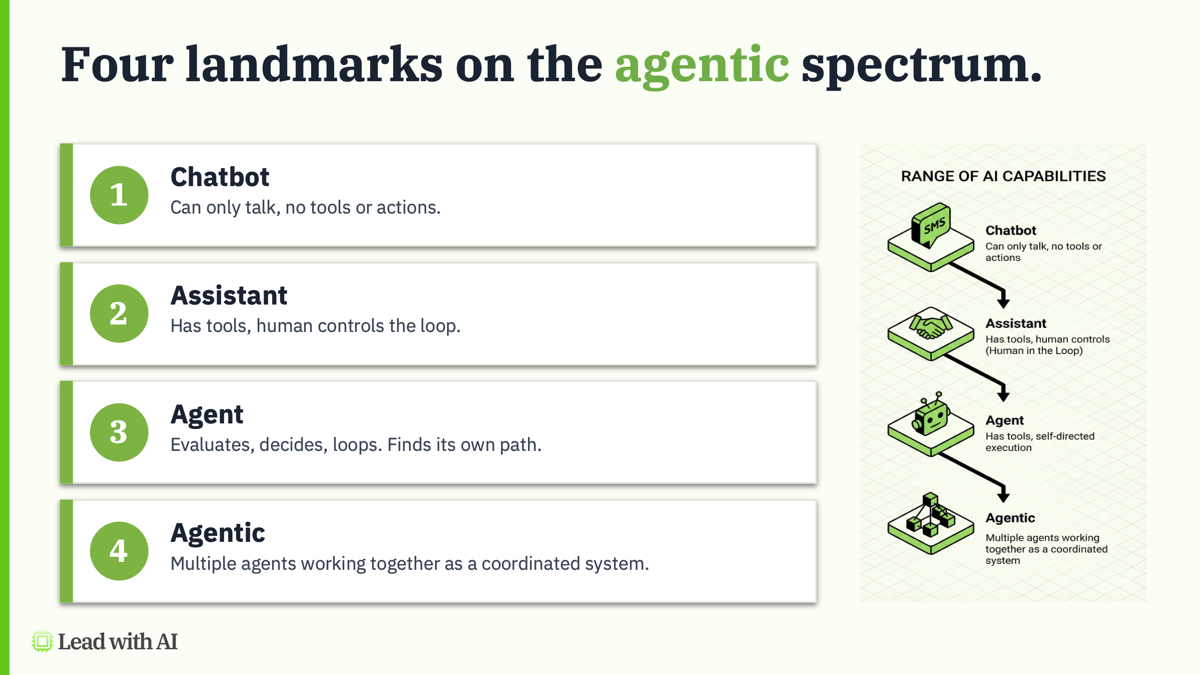
- Chat is an assistant. It searches, drafts and analyzes, but you drive every step.
- Work is an agent. You set the goal, and it plans, acts, checks its progress and decides when the job is done.
- Codex is an agent for software. It writes and tests code, and it can run commands on a computer.
Where to find Work and Codex
- On the web and mobile: select Work instead of Chat, then describe the task.
- In the ChatGPT desktop app for Mac and Windows: select ChatGPT, then Work, or switch to Codex.
OpenAI has started testing a version that folds Work into regular chats, so some accounts may not see a separate Work option.
What Work can do
- Use your apps. Connect plugins, then type @ and an app name to bring in context from tools such as Slack, Microsoft Teams, Google Drive, SharePoint, email, calendars and your CRM.
- Browse for you. On the web and mobile, Work uses a cloud browser on a separate computer to read pages, click buttons and fill in forms.
- Work on your computer. In the desktop app, and with your permission, it can use local files and desktop apps.
- Keep going while you are away. Cloud tasks continue after you close your laptop, and pause when they need information, a sign-in or your confirmation.
- Deliver finished work. It creates documents, spreadsheets, presentations, reports and interactive Sites.
- Repeat on a schedule. A task can run once, on a schedule, when something happens or to monitor for changes. Our guide to ChatGPT scheduled tasks covers the setup.
How to delegate your first task, step by step
Step 1: Pick a bounded task. Choose one recurring piece of work with a clear start and a clear result, such as a weekly competitor scan or a pipeline summary. Our guide to AI agents explains how to check whether a workflow is a good fit.
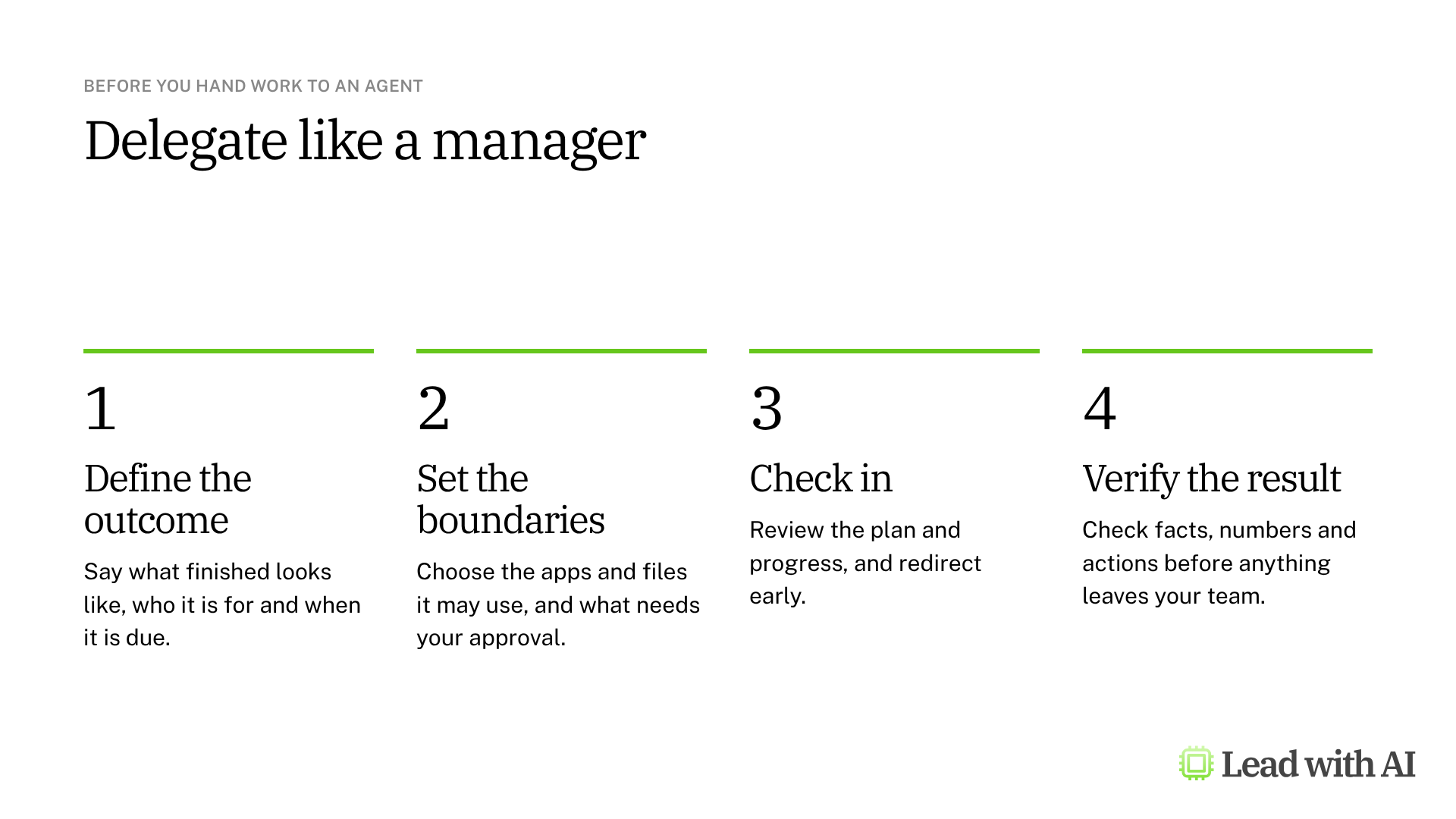
Step 2: Select Work and brief it. Describe the outcome, the sources and what needs your approval. The CODO prompt below gives you the structure.
Step 3: Connect only what it needs. Type @ to add the apps for this task, and leave out the rest.
Step 4: Review the plan and check in. Read the plan before it starts, watch the progress, and redirect early if it heads the wrong way.
Step 5: Verify before anything leaves your team. Check the sources, the numbers and every action it proposes. Ask for drafts only when a task could send, post or buy something.
Step 6: Schedule what works. Once a task gives reliable results, set it to run every week.
When should you use Codex?
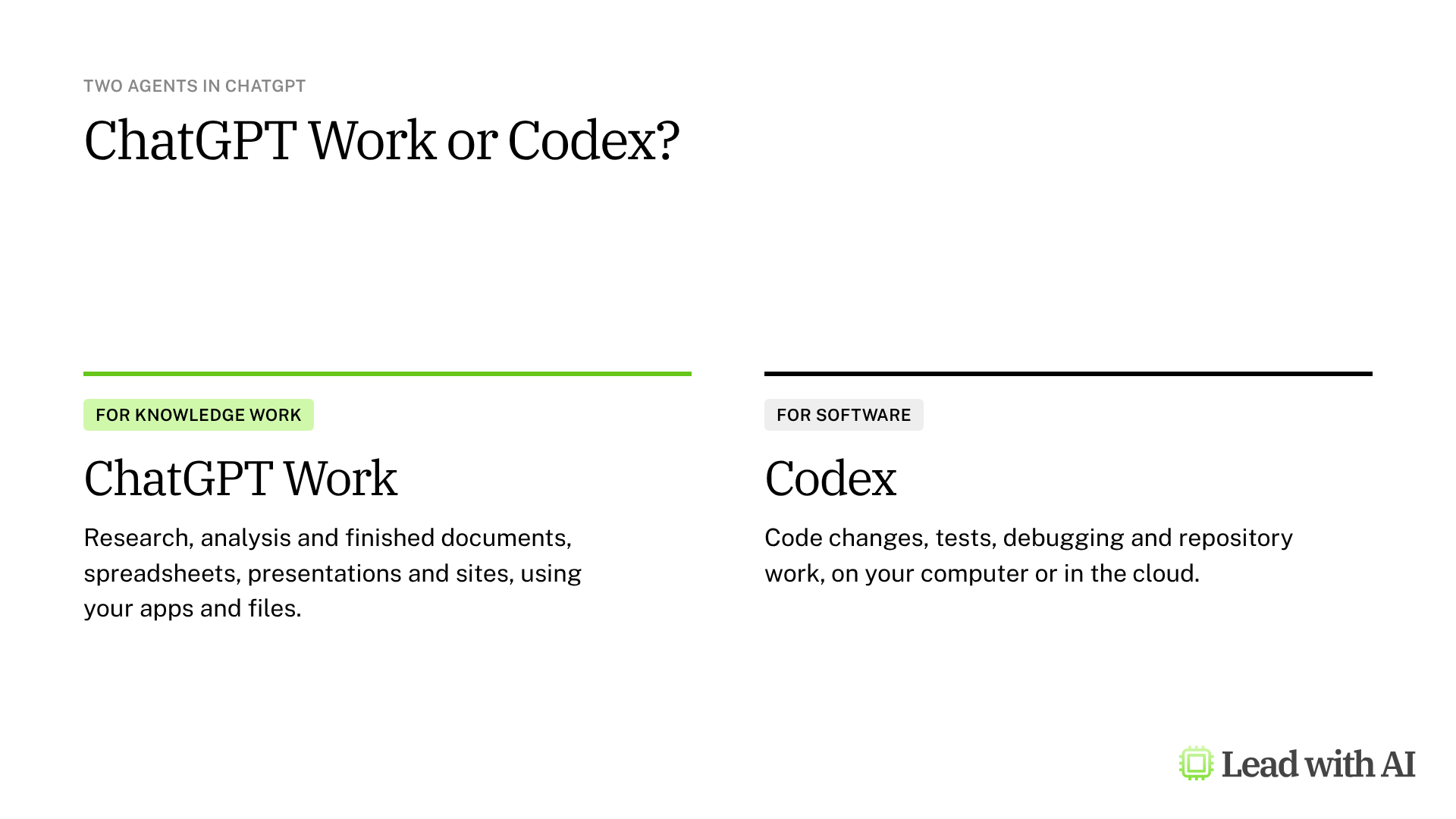
Codex is the coding agent for developers and technical teams. It makes code changes, runs tests, fixes bugs and reviews pull requests. Codex Cloud runs coding tasks on OpenAI's computers, so they continue while your own computer is asleep.
It is not only for software. OpenAI says more than a million people use Codex every week for other work. In our AI Leader Advanced program, we use it to split one long video into separate clips: Codex analyzes the video frame by frame, finds the natural breaks and produces each clip, without anyone touching an editing timeline.
What your plan includes
- Plus, Pro, Business, Enterprise and Edu: Work on the web, mobile and desktop, including the cloud browser, with Codex in the desktop app.
- Free and Go: Work on the web and mobile, and the cloud browser, are not included.
- Usage: Work and Codex share your plan's included allowance, and larger tasks use more of it.
- Enterprise and Edu: admins decide who can use Work and which tools and actions it can reach.
When Work earns its place
- A weekly pipeline or account review built from your CRM, ready before the meeting.
- A competitive scan that checks the same sources every week and summarizes what changed.
- A board or leadership pack assembled from the files and data you point it to.
- A live dashboard or Site that updates as the underlying information changes.
Our how-to on building dashboards with ChatGPT Work shows the last one in practice.
A CODO prompt for your first delegated task
This prompt, built with our CODO framework, turns a vague request into a brief an agent can act on. Select Work, paste it and fill in the brackets.
Character: You are my chief of staff, working as an agent with access to [the apps, folders or sites you allow].

Objective: [The outcome you want], for [audience], by [deadline or trigger]. For example, prepare this week's pipeline review from [CRM] for Monday's leadership meeting.

Do:
- Use only these sources: [apps, folders or sites].
- Share your plan before you start, then work through the steps on your own.
- Stop and ask me before you send, post, delete, buy or change any record.
- Flag anything missing, inconsistent or uncertain instead of guessing.

Don't:
- Don't contact anyone or share anything outside [team or company].
- Don't change source files. Save your work as a new draft.

Output:
[The format, such as a one-page summary with a table of risks and three recommended actions], plus a short log of what you did and what you could not finish.
Want to go further? Our article ChatGPT Work is here covers the launch in depth, and our guide to ChatGPT plugins shows how to package instructions and connected apps for work you repeat.
What will your IT and legal teams ask?
- What can it access? Only the apps and plugins someone connects. On Enterprise and Edu, admins control which tools, actions and company context each group can use.
- Does it ask before acting? You choose when it checks in and what needs your approval. The cloud browser asks before visiting a new website by default, and asks for confirmation before sensitive actions.
- Does it use my browser sign-ins? No. The cloud browser keeps its own sessions, so you sign in separately, and you can clear its data in Settings.
- Can we audit what it did? On Enterprise, the Compliance API gives visibility into Work conversations and actions.
- Where is our data stored? Messages and task context may be stored in the cloud, even when the work runs on your computer.
Work, Codex or another tool?
Use Work for knowledge work and Codex for software. Both suit companies that already use ChatGPT for business.
If your team works in Claude, our guide to Claude Cowork and Claude Code covers the equivalent agents. Our guide to what an AI agent really is explains how to design any agent with the right human checkpoints.
Key takeaways
- Work replaced agent mode for multi-step tasks in ChatGPT.
- Brief the outcome, the sources and the approvals.
- Connect only what a task needs.
- Ask for drafts whenever a task could send or post.
- Use Codex for software, and for technical jobs like processing files.




