




If your team already works in ChatGPT, the deck no longer has to leave it until the very end.
ChatGPT Slides builds a presentation inside ChatGPT that you and your teammates edit together, then present or export to PowerPoint, PDF or Google Slides. OpenAI launched it on October 16, 2026. It does not check facts, so the content stays your job.
Two ways to start a deck
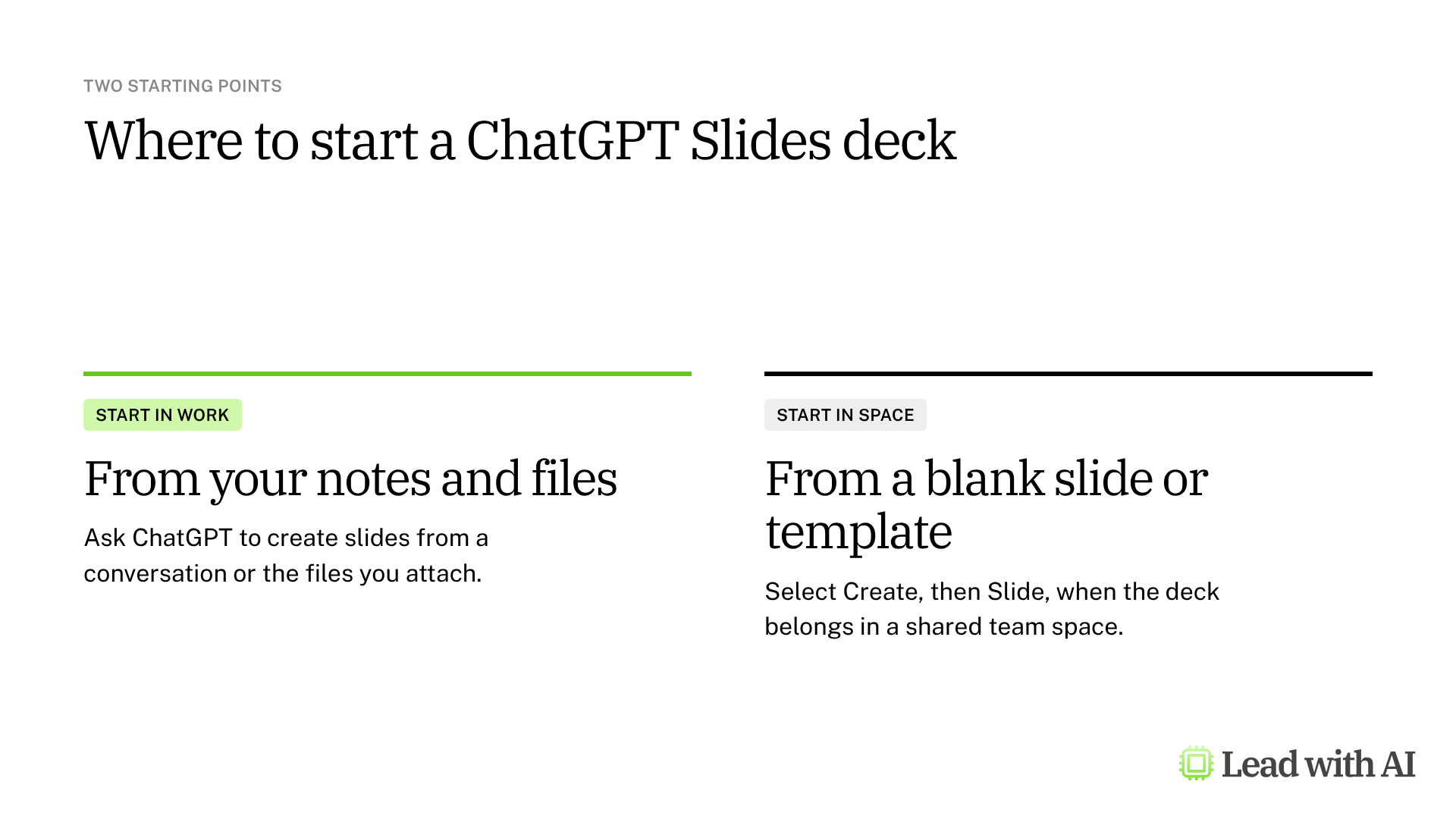
- Start in Work when the material already sits in a conversation or in files. Ask ChatGPT to “create ChatGPT slides” and describe the topic, audience and material.
- Start in Space when the deck belongs in a shared team space. Select Create, then Slide, and choose a blank slide or a template.
What your plan includes
- Who gets it: ChatGPT Pro, Business and Enterprise users with access to Space. Plus and Free plans do not include it, so use ChatGPT for PowerPoint instead.
- Where it works: on the web and in the ChatGPT desktop app. Some Windows setups cannot edit decks in the desktop app, so use ChatGPT on the web if editing does not work.
- Rollout: OpenAI is still rolling it out, so it may appear for some colleagues before others.
When ChatGPT Slides earns its place
There are four situations where ChatGPT Slides pays off quickly:
- A recurring update, such as a weekly report built from last week's deck and this week's notes.
- A deck several people need to shape, with shared comments and real-time editing.
- A presentation that grows out of a ChatGPT conversation, without copying the work elsewhere.
- A deck you need in more than one format, such as PowerPoint for one team and Google Slides for another.
How to build a deck, step by step
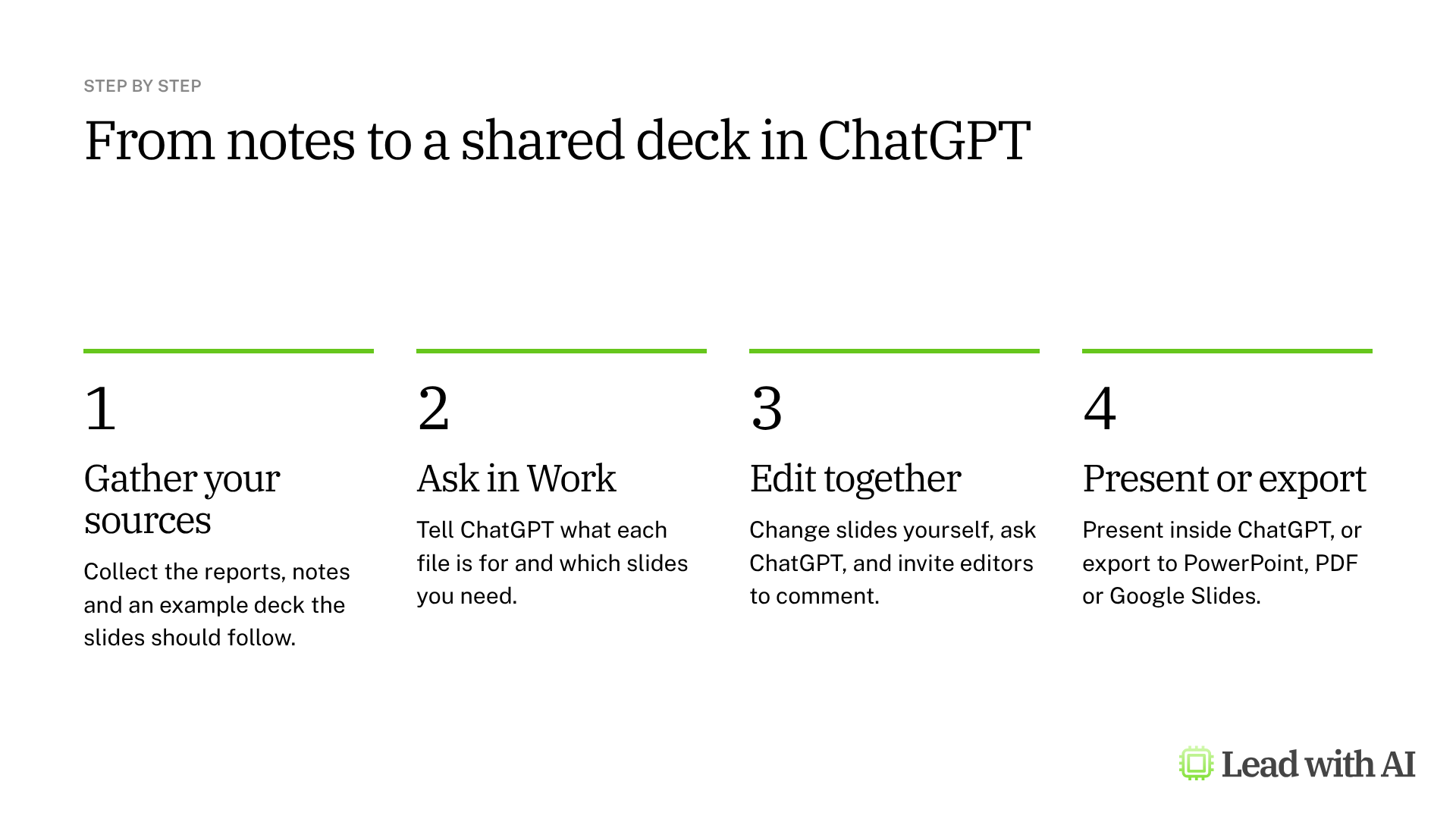
Step 1: Gather your sources. Collect the reports and notes the deck should use, and an example deck whose style it should follow.
Step 2: Ask in Work, and say what each file is for. Attach the files and tell ChatGPT which one sets the structure and style, which one holds the current facts, and which slides you need. Naming the role of each file is what keeps old numbers out of the new deck. A template is below.
Step 3: Check the story and the facts. Open the deck in Space. Check that the slide order makes sense and that every number comes from the right file.
Step 4: Edit directly or ask ChatGPT. Change text, images, shapes, tables and charts yourself, or describe the change you want in the conversation.
Step 5: Work on it together. Share the deck with teammates. People with edit access can edit at the same time, leave shared comments and mention each other. A comment-only role was not available at launch, so anyone who comments also gets edit access.
Step 6: Present or export. Present inside ChatGPT, or export on the web to PowerPoint, PDF or Google Slides.
A CODO prompt to start with
Paste this into Work with your files attached, using our CODO framework, and replace the bracketed parts.
Character: You are a chief of staff who builds clear presentations for a senior leadership team.

Objective: Create a new, editable ChatGPT Slides presentation titled [title] for [my leadership team], with [6] slides that help them decide [decision].

Do:
- Use [previous deck] as the reference for structure, layout and styling.
- Use [current notes] for the facts and updates.
- Separate completed work from plans, and recommendations from decisions needed.
- Give every slide a title that states the point.
- End with next priorities, owners and deadlines.

Don't:
- Don't add facts or figures that are not in the attached files. Flag missing information.
- Don't copy outdated numbers from the reference deck.

Output:
A deck in Space, plus a short summary of what changed since the previous version.
Want a ready-made starting point? These how-to articles show practical ways to build decks with ChatGPT:
- ChatGPT Slides: build, edit and share your next project update: a weekly report built from earlier reports and new notes.
- Create a competitive brief and slide deck using ChatGPT Agent: research the market first, then build the deck.
- Build training decks and visuals with Canva in ChatGPT: a designed training deck without leaving ChatGPT.
What will your IT and legal teams ask?
- Who can use it? Pro, Business and Enterprise users with Space access. On Business and Enterprise plans, the workspace settings decide who gets Space.
- Who can see a deck? Only the people you share it with. Anyone who needs to comment also gets edit access, so share carefully.
- Is our data used for training? On Business and Enterprise plans, OpenAI does not train its models on your workspace data by default.
- Can connected apps send anything? If you connect email or chat apps in Work, ask for drafts only and send them yourself.
ChatGPT Slides or another presentation tool?
ChatGPT Slides is the natural choice when your team already works in ChatGPT Space, because the deck, the sources and the comments stay together.
If the deck must live in your corporate PowerPoint template, ChatGPT for PowerPoint works inside that file. If your thinking happens in Claude, Claude Slides is the equivalent. Our roundup of the best AI PowerPoint generators compares the main options.
Key takeaways
- Tell ChatGPT what each file is for, so old numbers stay out of the new deck.
- Check the story before you polish the slides.
- Share edit access carefully, because commenting requires it for now.
- Export to the format each audience uses: PowerPoint, PDF or Google Slides.
- Check every number before you present.




