



If you built a custom GPT for recurring work, it needs a new home.
A ChatGPT plugin packages the instructions, connected apps and reference files for one job, so you can call it with @ in any conversation. OpenAI is retiring custom GPTs on December 11, 2026, and plugins are the replacement.
What goes into a plugin
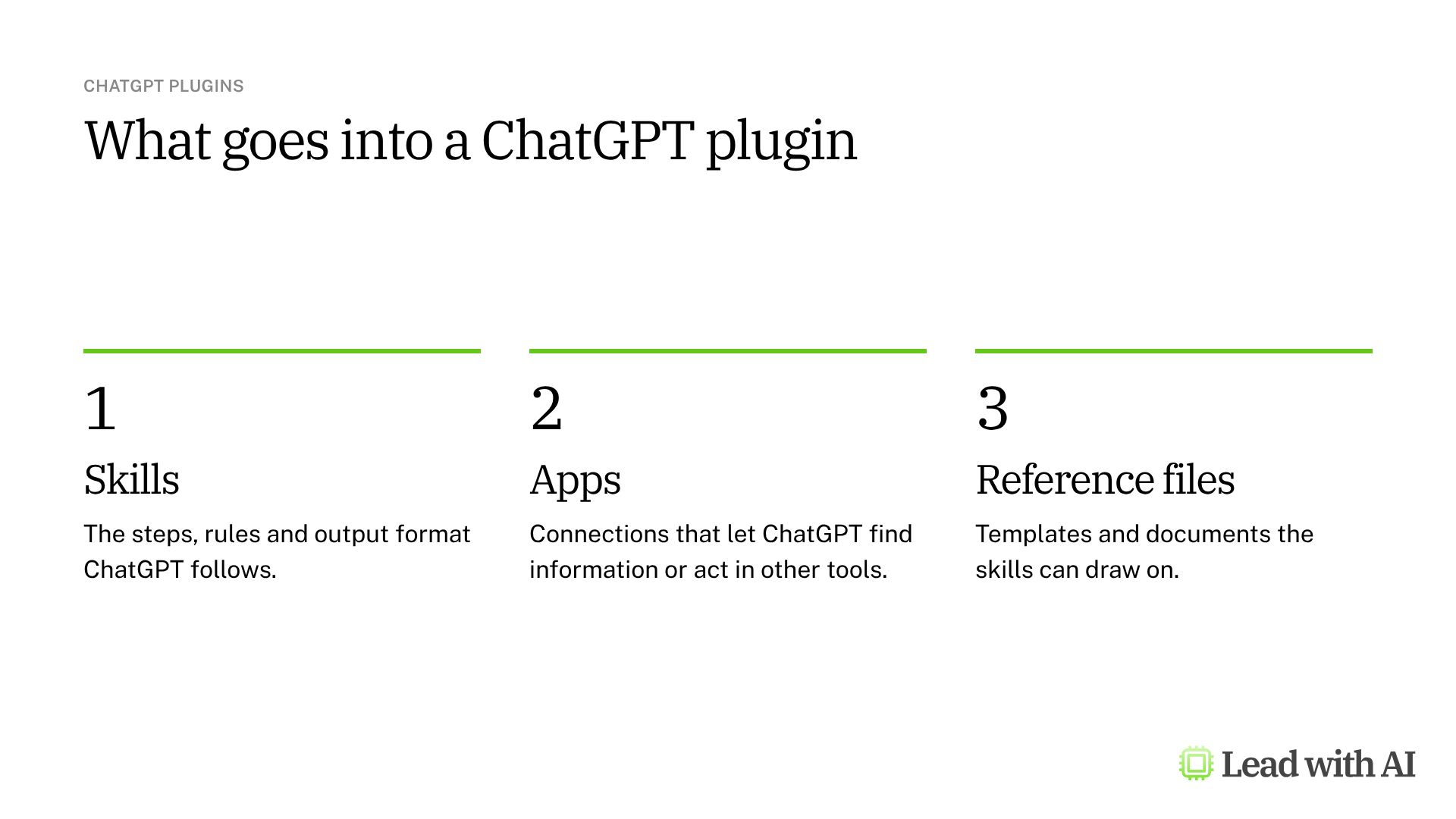
- Skills. The instructions for the job: the steps to follow, the rules to respect and the format to hand back.
- Apps. Connections to tools such as Google Drive, Slack or Gmail, so the plugin can find information or take action there.
- Reference files. Templates, examples and documents the skills can draw on.
Not every plugin needs all three. Some plugins contain only skills and never connect to another tool. A simple way to remember the difference: the skill is the how, the app connection is the access, and the plugin is the package.
Custom GPTs are retiring. What should you do?
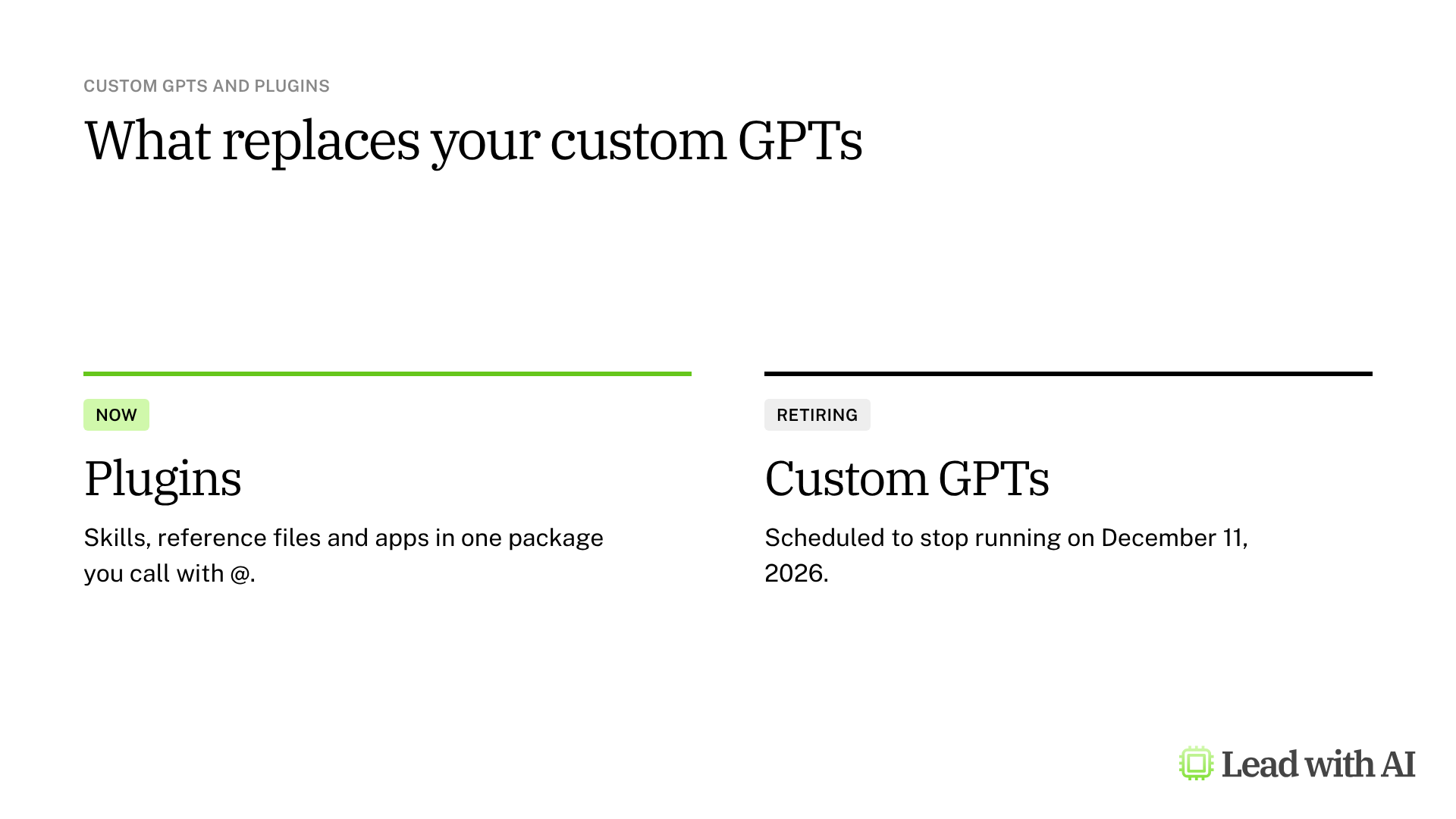
Custom GPTs are scheduled to stop running on December 11, 2026. The change affects every ChatGPT plan. Until then, your existing GPTs keep working.
OpenAI is rolling out a migration option that turns a GPT into a plugin. When it reaches your workspace, a migration button appears on your published GPT. On a personal account, follow the instructions in the notice ChatGPT shows you.
What carries over:
- Instructions become a skill.
- Knowledge files become reference files.
- Connected apps are added to the plugin as apps.
What does not:
- Custom actions. They need to be rebuilt with a supported app or a custom connection, usually with help from IT.
- Previous chats and conversation starters. They may not copy.
- The model you picked. The plugin uses your account's defaults.
- Sharing. The new plugin starts private, even if the GPT was shared with your whole team.
Do three things before the deadline:
- List the GPTs you rely on, who created each one and who needs the replacement. Being allowed to use someone else's GPT does not let you migrate it, so ask its creator or your workspace admin.
- Finish your edits first. After migration, the original GPT becomes read-only. In Enterprise workspaces, only published GPTs can be migrated, so publish any drafts you want to keep. Publishing does not mean sharing it publicly.
- Test before you share. Run a few familiar prompts and one hard case, then check that the plugin picks the right skill, uses the right files and returns the format you expect.
How to build a plugin, step by step
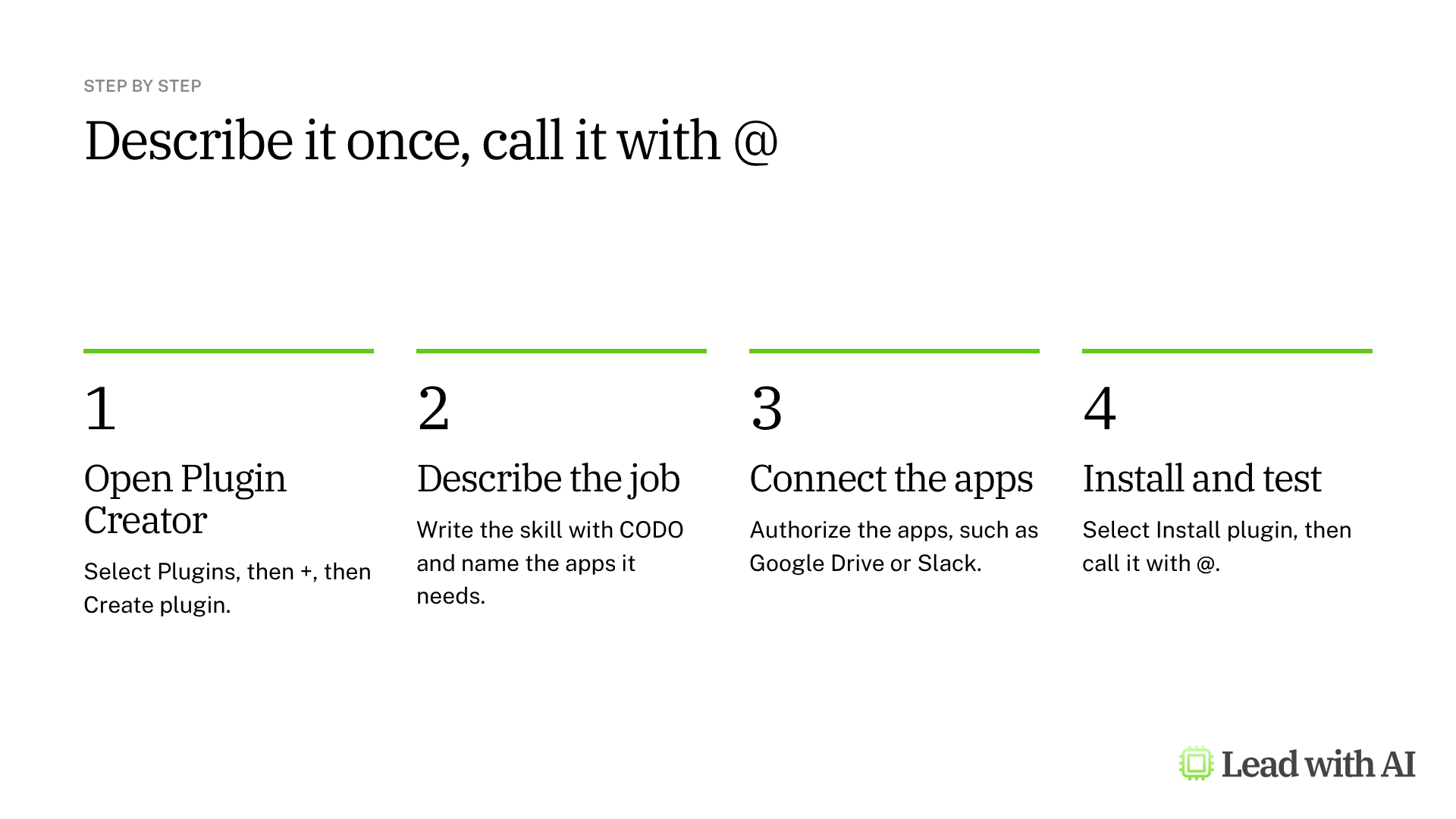
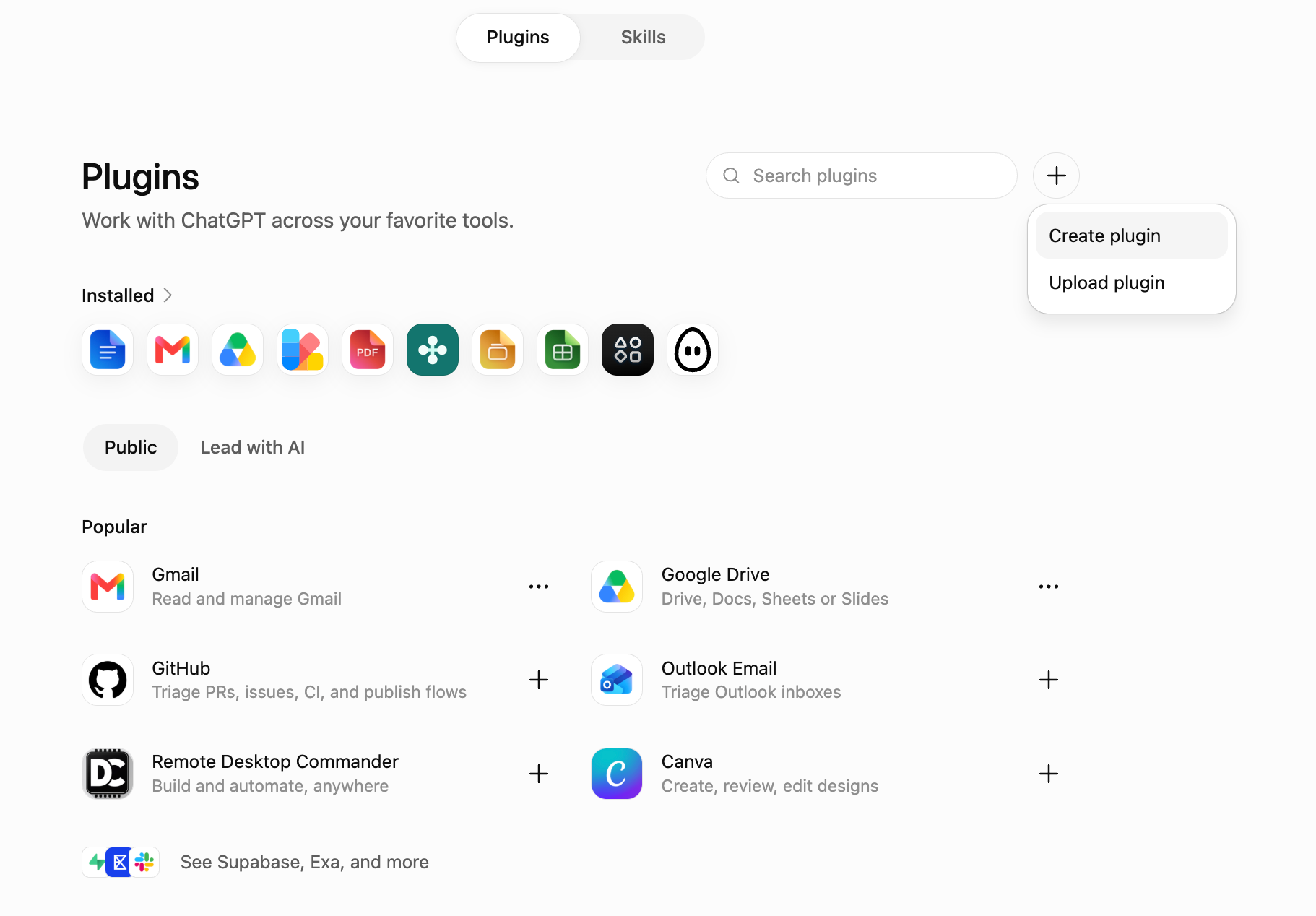
Step 1: Open Plugin Creator. Select Plugins in the sidebar, or go to chatgpt.com/plugins. Select +, then Create plugin. If ChatGPT asks you to install Plugin Creator first, do that.
A Work conversation opens with Plugin Creator already selected.
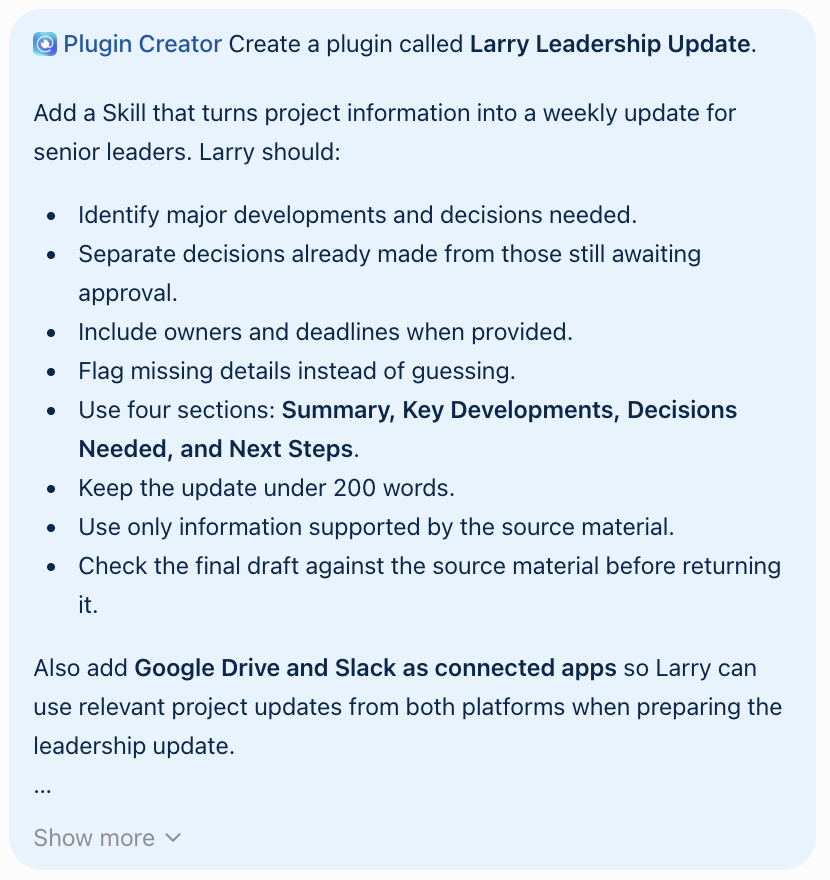
Step 2: Describe the job. In one message, tell Plugin Creator what the plugin is called, what its skill should do and which apps it should connect. We recommend structuring the skill with our CODO framework: who ChatGPT should be (Character), what you need (Objective), what to do and avoid (Do and Don't), and what to hand back (Output). A template is below.
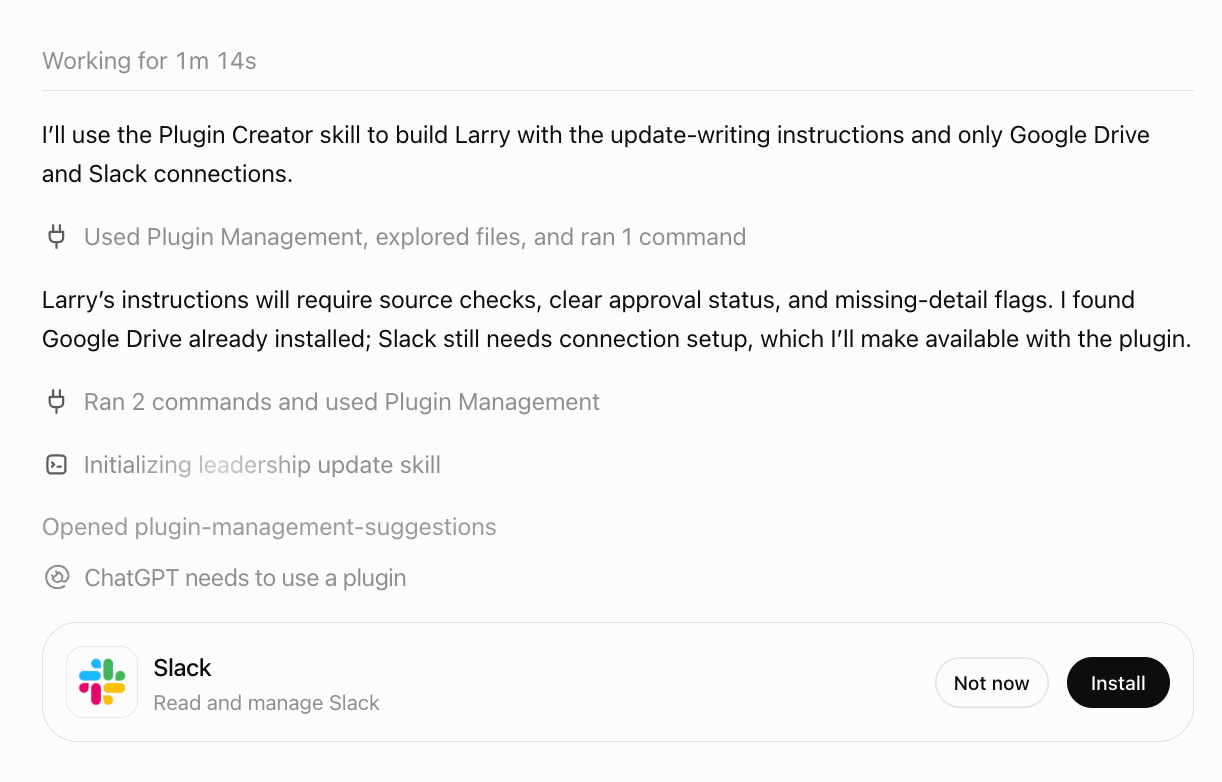
Step 3: Connect the apps. Plugin Creator builds the skill and checks which apps you already have. If one is missing, an install card appears. Select Install and sign in. The plugin can only reach what your own account can reach in that tool.
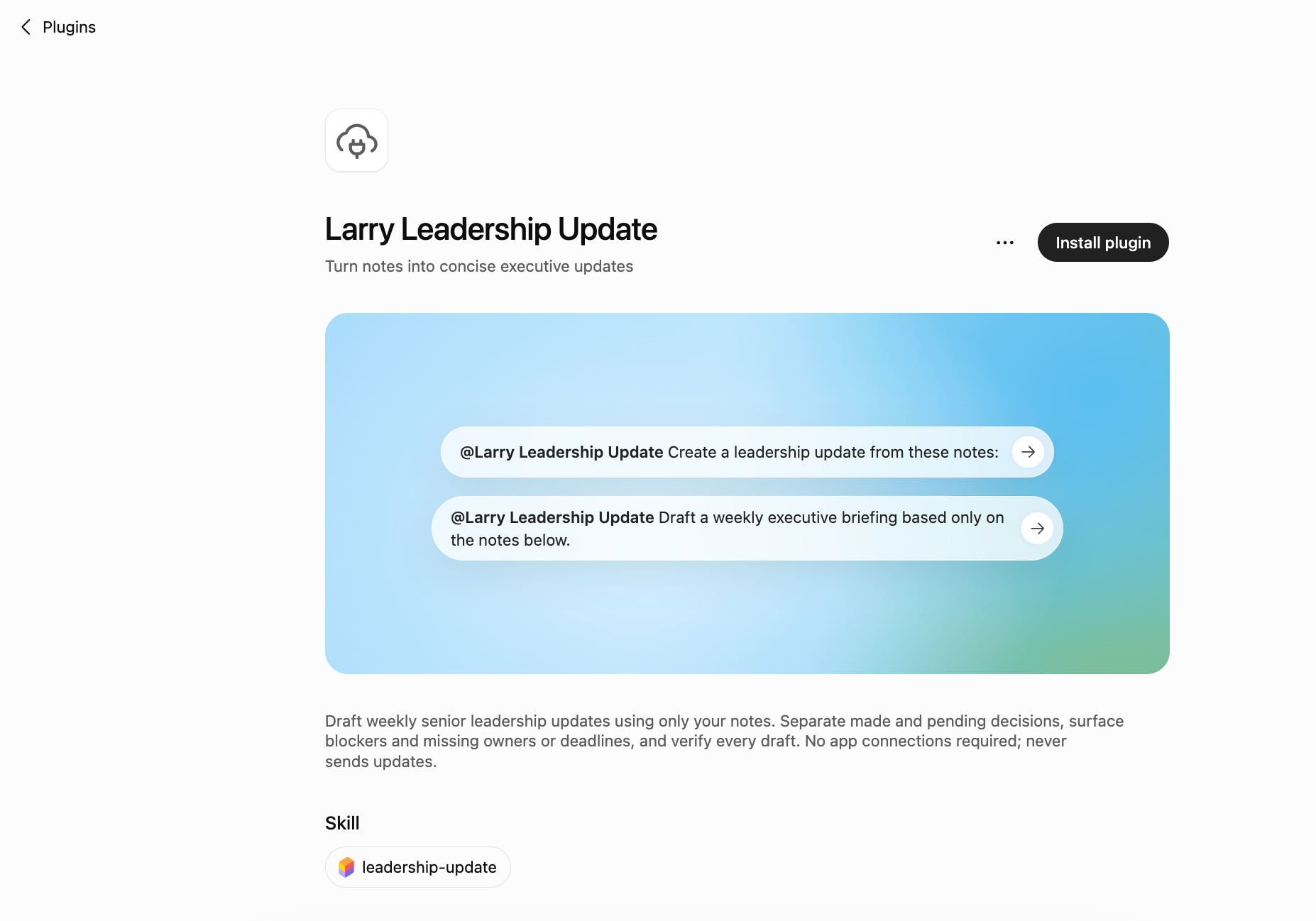
Step 4: Review and install. Open the plugin page and read its description and skills. If they match what you asked for, select Install plugin.
Step 5: Call it with @. In any conversation, type @ and the plugin's name, attach your notes and give it the task. ChatGPT may also use an installed skill on its own when your request matches its description.
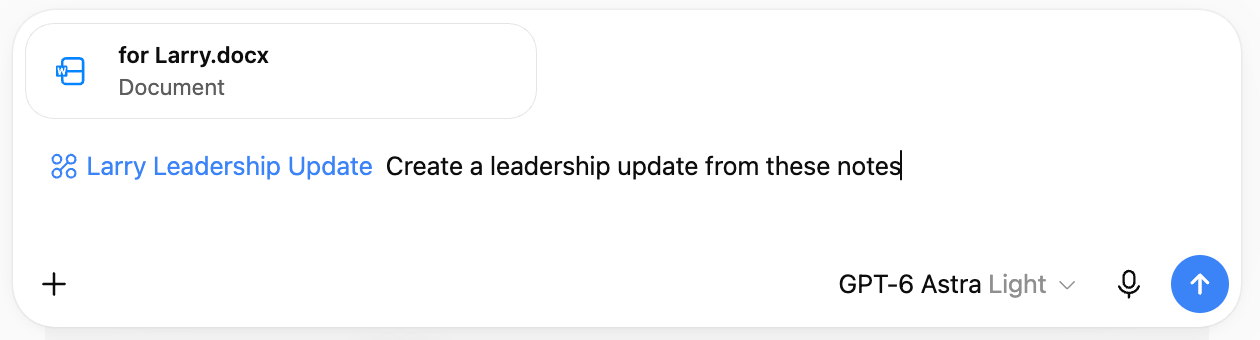
Check the first few outputs against your source material, especially names, dates and decisions. To change the plugin later, mention @Plugin Creator and the plugin's name, then describe what you would like to change.
What your plan includes
- The Plugins directory is visible on every ChatGPT plan. What you can create, install and use depends on your plan, workspace settings and role, so your options may differ from the screenshots.
- Business and Enterprise users can share plugins with colleagues in their workspace.
- In managed workspaces, admins decide who can use, share and publish plugins, and which apps are allowed.
How to share a plugin with your team
On Business and Enterprise, open Plugins, select a plugin you own and share it with people, groups or the whole workspace. Sharing with colleagues and publishing to the workspace directory are separate permissions, and your admin controls both.
Everyone still needs their own access to the apps inside it. Sharing a plugin that connects to Slack does not give a colleague access to your Slack channels.
When a plugin earns its place
There are four situations where a plugin pays off quickly:
- A recurring deliverable with a fixed format, such as a leadership update, a board pack or a pipeline review.
- Work that pulls from several tools, such as project notes in Google Drive and decisions in Slack.
- A process your team should follow the same way, every time, whoever runs it.
- A custom GPT you rely on today, which needs a replacement before December 11.
A plugin carries a skill and its apps into any conversation. If the work also needs its own chats and files in one place, a ChatGPT Project is often the better fit, and the two work well together.
Want a ready-made starting point? These how-to articles give you material that works well inside a plugin:
- Build SOPs for any workflow: turn a process into clear steps, which become the instructions for your skill.
- Turn your working style into a reusable operating manual: a Work-With-Me guide you can add as a reference file.
- Write a custom report from your data using ChatGPT connectors: how connected apps pull information from several tools into one report.
- ChatGPT Work is here: the mode where Plugin Creator does its work.
- Build shared workspace agents with ChatGPT: for team jobs that should keep running in the cloud while you are away.
- Custom GPTs or ChatGPT Projects?: written before the retirement was announced. The advice on Projects still applies, and plugins now take the place of custom GPTs.
A CODO template for your plugin
Paste this into your conversation with Plugin Creator, and adapt the bracketed parts. Keep the line about drafts whenever the plugin connects to a tool that can post or send messages.
@Plugin Creator Create a plugin called [Larry Leadership Update]. Add a skill with these instructions:

Character: You are Larry, my chief of staff for [weekly leadership updates].

Objective: Turn project information into a weekly update for [senior leaders].

Do:
- Identify major developments and the decisions needed.
- Separate decisions already made from those still awaiting approval.
- Include owners and deadlines when they are provided.
- Check the final draft against the source material before returning it.

Don't:
- Don't guess. Flag missing details instead.
- Don't use information that is not in the source material.
- Don't post, send or share anything. Return a draft only.

Output:
Four sections: Summary, Key Developments, Decisions Needed and Next Steps, in no more than 200 words.

Also connect [Google Drive and Slack] so Larry can use relevant project updates from both.
What will your IT and legal teams ask?
- Who can see a plugin? Only you, until you share it.
- Does a plugin get extra access? No. Each app still needs its own sign-in and approvals, and installing a plugin does not give anyone more access to files or data in the connected tool.
- Can admins control plugins? Yes. In Workspace settings, admins choose which plugins are available, which roles get them automatically, and who can use, share and publish them. Some plugins carry an OpenAI Verified badge after a review by OpenAI.
- Can a plugin act on its own? Actions in connected apps still need approval. We recommend instructing every skill to return drafts only, so nothing is posted or sent without a person checking it.
- Is plugin data used to train OpenAI's models? Not on Business, Enterprise or Edu, by default. On personal plans, the same setting applies as in the rest of ChatGPT.
ChatGPT plugins or another assistant?
Plugins are the best fit when one job needs the same instructions and tools every time, wherever you start the conversation in ChatGPT.
Claude has Projects, Gemini has skills, which replace Gems, and Microsoft 365 has Copilot agents. If your company runs on one of those platforms, start there.
Key takeaways
- Move the custom GPTs you rely on before December 11, 2026, and test each plugin before you share it.
- Build one plugin per recurring job, not one for everything.
- Write the skill with CODO, so the plugin works the same way every time.
- Connect only the apps the job needs, and remember that every user needs their own access to them.
- Ask for drafts only whenever a plugin can post or send on your behalf.




