




When a question needs real investigation, you want an assistant that follows leads rather than stopping at the first answer.
Claude Research runs many searches, decides what to investigate next and builds a report with citations you can verify. It can work across the web and your connected sources, such as Gmail and Google Docs. It can still miss evidence or misread a source, so the judgment stays yours.
Where to find Research
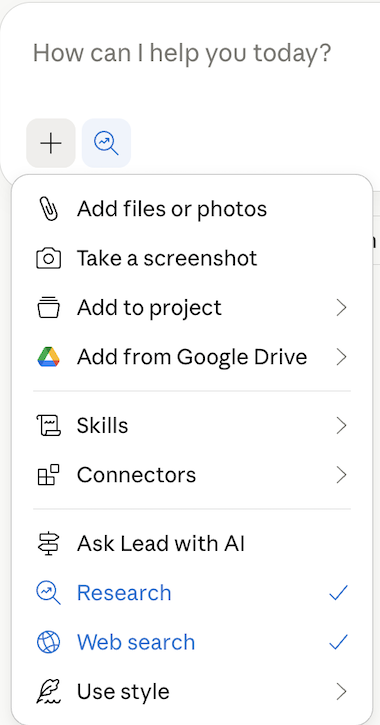
Select + at the bottom left of the prompt box and turn on Research. It turns blue when it is on. Research needs Web search switched on, which happens by default.
What your plan includes
- Paid plans: Research is available on Pro, Max, Team and Enterprise. The Free plan includes web search, but not Research.
- Where it works: on the web, in Claude Desktop and in the Claude mobile app.
- Usage: Research counts toward your normal usage limits, but it uses them faster, because Claude reads many sources and writes a longer answer.
- Connected sources: with Google Workspace connected, Research can also search your Gmail, Google Calendar and Google Docs.
When Claude Research earns its place
There are four situations where Claude Research pays off quickly:
- A decision document, such as a board brief on a market or an acquisition target.
- A question that spans the web and your own files, such as how a competitor's moves affect your plans.
- A synthesis of conflicting evidence, where you need to see where sources agree and where they do not.
- A briefing before a meeting that combines public news with your recent emails and documents.
How to run a Research report, step by step
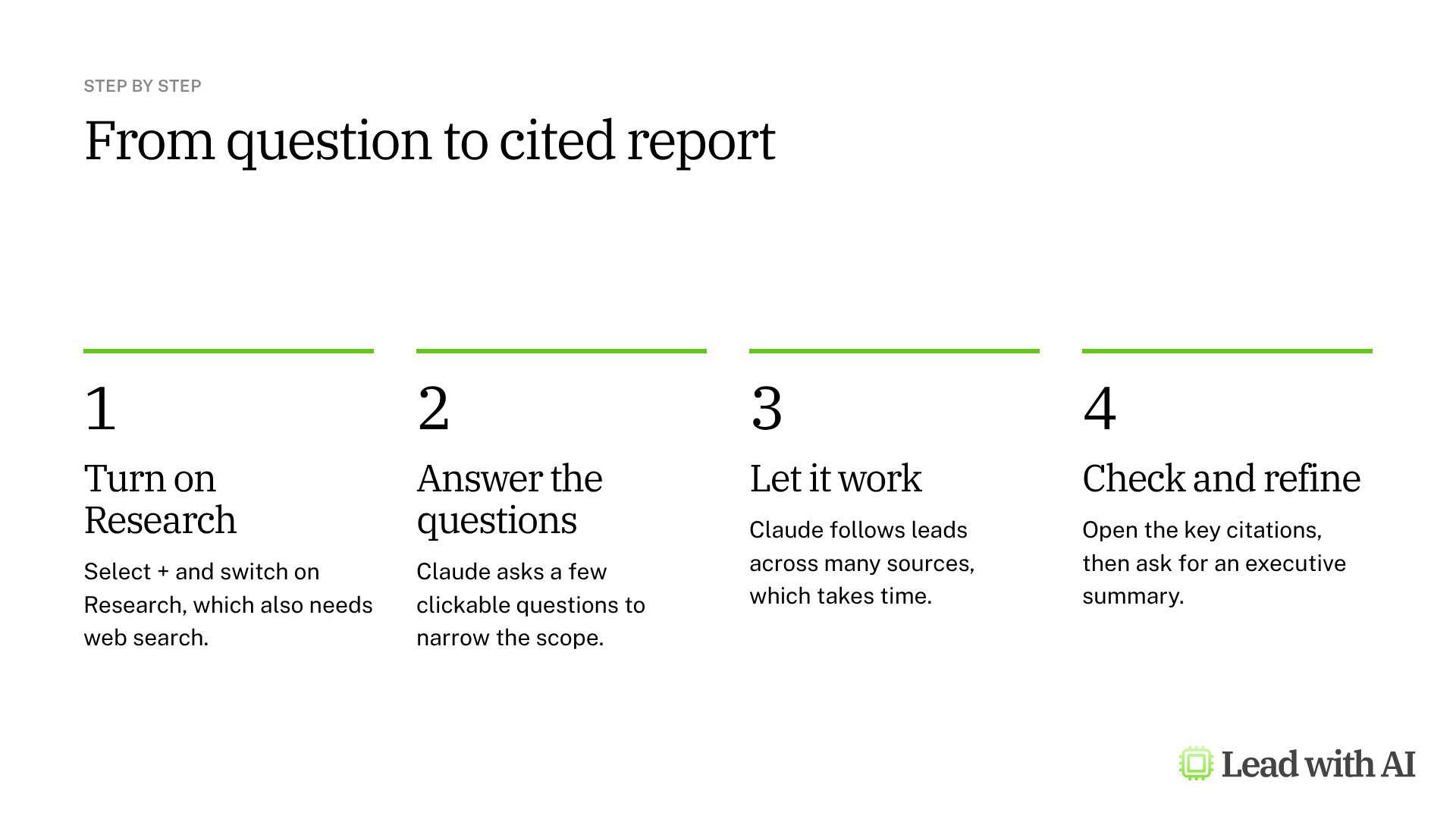
Step 1: Turn on Research. Select +, then Research. Check that web search is on too.
Step 2: Connect what it should read. If the answer depends on internal context, connect Google Workspace or another connector first, and tell Claude which source to use, such as “Pull relevant context from my Google Docs.”
Step 3: Write your prompt. Describe the decision, the sources to prioritize and the format you want back. A template is below.
Step 4: Answer the clarifying questions. Claude often asks a few questions first, in a format you can click through. A minute here saves a report that answers the wrong question.

Step 5: Let it work. Research can take a while, because Claude runs many searches and follows leads before it writes. That is the point, so leave it running and come back.
Step 6: Check the citations. Open the sources behind your most important claims and confirm that they support what the report says.
Step 7: Refine without starting over. Ask for one improvement at a time, such as “Add a one-page executive summary and a clear so-what recommendation.” When the content is right, turn it into a document or a deck with Claude Slides.
If Claude does not seem to research, ask it directly: “Please use the research tool to…”
A CODO prompt to start with
Paste this into Claude with Research on, using our CODO framework, and replace the bracketed parts.
Character: You are a strategy analyst who prepares research briefings for a board of directors.

Objective: Research [2026 expansion opportunities in the US market] so my board can decide [which market to enter first].

Do:
- Prioritize primary and reputable sources, such as [the World Economic Forum, BCG and government statistics].
- Use sources from the last [18] months, and flag anything older.
- Compare the options in a table with size, growth, risks and cost to enter.
- Separate what the sources establish from your own recommendations.
- Cite a source for every material claim.

Don't:
- Don't rely on vendor marketing pages or unsourced blog posts.
- Don't present estimates as facts. Label them as estimates.

Output:
A meeting-ready report with an executive summary, key findings, risks, recommendations and a comparison table.
Want a stronger starting point? These guides help you set up the context Research draws on:
- Claude Projects: keep the instructions and files for a recurring research topic in one place.
- Claude for Gmail: connect your inbox so Research can include relevant threads.
- Claude Slides: turn the finished report into a presentation.
What will your IT and legal teams ask?
- What can it reach? The web and the connectors you or your organization switch on. Connectors follow the permissions you already have.
- Is our data used for training? On Team and Enterprise plans, Anthropic does not train its models on your content by default.
- Can it send anything? Research reads and reports. If you also use connectors that can send email or post messages, ask for drafts only and send them yourself.
- Who controls access? On Team and Enterprise plans, owners decide which connectors are available.
Claude Research or another research tool?
Claude Research is the natural choice if Claude is already where you think and write, because the report lands in the same conversation as your drafts.
If you want to edit the research plan before it starts, ChatGPT deep research and Gemini Deep Research both show one. On Microsoft 365, Copilot Researcher works with your emails, meetings and files. Our overview of AI deep research tools compares all six options.
Key takeaways
- Turn on Research and web search from the plus menu.
- Connect your internal sources and say which ones to use.
- Answer the clarifying questions before it starts.
- Give it time, because depth is the point.
- Check the key citations before you rely on the report.




