




If your company runs on Google Workspace, the research you need often sits half on the web and half in your own inbox and Drive.
Gemini Deep Research turns a broad question into a research plan, works through the sources you allow and returns a cited report. Because it can draw on Gmail and Drive, the report can reflect what your organization already knows. It can still miss evidence or misread a source, so the judgment stays yours.
Where to find Deep Research
Open Gemini and select Deep Research from the tools in the prompt box. Then select Sources to decide what Gemini may use.

What your plan includes
- Free personal accounts: Deep Research is available with a small allowance.
- Google AI Pro and Ultra: higher limits, and you can run reports on the Pro model for higher quality. Charts, diagrams and other visuals in reports need Ultra.
- Google Workspace: business and enterprise plans include Deep Research, with limits that depend on your edition and add-ons.
- Limits: Google does not publish fixed numbers on its help page, and Gemini warns you when you are close to your daily limit.
- Age: you need to be 18 or older to use Deep Research.
When Gemini Deep Research earns its place
There are four situations where Gemini Deep Research pays off quickly:
- A board brief that combines market research with your own strategy documents.
- A competitor review that compares public information with internal plans and email threads.
- A briefing on an unfamiliar topic, such as a new regulation, before a decision.
- A report you will share, because it exports straight to Google Docs.
How to run a Deep Research report, step by step
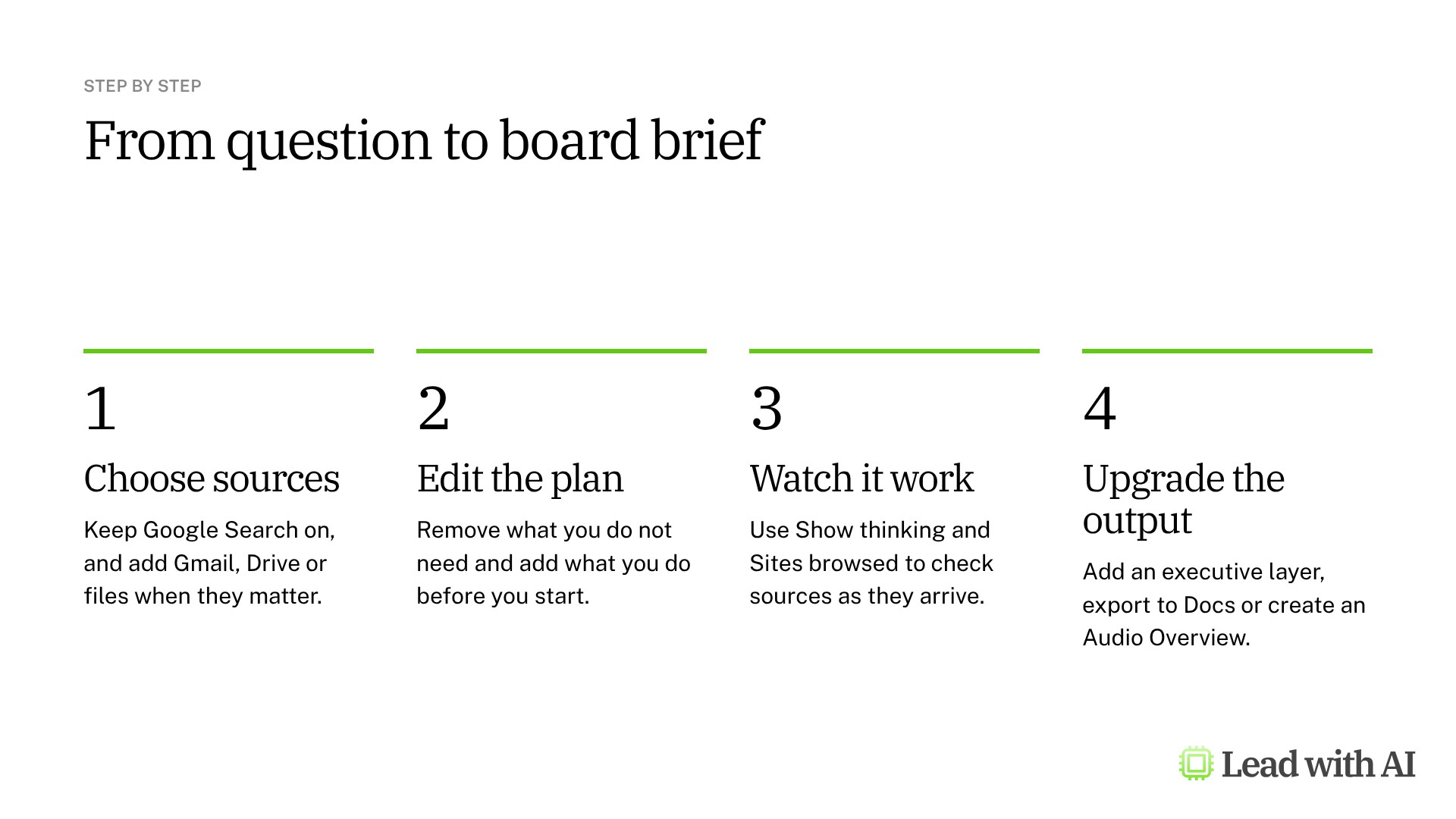
Step 1: Choose your sources. Google Search is on by default. Add Gmail and Drive when the brief needs internal context, or turn Search off to keep the research inside your own material. You can also attach files or add a notebook from Gemini Notebook.
Step 2: Write your prompt. Attach the internal documents that matter, such as last year's strategy memo, and describe the decision the research supports. A template is below.
Step 3: Edit the plan. Gemini drafts a research plan first. Select Edit plan to remove what you do not need and add what you do, such as the competitive landscape of the last 12 months. This is where you get the most leverage. Then select Start research. A report usually takes 5 to 10 minutes.
Step 4: Watch it work. Open Show thinking to follow the steps, or Sites browsed to watch the sources accumulate. Open a strong source in a new tab for a quick check.
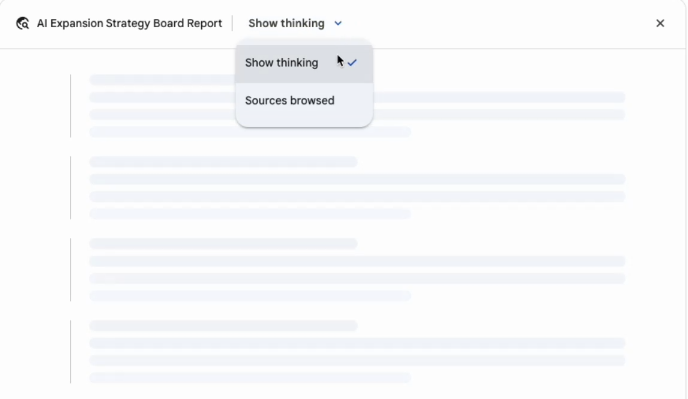
Step 5: Check the key claims. Open the sources behind the numbers and conclusions you will rely on, and confirm that they are current.
Step 6: Upgrade the output. Ask for an executive layer, such as “Add a one-page executive summary and a clear so-what recommendation.” Then select Share & export to export the report to Google Docs, or Create to turn it into an Audio Overview, a web page, an infographic or a quiz.

One limitation to know: visuals are not available when Gmail or Drive are among your sources.
A CODO prompt to start with
Paste this into Deep Research with your documents attached, using our CODO framework, and replace the bracketed parts.
Character: You are a strategy analyst who prepares research briefings for a board of directors.

Objective: Research [2026 expansion opportunities in the US market] so my board can decide [which market to enter first].

Do:
- Prioritize primary and reputable sources, such as [the World Economic Forum, BCG and government statistics].
- Use sources from the last [18] months, and flag anything older.
- Compare the options in a table with size, growth, risks and cost to enter.
- Separate what the sources establish from your own recommendations.
- Use the attached [strategy memo] and [latest board deck] for our current position.
- Cite a source for every material claim.

Don't:
- Don't rely on vendor marketing pages or unsourced blog posts.
- Don't present estimates as facts. Label them as estimates.

Output:
A meeting-ready report with an executive summary, key findings, risks, recommendations and a comparison table.
Want a ready-made starting point? These resources show practical ways to research with Gemini:
- Level up your report with Deep Research in Gemini Notebook: find strong sources before you write.
- Organize your work with synced notebooks in Gemini: keep the sources for one project together, then add them to Deep Research.
- Gemini in Google Docs: refine the exported report into a finished document.
What will your IT and legal teams ask?
- What can it reach? Google Search, the files you attach and, when you allow it, your Gmail and Drive. It only sees content you already have access to.
- Is our data used for training? On Google Workspace accounts, Google says your content is not used to train its models.
- Can we keep the research internal? Yes. Turn off Google Search to limit the research to your own sources.
- Who controls access? Workspace admins decide who can use the Gemini app and which Workspace data it can reach.
Gemini Deep Research or another research tool?
Gemini Deep Research is the natural choice if your company runs on Google Workspace, because it combines the web with your own email and files.
If you want the research to stay inside a fixed set of sources you choose, Gemini Notebook grounds every answer in the material you import. ChatGPT deep research lets you steer the research while it runs, and Copilot Researcher is the equivalent on Microsoft 365. Our overview of AI deep research tools compares all six options.
Key takeaways
- Choose your sources first, including Gmail and Drive when they matter.
- Edit the plan before you start the research.
- Follow the sources while the report builds.
- Add an executive layer, then export to Docs.
- Check the key claims before you share the report.




