



If you already work in Claude, you can bring your Gmail into the conversation.
Claude's Gmail connector searches your inbox, summarizes threads, drafts replies and can send them. Every answer links back to the emails it used, so you can check the source in one click.
Unlike Gemini, it does not sit inside Gmail. You ask in Claude, and Claude goes into Gmail to find what it needs.
How do you connect Gmail to Claude?
You only do this once.
- In Claude, go to Customize, then Connectors.
- Find Gmail and select Connect.
- Sign in to your Google account and grant the permissions.
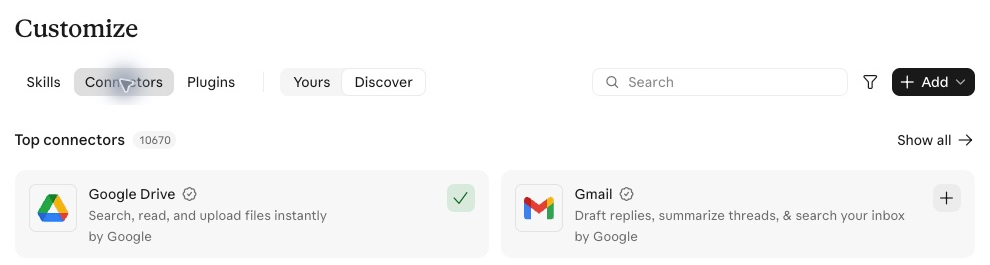
You then switch it on in each conversation. Select + at the lower left of the message box, then Connectors, and switch on Gmail.
What your plan includes
The Gmail connector is available on every Claude plan, including the free plan. It works on the web, in the desktop app and on mobile.
On Team and Enterprise plans, an Owner or Primary Owner has to enable it for your organization first. Until they do, Gmail will not appear in your list. Your Google Workspace admin may also need to mark Claude as a trusted app.
What can Claude do in your Gmail?
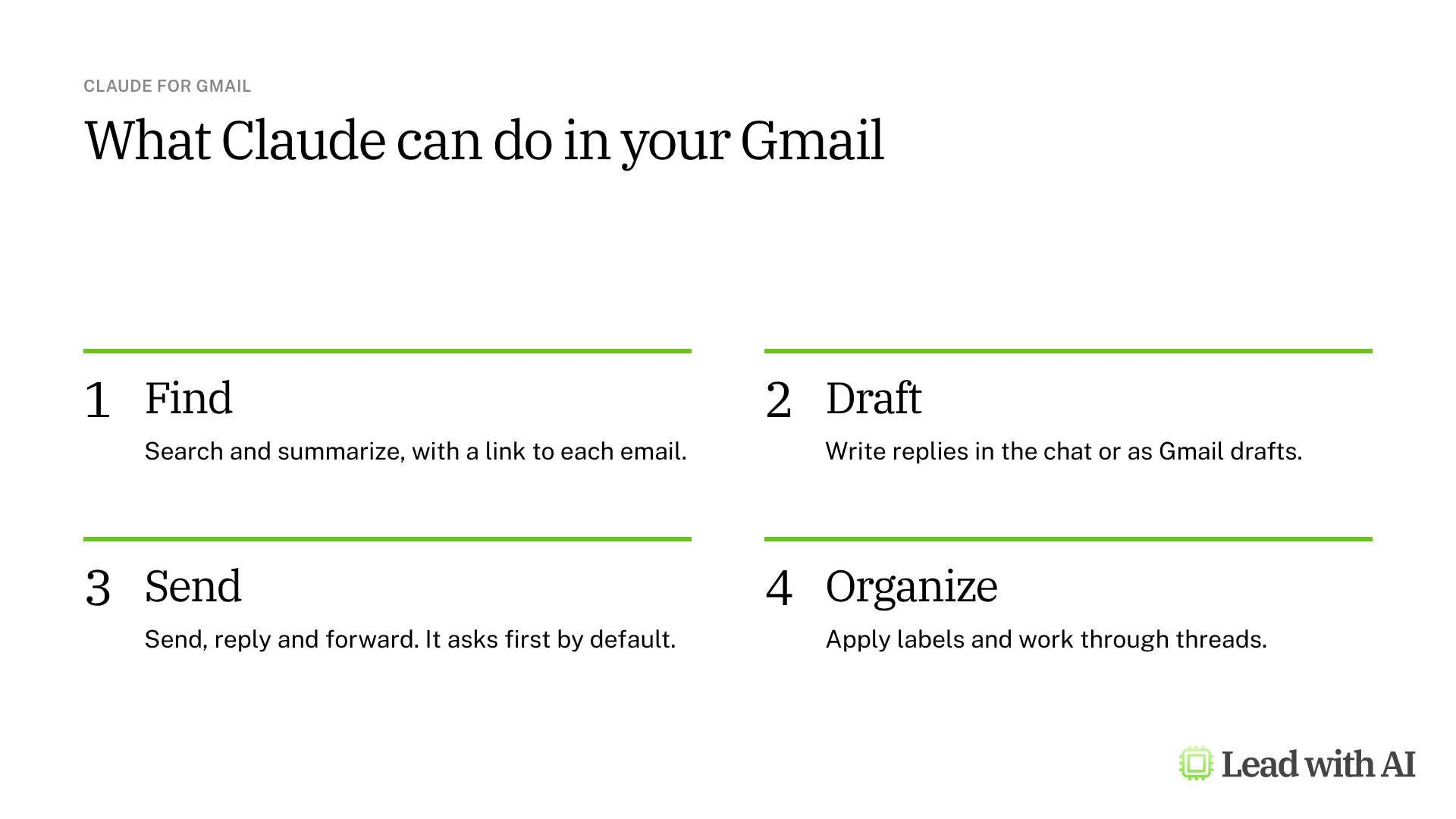
- Find. Search your inbox in plain language and summarize long threads, with a link to each email it used.
- Draft. Write replies in the chat, or save them as drafts in Gmail.
- Send. Send new emails, reply and forward. By default, Claude asks for your approval first.
- Organize. Apply labels and work through threads.
There is one gap to know about: Claude sees attachment names, not what is inside them. For a contract or a deck, open it yourself or upload it to the chat.
Decide who presses Send before you start
This is the one setting to get right. Claude can send email from your account, so you need to decide how much it does on its own.
Two things decide it. The first is the mode shown in the message box. The second is the permission for sending in the Gmail connector's settings.
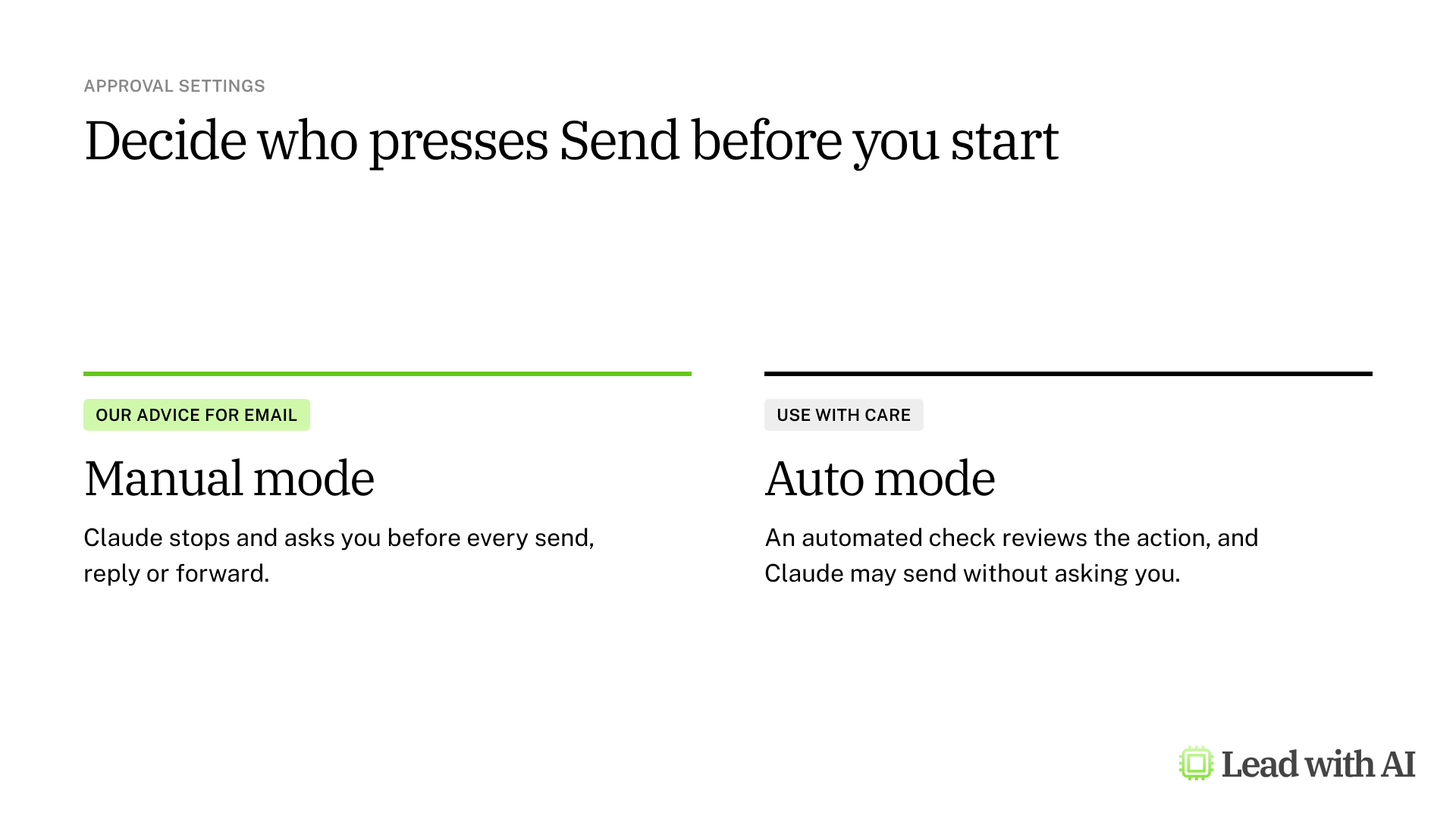
- Manual mode. Claude stops and asks you before every send, reply or forward. You approve or decline each one.
- Auto mode. An automated check reviews the action instead of you, and Claude may send without asking.
On Team and Enterprise plans, your owners decide whether members can let these actions run without asking.
Our advice for email is simple. Work in Manual mode, keep sending set to Needs approval, and tell Claude in your prompt not to send. Claude finds and drafts, and you stay the one who presses Send.
When Claude for Gmail earns its place
There are four situations where it helps most:
- You need a fact from your inbox, such as what a client agreed to or when a deadline moved, and you want the link to prove it.
- A reply needs context from several places. If you also connect Google Calendar or Google Drive, Claude can bring a meeting or a document into the same answer.
- A sensitive reply needs thinking before writing, such as a pushback, an apology or a negotiation.
- You want a daily triage of what needs you today, without opening every email.
Want a ready-made routine? These how-to articles give you prompts to run with Gmail switched on. Keep Manual mode on, so nothing is sent without you:
- Build your AI executive daily briefing: a three-minute morning report on your top priorities, the emails that need a reply and the meetings to prepare for. Connect Google Calendar as well.
- Build an AI-powered workload audit: a review of your email and calendar that ranks which of your tasks to automate first.
If you want AI inside the Gmail window itself, read our guide to Gemini in Gmail. If your company runs on Microsoft 365, read Copilot in Outlook. If you use ChatGPT, see ChatGPT for email. We compare all four in AI for email.
How to triage your inbox with Claude, step by step
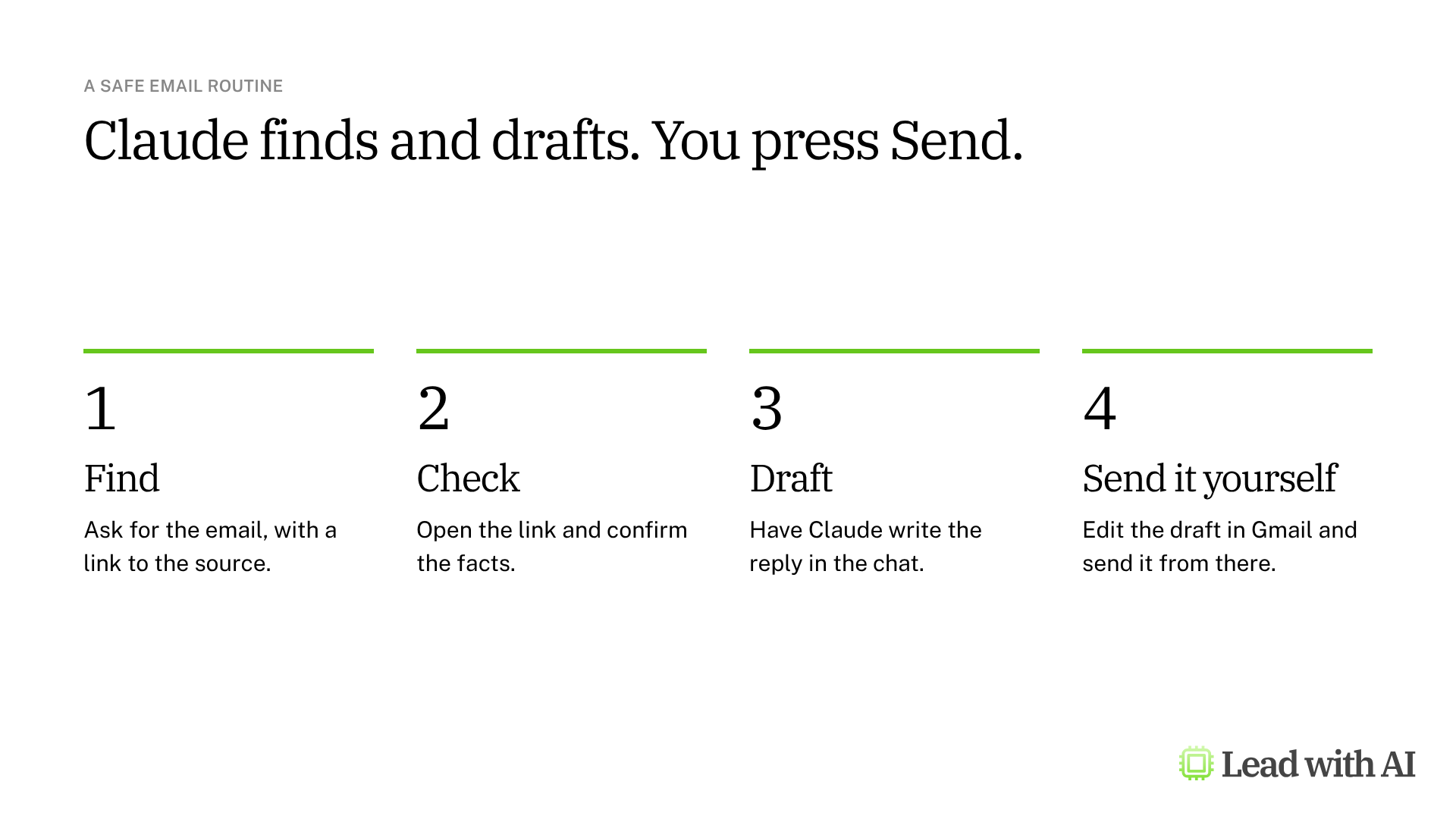
Step 1: Turn on Gmail and check the mode. Start a new chat, select +, then Connectors, and switch on Gmail. Check that the message box shows Manual.
Step 2: Find the email and ask for the source. Ask: “Find the email from [name] about [topic]. Give me a clickable Gmail link, the sender, the subject and the date.”
Step 3: Draft the reply in the chat. Ask: “Draft a reply in a direct, calm and specific tone, under 120 words. Do not invent details or commitments. Show the draft here only. Do not create a Gmail draft or send anything.”
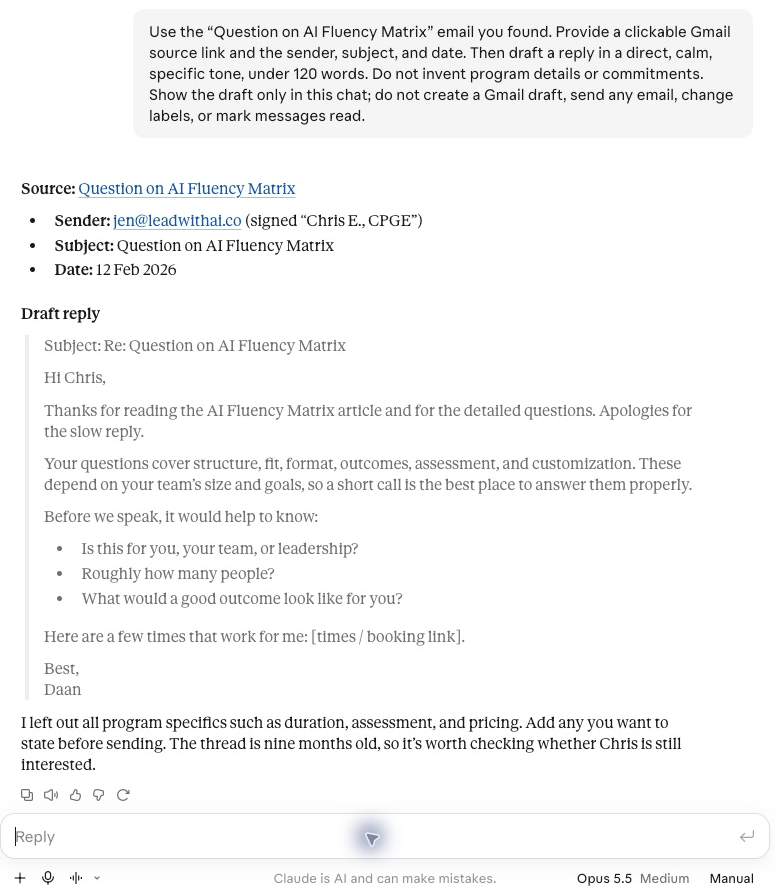
Step 4: Check the facts, then send it yourself. Open the source link and confirm the facts. When the draft is right, copy it into Gmail, or ask Claude to save it as a Gmail draft. Then edit it and send it from Gmail.
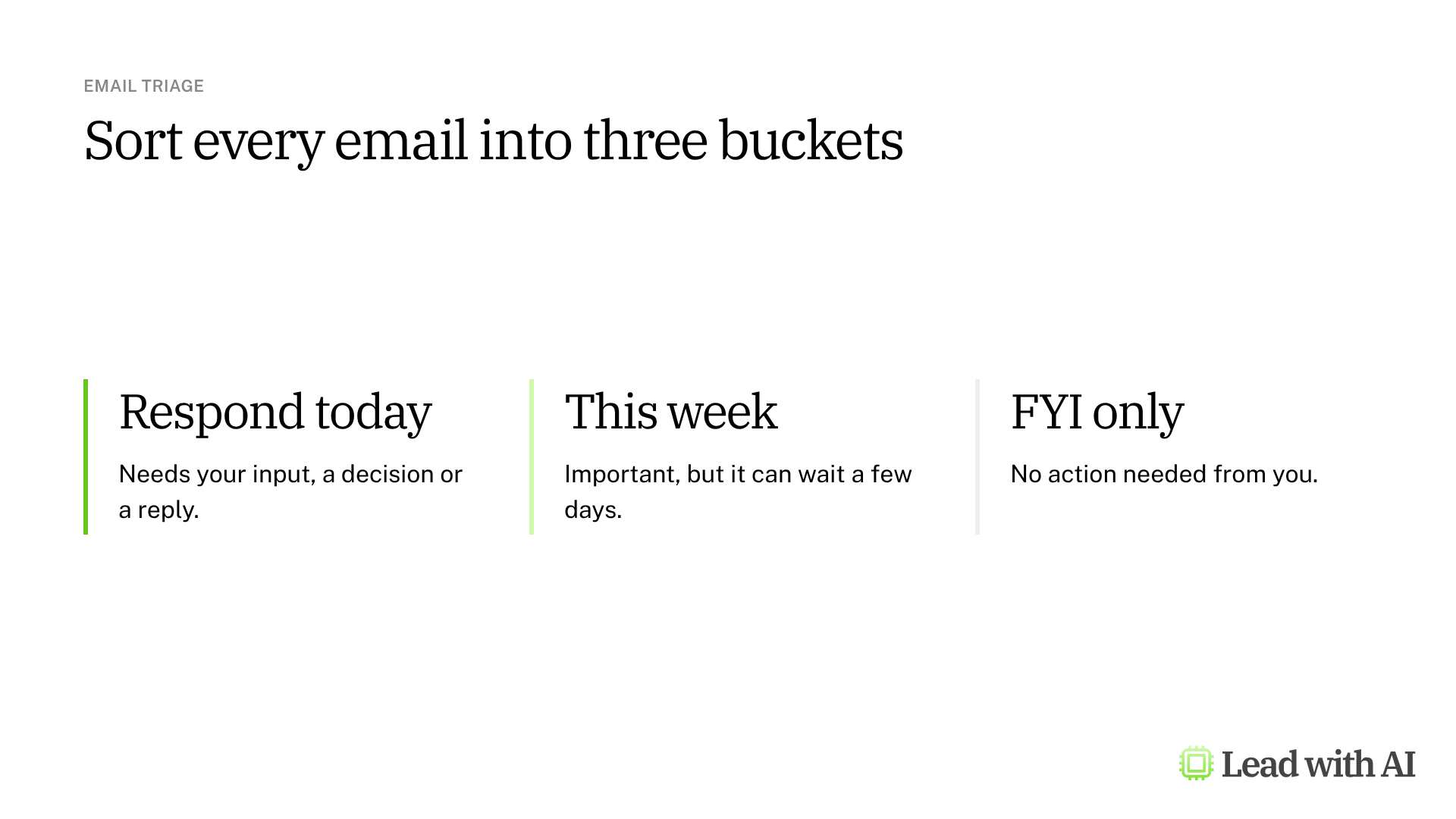
Step 5: Write your triage request with CODO. We recommend structuring every request with our CODO framework. Tell Claude who to be (Character), what you need (Objective), what to do and avoid (Do and Don't), and what to hand back (Output). The prompt below sorts every email into three buckets.
Step 6: Keep the prompt in a Project. Create a Claude Project and paste the prompt below into its instructions. Start your morning triage there, and remember to switch on Gmail in each new chat.
A CODO prompt to start with
Paste this into a new Claude chat with Gmail switched on.
Character: You are the world's most efficient executive assistant, someone who has managed inboxes for demanding senior leaders for 20 years and knows what is urgent, what can wait and what is noise.

Objective: Use Gmail to look at my emails from the last 24 hours and triage them, so I open my inbox knowing exactly what needs my attention today.

Do:
- Put every email in one of three buckets: Respond today (needs my input, a decision or a reply), This week (important but not time-sensitive) and FYI only (no action needed from me).
- For every Respond today email, give me a one-line summary of what is being asked and a suggested first sentence for my reply.
- List Respond today emails in priority order, most urgent first.
- If an email looks routine but hides a request or an escalation, put it in Respond today and tell me why.
- Include a Gmail link for every email you list.

Don't:
- Don't send, reply to, forward, archive, label or change any email, and don't mark messages as read.
- Don't create Gmail drafts. Show any suggested wording in this chat only.
- Don't summarize emails I do not need to act on. The label is enough.
- Don't add extra commentary.

Output:
One prioritized list, organized by bucket: Respond today first, then This week, then FYI only. Respond today emails get the subject line, the Gmail link, the one-line summary and a suggested first sentence. The others get the subject line and the Gmail link only.
What will your IT and legal teams ask?
- What can Claude see? Only the Google account you connected, and only the email that account can already access. Claude goes into Gmail only when you ask for something that needs it. For attachments, it sees the names and other metadata, not the content.
- Can it send email? Yes. Claude can send, reply and forward, and by default it asks for approval first. On Team and Enterprise plans, owners decide whether members can let these actions run without asking.
- Is our email used to train Anthropic's models? Anthropic says it does not train its models on Gmail connector data. On consumer plans with model training turned on, content you copy from Gmail, or Claude responses that contain it, may be used. Retrieved data is stored with the chat and deleted when you delete the chat.
- Can admins control it? On Team and Enterprise plans, an Owner or Primary Owner enables the connector and can turn it off in Organization settings. A Google Workspace admin may need to mark Claude as a trusted app.
Claude for Gmail or another AI tool?
Claude puts your inbox in the same conversation as your other work. It works well when a reply needs reasoning, sources you can check, or context from your calendar and documents.
If you want help inside the Gmail window, Gemini in Gmail is built in. If your company runs on Microsoft 365, Copilot in Outlook is the equivalent. Claude also has a separate Microsoft 365 connector.
Key takeaways
- Connect Gmail once under Customize, then Connectors, and switch it on in each chat.
- Check the mode before you start, and keep Manual mode for email.
- Ask for a link to every email Claude uses, and open it before you act.
- Let Claude draft in the chat, and send from Gmail yourself.
- Write your triage request with CODO, and keep it in a Project.




