




If you built Gems in Gemini, they are about to change.
Google is replacing Gems with skills: saved instructions, and optional files, that you can call in any Gemini chat. You capture how a recurring task should be done once, and Gemini follows that process every time you need it.
What goes into a Gemini skill

- Name. Lowercase words joined by hyphens, such as write-leadership-updates. You use it to call the skill.
- Description. What the skill does and when to use it. Gemini reads the name and description to decide when a skill is relevant, so be specific.
- Instructions. The repeatable process Gemini should follow, rather than the details of one task.
- Files. Optional templates, style guides or spreadsheets. Gemini opens them only when it needs them.
How skills differ from Gems

- You call a skill in any chat. A Gem was a separate chatbot you opened first. A skill works inside the conversation you are already having.
- Gemini can apply skills on its own. Active skills are used automatically when they match your request.
- You can combine skills in one prompt or across a conversation.
- Skills use an open format. Each skill is a SKILL.md file, an open standard that other AI tools also support, so your work is not locked into Gemini.
What happens to your Gems

The dates depend on your account.
- Personal Google accounts: on November 17, 2026, Gems turn into skills and become read-only. On December 17, 2026, they are removed.
- Google Workspace business, enterprise and nonprofit: Gems move to Settings on November 17 and keep working. Google will remove them no sooner than March 1, 2027.
- Google Workspace education: no sooner than June 1, 2027.
Google converts Gems into skills automatically, with their names, descriptions, instructions and supported files. Sharing permissions carry over. Some things do not come along:
- Unsupported files, such as audio, video, legacy Office formats (.doc, .xls, .ppt) and archives. Files above the size limit are dropped too, starting with the largest.
- Most default tools, such as Deep Research, Canvas and Guided Learning, which do not work with skills.
- Workspace apps. Gems become skills only in the Gemini app, not in Gmail, Docs or Google Workspace Studio.
Before your deadline, download any knowledge files that will not transfer, delete the Gems you no longer use, and review each converted skill before you rely on it. Converted skills can arrive switched off, so activate the ones you want.
How to build a skill, step by step
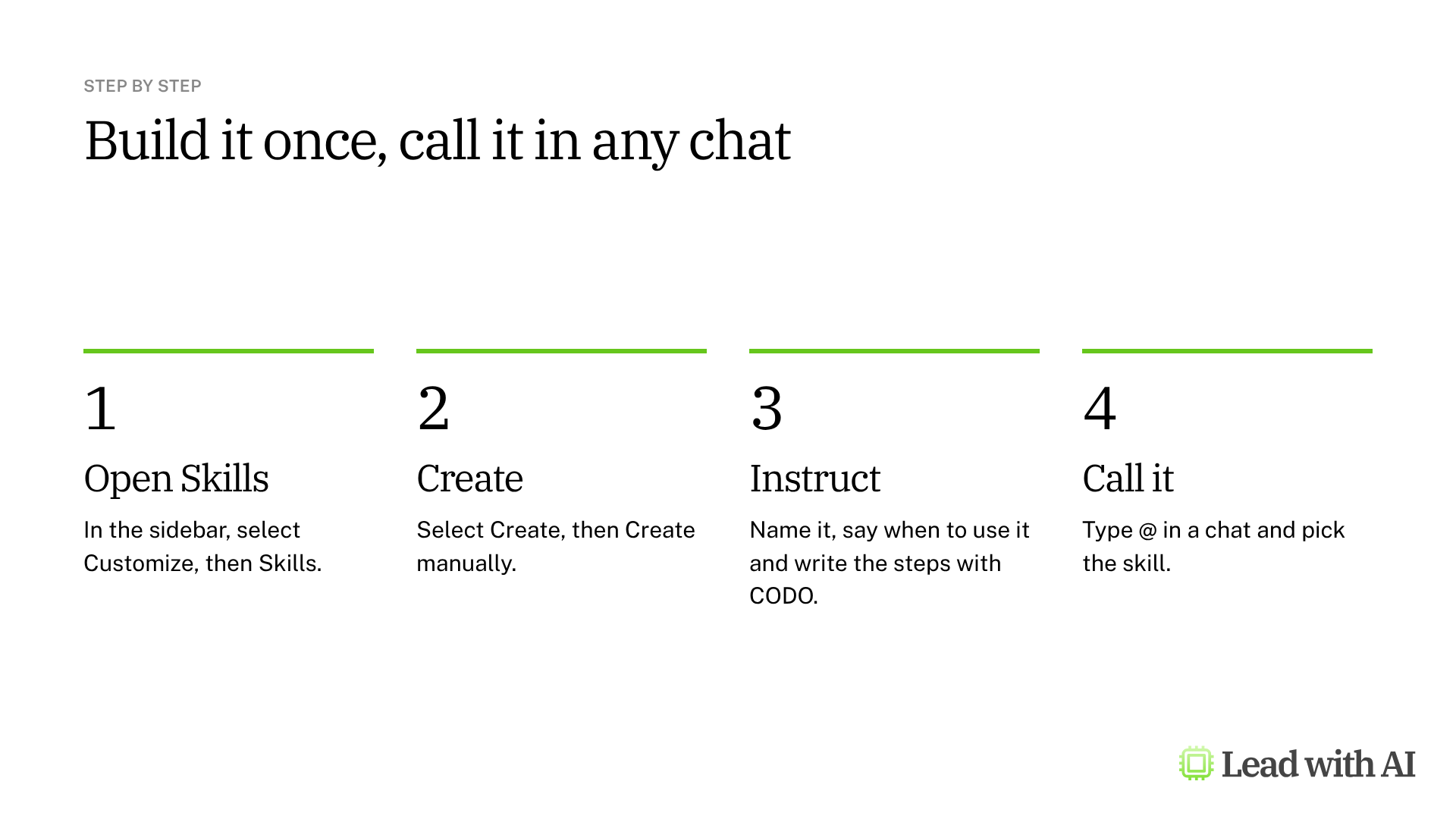
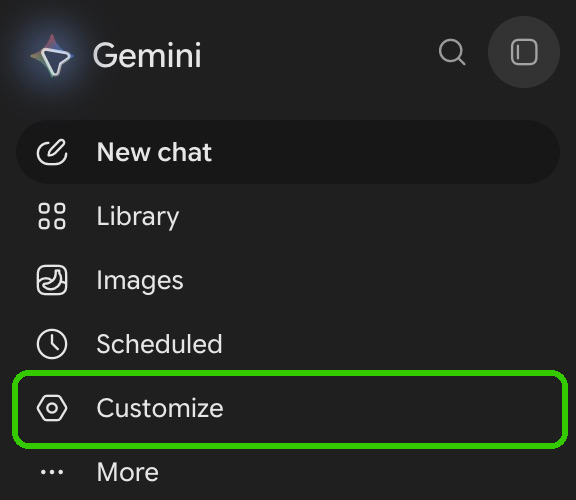
Step 1: Open the Skills page. Go to gemini.google.com. In the sidebar, select Customize, then the Skills tab. If you do not see Customize, look under More.
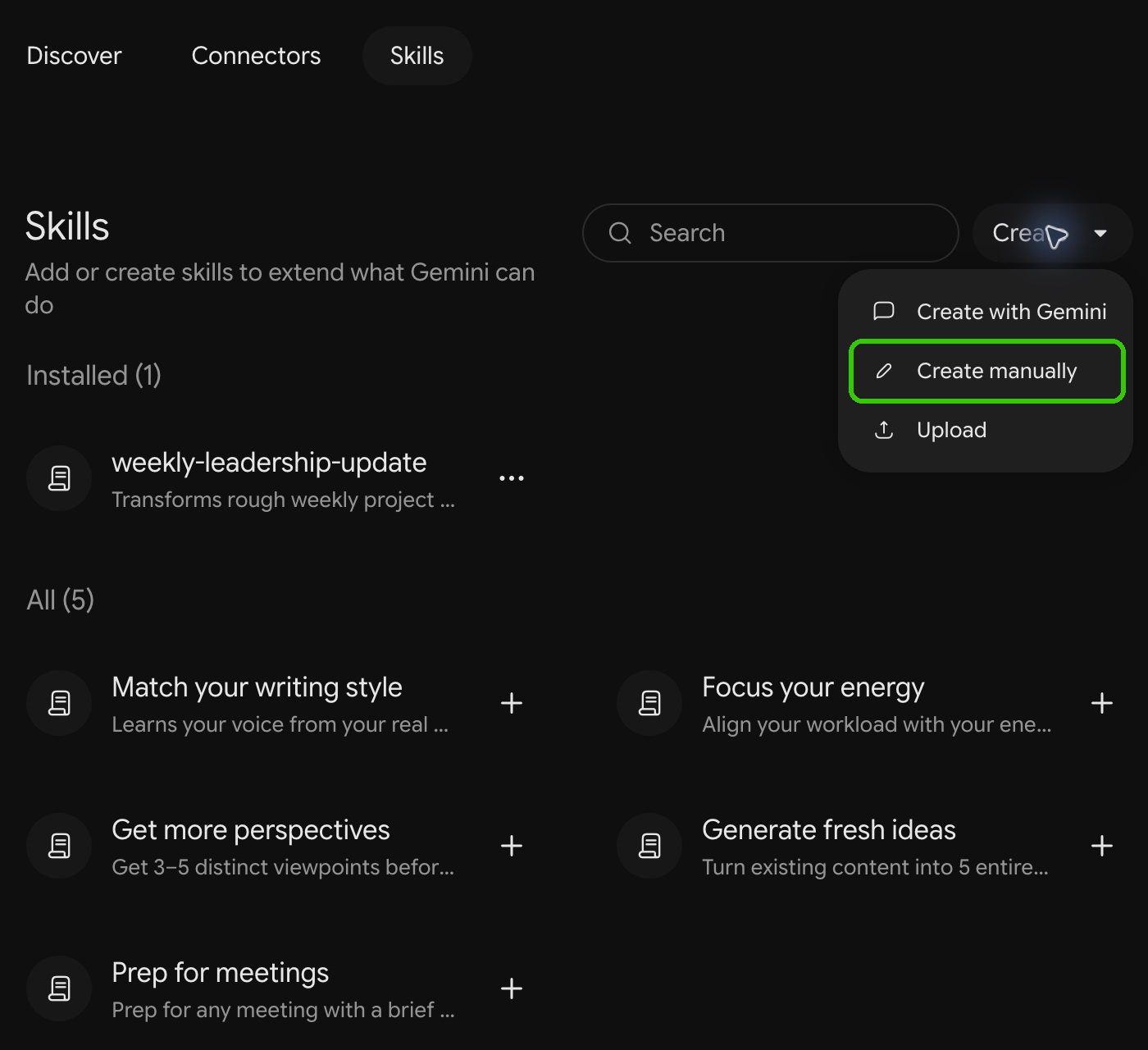
Step 2: Create the skill. Select Create. You can let Gemini interview you (Create with Gemini), write it yourself (Create manually) or upload a SKILL.md file (Upload). You can also start from one of Google's examples, such as Prep for meetings.
Step 3: Name and describe it. Enter a name such as write-leadership-updates. Then describe what the skill does and when to use it: “Creates concise, decision-ready leadership updates from rough project notes. Use when preparing weekly status reports or executive updates.”
Step 4: Write the instructions with CODO. We recommend structuring them with our CODO framework: who Gemini should be (Character), what you need (Objective), what to do and avoid (Do and Don't), and what to hand back (Output). Describe a repeatable process, not one particular update. A template is below.
Step 5: Add files if they help. Select Add files to include a reporting template or style guide, from your device or, where available, from Google Drive. Each skill can hold up to 100 MB of files. Then select Save skill.
Step 6: Test it in a new chat. Type @ in the prompt box (on some accounts, /), select the skill and paste your notes. Check the format, the figures, the decisions and the next steps. Then test it without any notes: a good skill asks for what is missing instead of inventing it.
Step 7: Refine it. Go back to Skills, open the skill's options and edit the instructions yourself, or select Edit with Gemini. Save, then test again.
Choose when Gemini uses a skill
Active skills are applied automatically when Gemini judges them relevant. That is convenient, but less predictable. When the format matters, call the skill yourself with @.
To stop Gemini from using a skill on its own, go to Customize, then Skills, open the skill's More menu and select Deactivate. You can keep as many skills as you like, but only 100 can be active at once.
What your plan includes
- Skills do not need a paid plan. They work on free personal accounts for anyone 18 or older, in the Gemini web app, the Mac app and the mobile apps. Uploading files works on the web and in the Mac app.
- Google AI Plus, Pro and Ultra raise your overall usage limits and give you more capable models.
- Google Workspace: skills work in the Gemini app on every edition. In Gmail, Docs, Slides, Drive and Chat, they are rolling out from November 2026 for most Business and Enterprise editions.
For now, skills you build in the Gemini app do not carry over to Gmail, Docs and Slides, which have their own skills. There, you create a skill by asking Gemini in the side panel, and call it with @. Our guide to Gemini in Gmail shows how.
How to share a skill
In the web app, go to Customize, then Skills, open the skill's More menu and select Share skill. Add people by email and give them Viewer or Editor access. Editors can change the instructions and files. Viewers can use the skill.
Share the attached files too, or your colleagues get the instructions without the reference material. Shared skills arrive switched off, so each person activates the skill first. In Google Workspace, sharing in the Gemini app is still rolling out, and admins decide whether you can share outside your organization.
When a skill earns its place
There are four situations where a skill pays off quickly:
- A recurring deliverable, such as a weekly leadership update or a board summary.
- A process with rules, such as reviewing contracts or invoices against your guidelines.
- A house style, such as your brand voice across emails, documents and slides.
- Corrections you keep repeating, such as “flag missing owners” or “no jargon.”
Want a ready-made starting point? These how-to articles give you instructions that work well as skills:
- Build SOPs for any workflow: a process interviewer that turns team know-how into standard operating procedures.
- Set up your strategic board of directors: a skill that pressure-tests your decisions through the eyes of a CEO, a chief of staff and an operator.
- Build your AI mailbox assistant: written for Gems, and the same instructions work as a skill.
- Google Workspace Studio skills: how skills work across Docs, Slides, Gmail and Chat.
If you also use ChatGPT or Claude, read our guides to ChatGPT Projects and Claude Projects.
A CODO template for your skill instructions
Paste this into Instructions when you create the skill, and adapt the bracketed parts.
Character: You are Larry, my leadership update writer for [the executive leadership team].

Objective: Turn my rough weekly project notes into a concise, decision-ready update.

Do:
- Summarize progress, decisions needed, risks and deadlines.
- Keep every fact, figure and date exactly as I supplied it.
- Mark missing owners or deadlines as Not provided, and ask me for them.
- If I give you no notes, ask for the notes and the reporting period before you draft.

Don't:
- Don't add status labels, urgency or assessments that my notes do not support.
- Don't use corporate jargon.

Output:
A one-page update with the headings Progress, Decisions needed, Risks and Next steps.
What will your IT and legal teams ask?
- Who can see a skill? Only you, until you share it. Sharing creates a copy in Google Drive with Viewer or Editor access.
- Is our data used to train Google's models? Not on Google Workspace. Google says Workspace content is not used to train its models outside your organization without permission. On personal accounts, it depends on the Keep Activity setting, and some chats may be read by human reviewers.
- Can skills run code? Uploaded skills can include scripts, such as Python. Those scripts cannot reach the internet.
- Can admins control skills? Admins can turn skills on or off in Workspace apps and Workspace Studio, and decide separately whether people can share skills outside the organization.
- What happens to our Gems? They keep working in Workspace until at least March 1, 2027. Google recommends rebuilding the important ones as skills and deleting the rest.
Gemini skills or another assistant?
Skills are the right home for a repeatable process in Gemini, because you can call them wherever you already work.
For work that needs its own files and chat history, Gemini also has notebooks. ChatGPT and Claude offer Projects, and Microsoft 365 has Copilot agents and notebooks. If your company runs on one of those platforms, start there.
Key takeaways
- Rebuild your important Gems as skills, and download files that will not transfer before your deadline.
- Write a specific description, because Gemini uses it to decide when a skill applies.
- Write the instructions with CODO, as a repeatable process.
- Call the skill with @ when the format matters.
- Test it with missing information, and check that it asks instead of inventing.




