



If you keep explaining the same context to ChatGPT, a Project fixes that.
A Project keeps the instructions, reference files and chats for one piece of recurring work in a single workspace. You set it up once, and every new chat inside it starts with the context it needs.
What goes into a project
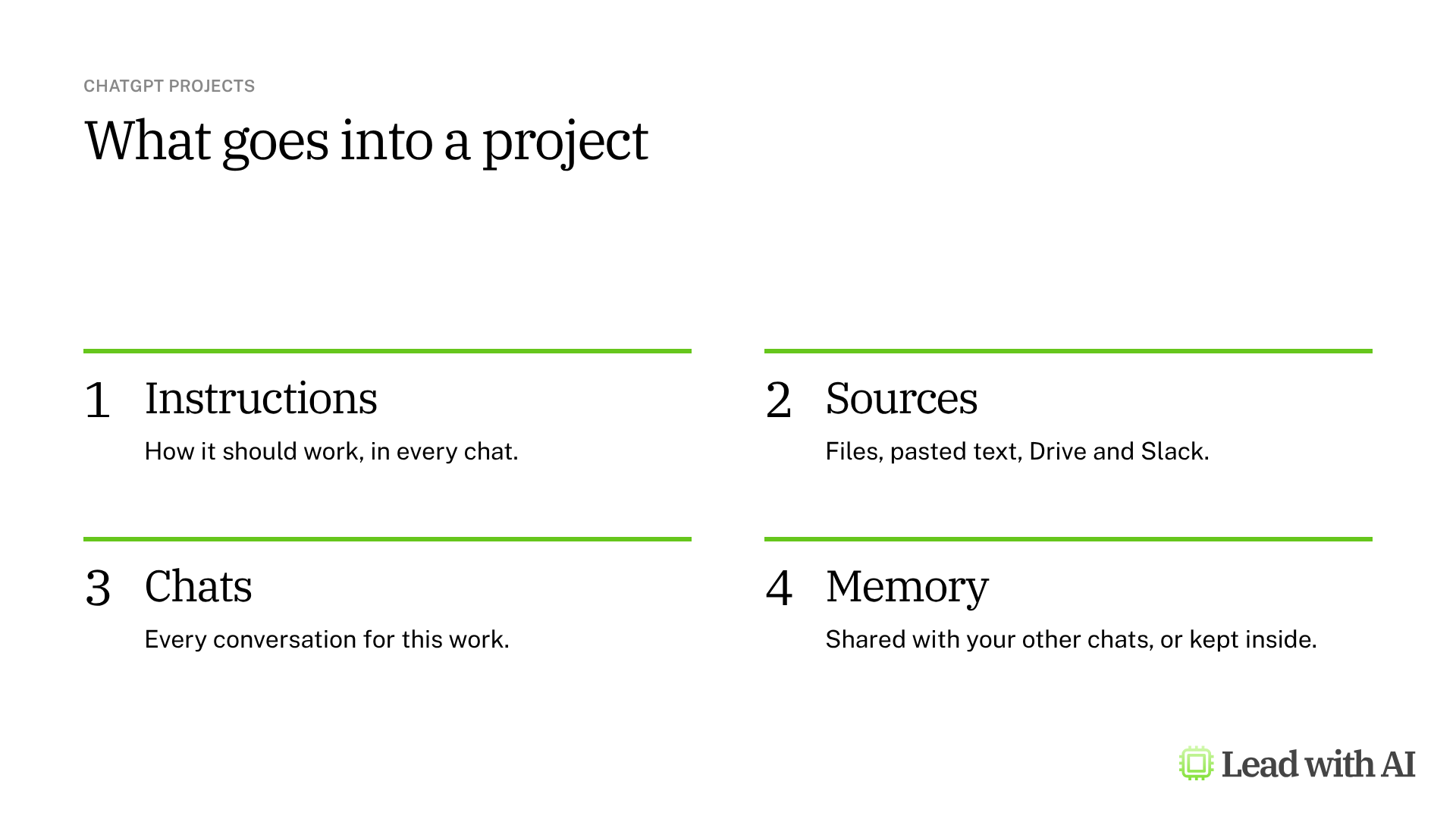
- Instructions. How ChatGPT should work in every chat in the project. They override your general custom instructions while you are inside it.
- Sources. The files and reference material it should know, such as a strategy document, a template or last month's report.
- Chats. Every conversation about this work, kept together instead of scattered through your history.
- Memory. Whether the project can use what ChatGPT knows from your other chats, or keeps to itself.
How to set up a project, step by step
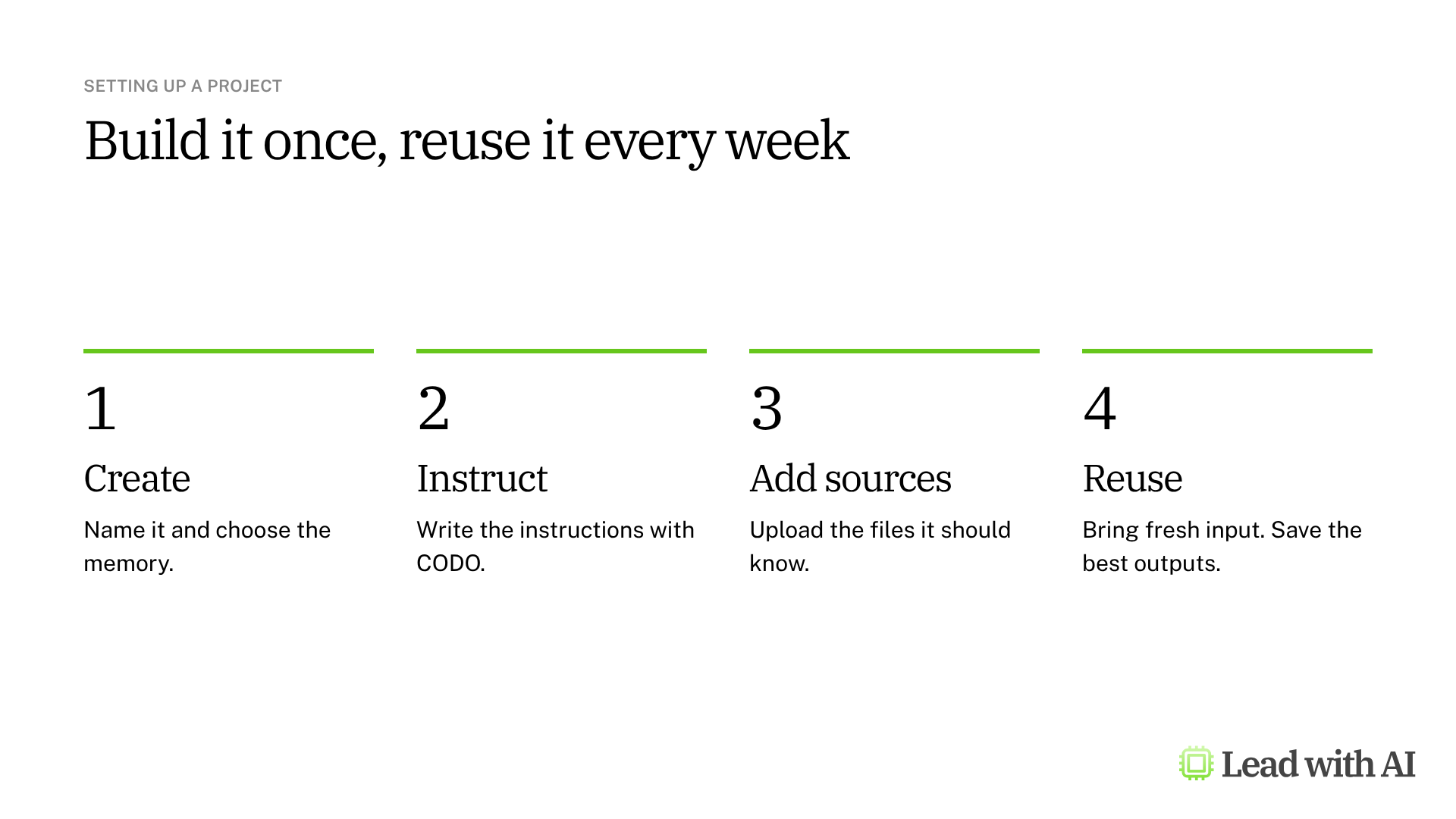
Step 1: Create the project. In the sidebar, select the + next to Projects. Give it a name you will recognize, such as “Larry, Leadership Updates,” and pick an icon and a color.
Step 2: Choose the memory. Before you select Create project, open the memory menu.
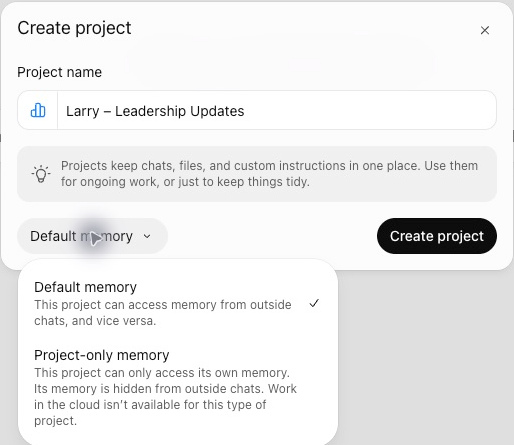
- Default memory. The project can use memory from your other chats, and the other way around.
- Project-only memory. What happens in the project stays in it. Choose this for one focused, recurring job, such as a weekly update or a client account. On some accounts it also turns off Work mode and access to your file Space.
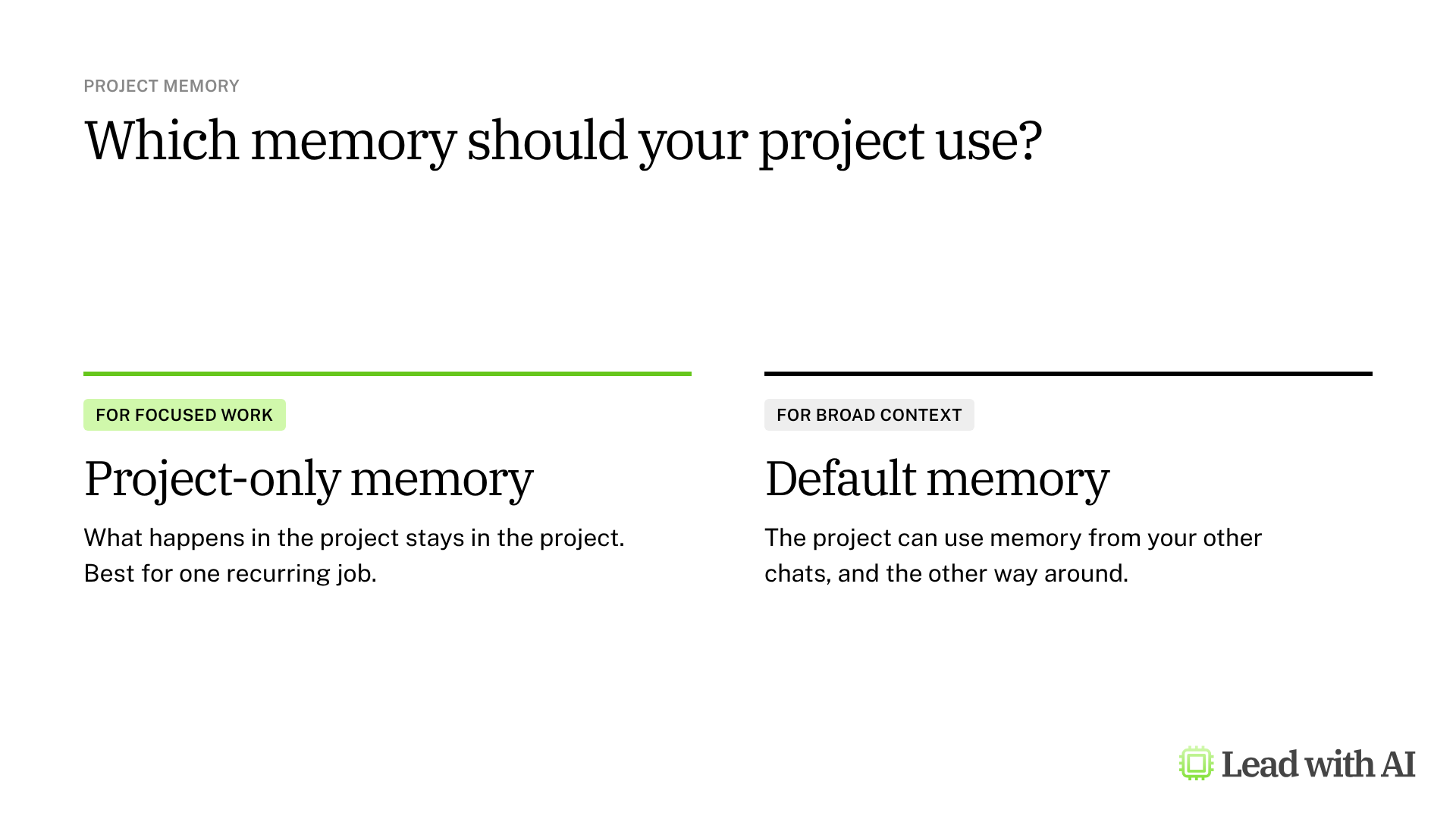
Step 3: Write the instructions with CODO. Open the three-dot menu next to the project name, select Project settings and fill in Instructions. We recommend structuring them with our CODO framework: who ChatGPT should be (Character), what you need (Objective), what to do and avoid (Do and Don't), and what to hand back (Output). A template is below.
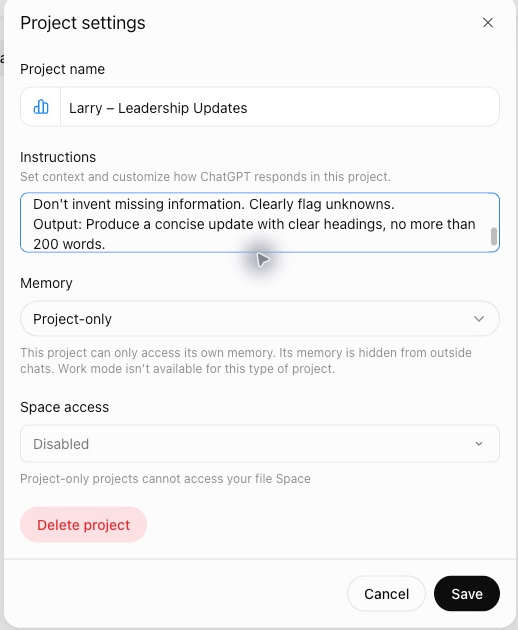
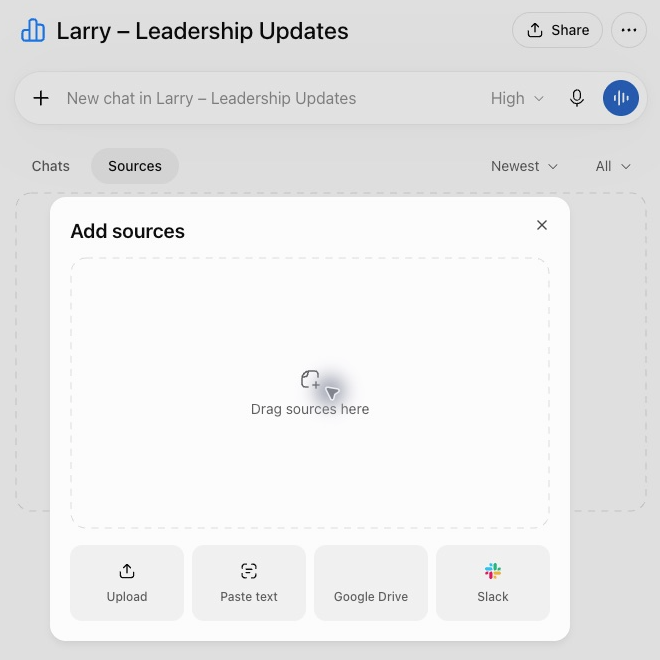
Step 4: Add your sources. Open the Sources tab and select Add sources. You can upload files, paste text, or add a Google Drive file or folder or a Slack channel.
Step 5: Bring fresh input each week. Start a chat inside the project and paste this week's notes. You do not need to repeat what is already in the sources, such as targets or deadlines. Check the response before you use it, especially its assumptions, dates and recommendations.
Step 6: Save the best outputs. When a response is worth keeping, select Add to project sources below it. It becomes reference material for next time.
You can also move an existing chat into a project. In the sidebar, open the chat's three-dot menu and select Move to project. Chats created with a custom GPT cannot be moved. Custom GPTs retire on December 11, 2026, and ChatGPT plugins replace them.
What your plan includes
Projects are available on every ChatGPT plan, including Free. What changes is how many files and collaborators each project can have:
- Free: up to 5 files and 5 collaborators.
- Go and Plus: up to 25 files and 10 collaborators.
- Pro: up to 40 files and 100 collaborators.
- Business, Enterprise and Edu: up to 40 files and 100 collaborators.
How to share a project with your team
Select Share on the project page and choose who gets access: only the people you invite, or anyone in your workspace with the link. Each person gets chat access or edit access.
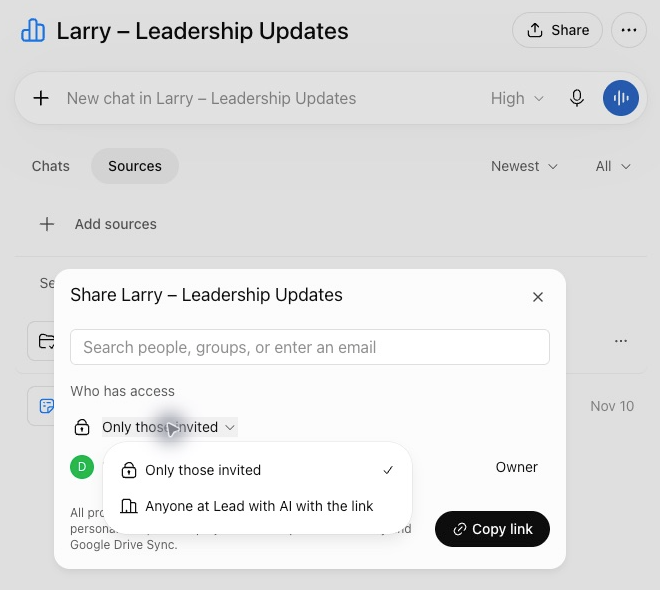
Check what is in the project before you share it. Collaborators can see its chats, files and instructions. Shared projects switch to project-only memory automatically, so nobody's personal memory comes along.
When a project earns its place
There are four situations where a project pays off quickly:
- A weekly deliverable, such as a leadership update, a pipeline review or a board pack.
- An ongoing client or account, where the background never changes but the questions do.
- Research that builds over time, with sources you add as you go.
- Team work with shared context, where several people need the same instructions and files.
Want a ready-made starting point? These how-to articles give you prompts that work well as project instructions or sources:
- Set up your strategic board of directors: a project that pressure-tests your decisions through the eyes of a CEO, a chief of staff and an operator.
- Turn your working style into a reusable operating manual: a Work-With-Me guide you can add as a source, so every project knows how you work.
- Build SOPs for any workflow: a shared team project that turns process knowledge into procedures others can follow.
- Custom GPTs or ChatGPT Projects?: written before the custom GPT retirement was announced. The advice on Projects still applies, and plugins now take the place of custom GPTs.
For one-off questions, a normal chat is faster. For writing in ChatGPT, see our guide to ChatGPT for writing. If you also use Claude, read our guide to Claude Projects.
A CODO template for your project instructions
Paste this into the Instructions field in Project settings, and adapt the bracketed parts.
Character: You are Larry, my chief of staff for [weekly leadership updates].

Objective: Turn my rough weekly notes into a decision-ready update for [my leadership team].

Do:
- Highlight progress, risks, decisions needed and next steps.
- Use the project sources for targets, deadlines and terminology, so I do not have to repeat them.
- Flag anything missing, such as owners, dates or budget impact.

Don't:
- Don't invent missing information. Flag unknowns clearly.
- Don't repeat background the leadership team already knows.

Output:
A concise update with the headings Progress, Risks, Decisions needed and Next steps, in no more than 200 words.
What will your IT and legal teams ask?
- Who can see a project? Only you, until you share it. Collaborators then see its chats, files and instructions.
- Is project content used to train OpenAI's models? The same rules apply as in the rest of ChatGPT. Not on Business, Enterprise or Edu, by default. On personal plans, it is used unless you turn off “Improve the model for everyone.”
- Can admins limit sharing? In managed workspaces, invitations can be limited to workspace members. Business, Enterprise and Edu can also share with groups.
- Does a project connect to Google Drive or Slack? Only if you add a link as a source and approve access. Google Drive content in a project is not synced in advance.
ChatGPT Projects or another assistant?
Projects are the best fit for your own recurring work in ChatGPT, because they keep the chats, files and instructions together.
Inside ChatGPT, plugins do a different job: they carry a skill and its connected apps into any conversation. The two work well together.
Claude has Projects too, Gemini has skills, which replace Gems, and Microsoft 365 has Copilot agents and notebooks. If your company runs on one of those platforms, start there.
Key takeaways
- Create one project per recurring job, not one for everything.
- Choose project-only memory when you want the work to stay focused.
- Write the instructions with CODO, so every chat starts the same way.
- Add the sources once, then bring only fresh input each week.
- Save the best outputs as sources, so the project gets better over time.




