




Most research tools give you a report and leave you to trust it. Gemini Notebook lets you choose exactly which evidence your answers come from.
Deep Research in Gemini Notebook finds sources on the web, writes a research report and lets you import only the sources you trust. Every later answer is grounded in that selection, with citations you can click. Grounding makes claims easier to trace, but it does not guarantee they are right, so the judgment stays yours.
Where to find Deep Research in Gemini Notebook
Open Gemini Notebook, the tool called NotebookLM until July 2026, and create a notebook. In the Sources panel, choose Web, switch from Fast Research to Deep Research and enter your prompt.
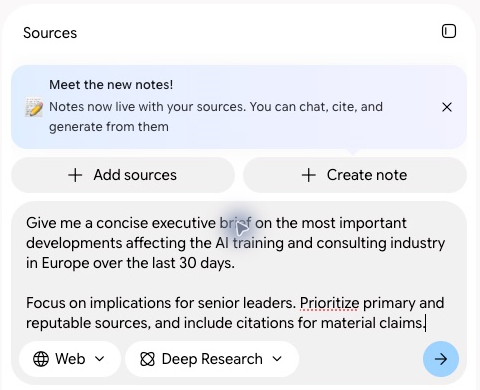
Fast Research returns a list of sources to review quickly. Deep Research reads further and writes a report, which takes a few minutes.
What your plan includes
- Personal accounts: Gemini Notebook works on a free Google account, and Google AI Pro and Ultra give you higher limits.
- Google Workspace: your organization provides access, as long as your admin has Gemini Notebook switched on.
- Limits: Google measures usage by the computing each request takes, with an allowance that refreshes every few hours.
When Gemini Notebook earns its place
There are four situations where Deep Research in Gemini Notebook pays off quickly:
- A briefing you will revisit, such as a monthly market update.
- A topic where source quality matters, so you want to approve every source.
- Research that needs several outputs, such as a report, a slide deck and a mind map.
- A mix of web research and your own files, such as Docs, PDFs and Sheets.
How to research a topic, step by step
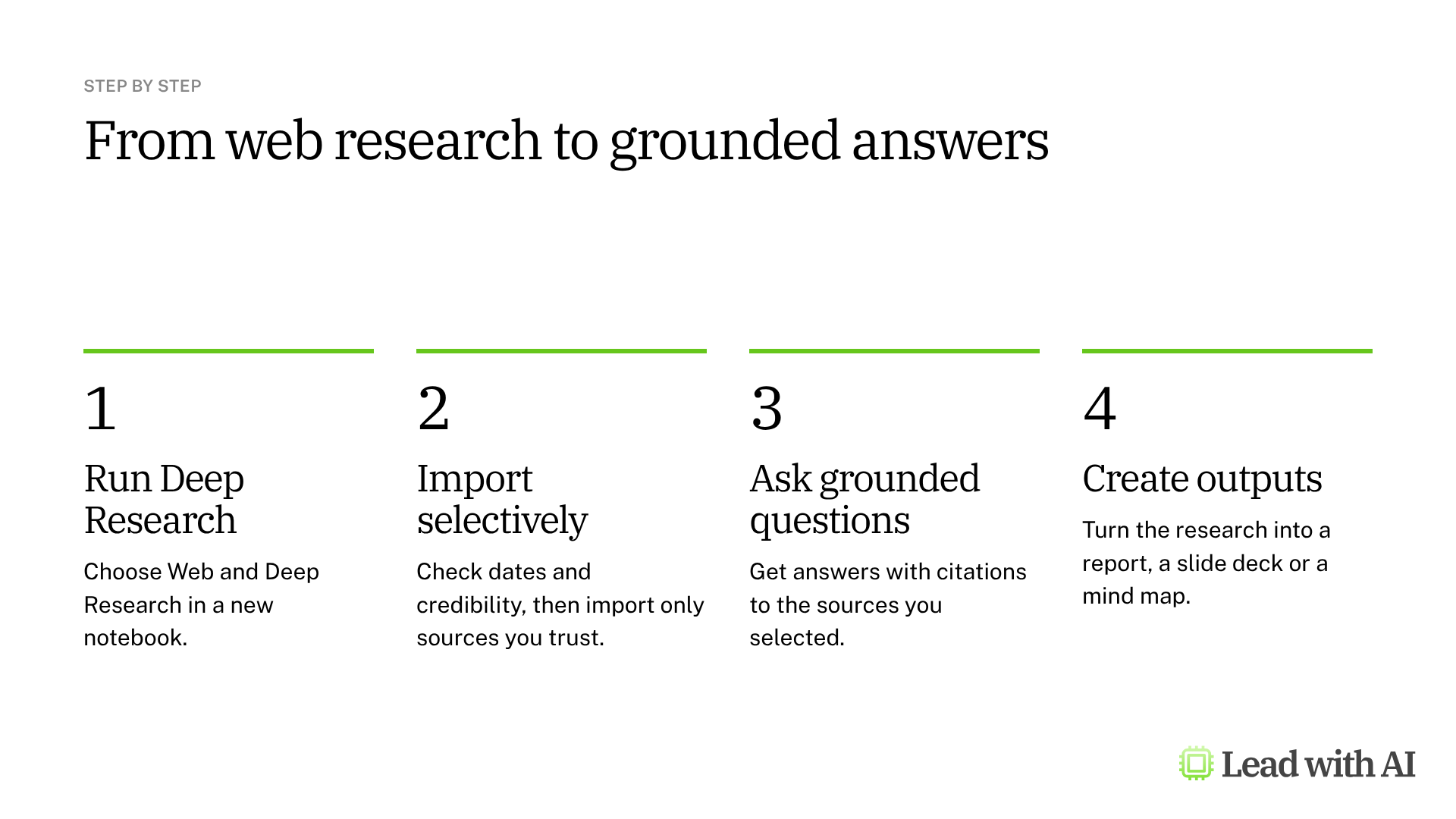
Step 1: Run Deep Research. Create a notebook without sources, choose Web and Deep Research, and enter your prompt. A template is below.
Step 2: Review what it found. When the report is ready, select View sources to see the report and the sources it cited.
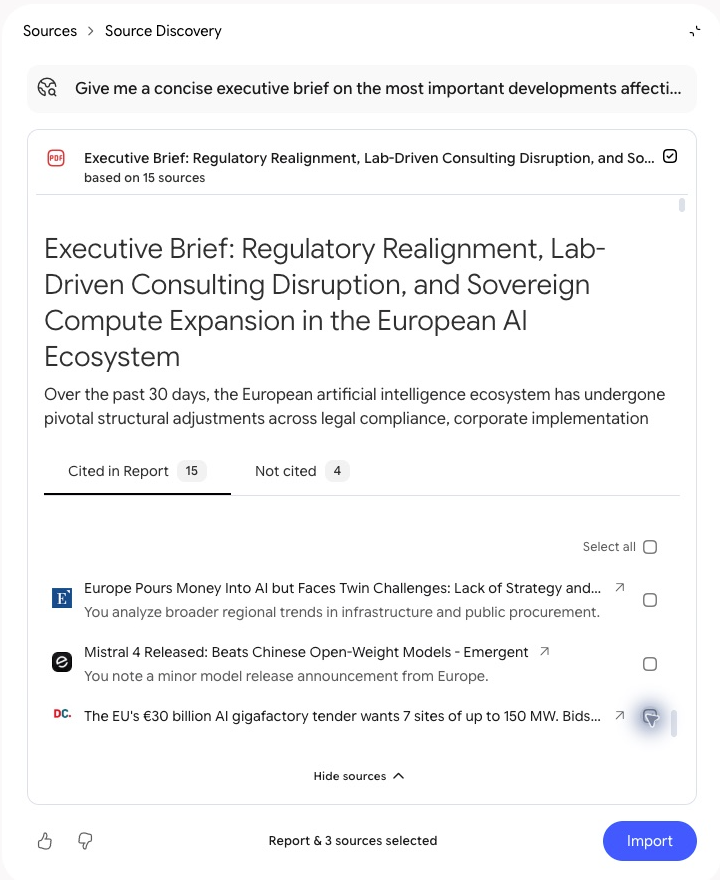
Step 3: Import selectively. Open suggested sources, check their dates and credibility, and import only the relevant ones. A “last 30 days” prompt can still return older material, so check the dates yourself. If you keep the report itself, treat it as AI-written synthesis, because its findings can shape later answers too.
Step 4: Ask grounded questions. Ask, for example, “What are the two most important developments for leaders? Cite the evidence, and separate source facts from your recommendations.” Click a citation to see the passage behind it, and select or deselect sources to control what each answer uses.

Step 5: Create outputs. In the Studio panel, turn the research into a briefing report, a slide deck or a mind map. Describe the audience, length and focus for each one.
Step 6: Keep it current. Sources from Google Drive can sync when the files change, but uploaded files need replacing. Updating a source does not update outputs you already created, so generate them again when the evidence changes.
A CODO prompt to start with
Paste this into Deep Research in the Sources panel, using our CODO framework, and replace the bracketed parts.
Character: You are an industry analyst who briefs senior leaders on developments in their market.

Objective: Give me a concise executive brief on the most important developments affecting [the AI training and consulting industry in Europe] over the last [30] days.

Do:
- Focus on implications for senior leaders.
- Prioritize primary and reputable sources.
- Separate source facts from your recommendations.
- Include citations for material claims.

Don't:
- Don't include background older than [90] days unless you label it.
- Don't rely on press releases alone for market claims.

Output:
An executive brief of one page, followed by the five sources that matter most.
Want a ready-made starting point? These how-to articles show practical ways to research with Gemini Notebook:
- Level up your report with Deep Research: find strong sources before you write.
- Build a competitive intelligence brief: gather the sources for a competitor briefing in five steps.
- Create slide decks and infographics: turn your sources into visuals.
What will your IT and legal teams ask?
- Where do answers come from? Only from the sources selected in the notebook, which makes every claim traceable.
- Is our material used for training? On Workspace accounts, Google says notebook content is not used to train its models.
- Who can see a notebook? Only the people you share it with. Admins can restrict sharing on Workspace accounts.
- Can it reach our Drive? Only the files you add as sources or allow it to search, within the permissions you already have.
Gemini Notebook or another research tool?
Gemini Notebook is the natural choice when you want to control exactly which sources shape your answers.
For a single, broad report from the web and your Workspace data, Gemini Deep Research is faster. For academic evidence, use Consensus. Our overview of AI deep research tools compares all six options.
Key takeaways
- Use Deep Research to find sources, not just to write a report.
- Import only the sources you trust, after checking their dates.
- Treat the report as synthesis, not as a source of facts.
- Click the citations behind every important claim.
- Regenerate outputs when your sources change.




