



If you draft in one tab and research in another, Gemini in Google Docs brings both into the document.
Gemini drafts from your files, email and the web, edits the sections you select and keeps the voice consistent, all inside Docs. Its suggested edits stay visible only to you until you approve them.
Where Gemini shows up in Docs
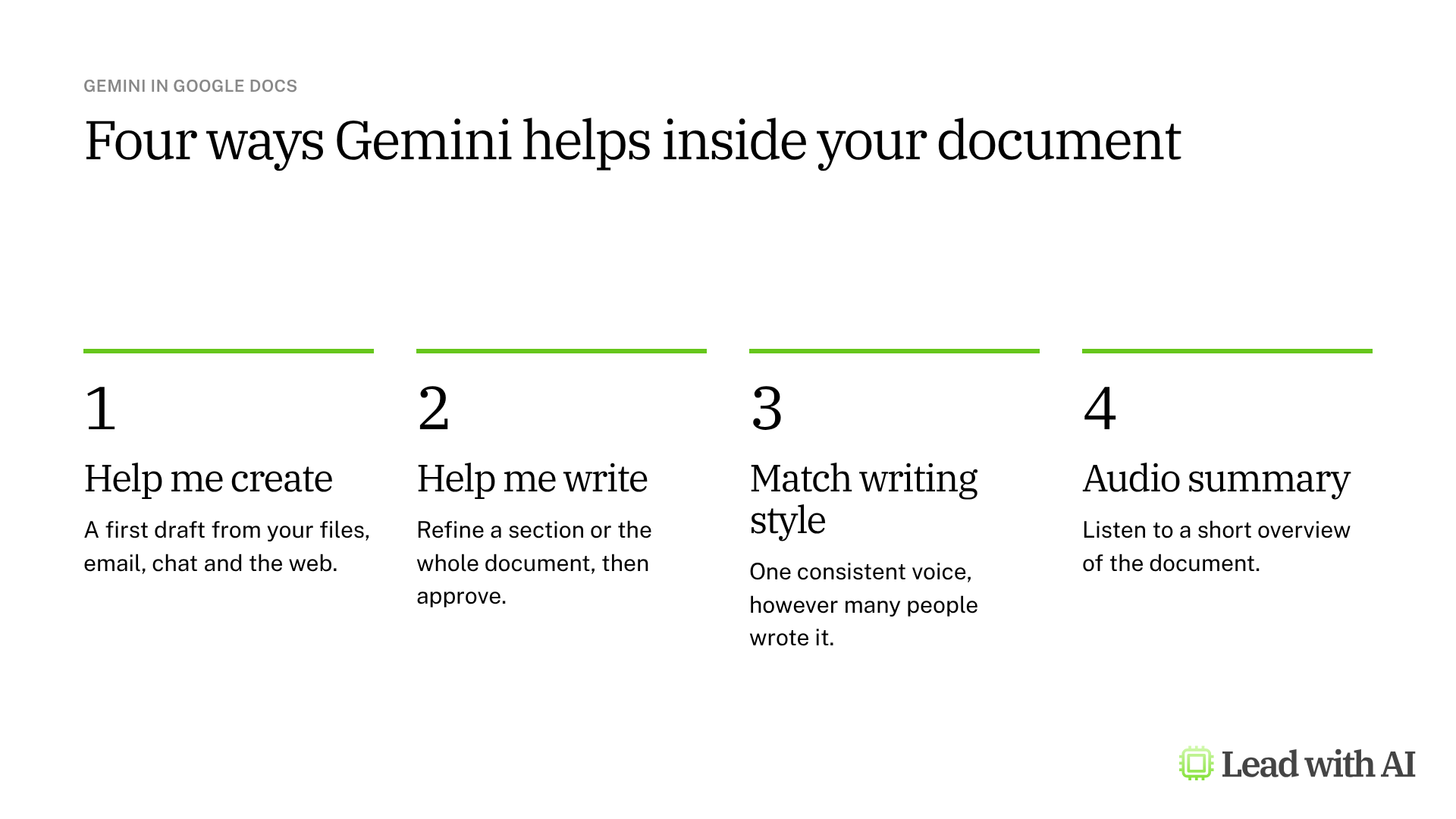
There are two ways in: the Gemini bar at the bottom of the document and the Gemini side panel on the right. Both do the same work.
- Help me create turns a short description into a formatted first draft, using your Drive files, Gmail, Chat and the web.
- Help me write edits a selected passage or the whole document. Ask it to rephrase, shorten, elaborate or change the tone, or give your own instruction.
- Match writing style makes the tone consistent across a document that several people wrote. Match document format copies the fonts, headings and table structure of another document.
- Audio summary reads you a short overview of the document. Find it under Tools, then Audio, then Listen to document summary.
What your plan includes
- Google Workspace: Business Standard and Plus and Enterprise Standard and Plus get the full set, including Help me create, Match writing style and audio summaries. Business Starter includes fewer Gemini features in Docs, so check your edition.
- Personal accounts: the upgraded Gemini in Docs needs a Google AI Pro or Ultra plan.
- Settings: your admin has to turn Gemini on, and you need Workspace smart features switched on in your own settings.
If you used Gems in the Docs side panel, note that Google is replacing them with skills. Skills are rolling out to Docs from November 2026 for most Business and Enterprise editions, as our guide to Gemini skills explains.
When Gemini in Docs earns its place
There are four situations where Gemini in Docs pays off quickly:
- A one-pager or brief built from a report, your notes and a few relevant emails.
- A document several people wrote, which needs one consistent voice before it goes out.
- A first draft that should follow an existing document, such as last quarter's update.
- A long report you need to understand before a meeting, through the audio summary.
How to draft a document with Gemini, step by step
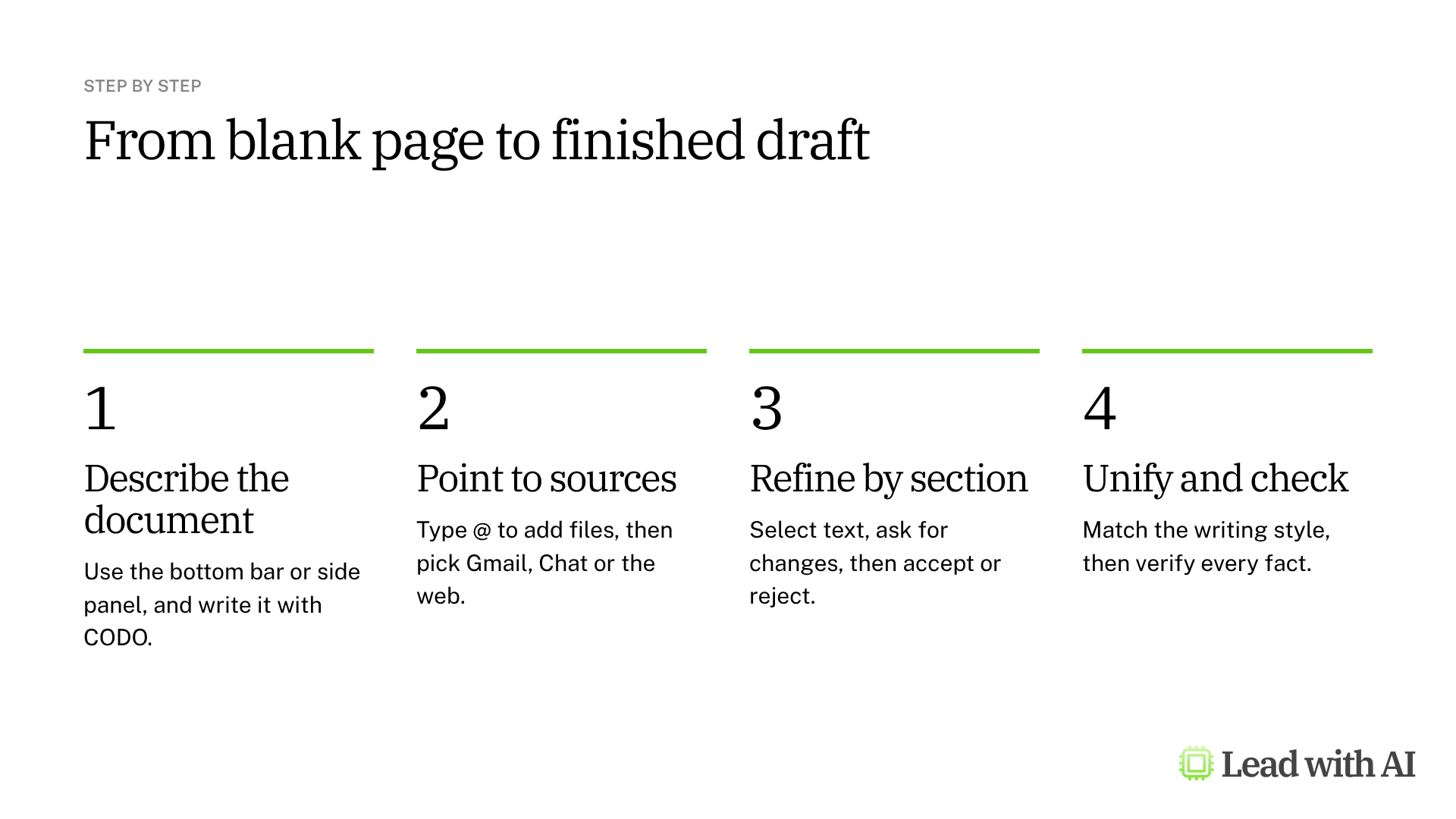
Step 1: Open Gemini. Open a new or existing document. Type in the Gemini bar at the bottom, or open the side panel.
Step 2: Describe the document. Write what you need, ideally with our CODO framework: who Gemini should be (Character), what you need (Objective), what to do and avoid (Do and Don't), and what to hand back (Output). Type @ to point Gemini to a Drive file, so it can use the content or match the structure. A template is below.
Step 3: Choose the sources. Gemini can draw on Drive, Gmail, Chat and the web. If you select one specific source, Gemini searches only there, so deselect it before you ask Gemini to look elsewhere.
Step 4: Review the draft. Check names, numbers and claims against the sources. When Gemini searches Gmail, it cites the emails it used, so open them and verify.
Step 5: Refine one section at a time. Select a paragraph and ask for a change, such as “Make this more executive and concise.” Accept or reject each suggestion, just as you would with a colleague's edits.
Step 6: Unify and listen. Use Match writing style when the tone varies between sections. Then play the audio summary to hear whether your main message comes through.
A CODO prompt to start with
Paste this into the Gemini bar or side panel, and type @ to replace the bracketed file names with your own files.
Character: You are a strategy advisor who writes concise one-pagers for a senior leadership team.

Objective: Turn @[report] into a one-pager that helps my leadership team decide [decision].

Do:
- Use @[report] and @[reference document] as the only sources of facts, structure and terminology.
- Open with the decision and your recommended option.
- Summarize the three insights that matter most, and what each one means for us.
- End with risks and next steps.

Don't:
- Don't add facts or figures that are not in the sources. Flag gaps as questions.
- Don't use generic AI phrasing.

Output:
One page with the headings Decision, Recommendation, Key insights, What it means for us, Risks and Next steps.
Want a ready-made starting point? These how-to articles give you documents worth drafting in Docs:
- Build SOPs for any workflow: turn process knowledge into procedures your team can follow.
- Turn your working style into a reusable operating manual: a Work-With-Me guide for your team.
- Draft a personal introduction that positions you strategically: an introduction for a new role, board or audience.
What will your IT and legal teams ask?
- Who sees Gemini's suggestions? Only you, until you approve them. Then they become part of the document like any other edit.
- What can Gemini see? Only content the user can already open in Drive, Gmail and Chat.
- Is our content used to train Google's models? Google says it does not use the content Gemini analyzes to train its models.
- Can admins control it? Yes. Admins can turn Gemini features off, and each user needs Workspace smart features switched on.
Gemini in Docs or another AI tool?
Gemini in Docs is the natural choice if your company runs on Google Workspace, because it drafts from the files, emails and chats already there.
If you work in Microsoft 365, see Copilot in Word or Claude for Word. To draft outside your documents, see ChatGPT for writing. Our comparison of AI writing tools for senior leaders covers all four.
Key takeaways
- Describe the document with CODO, and point Gemini to your files with @.
- Choose the sources on purpose, and deselect a source when you want Gemini to look wider.
- Refine one section at a time, and accept only the changes you want.
- Use Match writing style when several people wrote the document.
- Check every fact before you share the document.




