




If your company runs on Google Workspace, you do not need to export your data anywhere to analyze it with AI.
Gemini sits inside Google Sheets. It reads the sheet in front of you, answers questions in plain language and inserts charts, tables and formulas straight into the file. Because the results land in your sheet, your team can keep working with them.
Where to find Gemini in Google Sheets
Gemini appears in two places in any sheet:
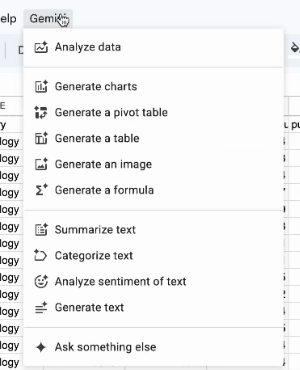
- The Gemini menu in the menu bar, with one-click actions such as Analyze data, Generate charts, Generate a pivot table, Generate a formula, Categorize text and Analyze sentiment of text.
- The Ask Gemini button at the top right, which opens a side panel where you can ask questions about your data in plain language.
What your plan includes
- Google Workspace: Gemini in Sheets is included in Business Standard and Plus, and Enterprise Standard and Plus.
- Personal accounts: it is included in Google AI Pro and Google AI Ultra.
- Higher limits: organizations that need more can add the AI Expanded Access add-on.
- Admin settings: if you do not see Gemini, your admin may not have turned it on for your account.
What Gemini in Sheets can do in 2026
Gemini has grown well beyond answering questions about a table. These are the features most worth knowing:
- Create or edit a whole sheet from a prompt, such as a hiring tracker or a budget layout.
- Fill with Gemini, which completes a column for you based on the examples and instructions you give.
- Paste to table, which turns messy pasted text into a clean, structured table.
- One-click formula fixes, which explain and repair formula errors.
- The AI function, which runs a prompt on each row, for example to categorize customer feedback.
When Gemini in Sheets earns its place
- Your team data already lives in Sheets, such as trackers, exports and shared reports.
- You need a new sheet quickly and would rather describe it than build it from scratch.
- You have a column of text to sort, such as survey answers or customer comments.
- A formula is broken, or you inherited a sheet and need to understand how it works.
How to analyze data with Gemini in Sheets, step by step
The examples below use a public job market dataset with roles, salaries, skills and locations. The same prompts work on any dataset, from a sales export to survey results.
Step 1: Open the right tab. Gemini works from the sheet in front of you, so open the tab you want analyzed before you ask.
Step 2: Check how Gemini reads it. Select Ask Gemini and confirm that it understands the columns:
List every column and explain what each appears to represent. List five random samples of the data for each column.
Step 3: Analyze the data. Choose Analyze data from the Gemini menu, or ask in the side panel. Gemini returns a summary with charts you can preview, copy or insert.
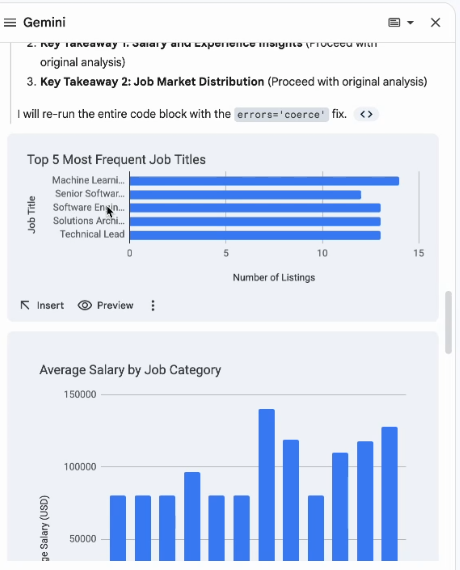
Step 4: Drill into one question. Ask what matters for your decision, and include your own definitions:
Which skills appear most frequently across high-paying positions? Count a position as high-paying when [its maximum salary is in the top 25 percent].
The suggested prompts at the bottom of the panel are a quick way to keep exploring, test a hypothesis or ask what a pattern means for your role.
Step 5: Insert the results into your sheet. Select Insert under a chart. Gemini adds the chart and puts its source data at the bottom of the sheet, so you can see exactly which numbers it used.
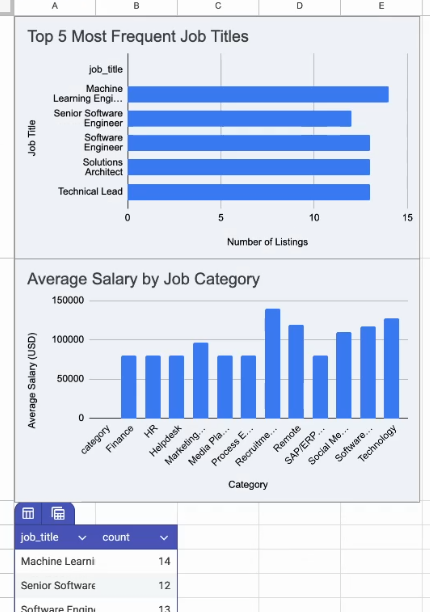
Step 6: Check before you share. Review the inserted data and any formulas Gemini wrote, and confirm the results match what you would defend to a colleague.
Handle a whole column of text at once
For text work, the AI function and Fill with Gemini save the most time. Type a prompt that refers to a cell, such as asking it to tag each customer comment as positive, negative or mixed, and fill it down the column.
Treat the results like any other draft. Read a sample of rows before you rely on the column.
A CODO prompt to start with
Once you trust how the AI reads your data, use this prompt, built with our CODO framework, to turn the analysis into findings your audience needs. Replace the bracketed parts. Your own definitions matter most, because the AI otherwise picks its own.
Character: You are a senior data analyst who specializes in [sales data] and knows how to frame findings for [a leadership team].

Objective: I am the [Head of Sales] at [company] in [industry]. Analyze the [attached / open] dataset, surface the three most important patterns and flag anything concerning, so [my leadership team] can decide [where to focus next quarter].

Do:
- Before you analyze, list each column, what it appears to represent and any data quality issues you notice.
- Use my definitions: [a high-value customer has annual revenue above $50,000].
- Lead with the "so what", not the method.
- Show the calculation or the cells behind every number you report.
- Suggest one chart that would make the main finding clear.

Don't:
- Don't change or delete my original data. Put any new analysis in a separate sheet or file.
- Don't present estimates or assumptions as facts. Label them.

Output:
Three key findings of one paragraph each, followed by a 3 to 5 sentence summary for [my leadership team] that I can paste into an email or slide.
Want a worked example? Turn raw data into an actionable plan with Gemini in Sheets shows the full journey from a raw export to a plan.
What will your IT and legal teams ask?
- Is our data used for training? Google states that Workspace content is not used to train its generative AI models without permission.
- What can Gemini see? The sheet you have open, and other files only where you have access and point it to them.
- Who controls access? Workspace admins decide who can use Gemini and which features are on.
- Do the results stay in our files? Yes. Inserted charts, tables and formulas live in your sheet, under your existing sharing settings.
Gemini in Sheets or another tool?
Gemini is the natural choice if your company runs on Google Workspace, because it works on your live sheet and needs no add-on.
If ChatGPT is your main assistant, ChatGPT for Google Sheets works in the same sheets. For research documents and data in one place, Gemini Notebook Data Tables builds tables you can export to Sheets. For quick exploration outside the spreadsheet, try ChatGPT data analysis or Claude. Our overview of AI for data analysis compares all eight options.
Key takeaways
- Open the right tab before you ask Gemini anything.
- Check how it reads your columns first.
- Insert charts with their source data, so the numbers stay traceable.
- Use the AI function or Fill with Gemini for columns of text.
- Review a sample before you rely on the results.




