



If the thinking for your next presentation already sits in reports, notes and research, Gemini Notebook can turn it into a deck for you.
Gemini Notebook, called NotebookLM until July 2026, builds a slide deck only from the sources you add. That makes it the strongest option when the deck has to stay true to your material. The trade-off is that the slides are images, so you refine them with prompts rather than by typing on them.
Two formats to choose from
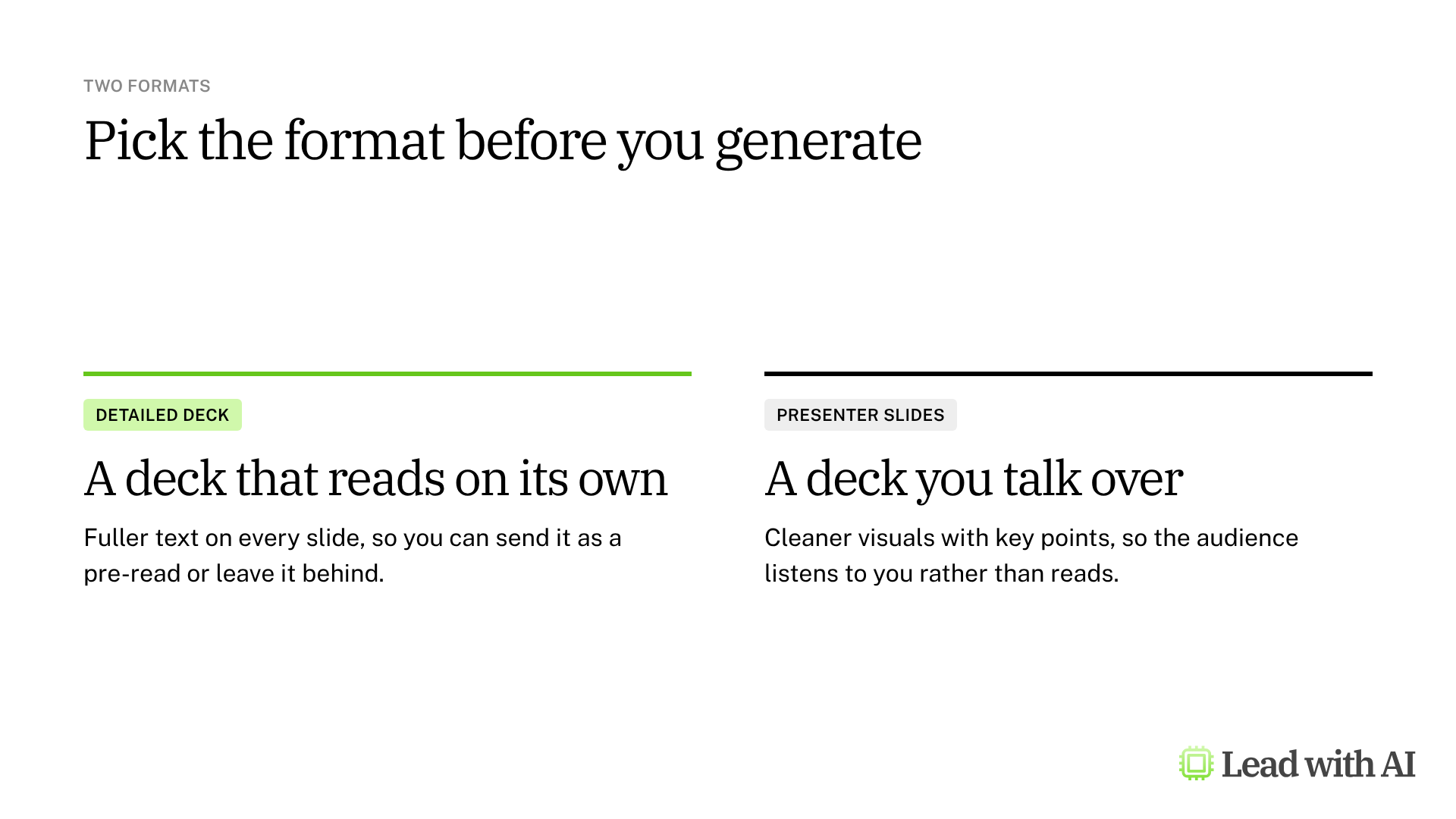
- Detailed Deck puts fuller text on every slide, so the deck works as a pre-read or a document you leave behind.
- Presenter Slides keeps each slide visual and short, so the audience listens to you rather than reads.
Choose the format before you generate, because switching later means building a new deck.
What your plan includes
- Personal accounts: slide decks work on a free Google account. Google AI Pro and Ultra give you higher usage limits.
- Google Workspace: your organization provides access, as long as your admin has Gemini Notebook switched on.
- Limits: since September 2, 2026, Google counts the computing each request uses instead of a fixed number of decks per day. Your allowance refreshes every five hours, up to a weekly cap. If you run out, select Generate later to schedule the deck.
- Age: slide decks are only available to users over 18.
When Gemini Notebook earns its place
There are four situations where a source-grounded deck pays off quickly:
- A research pack you need to brief, such as market reports or customer interviews.
- A board or leadership pre-read that must reflect the underlying documents accurately.
- A long report you need to present, without rereading it slide by slide.
- A competitive or industry briefing built from articles, filings and transcripts.
How to build a deck, step by step
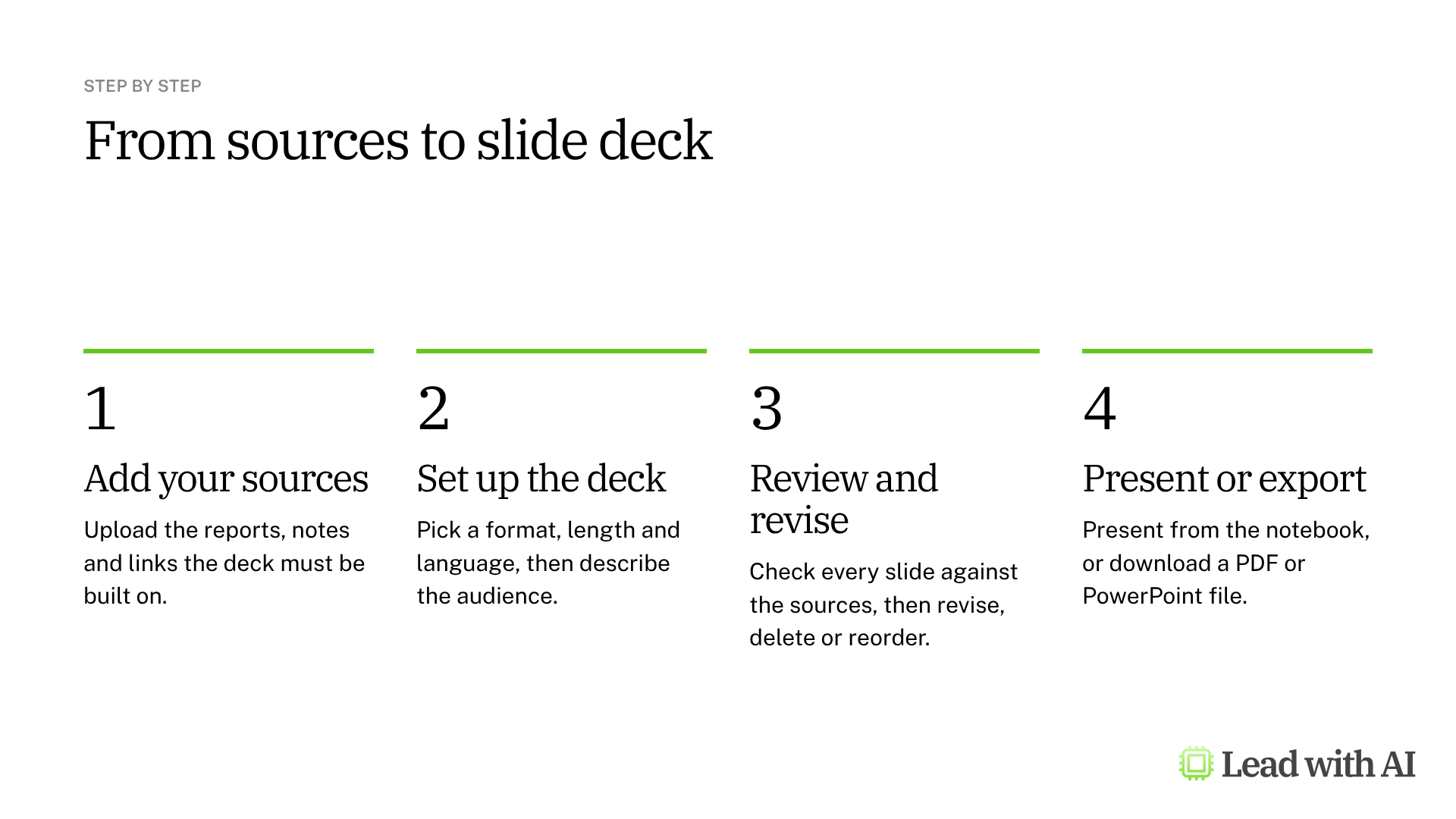
Step 1: Add your sources. Open Gemini Notebook, create a notebook and upload the material the deck must be built on, such as PDFs, Google Docs, web pages, YouTube videos or pasted notes. The deck will only be as good as these sources, so leave out anything outdated.
Step 2: Open Slide Deck. In the Studio panel, select Slide Deck. Choose the format, the output language, the length and which sources to use.
Step 3: Describe the deck. Tell Gemini Notebook who the audience is, what they need to decide and what to focus on. A specific focus, such as “Focus on the financial implications and skip the technical details,” changes which content makes it onto the slides. A template is below.
Step 4: Generate the deck. Select Generate now. If your plan offers outline review, switch it on first, so you can correct the structure before the slides render. Generation can take several minutes, and you can keep working in the notebook in the meantime.
Step 5: Check every slide against the sources. Read the deck once for accuracy, once for flow and once for what is missing. Gemini Notebook can still make mistakes, even with good sources.
Step 6: Revise the deck. Select Revise and type an instruction on each slide you want to change, such as “Add the Q3 revenue figure” or “Simplify this to three points.” You can also delete slides and drag them into a new order. Then select Generate revised deck. Two details matter here:
- Batch your changes. Every revision creates a new deck and uses part of your allowance.
- Revisions do not read your sources again. If a slide needs new facts, add them to your instruction or generate a new deck.
Step 7: Present or export. Select Start slideshow to present from the notebook, or use the three-dot menu to download a PDF or a PowerPoint file.
What the PowerPoint file gives you
The PowerPoint download keeps the design, but each slide arrives as an image. You can reorder slides and add speaker notes, but you cannot click into a title and change the words. There is no direct export to Google Slides yet.
So finish your changes inside Gemini Notebook first, and export once. If the deck has to live in your corporate template and keep changing, use Gemini Notebook to settle the story, then build the final deck with Gemini in Google Slides or Claude for PowerPoint.
A CODO prompt to start with
Paste this into the description box when you set up the deck, using our CODO framework, and replace the bracketed parts.
Character: You are a strategy advisor who turns research into clear presentations for a senior leadership team.

Objective: Build a [10]-slide deck for [my leadership team] that helps them decide [decision], based only on the sources in this notebook.

Do:
- Open with the recommendation and the decision you need.
- Give every slide a title that states the point, not just the topic.
- Keep each slide to three to five short points.
- Name the source behind every number.
- End with risks and next steps.

Don't:
- Don't add facts or figures that are not in the sources. Flag gaps as open questions.
- Don't use more than one chart per slide.

Output:
Presenter Slides in a clean, professional style, with plain colors and no decorative images.
Want a ready-made starting point? These how-to articles show practical ways to use it:
- Create slide decks and infographics with NotebookLM: turn a set of sources into a deck and a one-page visual.
- Build a competitive intelligence brief with NotebookLM: gather the sources for a competitor briefing in five steps.
- Level up your report with NotebookLM's Deep Research: find and add strong sources before you build the deck.
What will your IT and legal teams ask?
- Where does the content come from? Only from the sources in the notebook, which makes every slide traceable to a document.
- Who can see a deck? People with access to the notebook, or anyone you share a deck link with. Public links are switched off for Workspace Enterprise and Education accounts.
- Is our material used to train Google's models? On Workspace accounts, Google says notebook content is not used to train its AI models. On personal accounts, it is not used to directly train Google's foundational models unless you submit feedback. Keep confidential documents on your company account.
- Can admins control it? Yes. On Google Workspace, admins decide whether Gemini Notebook is available to your organization.
Gemini Notebook or another presentation tool?
Gemini Notebook is the best fit when accuracy to your sources matters more than design control. It turns research into a credible deck quickly, but the slides stay images.
For an editable deck in your own style, Gemini in Google Slides builds native slides from your Drive files, and Claude for PowerPoint works inside your corporate template. Our roundup of the best AI PowerPoint generators compares the main options.
Key takeaways
- Curate the sources first, because the deck uses nothing else.
- Pick the format on purpose: Detailed Deck to send, Presenter Slides to present.
- Batch your revisions, and remember that revisions do not reread your sources.
- Finish inside Gemini Notebook, because the exported slides are images.
- Check every slide against the sources before you share it.




