



If your company runs on Google Workspace, Gemini is already part of Gmail.
Gemini in Gmail turns a long thread into a brief, drafts the reply in your tone and answers questions about your inbox. It works where you already read email, so there is nothing to connect and nothing to copy over.
Where Gemini shows up in Gmail
There are four places to find it.

- AI Overview. Open a long thread, and Gemini puts the key points at the top.
- Help me write. In the compose window, describe the email you need. Gemini writes a draft you can refine before you insert it.
- The Gemini side panel. Select Ask Gemini at the top right of Gmail. This is home base for follow-up questions, longer requests and your skills.
- AI Inbox. One view that pulls together your suggested to-dos and the topics you need to catch up on.
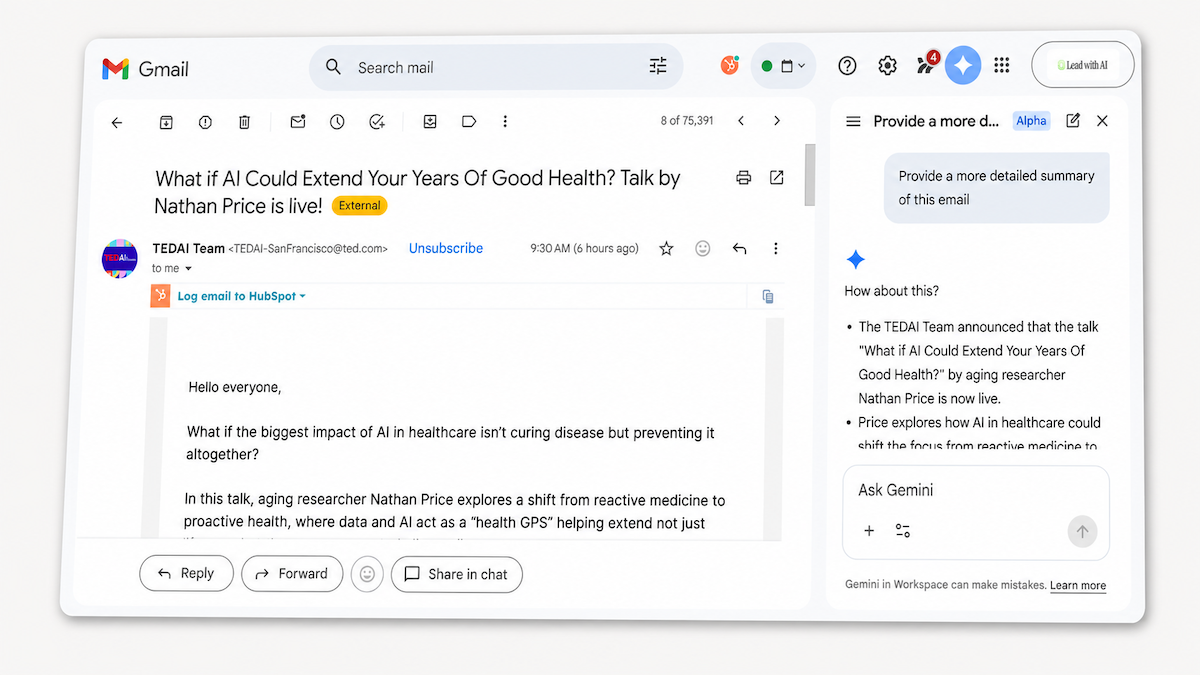
You can also ask a question in the Gmail search bar, such as “What did the vendor say about the delivery date?” Gemini answers from your emails above the search results.
What your plan includes
Thread summaries and Help me write are on by default for Google Workspace users. Google is rolling them out to every Workspace user aged 18 and older, and admins can choose to turn them off.
The side panel, AI Inbox and Gmail search answers depend on your Workspace edition. For now, AI Inbox is limited to paid Workspace users in the US who have English as their language.
On personal accounts, Gemini gives thread summaries in every country, and Help me write in the US. Google AI Plus, Pro and Ultra add more features on top of that.
If Gemini is missing, first check that smart features are turned on in your Gmail settings. Then ask your admin which Workspace edition you have.
When Gemini in Gmail earns its place
There are four situations where it helps most:
- A thread is long or messy, and you need the decisions, the open questions and the owners.
- A reply needs your tone, and you want a draft to edit rather than a blank page.
- The same kind of email keeps coming back, such as customer questions, internal requests or media inquiries.
- You need a fact buried in your inbox, such as when a deadline moved or what a client agreed to.
Want to see it in action? These how-to articles walk you through real workflows in Gmail:
- Craft an outreach email with Gemini in Gmail: a step-by-step demo that uses a premade assistant and your Drive documents to prepare a cold email.
- Build your AI mailbox assistant: a morning brief of decisions and deadlines from your latest emails. It was written for Gems, and the same instructions work as a skill.
- Build your AI executive daily briefing: a morning report on your priorities, replies and meetings, which you can run as a Gemini scheduled action.
If your company runs on Microsoft 365, read our guide to Copilot in Outlook instead. For a sensitive reply that needs more deliberate thinking, see our guide to ChatGPT for email. We compare all four main tools in AI for email.
How to triage your inbox with Gemini, step by step
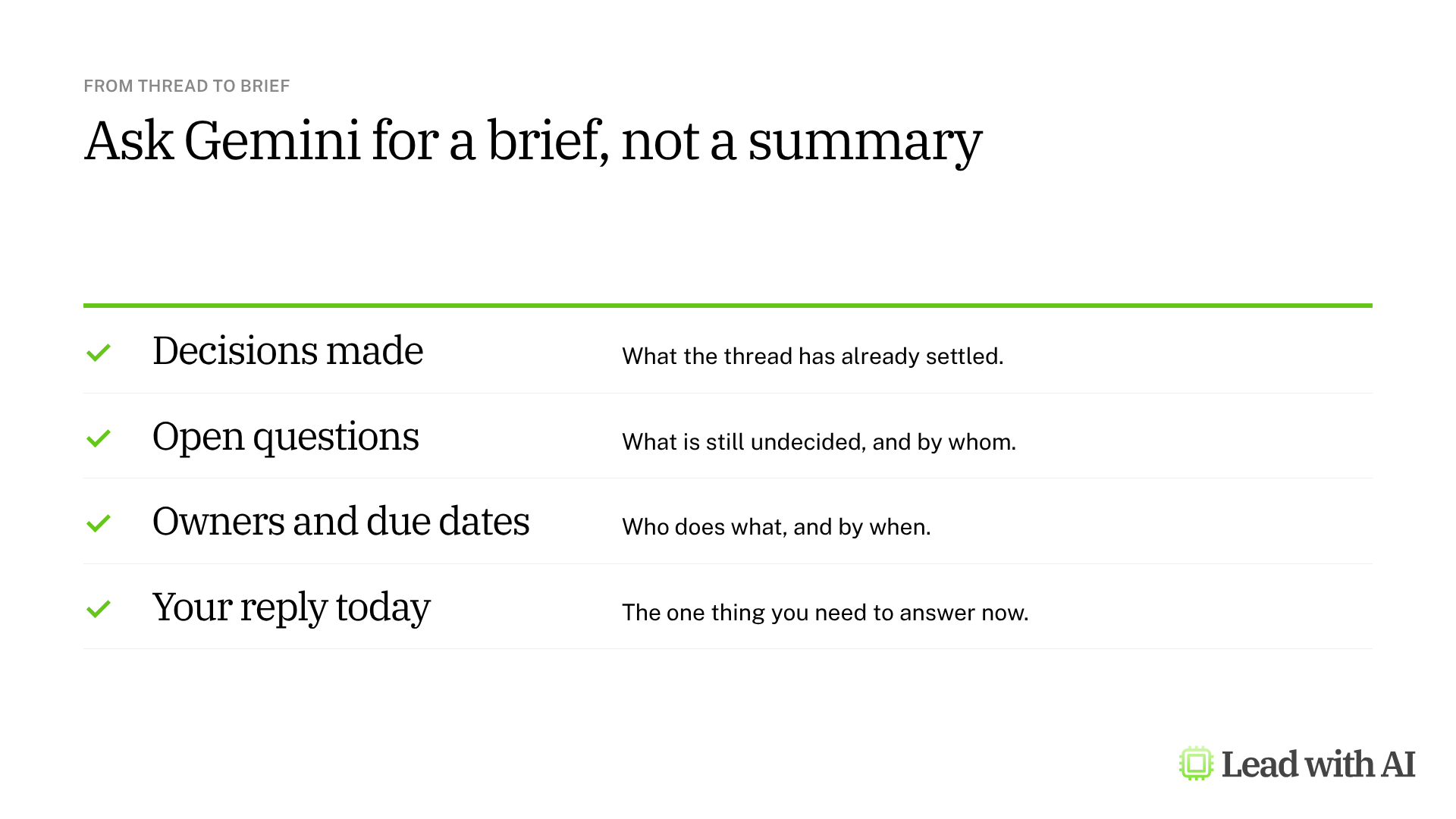
Step 1: Ask for a brief, not a summary. Open a long thread and read the AI Overview. Then ask in the side panel: “Turn this into a brief with the decisions made, open questions, owners, due dates and the one thing I must reply to today.”
Step 2: Draft the reply in your tone. Open the reply and select Help me write. Ask: “Draft my reply: concise, decisive and friendly. Confirm what I can commit to, flag what I cannot, and propose next steps.” Select Insert if you like it. Select Recreate for a new version, or Refine to shorten it or make it more formal.
Step 3: Ask for counsel before you write. For a tricky request, ask for options before a draft: “Imagine you are a seasoned negotiator. How would you handle a request like this? Do not write an email yet. Propose options first.”
Step 4: Ask across your inbox. Type a question into the Gmail search bar, or open AI Inbox to see your suggested to-dos. Check each answer against the original email before you act on it.
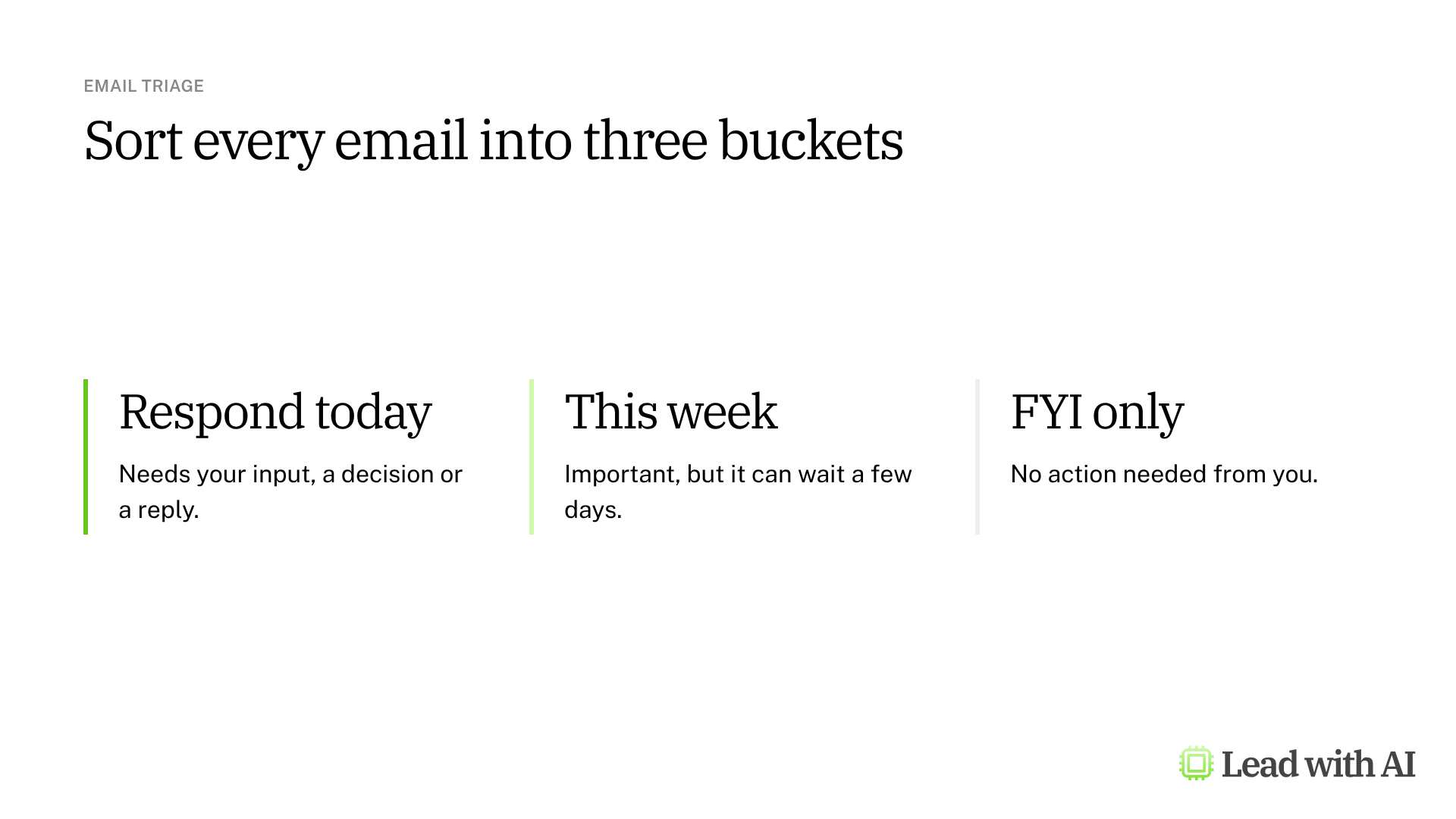
Step 5: Write your triage request with CODO. We recommend structuring every request with our CODO framework. Tell Gemini who to be (Character), what you need (Objective), what to do and avoid (Do and Don't), and what to hand back (Output). The prompt below sorts every email into three buckets.
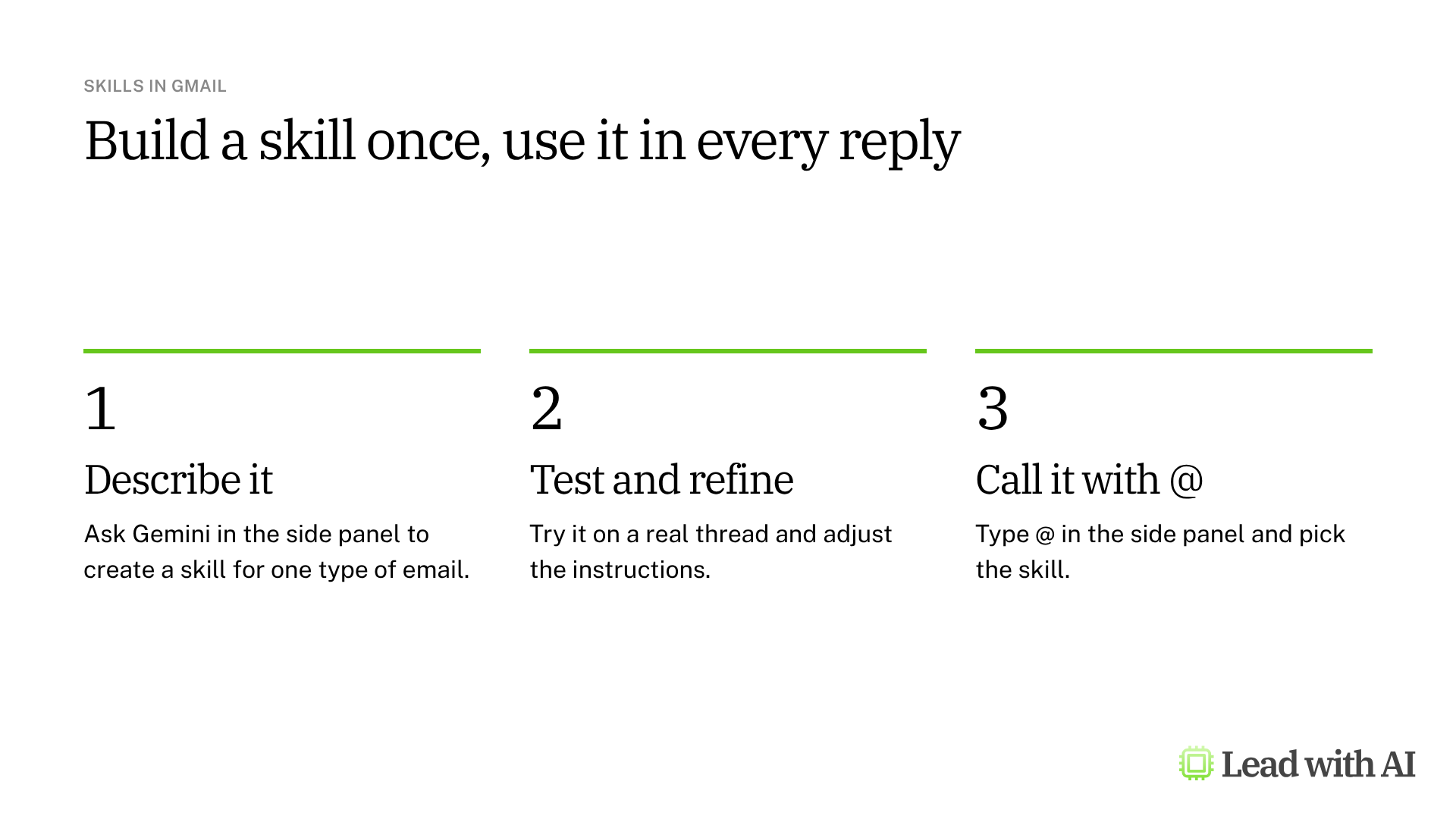
Step 6: Build a skill for recurring emails. In the side panel, ask Gemini to create a skill for one type of email, such as replies to media inquiries. Test it on a real thread and refine the instructions. Then type @ in the side panel and pick the skill whenever that email comes in. Skills in Gmail are rolling out from November 2026 for most Business and Enterprise editions.
Skills replace Gems. If you built Gems, they keep working in Workspace until at least March 1, 2027, but it is worth rebuilding the important ones as skills now. Our guide to Gemini skills explains the change.
A CODO prompt to start with
Paste this into the Gemini side panel in Gmail.
Character: You are the world's most efficient executive assistant, someone who has managed inboxes for demanding senior leaders for 20 years and knows what is urgent, what can wait and what is noise.

Objective: Look at my emails from the last 24 hours and triage them, so I open my inbox knowing exactly what needs my attention today.

Do:
- Put every email in one of three buckets: Respond today (needs my input, a decision or a reply), This week (important but not time-sensitive) and FYI only (no action needed from me).
- For every Respond today email, give me a one-line summary of what is being asked and a suggested first sentence for my reply.
- List Respond today emails in priority order, most urgent first.
- If an email looks routine but hides a request or an escalation, put it in Respond today and tell me why.

Don't:
- Don't send, reply to, archive or change any email. Suggest drafts only.
- Don't summarize emails I do not need to act on. The label is enough.
- Don't write full replies. One strong opening sentence is enough.
- Don't add extra commentary.

Output:
One prioritized list, organized by bucket: Respond today first, then This week, then FYI only. Respond today emails get the subject line, the one-line summary and a suggested first sentence. The others get the subject line only.
What will your IT and legal teams ask?
- What can Gemini see? The email you have open and, when you ask, the rest of your inbox. Shared inboxes are not supported, so people with delegated access to a mailbox like support@ cannot use Gemini in it.
- Can it send email? No. Gemini drafts, and you press Send.
- Is our email used to train Google's models? Google says it does not use the content Gemini analyzes to train its models.
- Can admins control it? Admins can turn Gemini features in Gmail off, and can turn skills on or off. Users also need smart features turned on in their settings. AI Inbox has no separate admin switch.
Gemini in Gmail or another AI tool?
Gemini lives where your Google Workspace email already is, and skills give it a memory for the emails you write again and again.
If your company runs on Microsoft 365, Copilot in Outlook is the equivalent. For the emails that need more thinking, step out to a separate AI platform.
Key takeaways
- Start with the AI Overview on your longest thread, then ask for a brief.
- Use Help me write for the first draft, and refine it before you insert it.
- Ask your inbox questions in Gmail search instead of digging through threads.
- Write your triage request with CODO, and run it in the side panel.
- Build a skill for the email types you answer every week.




