



Claude can do more than answer on a schedule. It can research, work with your connected tools and deliver a finished output.
Claude scheduled tasks let you set up recurring work once, and Claude runs it automatically. You describe the work and when it should happen, review the task and approve it.
Where to find scheduled tasks in Claude
Open Scheduled in the left sidebar and select New task. Choose Create with Claude to describe the task in your own words, or Set up manually to define the instructions, permissions and schedule yourself. You can also ask for a scheduled task in a regular conversation.

What your plan includes
- Paid plans: scheduled tasks are available on Pro, Max, Team and Enterprise plans.
- Organizations: on Team and Enterprise plans, access can depend on admin settings.
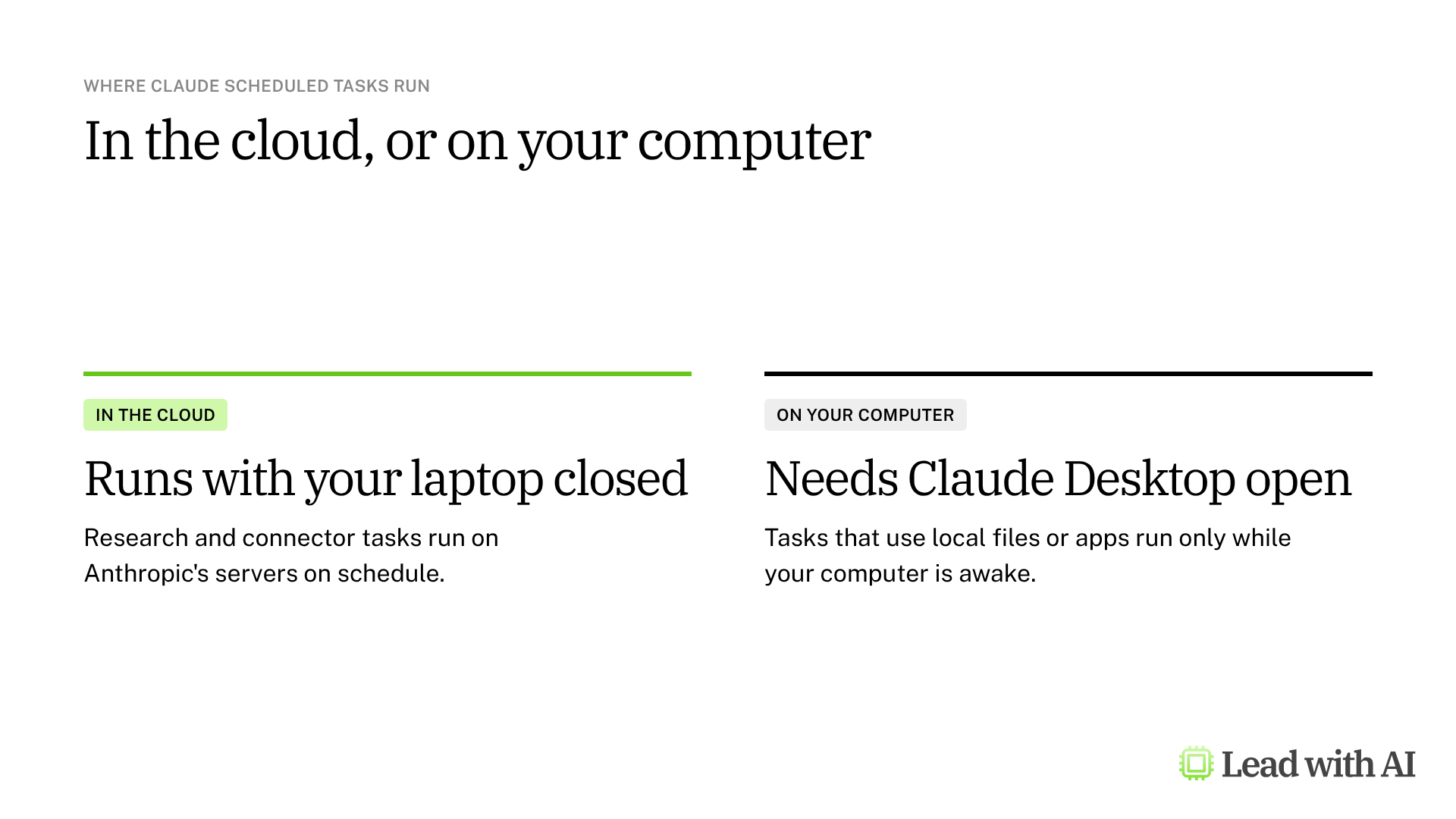
- Where tasks run: most tasks run in the cloud, even when your computer is asleep. Tasks that need files or apps on your computer run there, so it must be awake with Claude Desktop open.
When scheduled tasks earn their place
- Weekly research briefs with sources you can check.
- Daily briefings from your calendar and email, once those tools are connected.
- Recurring reports that Claude builds into a document or spreadsheet.
- Monitoring a topic, such as news or mentions of a competitor.
How to create a scheduled task, step by step
Step 1: Describe the work and the timing. Include your time zone and what a useful result looks like:
Every Monday at 8 AM [time zone], search the web for the past week's major [your industry] news. Then write a five-bullet executive brief of about 150 words, with the source, date and link for each item. Separate facts from analysis, and flag anything unconfirmed.
Claude may ask a few questions before it proposes the task.
Step 2: Review the task. Check the name, instructions, schedule and permissions. Confirm the exact time, because Claude may suggest a slightly different one, and tasks set on the hour can start a few minutes late.
Step 3: Approve it. Select Schedule, and the task appears on the Scheduled page.
Step 4: Test it with Run now. Open the task and run it once. Check the format, whether the news is relevant and current, and whether the sources support the claims.

Step 5: Manage it. From the task page, edit the instructions, change the schedule, pause it with the switch, or rename and delete it from the options menu.
Check the permissions
A scheduled task uses whatever tools, connectors and permissions you give it. In Auto mode, Claude works and uses connectors without stopping for your approval, and tasks that Claude creates for you may default to automatic approval where your organization allows it.
For any task that touches email, messages or shared files, ask for drafts only and review them before anything is sent or posted.
A CODO prompt for a weekly intelligence brief
This prompt, built with our CODO framework, gives you a weekly brief on the topics that matter to your role. Replace the bracketed parts, run it once and check the sources before you let it repeat. In Claude, the last line of the prompt asks Claude to propose the schedule after the first run.
Character: Act as a world-class intelligence assistant.

Objective: I am the [role] at [company] in [industry]. Run a weekly web scan on [3 to 5 topics] so that I am the best-informed person in the room on these topics.

Do:
- Use only credible sources from the last 7 days.
- Prioritize primary sources, such as official documents, reports and datasets.
- Record the date, author and organization for every item.

Don't:
- Don't invent facts, figures or quotes.
- Don't stretch the meaning of facts, numbers or quotes.
- Don't favor novelty over relevance.

Output:
What matters this week, with up to 5 items. For each item, give the news in one plain sentence, then three bullets:
- Why it matters: one sentence on the business impact.
- Action to consider: one clear action I could take this week.
- Source: date, author, organization and link.
End with one sentence that sums up the main takeaways.

Run it once now. When I confirm the format, run it every Monday at 9 AM.
Want to go further? These pages help you decide what to automate next:
- Build your AI executive daily briefing: set up a morning brief that pulls together what you need before your day starts.
- Build an AI-powered workload audit for automation: find the recurring work in your week that is worth handing to AI.
- Claude Cowork for beginners: the workspace where scheduled tasks live.
What will your IT and legal teams ask?
- What can a task access? Only the tools, connectors and permissions it has been given. Review them when you approve the task.
- Can it act without a person? In Auto mode, yes. Use approval settings, or instruct the task to draft only, for anything external.
- Is our data used for training? Anthropic does not train its models on Team and Enterprise data by default.
- Who controls it? On Team and Enterprise plans, owners and admins control access.
Claude or another tool?
Claude is a strong choice when a task needs real work, such as research across sources or a document built from your connected tools.
For a quick brief or a reminder, ChatGPT scheduled tasks need less setup. If your work lives in Microsoft 365 or Google Workspace, Copilot scheduled prompts or Google Workspace Studio work closer to your data. Our overview of AI scheduled tasks compares all five options.
Key takeaways
- Describe the work and the timing, including your time zone.
- Review the exact time and permissions before you approve.
- Test with Run now and check the sources.
- Know where it runs: the cloud, or your computer for local files.
- Ask for drafts only for anything that leaves your hands.




