



Some recurring work needs more than one step. A brief has to be written, then delivered where your team will read it.
Google Workspace Studio, formerly called Flows, lets you build these automations without code. You define the work once as a flow, and it delivers the result into Gmail, Chat, Docs and the other tools you already use.
Where to find Workspace Studio
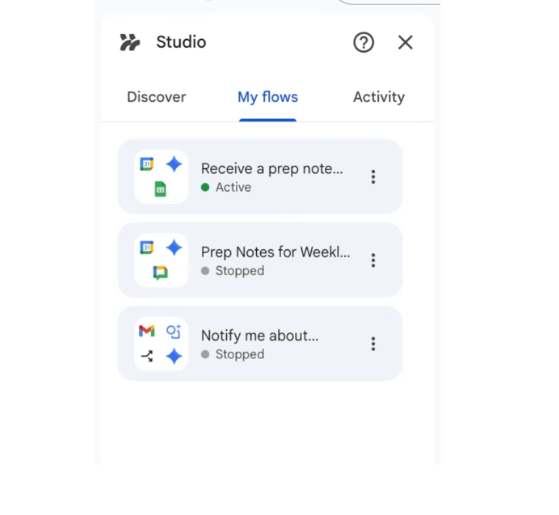
Go to studio.workspace.google.com. Depending on your setup, you can also see your flows and their activity in the Studio side panel in Gmail.
What your plan includes
- Google Workspace: Business Starter, Standard and Plus, Enterprise editions and Education editions.
- Admin control: your admin must turn on Gemini and Studio. If you do not see it, ask them.
- Usage limits: per-user limits apply to how often flows run.
- Devices: you build flows on a computer. Once switched on, they run without you.
When Workspace Studio earns its place
- A brief that should land in your inbox, rather than wait in a chat.
- Work that starts with an event, such as a new email from a client or a new file in a folder.
- Team automations, such as a prep note before every meeting posted to a shared space.
How to build your first flow, step by step
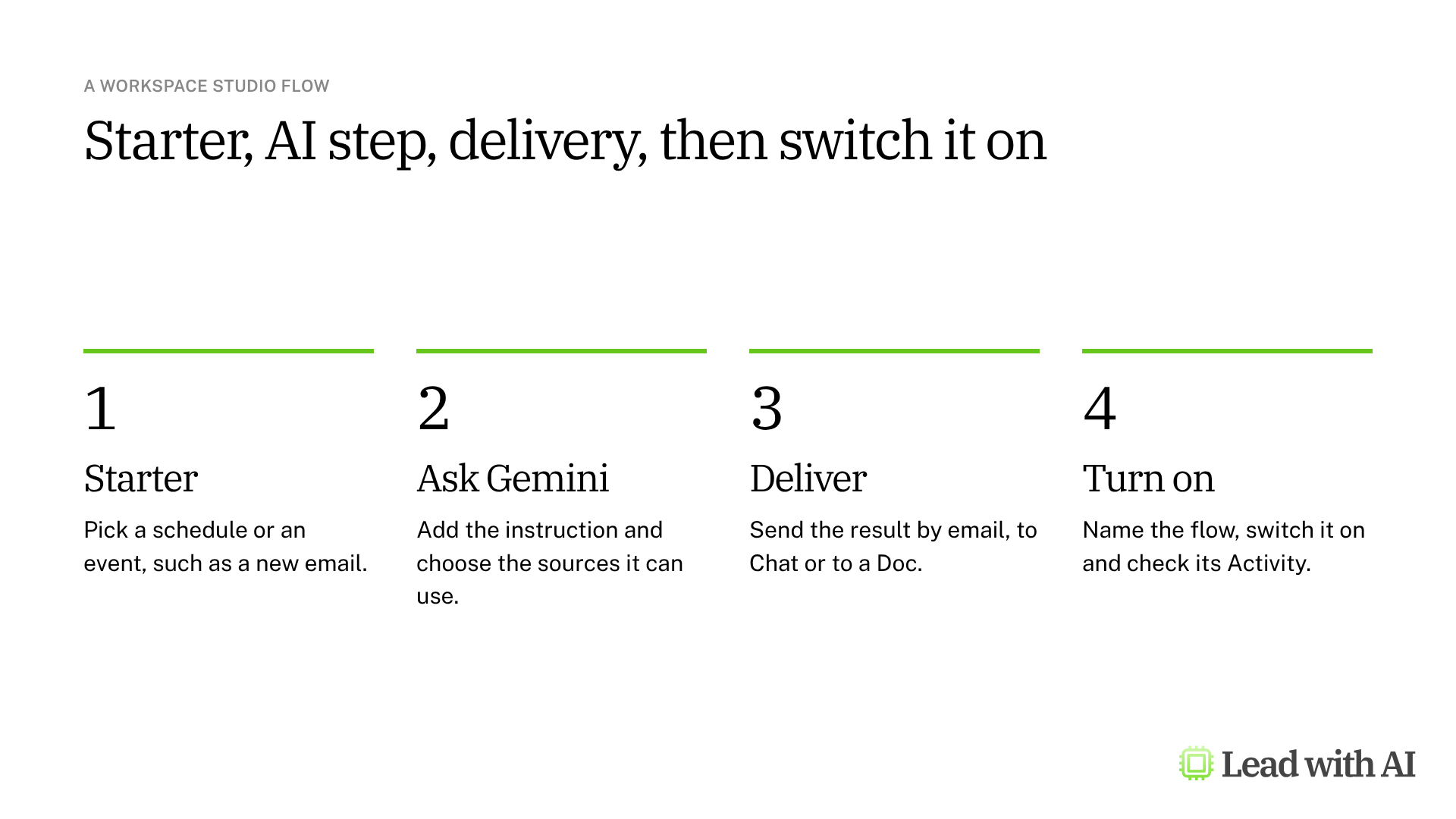
Step 1: Create a new flow. On the Studio home page, select New flow.
Step 2: Set the starter. Choose a schedule, such as Monday at 8 AM, repeating weekly. Starters can also be events, such as a new email.
Step 3: Add the AI step. Select Choose a step, then Ask Gemini, paste your instruction and choose the sources Gemini can use, such as Web only.
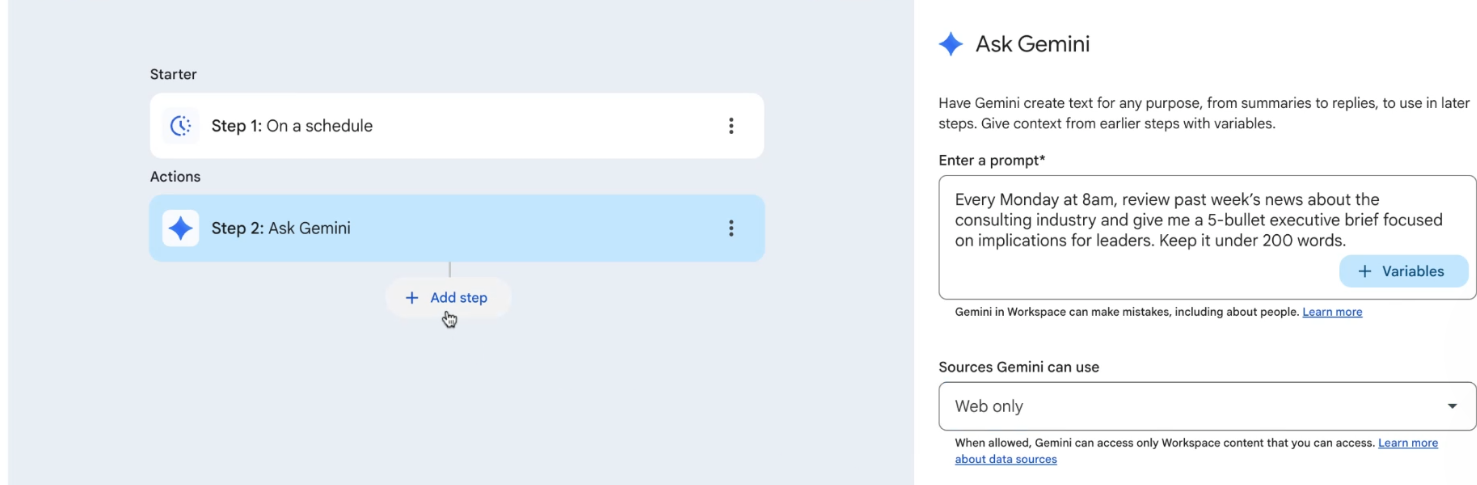
Step 4: Add the delivery step. Select Add step, then Gmail, then Notify me by email. Add a subject, and for the message, insert the variable with the content Gemini created in step 3. The email stays the same each week, but the brief inside it is new.

Step 5: Turn it on. Select Turn on and give the flow a clear name, such as Weekly industry brief.
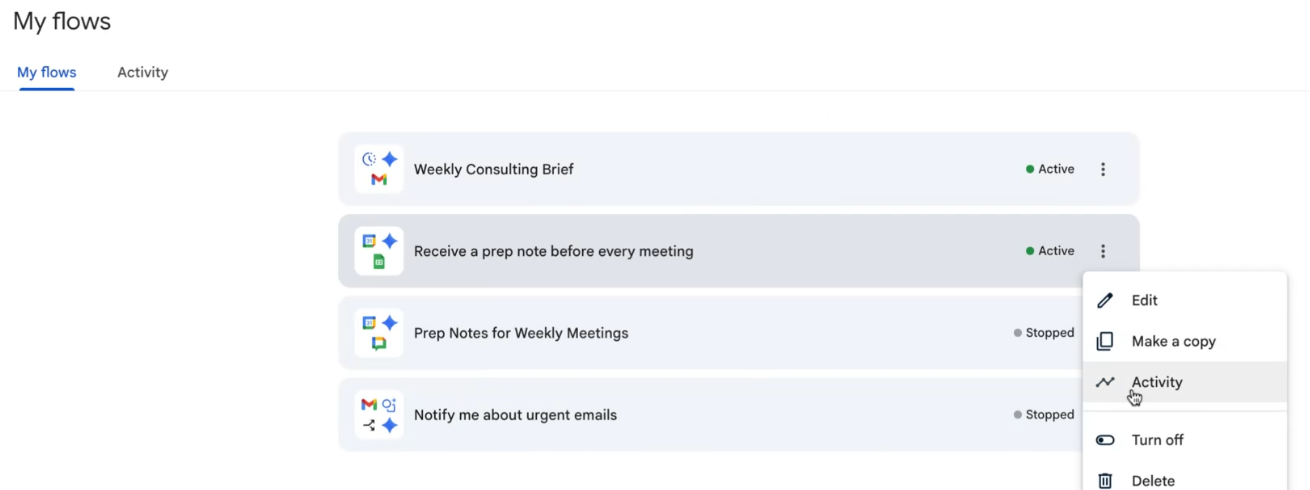
Step 6: Check the activity. Under My flows, open Activity to see each run and any problems. To change a step, open the flow menu and select Edit.
Newer steps worth knowing
- Skills: add one of your Workspace skills to the Ask Gemini step, so the flow follows the same saved instructions. Skills replace Ask a Gem steps, which you can no longer add to new flows.
- Block time: have a flow add a private event to your calendar.
- Logic and search steps: branch a flow on conditions, or have it find the right Doc in Drive.
- Third-party integrations, webhooks and custom steps: connect tools such as Asana, HubSpot, Jira, Salesforce and Slack. Admins turn these on, and some are in beta.
Start with flows that notify only you. Before a flow sends anything to other people, test it on yourself, and keep human approval on for anything that leaves your company.
A CODO prompt for a weekly intelligence brief
This prompt, built with our CODO framework, gives you a weekly brief on the topics that matter to your role. Replace the bracketed parts, run it once and check the sources before you let it repeat. In Studio, paste it into the Ask Gemini step and leave out the last line, because the starter sets the schedule.
Character: Act as a world-class intelligence assistant.

Objective: I am the [role] at [company] in [industry]. Run a weekly web scan on [3 to 5 topics] so that I am the best-informed person in the room on these topics.

Do:
- Use only credible sources from the last 7 days.
- Prioritize primary sources, such as official documents, reports and datasets.
- Record the date, author and organization for every item.

Don't:
- Don't invent facts, figures or quotes.
- Don't stretch the meaning of facts, numbers or quotes.
- Don't favor novelty over relevance.

Output:
What matters this week, with up to 5 items. For each item, give the news in one plain sentence, then three bullets:
- Why it matters: one sentence on the business impact.
- Action to consider: one clear action I could take this week.
- Source: date, author, organization and link.
End with one sentence that sums up the main takeaways.

Run it once now. When I confirm the format, run it every Monday at 9 AM.
Want to go further? These pages help you decide what to automate next:
- Build your AI executive daily briefing: set up a morning brief that pulls together what you need before your day starts.
- Build an AI-powered workload audit for automation: find the recurring work in your week that is worth handing to AI.
- Build your own agents in Google Workspace Flows: more flows you can build.
- Google Workspace Studio skills are live: turn your best prompts into reusable skills.
What will your IT and legal teams ask?
- Whose identity does a flow use? The person who built it. New flows run with the least access they need, and their actions are attributed to the flow.
- Can admins see and stop flows? Yes. Admins can list flows, suspend them, revoke specific access and check audit logs.
- Can a flow send email outside the company? Admins can require a person to approve steps that share data externally.
- Is our data used for training? Google states that Workspace content is not used to train its generative AI models without permission.
Workspace Studio or another tool?
Studio is the right choice when the result should land somewhere, such as an inbox or a team space, or when an event should start the work.
For a simple brief you read in a chat, Gemini scheduled actions take less setup. Outside Google, ChatGPT scheduled tasks and Claude scheduled tasks cover similar ground. Our overview of AI scheduled tasks compares all five options.
Key takeaways
- Build a flow from a starter, an AI step and a delivery step.
- Insert Gemini's output as a variable in the delivery step.
- Check Activity after the first few runs.
- Notify yourself first, before a flow sends anything to others.
- Ask your admin if you do not see Studio.




