



If you work in Microsoft 365, the fastest route to a polished visual may be one click from your Copilot chat.
Copilot Create is the design space in the Microsoft 365 Copilot app. It makes images, posters, banners, infographics and more from a description or a template, and gives you more hands-on editing tools than most image generators.
Where to find Copilot Create
- In the Copilot app: select Create in the navigation, or open Apps and more and select Create.
- In a browser: go to m365.cloud.microsoft/create.
- In any Copilot chat: describe the image you want. It can take a couple of minutes, and Create gives you more control.
Choose what to make, such as an image, poster, banner or infographic, then describe it or start from a template.
What your plan includes
- Work accounts: you can use Create with or without a Microsoft 365 Copilot license. Without one, quality and speed may vary with demand.
- Brand kits: official brand kits need a Copilot Premium license, brand manager access and an organization that sets them up.
- Video: creating videos needs your admin to turn on Clipchamp.
- Personal accounts: Create needs Microsoft 365 Personal, Family, Premium or Pro, with usage limits that vary by plan.
When Copilot Create earns its place
- Making a strategy visual that fits your company's look.
- Creating posters, banners and event graphics from a template.
- Fixing one detail without regenerating the whole image.
How to create a strategy visual, step by step
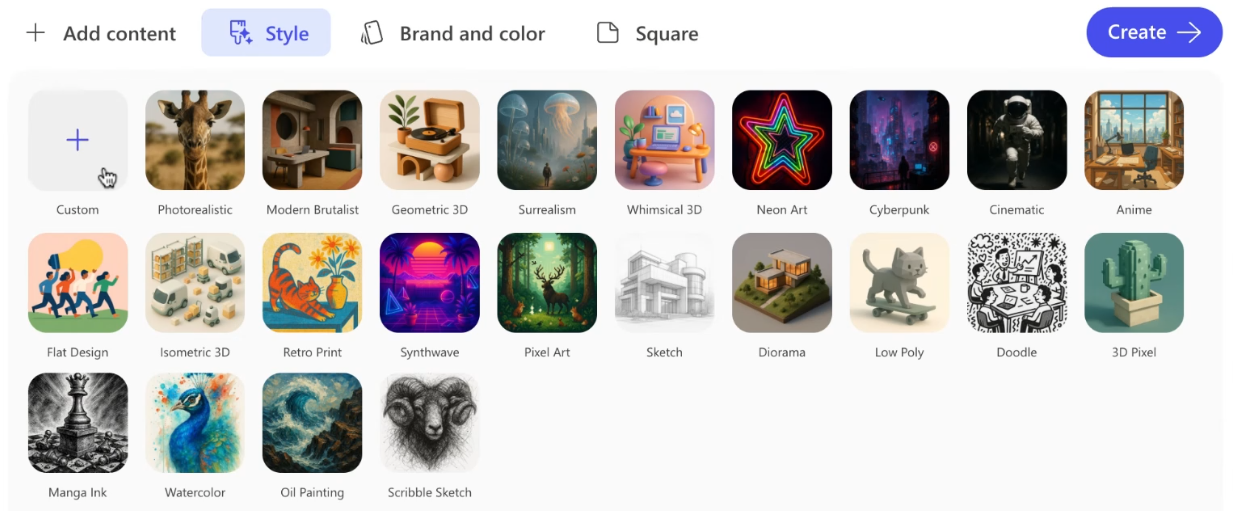
Step 1: Describe the visual. Paste your prompt, then set the options below the prompt box:
- Style: presets such as photorealistic, flat design, sketch or doodle, or a custom style.
- Brand and color: a brand kit or color palette.
- Size: square, portrait or wide.
Step 2: Refine with AI or by hand. Open the image to edit it:
- Transform with AI: describe a targeted change, such as making the heading blue.
- Edit by hand: remove or blur the background, add or edit text, insert shapes and icons, or mark up the image.
- Brand: apply your organization's colors, logos and fonts if it has set up a brand kit.
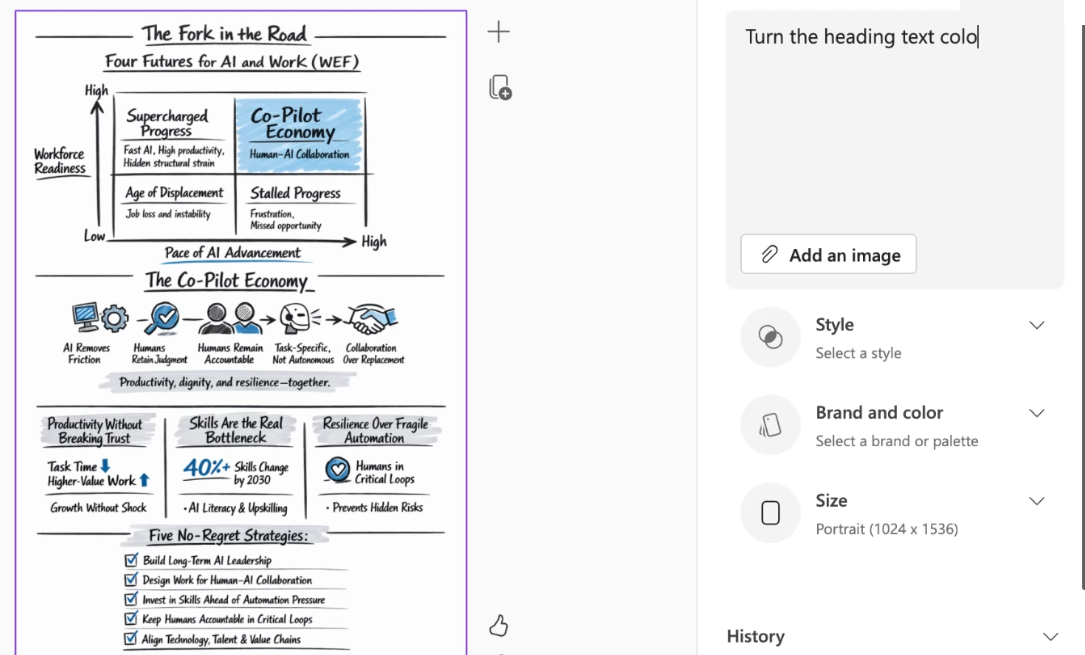
Step 3: Review and download. Check for typos, confirm the image reflects your intent and that nothing was added or removed, then download it for your slide, document or update.
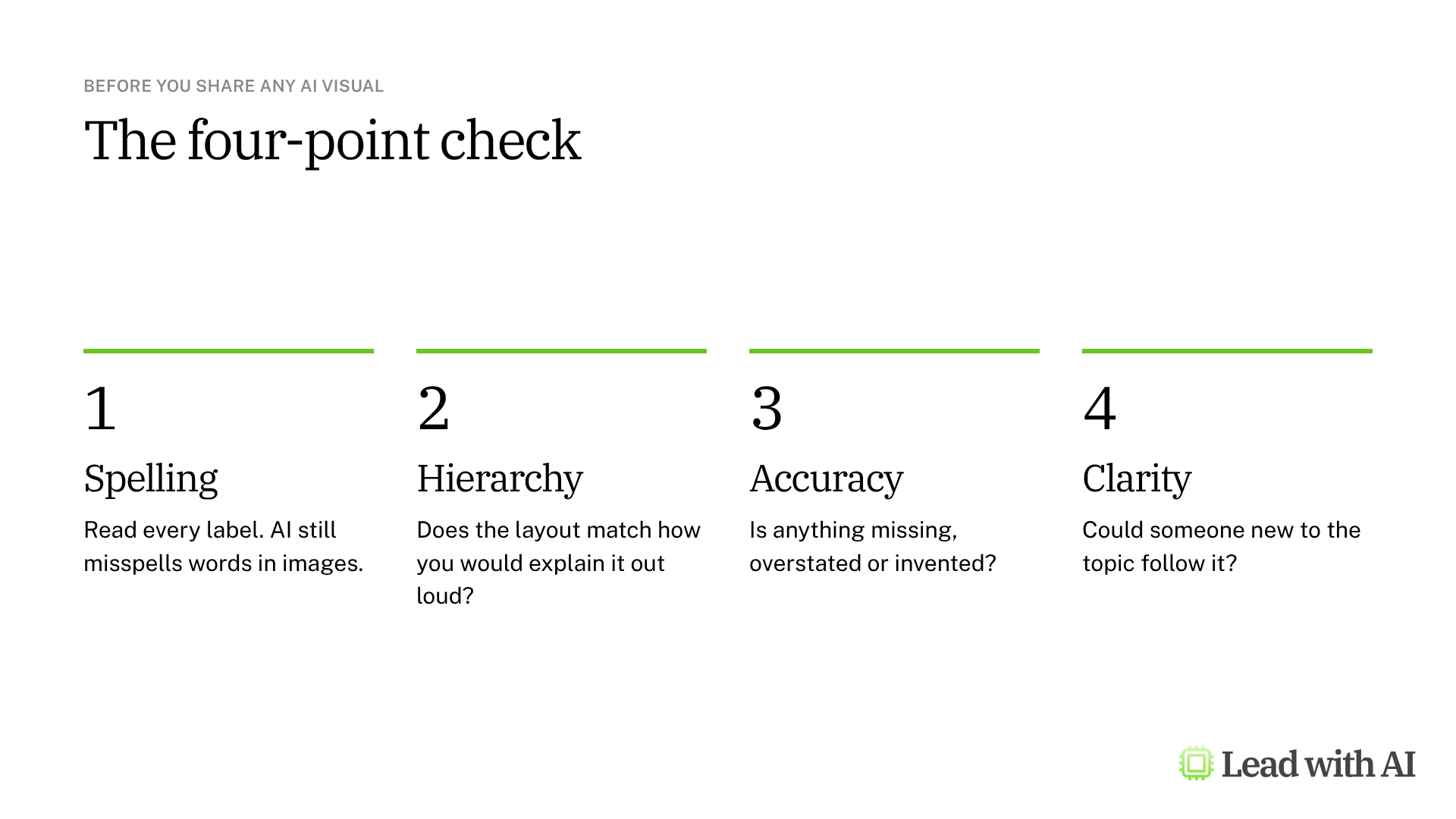
Run the four-point check before you share anything. AI visuals look finished long before they are correct, so read every label and compare the content with your source.
A CODO prompt for your first visual
This prompt turns any idea, framework or plan into a one-page visual. It is built with our CODO framework. Paste it into the Create prompt box, fill in the brackets and add your source content at the end.
Character: You are a visual strategist who turns leadership thinking into clear, structured visuals.

Objective: Create a single-page [infographic, framework or diagram] that explains [your idea, framework or plan] to [audience, such as my leadership team]. It will be used in [where, such as a strategy deck or an all-hands]. Base it strictly on the content below.

Do:
- Use a clear hierarchy: a short title at the top, then three to five sections that are easy to scan.
- Keep labels short, and use my wording where possible.
- Use a clean layout with plenty of white space and a limited color palette.

Don't:
- Don't add any content that is not in my source material.
- Don't use generic filler such as "Innovation" or "Excellence".

Output:
One image in [landscape for a slide, or portrait for a one-pager].

[Paste your source content here.]
Want to go further? For visuals inside a deck, our guide to Copilot in PowerPoint shows how to build slides in your company brand kit.
What will your IT and legal teams ask?
- Can people tell an image is AI-generated? Microsoft adds Content Credentials, based on the C2PA standard, to images created in Microsoft 365 Copilot.
- Can we turn it off? Yes. Admins can turn off image generation, which hides images, posters, banners, infographics, stories and image editing in Create.
- Is our data protected? With a work account, Create runs under Microsoft's enterprise data protection for Copilot.
- What should employees avoid? Uploading confidential material or photos of people who have not agreed to it.
Copilot Create or another tool?
Copilot Create is the natural choice in Microsoft 365, especially when you want style presets, brand kits and hands-on editing.
For framework visuals you refine over several rounds, ChatGPT Images works well. In Google Workspace, use Nano Banana in Gemini. To build a visual only from your own documents, use Gemini Notebook infographics. Our overview of AI image generation compares all four options.
Key takeaways
- Open Create in the Copilot app or at m365.cloud.microsoft/create.
- Set style, palette and size before you create.
- Use Transform with AI for targeted changes.
- Apply your brand kit if your company has one.
- Run the four-point check before you share.




