




The framework visual that used to sit in a design queue for days can now be ready before your next meeting.
ChatGPT Images turns a description, a sketch or your own content into a finished visual, then lets you refine it in plain language. It is strongest for frameworks, infographics and one-page summaries you will reuse across decks and documents.
Where to find ChatGPT Images
Image creation works in ChatGPT on the web, in the desktop apps and on mobile. There are three ways in:
- Ask in any chat: describe the visual you want, and ChatGPT creates it.
- Use the Images page: select Images in the sidebar to start from a template or see every image you have made.
- Type / or @: type / and choose Create image, or type @Sketch to draw a rough layout that ChatGPT turns into a finished image.
You can also upload an image as a style reference, so the result matches a look you already use.
What your plan includes
- Every plan: image creation is available on Free, Go, Plus, Pro, Business and Enterprise.
- Limits: OpenAI does not publish image counts. Free has the tightest limit, paid plans get more, and ChatGPT tells you when an allowance resets.
- Latest update: OpenAI's November 2026 update made image creation faster, added animated GIFs and lets you save reference images to reuse.
When ChatGPT Images earns its place
- Turning a framework into a one-page visual for a keynote, all-hands or strategy review.
- Making a dense document scannable as an infographic.
- Creating social and event graphics without briefing a designer.
How to create a framework visual, step by step
Step 1: Brief it like a designer. Specify the style, the structure, the hierarchy and the constraints, then paste your source content. For example:
Create a single-page infographic in a conference sketch-note style that summarizes the concept of [your framework] based strictly on the content below. Use a clear visual hierarchy with a main title at the top, three to four core sections arranged for easy scanning, and short labels throughout. Keep the layout clean and the density moderate. Do not add any content not present in the source material.

[Paste your source content here.]
The last instruction matters most. Telling ChatGPT not to add content is what prevents confident-looking inventions in your labels.
Step 2: Check the first draft. Look for misspelled labels, a hierarchy that does not match how you would explain it, and concepts that are missing or overstated.
Step 3: Direct the edit. Stay in the same chat and describe what to change, so ChatGPT adjusts the existing composition instead of starting again:
Simplify the layout slightly. Increase white space, make section headers more prominent, and reduce visual density in the bottom section so it is easier to scan on a slide.
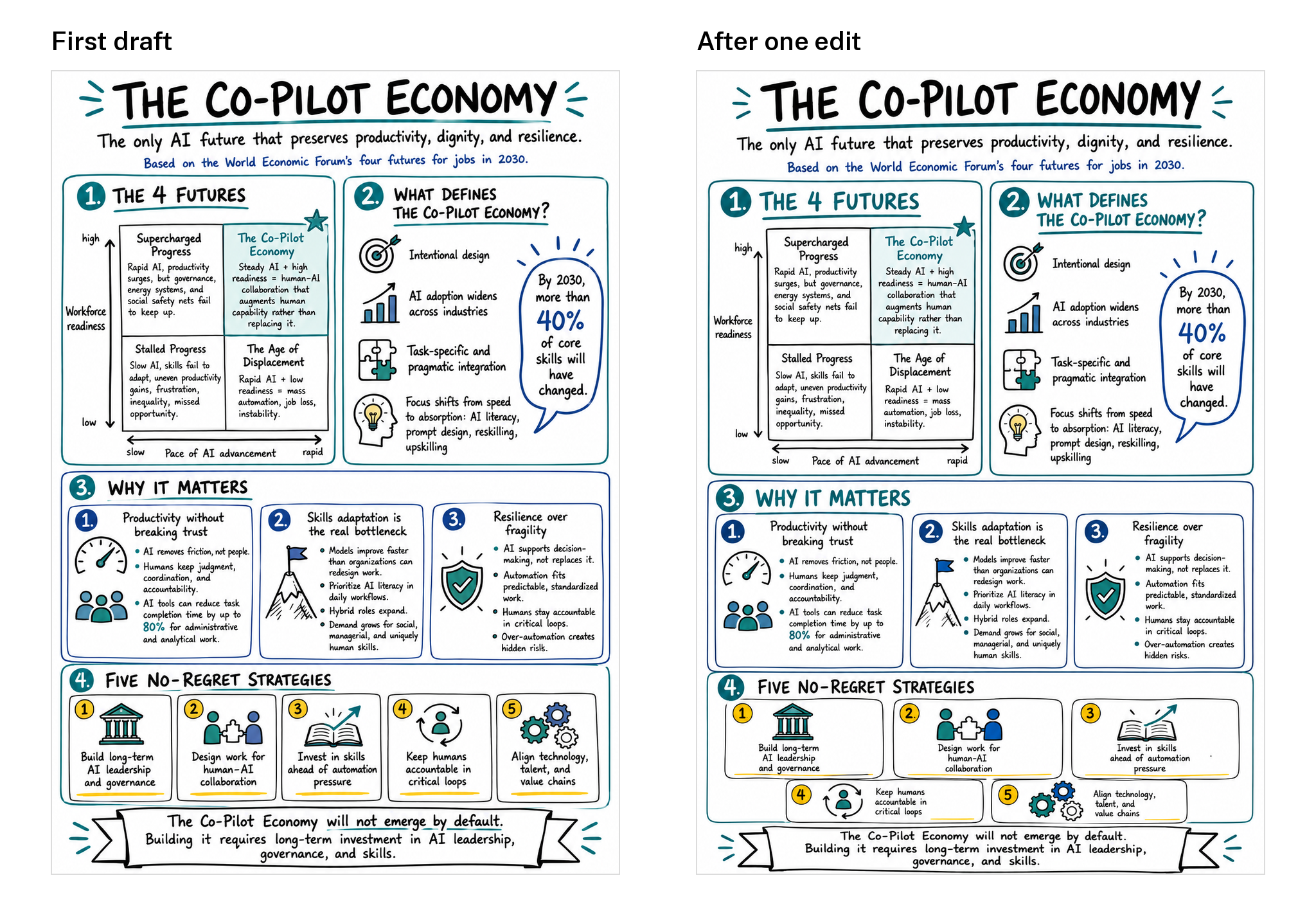
For a change in one spot, select the image, choose Edit and place a comment on the exact area you want changed. The rest of the image stays as it is.
Step 4: Download and reuse. Every image you create is saved on the Images page, so you can find it later without searching your chats.
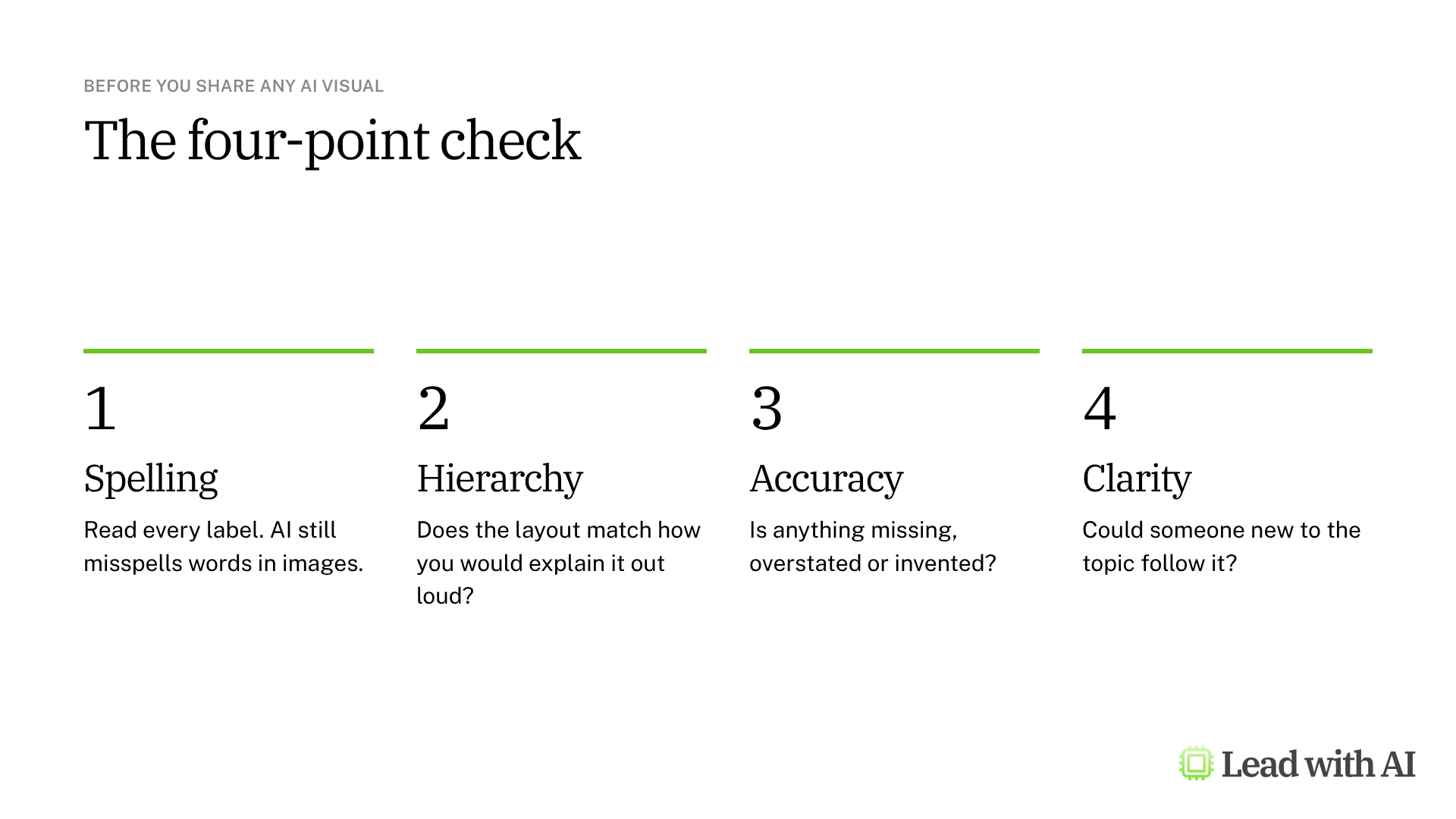
Run the four-point check before you share anything. AI visuals look finished long before they are correct, so read every label and compare the content with your source.
A CODO prompt for your first visual
This prompt turns any idea, framework or plan into a one-page visual. It is built with our CODO framework. Paste it into a new ChatGPT chat, fill in the brackets and add your source content at the end.
Character: You are a visual strategist who turns leadership thinking into clear, structured visuals.

Objective: Create a single-page [infographic, framework or diagram] that explains [your idea, framework or plan] to [audience, such as my leadership team]. It will be used in [where, such as a strategy deck or an all-hands]. Base it strictly on the content below.

Do:
- Use a clear hierarchy: a short title at the top, then three to five sections that are easy to scan.
- Keep labels short, and use my wording where possible.
- Use a clean layout with plenty of white space and a limited color palette.

Don't:
- Don't add any content that is not in my source material.
- Don't use generic filler such as "Innovation" or "Excellence".

Output:
One image in [landscape for a slide, or portrait for a one-pager].

[Paste your source content here.]
Want to go further? See how to turn one sentence into a LinkedIn event graphic, how to create GIFs from a simple sketch, and our practical graphic design prompts. For editable designs, try Canva in ChatGPT.
What will your IT and legal teams ask?
- Is our content used for training? Not by default on Business and Enterprise plans.
- Can people tell an image is AI-generated? OpenAI adds C2PA provenance metadata to images created in ChatGPT, although metadata can be removed when files are edited or shared.
- What should employees avoid uploading? Confidential documents and photos of people who have not agreed to it.
- Who owns the brand risk? The person who publishes the image. Check logos, claims and likenesses before anything goes outside the company.
ChatGPT Images or another tool?
ChatGPT Images is a strong default for framework visuals and infographics, especially when you want to refine an image over several rounds.
If you work in Google Workspace, try Nano Banana in Gemini. To build a visual only from your own documents, use Gemini Notebook infographics. For posters and banners with style presets in Microsoft 365, use Copilot Create. Our overview of AI image generation compares all four options.
Key takeaways
- Brief it like a designer: style, structure, hierarchy and constraints.
- Forbid invented content in every prompt.
- Edit in the same chat, or comment on one spot.
- Run the four-point check before you share.
- Find past images on the Images page.




