



If your company runs on Microsoft 365, you can turn your best prompt into an assistant you reuse every week.
A Copilot agent is a reusable assistant with its own role, standing instructions and chosen knowledge sources. You build it once in Agent Builder, then call it whenever the work comes back, without pasting the instructions again.
These are not autonomous agents that act on their own. They are configured assistants for one job. Our guide to what an AI agent is explains the difference.
What goes into a Copilot agent

- Instructions. How the agent should work, written once with CODO.
- Knowledge. The sources it may use: your files, Outlook, Teams, Copilot connectors, the web or attachments you upload. Turn on only what the job needs.
- Skills. Optional extra instructions for repeatable tasks, which you can create in a chat or upload.
- Suggested prompts. Starter prompts that show people how to use the agent.
How to build an agent, step by step
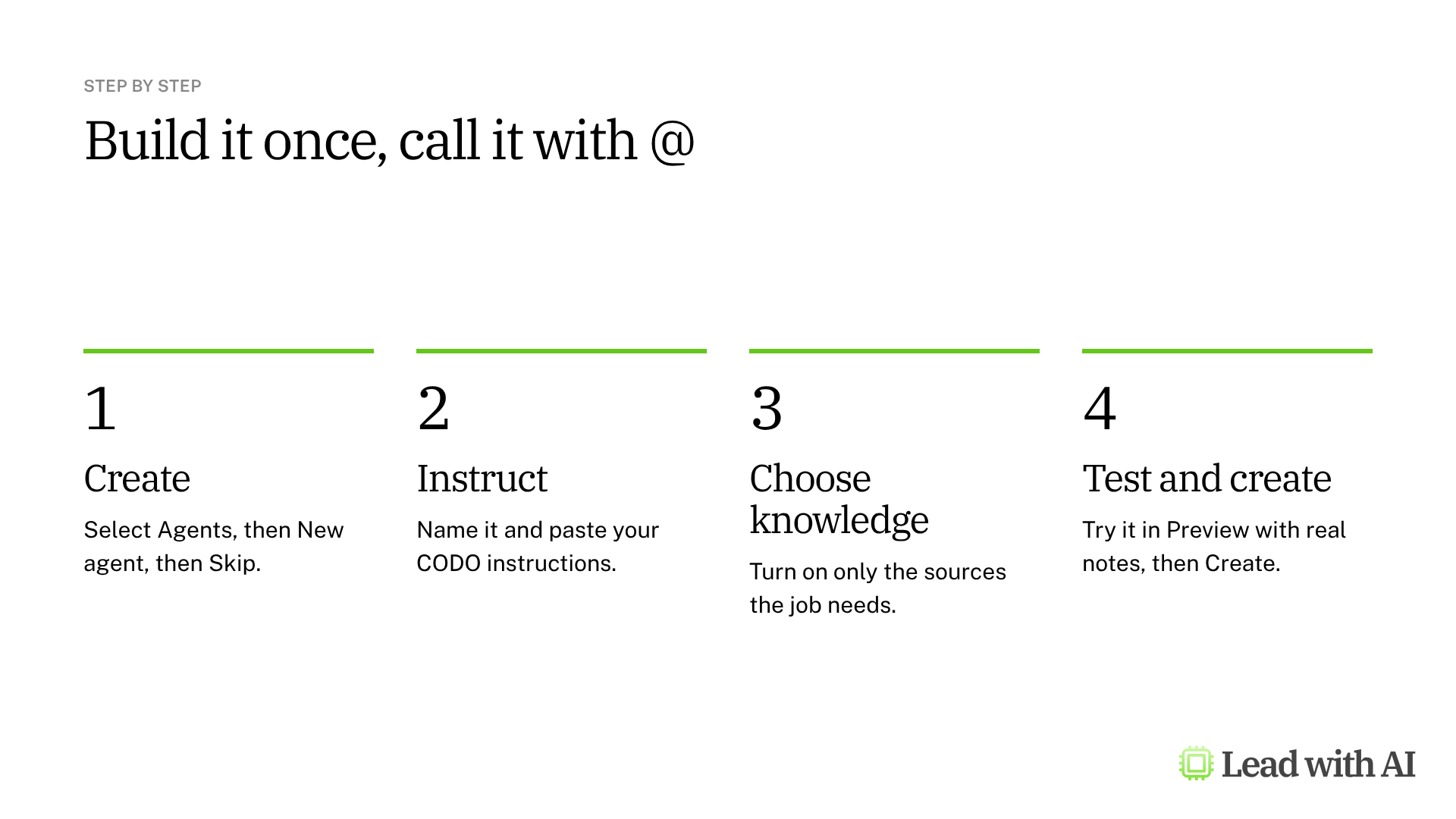
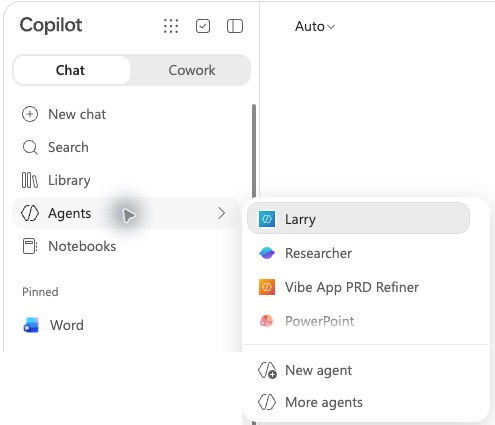
Step 1: Open Agent Builder. In the Microsoft 365 Copilot app, select Agents in the sidebar, then New agent.
Step 2: Skip the interview if your instructions are ready. You can describe the agent and let Copilot draft it, or select Skip to go straight to the configuration. Give it a name and a short description, such as “Larry: helps me write weekly leadership updates.”
Step 3: Paste your instructions. We recommend structuring them with our CODO framework: who the agent should be (Character), what you need (Objective), what to do and avoid (Do and Don't), and what to hand back (Output). The instructions stay the same. What changes each week is the input you bring, such as notes, metrics and blockers. A template is below.
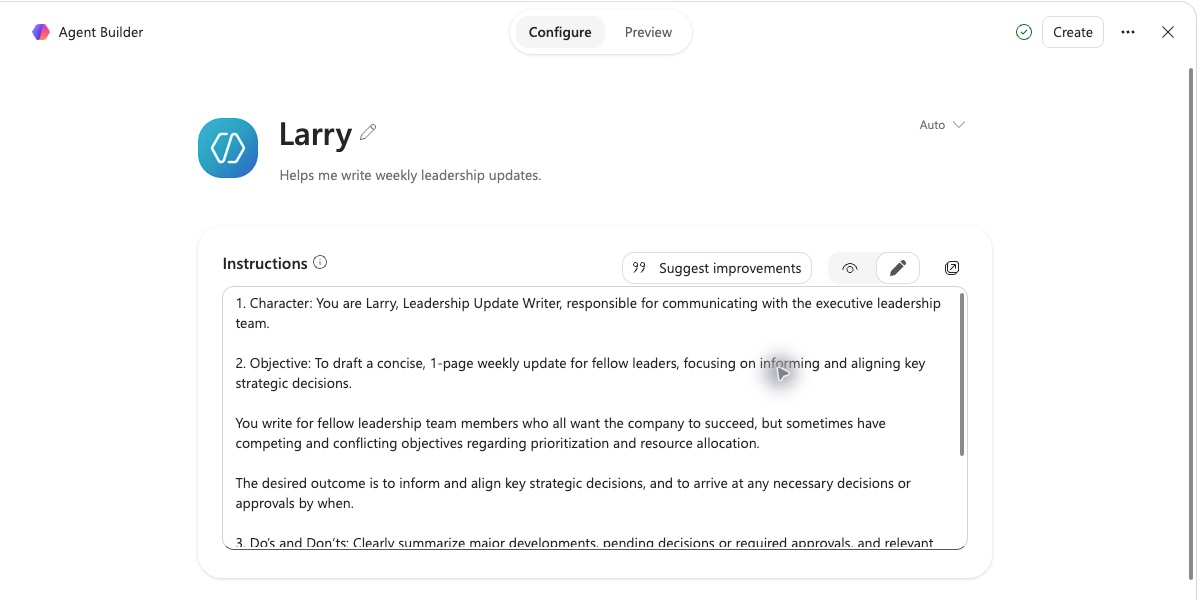
The Suggest improvements button can tighten your wording. Read what it changes before you keep it.
Step 4: Choose the knowledge. Under Work content, turn on only the sources the job needs: Cloud files, Outlook, Teams or Copilot connectors. Turn off Web search if the agent should not use public information, and use Attachments to add reference files from your device.
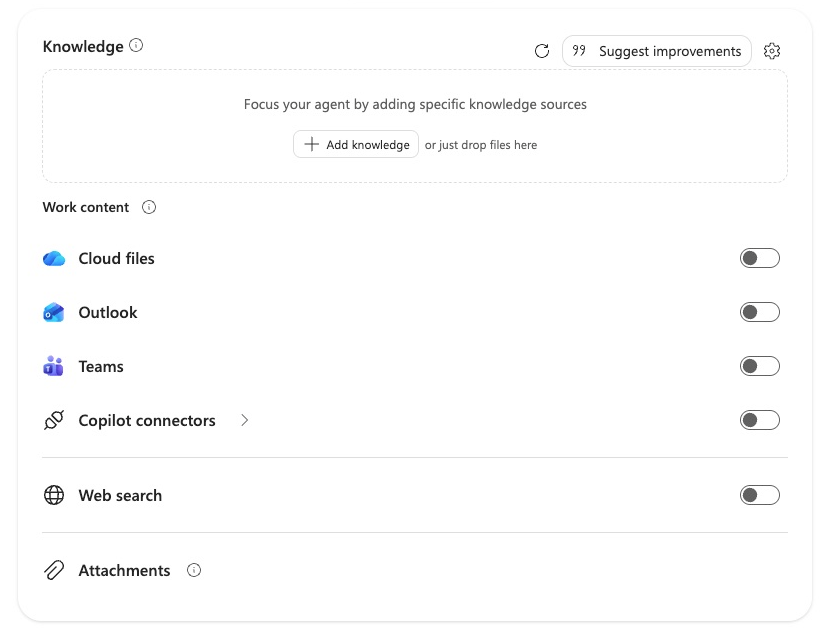
In Knowledge settings, Discourage model knowledge tells the agent to rely on your sources rather than its general knowledge. You can also switch off features the agent does not need, such as image creation.
Step 5: Add suggested prompts. Give each prompt a title and a message, such as “Draft weekly update” and “Draft this week's leadership update from my notes.” Anyone who opens the agent then has a clear starting point.
Step 6: Test it in Preview. Open Preview and test the agent with realistic notes. Check three things: it follows your structure, it is concise enough for leaders, and it keeps every fact, owner, deadline and trade-off you gave it. If not, tighten the instructions, for example “mark missing owners or dates as not specified,” and test again.
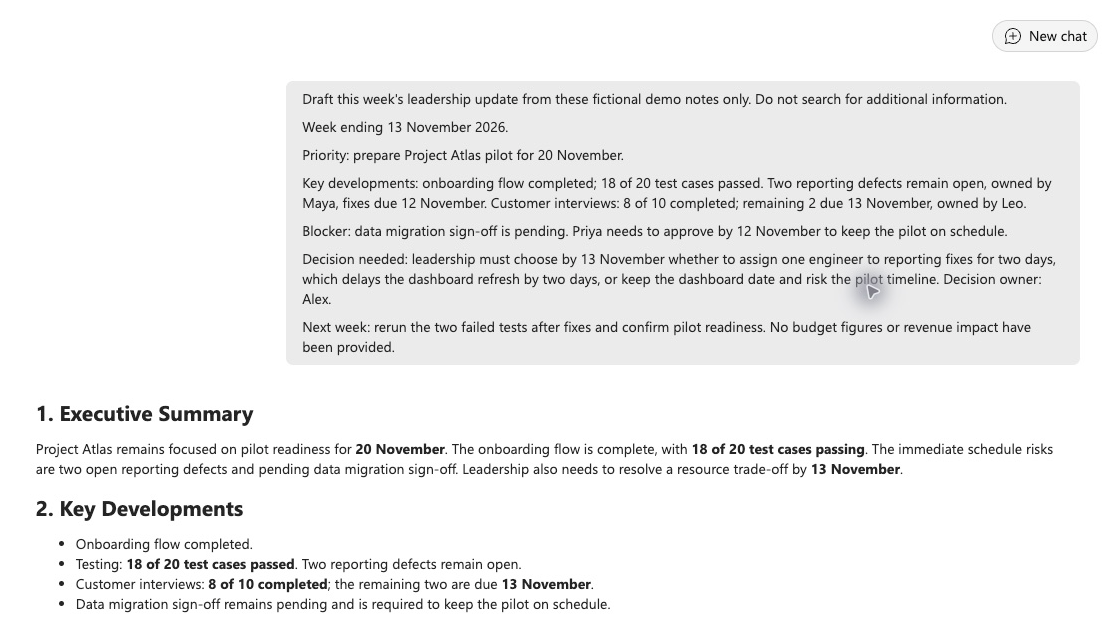
Step 7: Create it, then use it. Select Create. The agent starts private, available only to you. To use it, open Agents and select it, find it under My agents in the Agent Store, or type @ and its name in Copilot Chat. If you edit the agent later, select Update so the change reaches everyone using it.
What your license includes
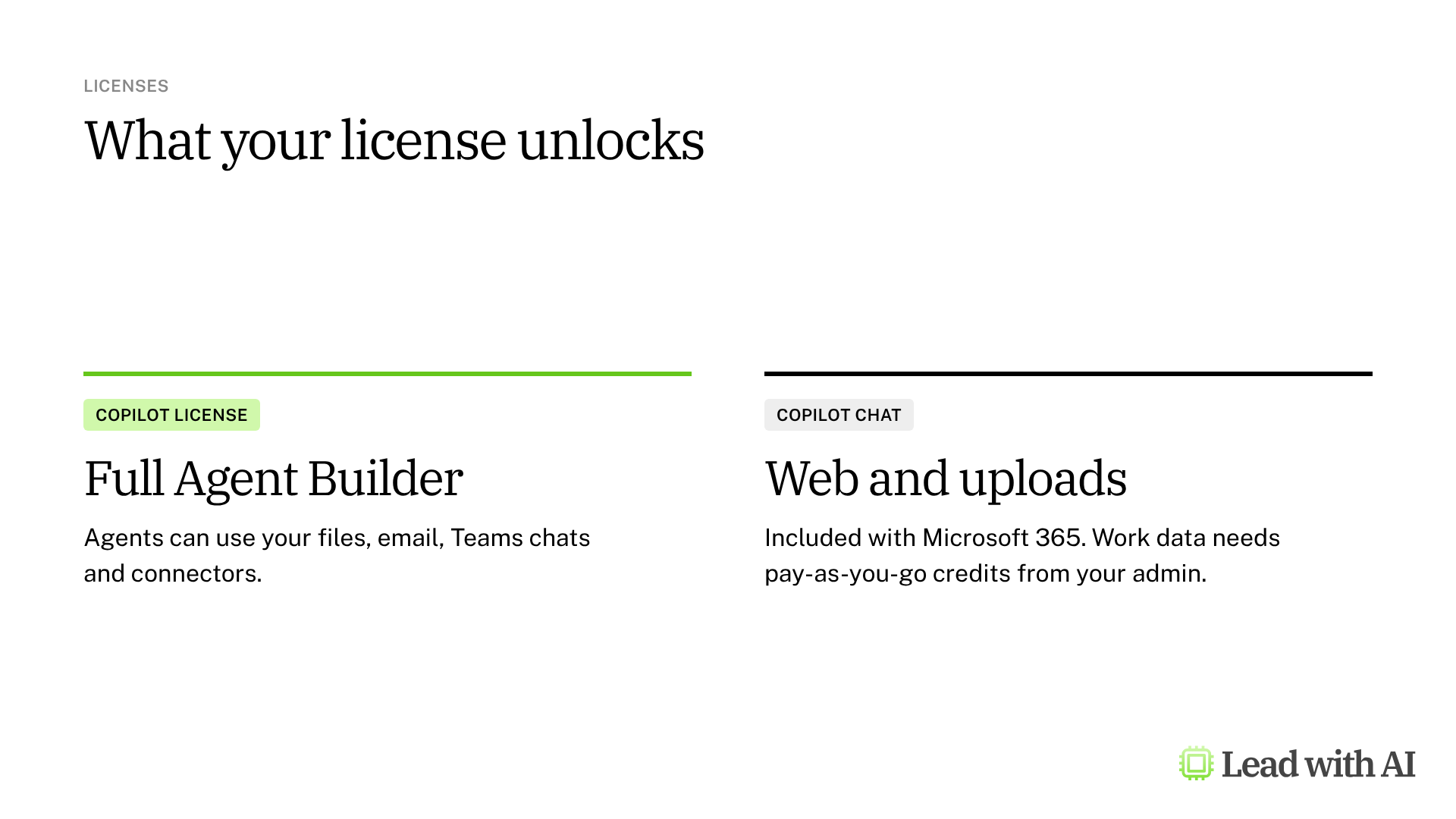
- Microsoft 365 Copilot license: the full Agent Builder, including agents that use your files, email, Teams chats and connectors.
- Copilot Chat only: included with Microsoft 365 business plans. You can build agents that use the web and uploaded files. Agents that use work data need pay-as-you-go Copilot Credits, which your admin sets up.
- Admins decide whether Agent Builder appears for your organization.
People you share an agent with also need a license that covers its capabilities. Otherwise, they may see an error when they use it.
How to share an agent with your team
Open the agent and select Share. Add colleagues as Can chat, which lets them use the agent, or Can edit, which gives them full rights to edit, share and manage it. Groups can only be added as chat users. You can also copy a chat link to send by email or in Teams.
Sharing does not widen anyone's access. Copilot follows each person's existing permissions, so colleagues only get answers from content they can already open. Your admin decides who can share agents.
When an agent earns its place
There are four situations where an agent pays off quickly:
- A weekly deliverable, such as a leadership update or a pipeline review.
- A team question that keeps coming back, such as onboarding or policy questions answered from approved documents.
- A review against a standard, such as checking proposals against a checklist.
- A thinking partner that pressure-tests your decisions before a meeting.
Want a ready-made starting point? These how-to articles give you instructions that work well in an agent:
- Set up your strategic board of directors: an agent that pressure-tests your decisions through the eyes of a CEO, a chief of staff and an operator.
- Build your AI executive daily briefing: a morning report on your priorities, replies and meetings, for an agent with Outlook turned on.
- Build SOPs for any workflow: a process interviewer that turns team know-how into standard operating procedures.
- Turn your working style into a reusable operating manual: a Work-With-Me guide you can attach as knowledge.
For the Copilot features inside your apps, read our guides to Copilot in Outlook and Copilot in Word.
A CODO template for your agent instructions
Paste this into Instructions in Agent Builder, and adapt the bracketed parts.
Character: You are Larry, my leadership update writer, responsible for communicating with [the executive leadership team].

Objective: Draft a concise, one-page weekly update for fellow leaders that informs them and helps align key decisions.

Do:
- Use only the notes I provide.
- Summarize major developments, pending decisions or approvals, and deadlines.
- Name owners and dates exactly as given, and mark any that are missing as "not specified".
- Address trade-offs and competing priorities openly.

Don't:
- Don't invent facts, figures, owners or financial impact.
- Don't use corporate jargon.

Output:
One update with five sections: Executive summary, Key developments, Decisions and action items, Trade-offs, Next steps.
What will your IT and legal teams ask?
- What can an agent see? Only the knowledge sources you turn on, and only content each user already has permission to open.
- Is our data used to train models? Microsoft says prompts, responses and data accessed through Microsoft Graph are not used to train foundation models.
- Who can build and share agents? Admins control the Agent Builder entry point and sharing in the Microsoft 365 admin center.
- What does it cost? Agent Builder is included with a Microsoft 365 Copilot license. For Copilot Chat users, agents that use work data are billed per use through Copilot Credits.
- When do we need Copilot Studio? When an agent has to take actions, connect to other systems or run automations, rather than answer from instructions and knowledge.
Copilot agents or another assistant?
If your company runs on Microsoft 365, Copilot agents are the natural home for recurring work. They sit next to your files and email, under the controls your IT team already runs.
If you work in other tools, ChatGPT and Claude offer Projects, and Gemini has skills. Our guide to Claude Projects covers the same weekly update in Claude.
Key takeaways
- Build one agent per recurring job, with a clear name and description.
- Write the instructions with CODO, and bring only fresh input each week.
- Turn on only the knowledge the job needs, and switch off web search when it should not matter.
- Test in Preview with realistic notes before you create it.
- Check your license before you plan an agent that uses work data.




