




If you keep attaching the same documents to Copilot, a notebook fixes that.
A Copilot notebook is a workspace that holds the references and instructions for one project or recurring job. Every conversation inside it starts with that context in place, so your prompt only needs what is new.
What goes into a Copilot notebook

- References. The files, emails, meetings and pages Copilot should work from. By default, Copilot answers from these references, rather than from your whole mailbox or OneDrive.
- Instructions. How Copilot should respond. They apply to everyone in the notebook.
- Chats. Your conversations with Copilot, which stay private even when you share the notebook.
- Creations. The documents, pages and summaries you create from the notebook.
How to set up a notebook, step by step
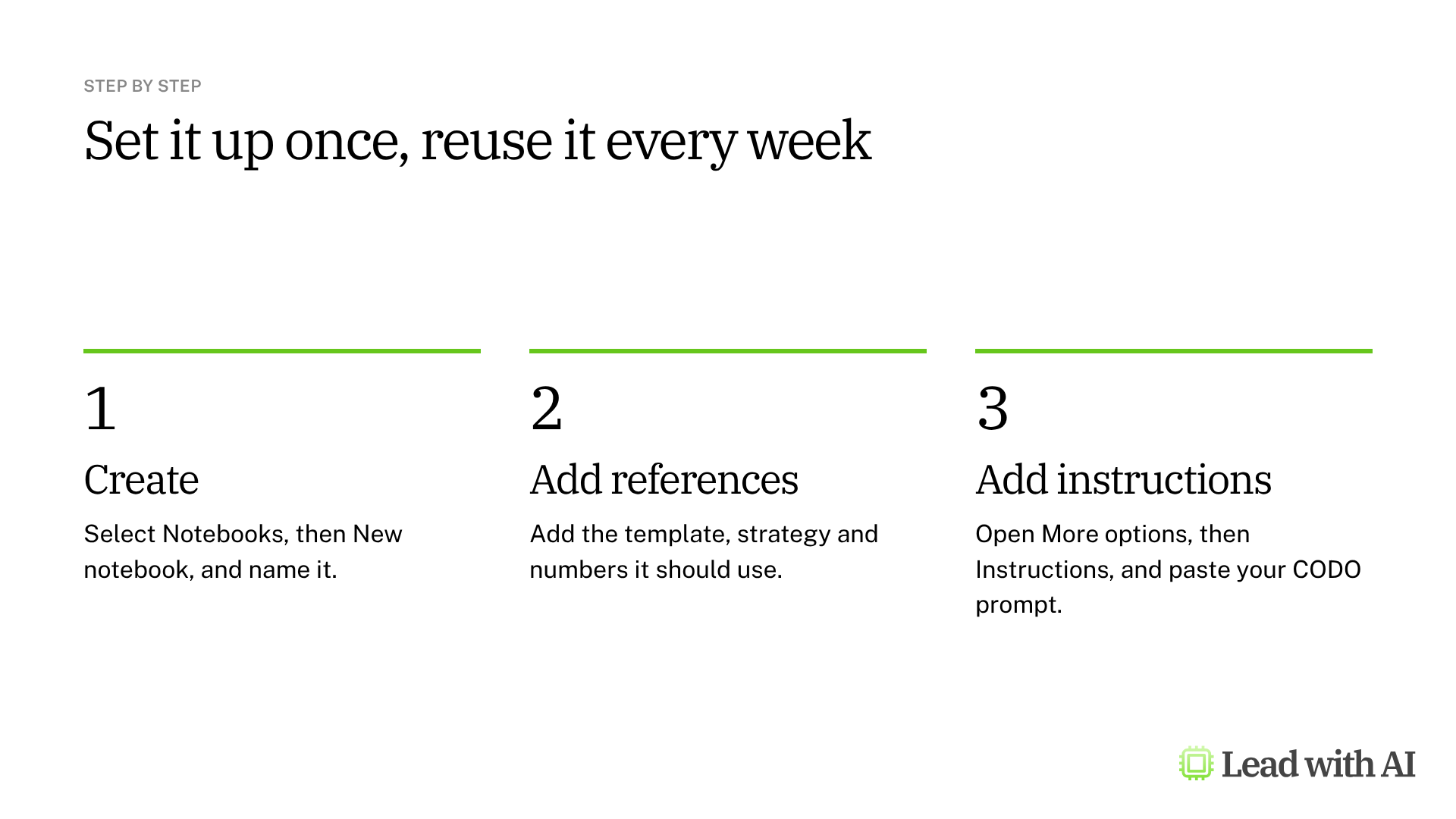
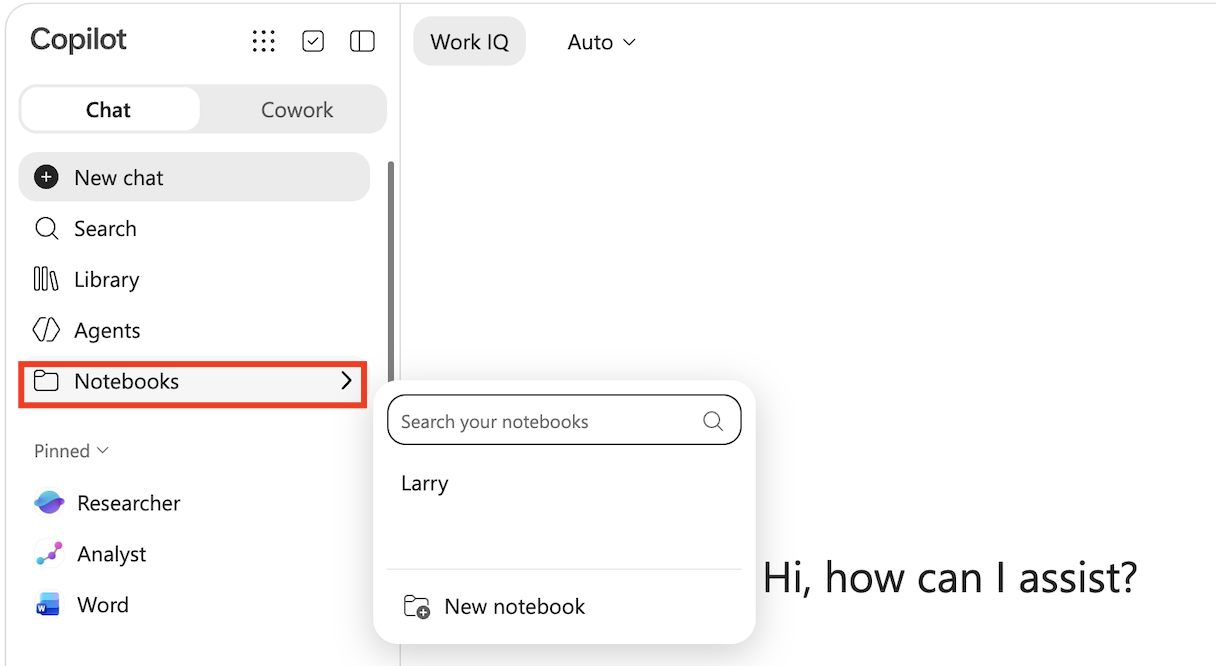
Step 1: Create the notebook. In the Microsoft 365 Copilot app, select Notebooks in the sidebar, then New notebook, and give it a name. If you do not see Notebooks, check the app launcher at the top of the navigation pane.
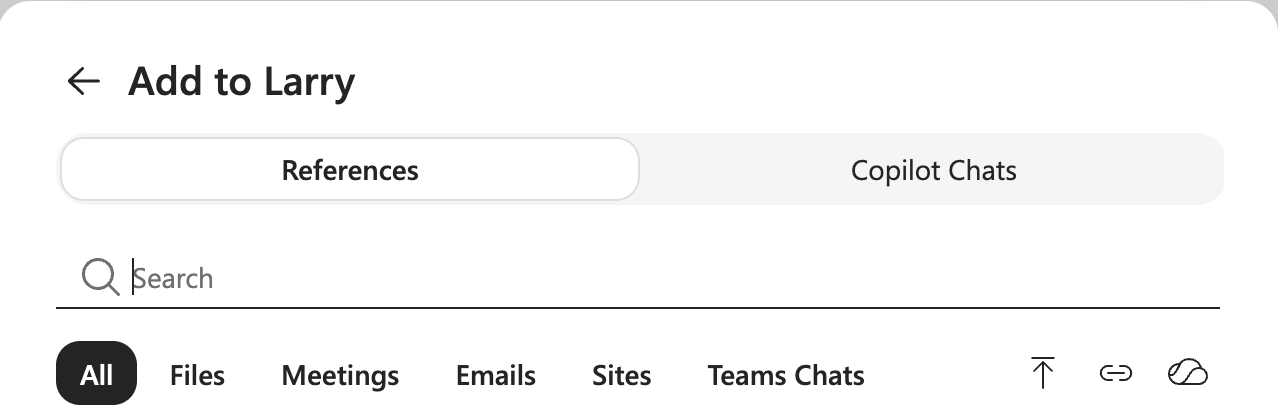
Step 2: Add your references. Under Add content to References, add what Copilot should work from. For a weekly leadership update, that could be your update template, a strategy document and a KPI sheet. You can add Word, PowerPoint, Excel and PDF files, OneNote and Loop pages, emails, Teams meetings and SharePoint pages.
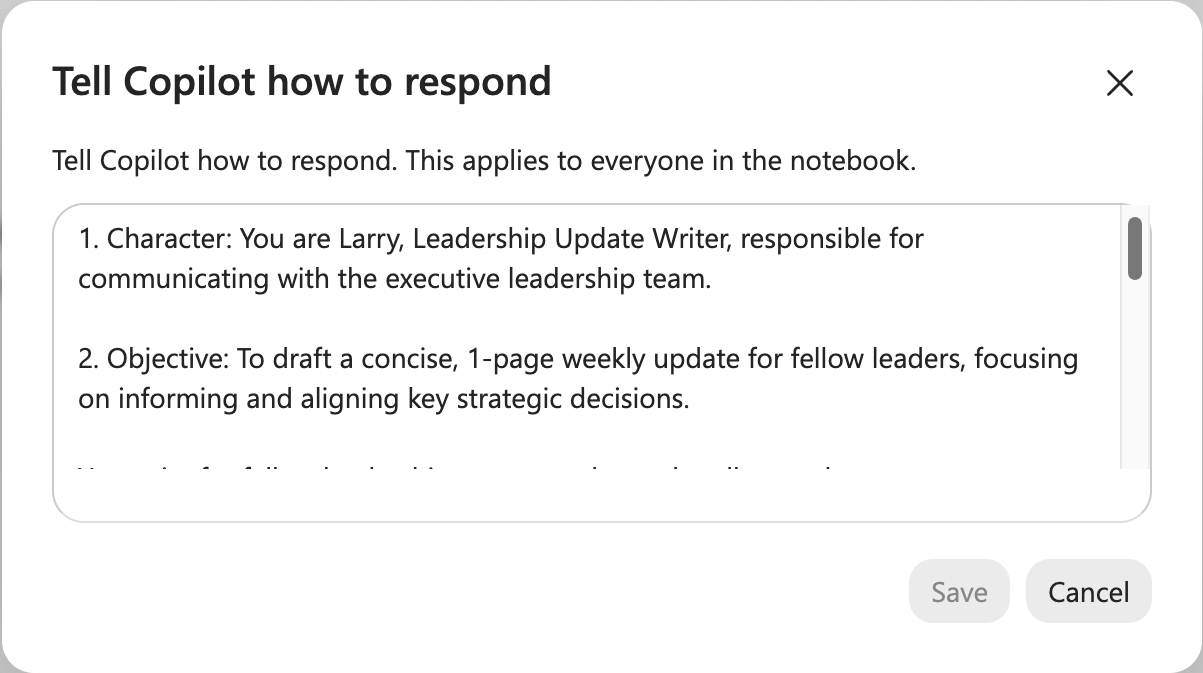
Step 3: Add instructions with CODO. Select More options (the three dots at the top right), then Instructions. Paste your instructions and select Save. We recommend structuring them with our CODO framework: who Copilot should be (Character), what you need (Objective), what to do and avoid (Do and Don't), and what to hand back (Output). A template is below.
Now the notebook has two layers of context. The references define what Copilot works from. The instructions define how it approaches the work.
Step 4: Bring only what changes. Start a chat in the notebook: “Here are my inputs for the upcoming leadership meeting. Please prepare this week's update.” Because the template, strategy and numbers are already there, your prompt can stay short.
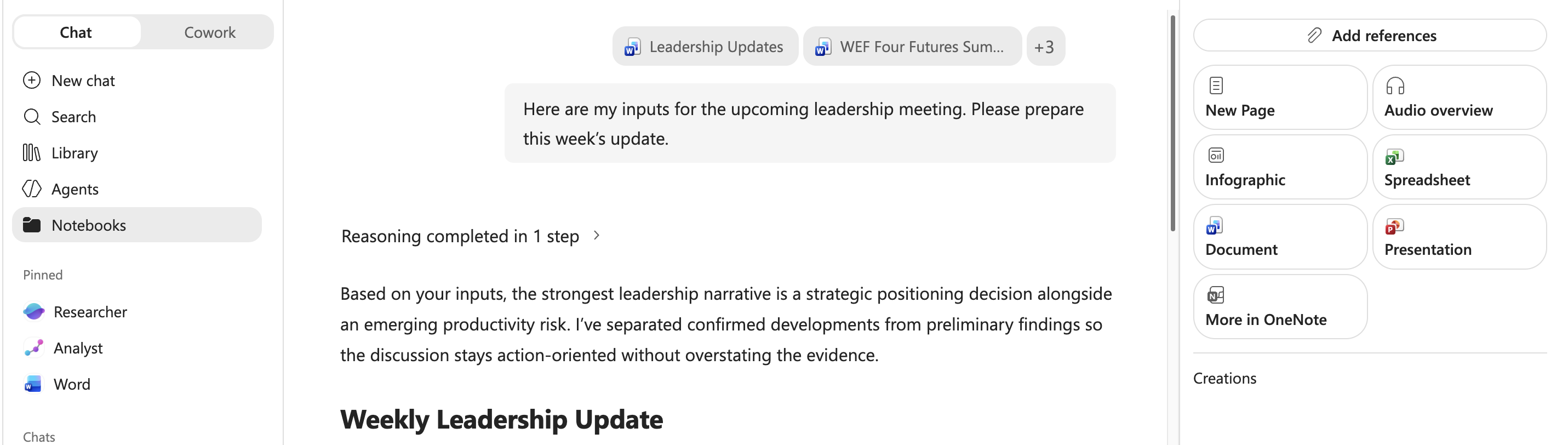
Step 5: Check the result. Make sure the structure follows your template, and follow the citations back to your references to check important numbers and claims.
Go further in OneNote
Open the notebook in OneNote for a fuller workspace. Quick Create adds options such as audio overviews, mind maps and study guides built from your references.

Think of the Copilot app as the quick way to start a notebook, and OneNote as the place to go further. Some of these features depend on your license.
What your license includes

- Microsoft 365 Copilot license: you can add more than 300 references, and Copilot grounds its answers on the first 300, including Teams and SharePoint content.
- Copilot Chat: included with Microsoft 365 business plans. You can add up to 50 references, and Copilot uses all of them.
- Work and school accounts also need a SharePoint or OneDrive service plan to create notebooks.
- Microsoft 365 Personal, Family, Premium and Pro include notebooks too, with some features missing.
How to share a notebook
Open the notebook and select Share. Everyone you invite can edit. There is no read-only role yet, so share with the people who should shape the notebook.
Your conversations with Copilot stay private, even in a shared notebook. Check the references before you share, because colleagues need access to those files for the notebook to work for them.
Notebook or agent?
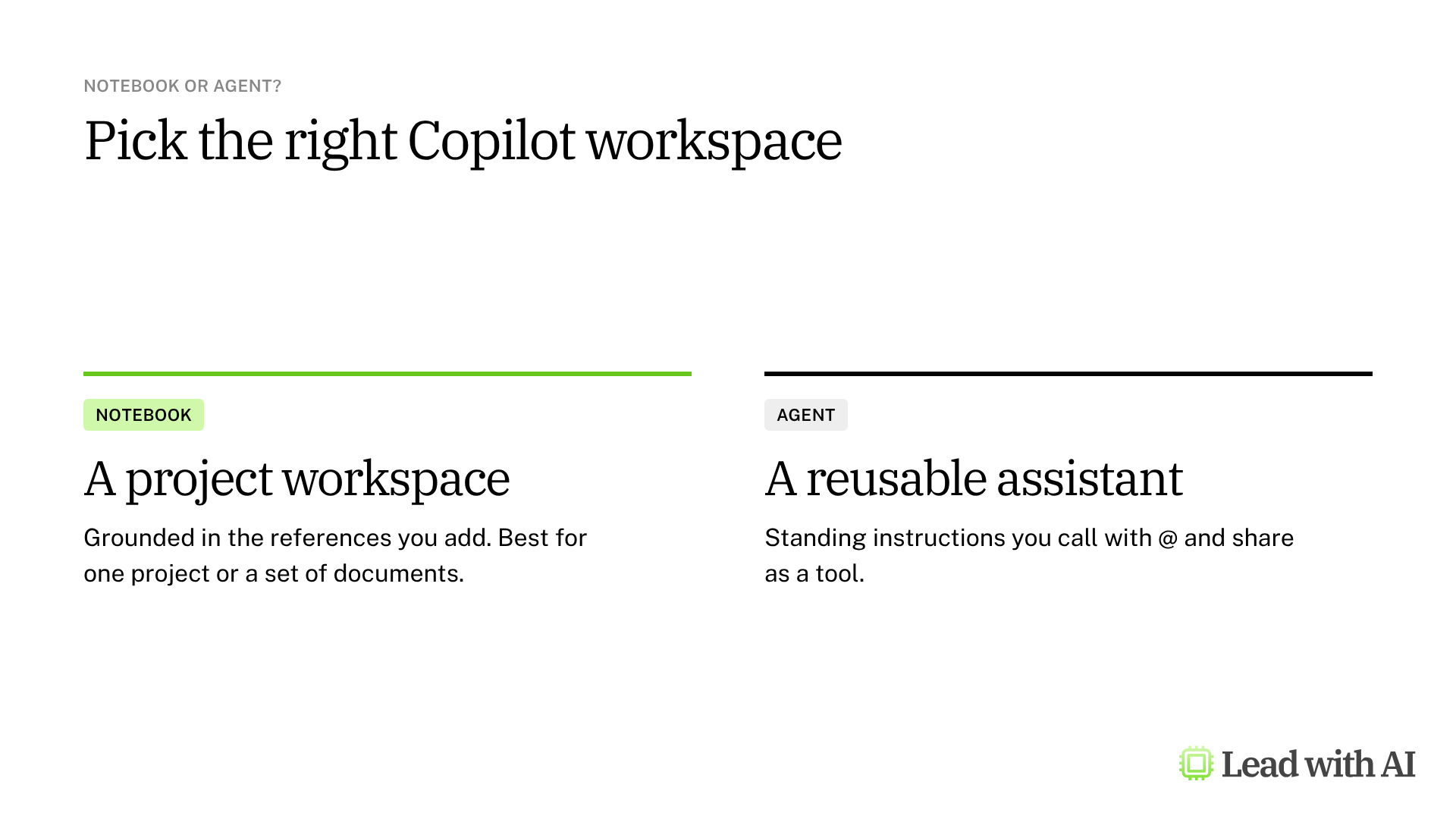
Choose a notebook when the documents matter most, such as a project, a deal or a board pack. Choose an agent when you want a tool with standing instructions that you call with @ and share with a team. Our guide to Copilot agents shows how to build one.
When a notebook earns its place
There are four situations where a notebook pays off quickly:
- A recurring update built from the same template and numbers.
- A project with a fixed set of documents, such as a transformation program or a deal.
- Meeting preparation, with the relevant emails, meetings and decks in one place.
- Research you return to over several weeks.
Want a ready-made starting point? These how-to articles give you material that works well in a notebook:
- Turn your working style into a reusable operating manual: a Work-With-Me guide you can add as a reference, so Copilot knows how you work.
- Build SOPs for any workflow: a process interviewer that turns the documents in your notebook into a standard operating procedure.
- Set up your strategic board of directors: instructions that pressure-test the decisions in your project.
A CODO template for your notebook instructions
Paste this into Instructions, and adapt the bracketed parts.
Character: You are Larry, my leadership update writer, responsible for communicating with [the executive leadership team].

Objective: Prepare a concise, one-page weekly update for fellow leaders that informs them and helps align key decisions.

Do:
- Follow the structure of the update template in this notebook.
- Use the strategy document for context and the KPI sheet for numbers.
- Summarize developments, decisions needed and deadlines from my weekly inputs.
- Flag any number or claim you cannot find in the references.

Don't:
- Don't invent facts, figures or owners.
- Don't use corporate jargon.

Output:
A one-page update in the template's format, followed by a short list of anything I need to confirm.
What will your IT and legal teams ask?
- What can Copilot see? The references you add, which it opens with your existing permissions.
- Where is a notebook stored? In your organization's Microsoft 365 environment, so your existing policies apply. Admins can restrict who creates notebooks.
- Is our data used to train models? Microsoft says prompts, responses and data accessed through Microsoft Graph are not used to train foundation models.
- Can people only view a shared notebook? Not yet. Everyone invited gets edit access, so agree on who should be added.
Copilot notebooks or another tool?
If your company runs on Microsoft 365, a notebook is the simplest way to give Copilot lasting context for a project.
In other tools, ChatGPT and Claude offer Projects, and Gemini has notebooks and skills. Our guide to Claude Projects covers the same weekly update in Claude.
Key takeaways
- Create one notebook per project or recurring job, and name it so you can find it.
- Add the references once: the template, the strategy and the numbers.
- Write the instructions with CODO, so every chat starts the same way.
- Bring only what changes, and check the result against the citations.
- Share carefully, because everyone you invite can edit.




