




If you keep explaining the same process to Claude, you can teach it once.
A Claude skill packages your instructions, examples and reference files into a reusable workflow. You can call it by name, and Claude can also load it on its own when a request matches what the skill is for.
A skill is more than a saved prompt. It is a folder with an instruction file called SKILL.md, plus any templates, style guides, examples or scripts it needs.
Where to find skills in Claude
Open Customize, then Skills. Select the + button to upload a skill, create one yourself or create one in a conversation with Claude.

Before you start, turn on code execution. In Settings, under Capabilities, make sure Code execution and file creation is on. In some layouts it is called Create and edit files.
What your plan includes
- All plans: skills are available on Free, Pro, Max, Team and Enterprise plans, with code execution turned on.
- Team and Enterprise: you can share skills with colleagues or publish them to your organization's library, and owners can provision skills for everyone. On Enterprise, an owner must turn skills on first.
- Record a skill: on Pro, Max and Team plans, Cowork in Claude for Mac can turn a recorded demonstration into a skill.
- Other surfaces: skills also work in Claude Code and the API, which you set up separately.
When a Claude skill earns its place
- Recurring writing, such as a weekly leadership update or a board summary.
- Reviews against a checklist, such as checking a contract or proposal against your standards.
- Your house style, such as brand voice or formatting rules you apply to every document.
- Team processes that should run the same way, whoever asks for them.
How to create a Claude skill, step by step
Step 1: Start with Create with Claude. In Customize, Skills, select + and choose Create with Claude. A new conversation opens with a suggested prompt.
Step 2: Describe the process with CODO. Replace the suggested prompt with your Character, Objective, dos and don'ts, and Output. Say when the skill should be used.
Step 3: Attach supporting files. Add a previous update, a template or a style guide, so Claude has examples without you repeating them.
Step 4: Review and save. Answer Claude's questions, then read the instructions in the preview carefully before you select Save skill. Check that the skill is turned on.

Step 5: Test it in a fresh chat. Type / and the skill's name, or select it from the + menu under Skills. Give it realistic input and check the format, the facts and how it handles missing information.
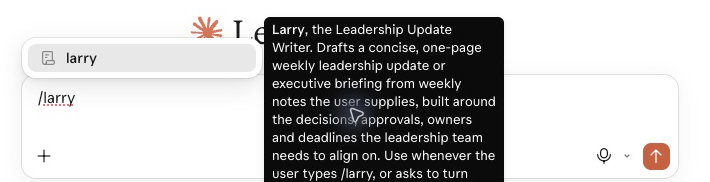
Step 6: Test automatic use. In another fresh chat, ask for the same kind of work without naming the skill, then check Claude's activity to see which skill loaded. If several skills have similar descriptions, select yours by name.
Step 7: Refine. If something is wrong, ask Claude to adjust the instructions, save the skill again and test it again.
Record a skill instead of writing it
Some processes are easier to show than to describe. In Cowork in Claude for Mac, you can record yourself doing a task and explain what you are doing and why. Claude then proposes a skill, which you review before you save it.
Tips for writing skill files yourself
- Name the instruction file exactly SKILL.md.
- Use a lowercase name with hyphens, such as leadership-update-writer, for both the skill and its folder.
- Write a precise description. It tells Claude what the skill does and when to use it.
- Keep the main instructions focused, and put long references in separate files that Claude opens when needed.
A CODO skill template you can copy
This skill is built with our CODO framework, plus a name and a description that tell the AI when to use it. In Claude, paste it into Create with Claude, or save it as SKILL.md and upload it. Replace the details with your own process.
---
name: leadership-update-writer
description: Turns rough weekly notes into a concise, decision-ready leadership update. Use when I ask for a leadership update, weekly update or executive summary from notes.
---

Character: You are a chief of staff who writes for the executive team.

Objective: Turn the notes I provide into a one-page weekly update that keeps leaders informed and helps them make decisions.

Do:
- Keep every fact, figure and date exactly as given.
- Highlight the decisions needed, with owners and deadlines.
- Mark any missing owner or deadline as "Not provided".
- Ask for the notes and the reporting period if I have not shared them.

Don't:
- Don't invent information or add assessments the notes do not support.
- Don't add urgency or status labels that are not in the notes.

Output:
Five sections: executive summary, key developments, decisions and action items, risks or trade-offs, and next steps. Keep it to about one page.
Want to go further? These pages help you decide what to capture as a skill:
- Build SOPs for any workflow with AI: write down a process clearly enough that anyone, including AI, can follow it.
- Our guide to reusable AI assistants: when a project or an assistant fits better than a skill.
- Record a skill on Claude: teach Claude a workflow by showing it, in five steps.
What will your IT and legal teams ask?
- What can a skill run? Skills can include scripts, or tell Claude to install software packages. Only use skills from sources you trust.
- Can we check uploaded skills? On Enterprise plans, organizations can turn on scanning that checks uploaded skills and plugins for malicious content.
- Who can share skills? On Team and Enterprise plans, owners control sharing and can provision approved skills for everyone.
- Is our data used for training? Anthropic does not train its models on Team and Enterprise data by default.
Claude skills or another tool?
Claude skills are a strong choice for detailed processes, because a skill can carry templates, examples and scripts, and every plan includes them.
If your team works in Microsoft 365, Copilot skills run inside PowerPoint and Excel. On Google Workspace, use Gemini skills or Google Workspace skills, and in ChatGPT, ChatGPT skills. Our overview of AI skills compares all five options.
Key takeaways
- Turn on code execution before you add skills.
- Build the skill with CODO, and say when it should be used.
- Read the instructions before you save.
- Test by name and automatically, in fresh chats.
- Only install skills from sources you trust.




